
How can we help?

In Mail you write business email from your own mailbox: a quotation to a customer, a question to a supplier. This guide takes you from a new message to Send, shows how to be sure the message went out, and how to keep an unfinished one as a draft. To answer a message you received, see “Reply to and Forward an Email”.
Before you start
- Your mailbox is connected in Mail. If it is not, follow “Connect Your PearlFibers Mailbox” first.
Step 1 — Start a new message
- On the home screen, click the Mail tile. Your inbox opens.
- Click New Message, the blue button at the top of the card that lists your folders. On a phone that card is hidden: tap the small button beside the folder's name, and the panel Folders opens with New Message at its top.
- Look at the page that opens. It is headed New Message, and its line From: shows the address the message is sent from.
With several mailboxes connected, that is the one whose inbox you were in. It cannot be changed on this page, so open the right inbox first, as “Work with Several Email Accounts” shows.
Step 2 — Enter the addresses and the subject
- In To:, type the full address of the person you are writing to. For several people, put a comma between the addresses:
omar.khalid@example.org, sales@example.com. - For a copy, click CC or BCC (a hidden copy) at the end of the To: line and type the address in the line that appears. The cross at the end of that line hides it again and empties it.
- In Subject:, type what the message is about.
Read the addresses once more. Whatever is not a complete address — a name without an address, an address with a letter missing after the @ — is left out without a word, and the message goes to the rest. An empty subject or an empty text does not stop the message either.
Step 3 — Write the text
- Click in the large box under Subject: and write your message. If your mailbox has a signature, it already stands in the box, under an empty line for your text; “Create an Email Signature” shows how to make one.
- To shape the text, use the row of buttons on the box. In order they are: a size menu that reads Normal, bold, italic, underline, strikethrough, numbered list, bullet list, link, picture, code block and clear formatting.
Bold text arrives bold, and a list arrives as you made it: bullets as bullets, numbers as numbers. Send a photo or a scan as an attached file (Step 4) rather than with the picture button: an attached file arrives unchanged, under its own name.
Step 4 — Attach files
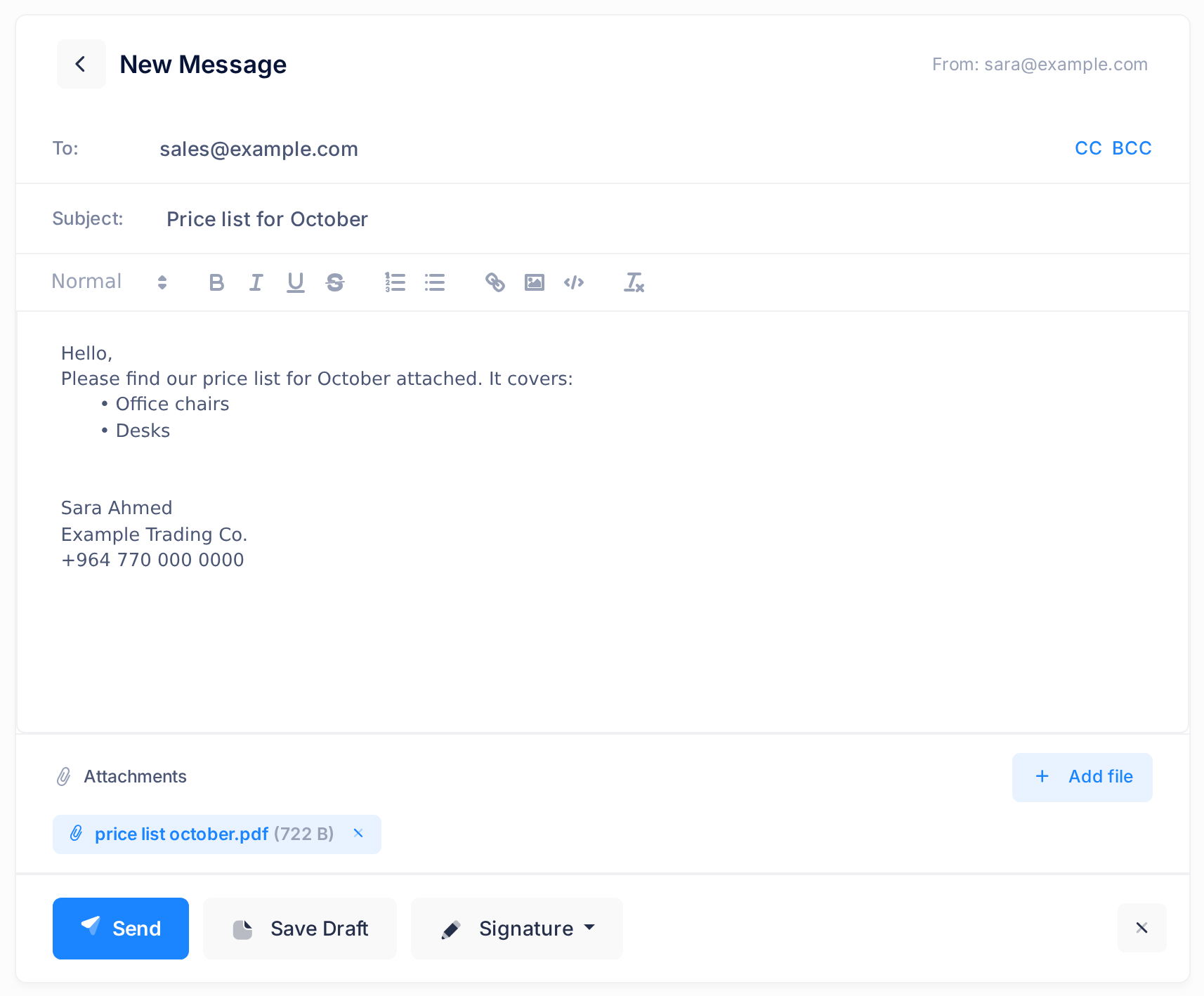
- In the row Attachments under the text box, click Add file and choose one or several files on your device.
- Wait: a bar and the word Uploading with the file's name show under the row, and Send is pale and cannot be clicked until every file has arrived.
- Check the label that now stands in the row: the file's name, exactly as on your device, and its size. To take a file off again, click the cross on its label; it goes at once, without a question.
Loop sets four limits. A file that breaks one is not attached, and a box that begins with the file's name says why:
- more than 10 files on one message — A message can carry at most 10 files.
- a file of more than 25 MB — This file is larger than 25 MB and cannot be attached.
- an empty file — This file is empty and cannot be attached.
- a program or a script, such as a file ending in .exe — Files ending in .exe cannot be attached. Programs and scripts are not accepted.
A PearlFibers mailbox takes much less. Its mail server — the computer that sends and keeps your mail — refuses a message of more than about 10 MB, and files grow by about a third when packed into a message. Loop tells you only after you click Send, so keep the files of one message under about 7 MB together.
Step 5 — Send and check
- Click Send at the foot of the page. The button turns pale and shows a turning ring with Sending... while the message is on its way. A sent message cannot be taken back.
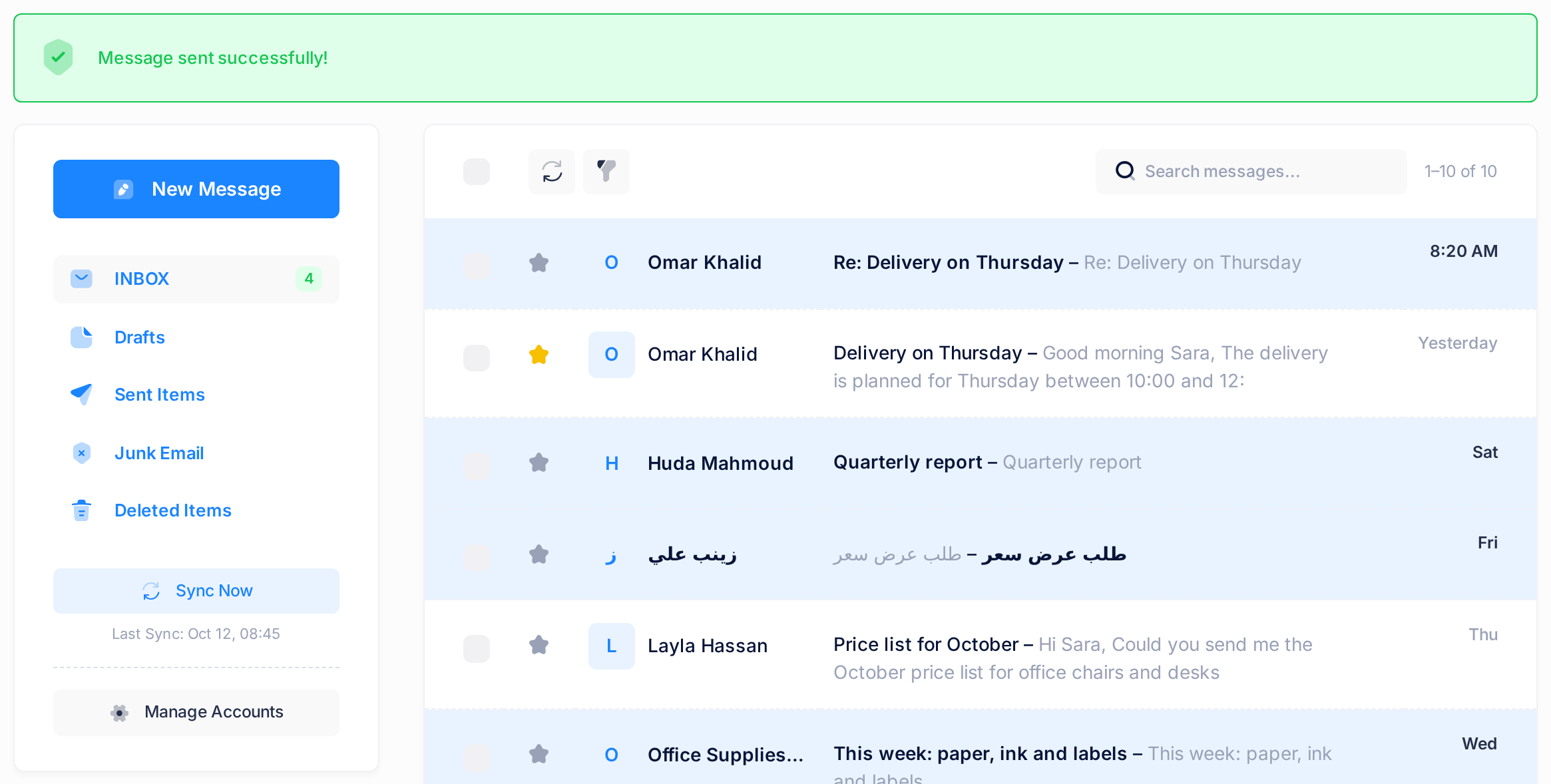
- Wait for the proof: the page changes to your inbox, and a green line above the messages reads Message sent successfully!
What happens next
The other person receives an ordinary email from your address; Loop tells nobody else. The green line shows once and is gone when the page loads again.
When in doubt, look for Loop's copy. In the list of folders, open the folder for sent mail: most PearlFibers mailboxes call it Sent Items; in a mailbox without one, Loop adds a folder named Sent at your first message. Each line there starts with To: and the name or address the message went to, cut short when long. Opened, the copy shows them in full — an address that was left out in Step 2 is missing — and the whole message with its files.
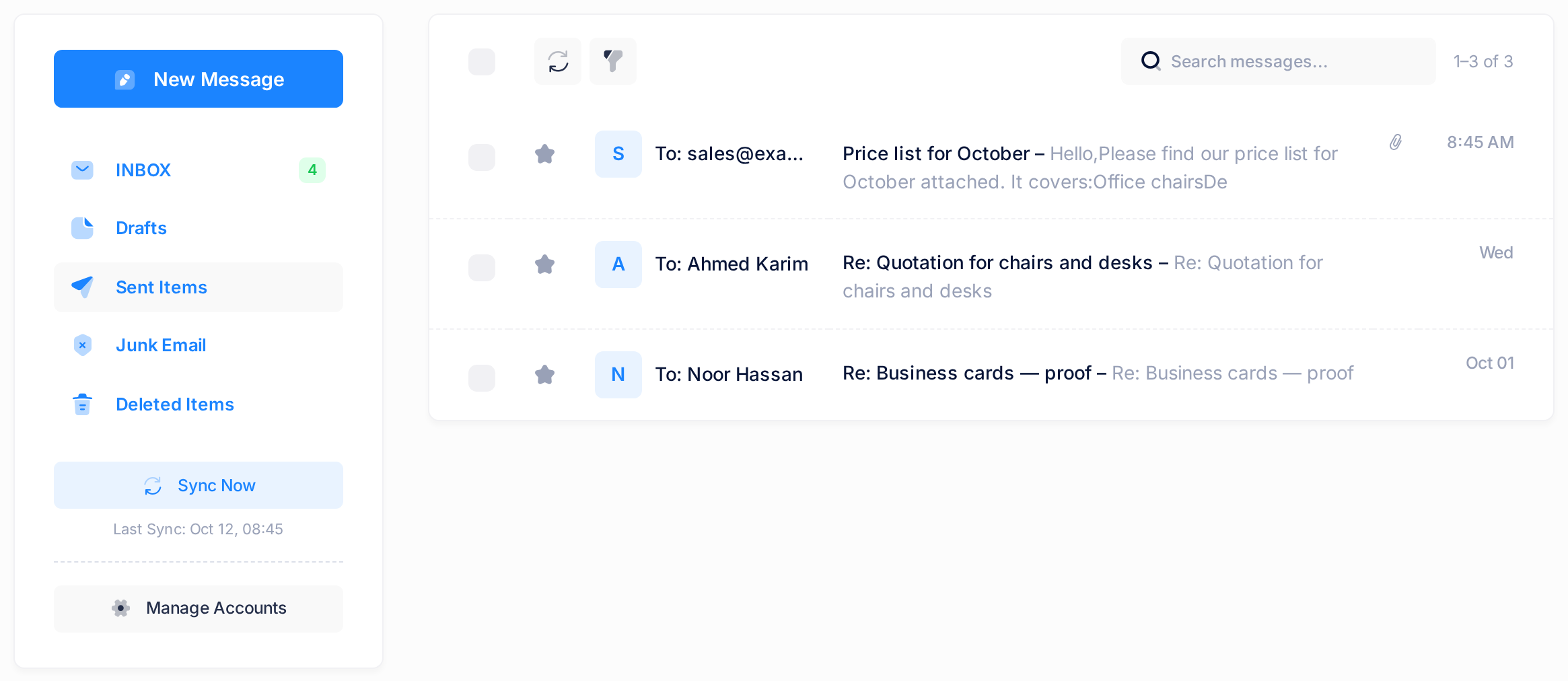
A copy in this folder means your mail server accepted the message; a message that could not be sent leaves none.
Keep an unfinished message as a draft
- Save it. Click Save Draft at the foot of the page; the button reads Saved for two seconds. The page also saves by itself every 30 seconds, if To:, the subject or the text has changed; the only sign of that is the bin button described below. Leaving the page asks no question and loses what you typed since the last save — click Save Draft first.
- Continue it. Open the folder Drafts in the list of folders and click the draft. The writing page opens, headed Edit Draft, with the addresses, the subject and the text. Saving again updates the same draft, and sending it removes it from the folder.
- Attach the files again. A draft keeps no files: when you open it, the row Attachments is empty. Add the files again before you send.
- Discard it. Once a message has a saved draft, a bin button (Discard Draft) stands at the foot of the page, beside the cross. It asks Discard this draft? — OK removes the draft and the files attached on that page and returns you to the inbox, with no note; Cancel changes nothing. A discarded draft cannot be brought back.
On a phone
The writing page has no button for your folders: to reach them, save the draft, then tap the cross at the foot of the page, which takes you to the inbox.
Where sent mail and drafts are kept
Mail shows Loop's own copy of your mailbox, and the copy of a message you sent and your drafts exist in that copy only: Loop does not put them into the mailbox itself, so Outlook or the mail app on your phone shows neither. The other way round works: mail that those programs keep in the mailbox's sent folder arrives in Loop's too.
If something goes wrong
A message that could not be sent stays on the page with everything on it — addresses, subject, text and files — and a box says why.
- Enter at least one valid email address in the To box. Separate several addresses with commas. No complete address stands in To:; one in CC: or BCC: alone is not enough.
- The message was not sent: it is too large for the mail server. Remove an attachment or attach a smaller file, then send again. Ignore the mail server's own English words that follow in brackets.
- Another box that begins The message was not sent: names its cause in the same way. If the mail server did not accept the sign-in of this account, follow “Fix a Mailbox That Stopped Syncing”. If it could not be reached, wait a few minutes and send again. If it refused one or more of the addresses, the brackets name them: correct them. The other addresses may already have received the message, and receive it twice if you send to them again.
- A box that begins Network error. Please try again. means your browser got no readable answer from Loop; the message may have gone all the same. Check your internet connection, look for the copy in the folder for sent mail in a second browser tab, and send again only if none is there.
- A draft opens for reading, not for writing. It was written in another mail program; Loop continues only the drafts written in Loop.
Still stuck? Click Save Draft to keep your text, then click the Loop logo at the top of the page to return to the home screen, click Help, then Submit a Ticket, and send us the exact words of the box and the time you clicked Send.