
How can we help?

When you answer a message in Mail or pass it on, Loop prepares the new message for you. This guide shows what Reply, Reply All and Forward each put on the page, so that you know who receives your message, and what goes with it, before you send.
Before you start
- Your mailbox is connected in Mail. If it is not, follow “Connect Your PearlFibers Mailbox” first.
- A sent message cannot be taken back. Step 5 has three checks to make first.
Step 1 — Open the message and read who it went to
- On the home screen, click the Mail tile. Your inbox opens.
- Click the sender's name or the subject of the message. It opens on its own page.
- Under the sender's name, read the line To: — it names everyone the message was addressed to, by name or by address. A line CC: under it names those who got a copy; a message without copies has none.
- Scroll to the end of the message. Under its text and its files are the buttons Reply, Reply All and Forward.
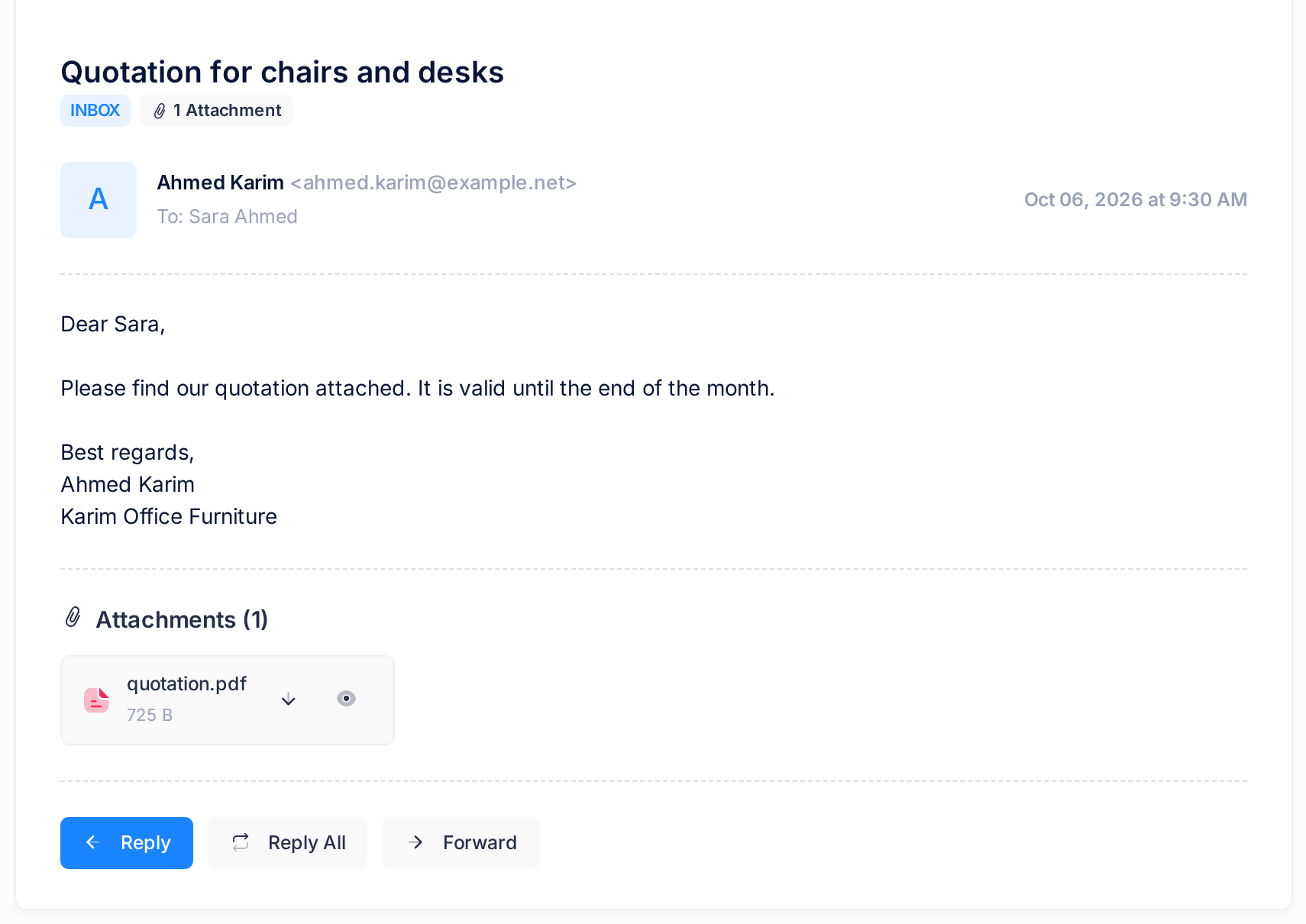
Those two lines decide what Reply All does: when To: names nobody but you and there is no CC: line, it answers the sender alone, as Reply does.
Which button?
| Button | Who receives your message | The original's text | The original's files |
|---|---|---|---|
| Reply | The sender only | Quoted under your answer | Not sent |
| Reply All | The sender and, as a copy, everyone else the original went to | Quoted under your answer | Not sent |
| Forward | Only the people you type in | Under a line that marks it as forwarded | Sent, unless you take them off the list |
Follow Step 2, 3 or 4, then Step 5.
Step 2 — Reply: answer the sender
- Click Reply. The writing page opens, headed Reply.
- Read what Loop has filled in:
- To: — the sender's address, without the name. Loop takes the address the message came from; if the message asks for answers at another address, type that one.
- Subject: — the original subject with
Re:in front, unless it already begins that way. - No CC: line.
- The text box — two empty lines for your answer, a line that names the original, such as
On Oct 06, 2026 at 9:30 AM, Ahmed Karim <ahmed.karim@example.net> wrote:, then the original text. - Attachments — empty: the original's files are not sent back with a reply.
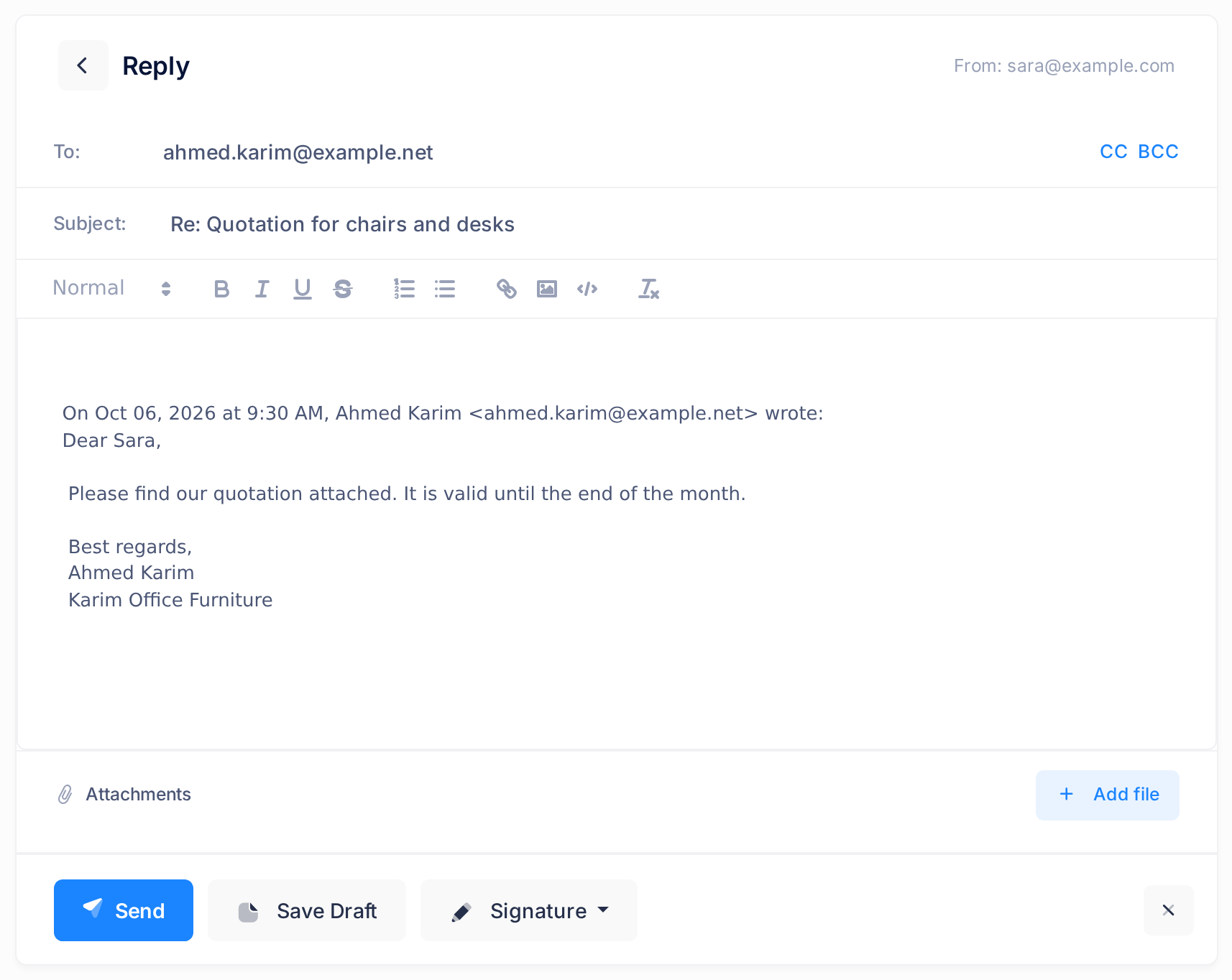
The “wrote:” line, Re: , Fwd: and the forwarded block of Step 4 are in English in the Arabic interface too.
Step 3 — Reply All: answer everyone
- Click Reply All. The writing page opens, headed Reply All.
- Read the address lines. To: holds the sender. Under it, Loop shows a line CC: with every other address from the original's To: and CC: lines — each once, without names, and never the address of the mailbox you are writing from.
Subject, text box and Attachments are filled as in Step 2.
Step 4 — Forward: pass the message on
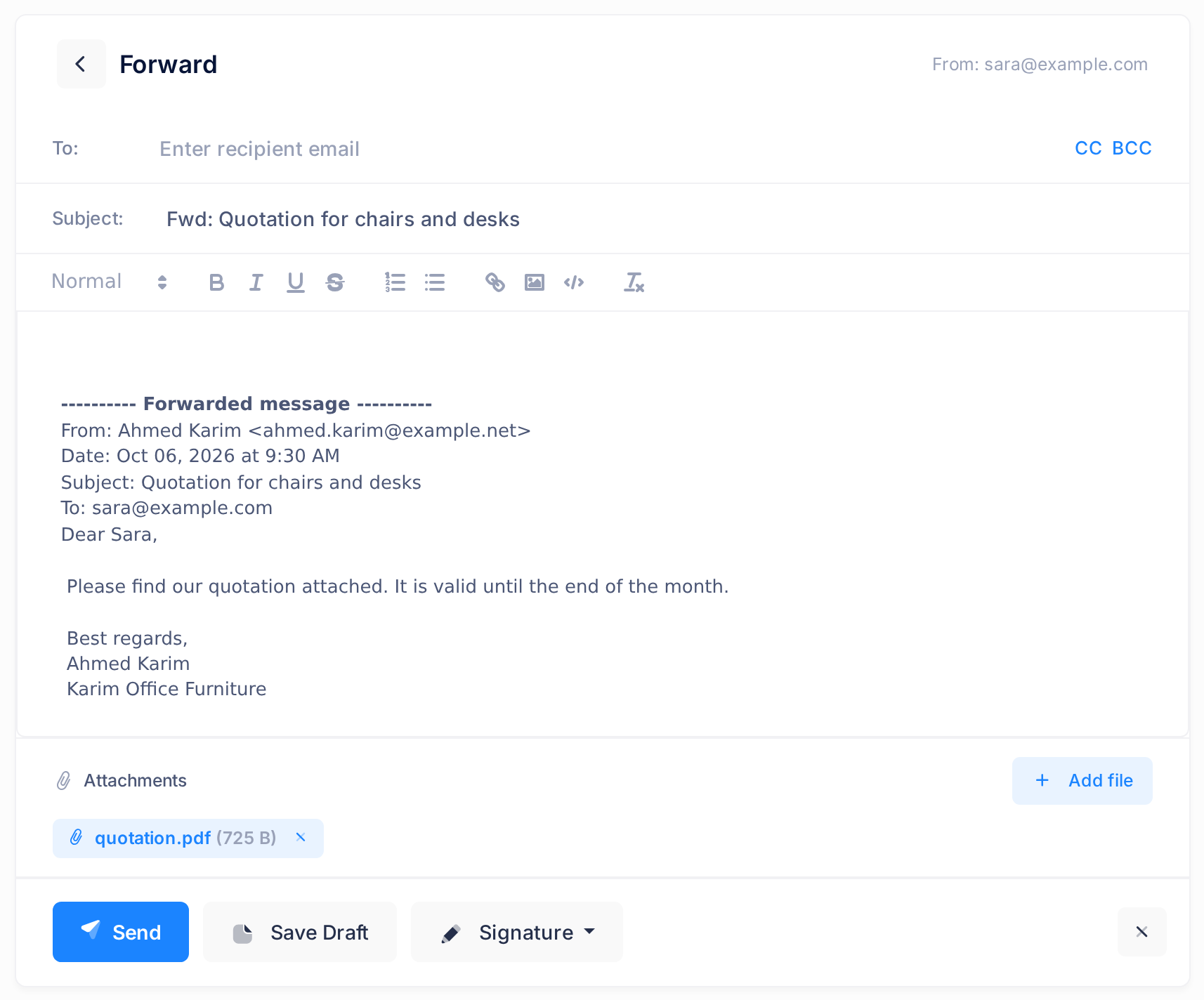
- Click Forward. The writing page opens, headed Forward.
- Read what Loop has filled in: the subject with
Fwd:in front, and in the text box two empty lines for your note, the bold line ---------- Forwarded message ----------, four lines From:, Date:, Subject: and To: taken from the original, then the original text. - Look at the row Attachments: the original's files are already listed, each with its name, its size and a cross.
- To leave a file out, click its cross; it is taken off without a question.
- Before you type anything, look under the list for a yellow line that begins Files of the original message that could not be added: 1. If it is there, open the original message again and read the cards of its files. A card without buttons says why the file is missing and what to do (see “Open Attachments and Blocked Images Safely”). When the card has its down-arrow button, click Forward again; if the file is still not listed, save it with that button and attach it with Add file.
- In the empty To: box, type the address of the person who should get it. Separate several addresses with commas.
Step 5 — Write, check three things and send
- Click in the first empty line of the text box and type. The original under your words is sent along; you may shorten or delete it. Leaving the page loses what is not saved, without a question.
- To attach files of your own, click Add file.
- To sign, choose one of your signatures from the Signature menu at the foot of the page: none is added to a reply or a forward by itself, and yours goes to the end of the text, under the original. Manage Signatures in that menu leaves the writing page: make a signature beforehand (see “Create an Email Signature”).
- Check the recipients: every address in To: and, when it shows, in CC: receives your message. If you pressed Reply All and meant the sender alone, click the cross at the end of the CC: line, which hides and empties it — not the cross at the foot of the page, which leaves it.
- Check the files: Loop sends exactly the files listed in the row Attachments. A forward reopened from a saved draft has none: a draft keeps no files.
- If the original lay in the junk folder, Junk Email, check the quote: in place of each picture kept on another site stands a plain line such as Image blocked: Your gift, which is sent along unless you delete it.
- Click Send. The button turns grey and shows Sending...; then your inbox opens with a green note above the list, Message sent successfully!
“Write and Send an Email” covers addresses, the text box and attaching files.
What happens next
Loop keeps a copy in your folder for sent mail — Sent Items on most PearlFibers mailboxes — on a line that begins with To: and the recipient. Open it to see who received your message and which files went with it.
This copy exists in Loop only: other mail programs, such as Outlook or the mail app of your phone, do not show it (see “Understand How Mail Syncs”).
The original gets no “answered” or “forwarded” sign in Loop: that copy is how you see that you answered.
On a phone
As on a computer, the three buttons are at the foot of the message; on the writing page, Send, Save Draft, the Signature menu and the cross that leaves the page are at its foot.
If something goes wrong
When Send answers with an alert box, everything is still on the page. Read how the box begins.
- Enter at least one valid email address in the To box. Nothing was sent: the To: box is empty, as on a new forward, or holds nothing Loop reads as an address. Correct it and click Send again.
- The message was not sent: it is too large for the mail server. A PearlFibers mailbox sends about 7 MB of files in one message. Take files off with their crosses until the rest fits, and send the others in a second message; a single larger file cannot be sent from this mailbox.
- Network error. Please try again. The page got no answer from Loop that it could read; the message may have gone out all the same. Before you send again, look for it in your folder for sent mail in a second browser tab.
Still stuck? Click Save Draft first, so that your text is kept. Then click the Loop logo at the top of the page to return to the home screen, then Help and Submit a Ticket, and tell us the subject of the message, the button you pressed and the exact words on the screen.