
How can we help?

A signature is a block of text — your name, your company, your phone number — that Mail puts at the end of the messages you write. You can make several; one of them is the default, the one every new message starts with. Each mail account keeps its own signatures: if you write from several accounts, make one for each.
Before you start
- You need a mail account connected in Mail; the guide "Connect Your PearlFibers Mailbox" shows how.
- A signature is kept in Loop, not in your mailbox: it goes into messages you write in Loop, not into mail you write in Outlook or in a mail app on your phone.
- If you are in the middle of writing a message, send it or save it first: leaving the writing page asks nothing, and what you typed since the last save is lost. To save, click Save Draft — the button reads Saved for two seconds. The draft waits in the Drafts folder with its addresses, subject and text, but without the files you attached.
Step 1 — Open the signature pages
This way works on a computer and a phone:
- On the home screen, click the Mail tile. Your inbox opens.
- Click New Message, the blue button at the top of the card beside the message list. On a phone, first tap the small button beside the folder's name: the panel Folders opens with New Message at the top.
- At the foot of the writing page, open the menu Signature and choose Manage Signatures.
The page Email Signatures opens, for the account you were writing from. Two other ways lead to it:
- Click Manage Accounts (in the card beside the message list; on a phone, in the panel Folders), then the pencil button in the row of your account. It has no words; a pointer resting on it shows its name, Signatures. On a phone, drag the table sideways inside its card to reach it.
- On a computer, the card at the side of a writing page has a button Signatures.
Step 2 — Create the signature
- With no signature yet, the page reads No signatures yet and Create your first signature. Click Create Signature. For a later signature, click New Signature at the top of the page.
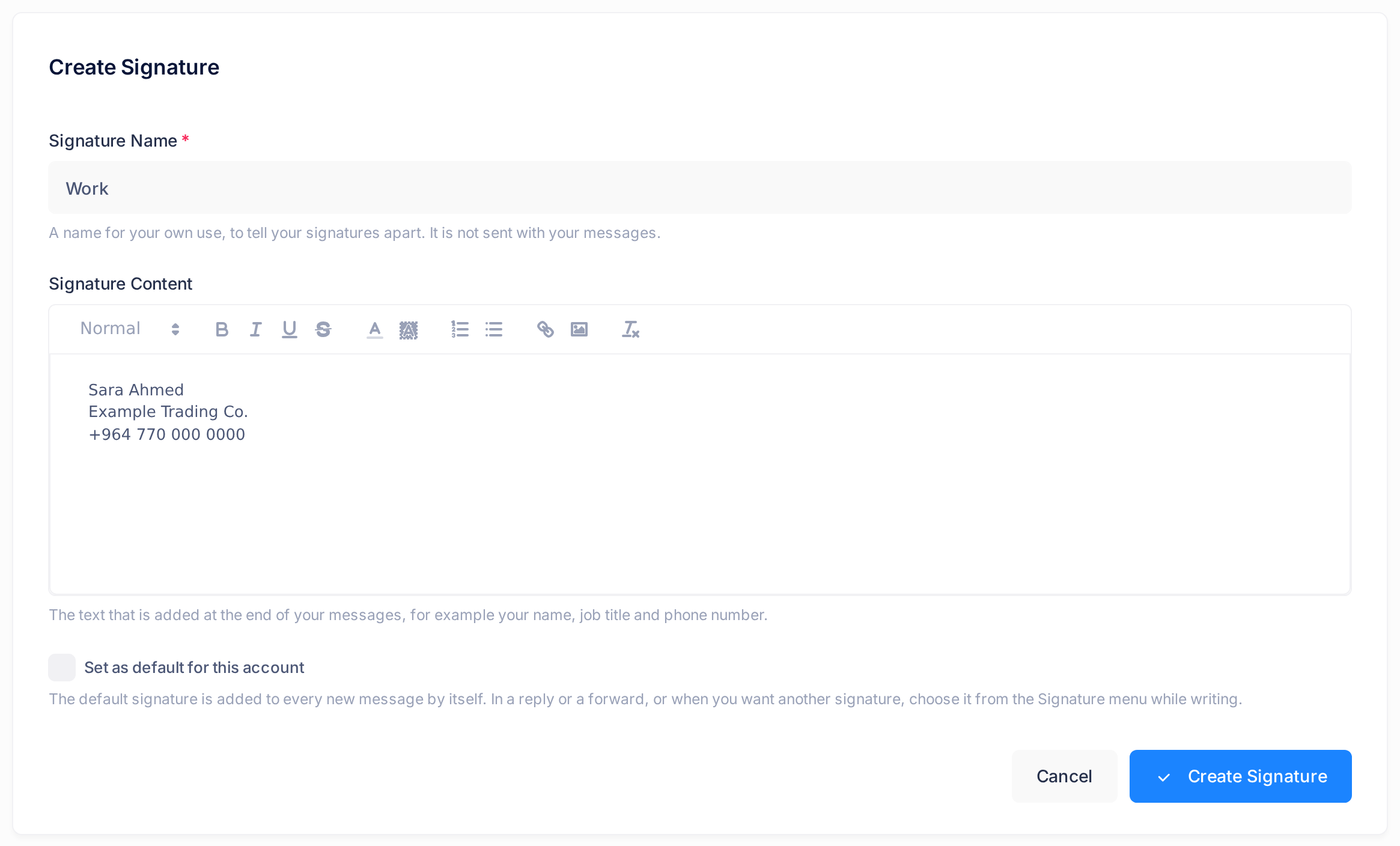
- The form New Signature opens. Its line Account: names the mail account the signature is for.
- In Signature Name, type a name, for example
Work. A name is required and can be up to 100 characters long. It is for you alone; the line under the box says: It is not sent with your messages. - In Signature Content, type the signature itself, pressing Enter after each line. Here, three lines:
Sara Ahmed,Example Trading Co.and+964 770 000 0000. The row of buttons above the text changes its look: a size menu that reads Normal, then buttons for bold, italic, underline, colours, lists and a link. Plain lines need none of them. Leave the picture button alone: a picture, such as a logo, is stored inside the signature's text and can make it too large to be saved. - Tick Set as default for this account if this signature should start your new messages. Your first signature becomes the default whether you tick the box or not.
- Click Create Signature at the foot of the form.
You are back on the list, and a green note says Signature created successfully.
Step 3 — See it in a new message
- Click the Loop logo at the top of the page to go back to the home screen, then click the Mail tile.
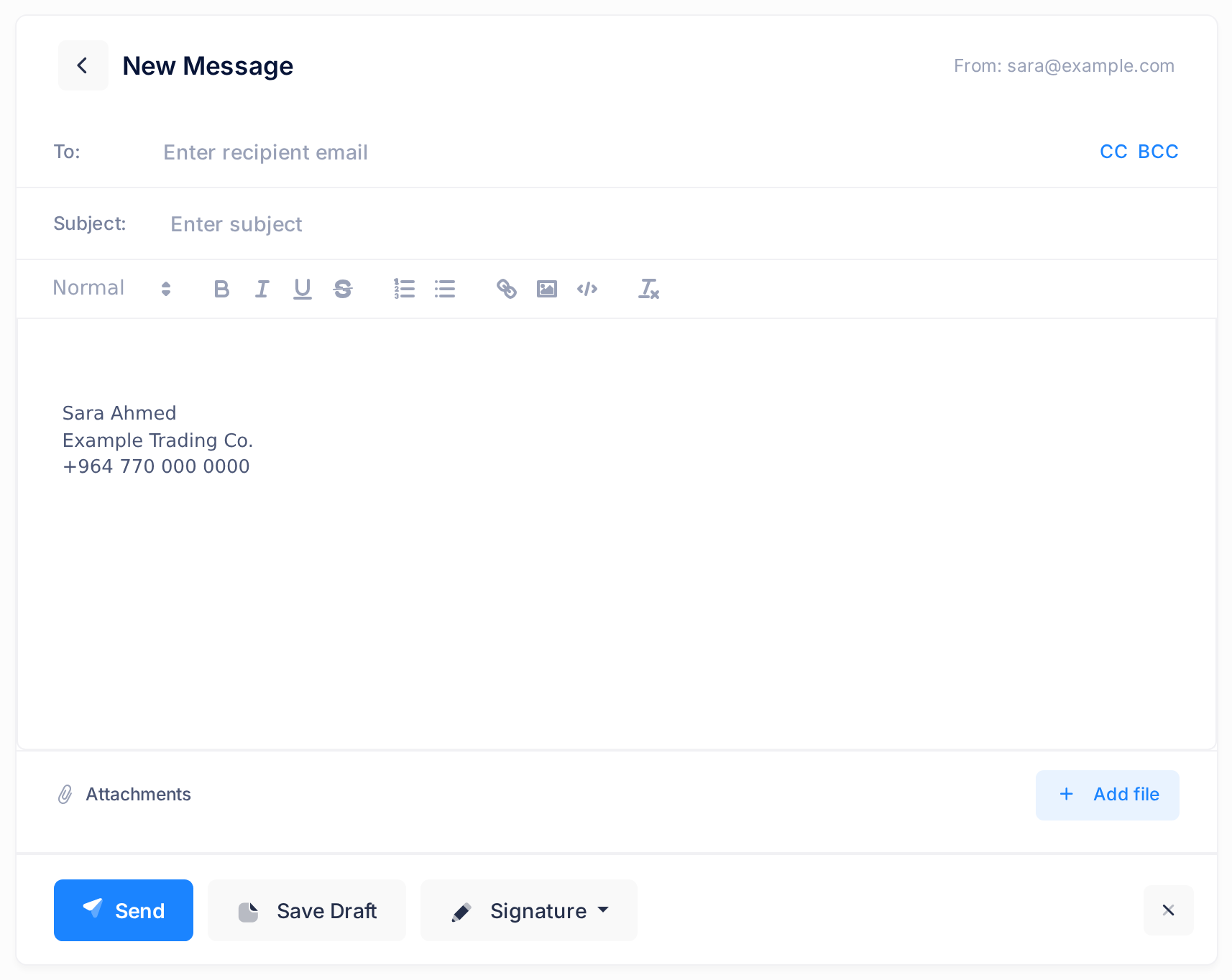
- Click New Message and look at the text box. It holds one empty line for your text, one more empty line, and then your default signature.
What happens next
Every new message of this account now opens like that. A reply, a forward and a draft you open again get no signature by themselves.
To add one, open the menu Signature and choose it by its name; the default one is marked Default. It is put at the end of the text, after one empty line — in a reply or a forward, that is under the quoted original message. Choosing another signature replaces the one that stood there, and No signature takes it out.
In the message, the signature is ordinary text: you can change it there for that one message, and it is sent as part of it — the message that arrives ends with it, and bold text stays bold. The menu replaces or removes only a signature that was put in on this page and not changed since. One you have changed, or one that came back inside a draft, stays: delete its lines yourself, or the signature you choose is added after it as a second one.
Edit a signature, change the default, delete
The page Email Signatures lists the signatures of the account in four columns:
| Column | What it shows |
|---|---|
| NAME | The signature's name. |
| PREVIEW | The first 80 characters of its text, or Empty when it has none. |
| DEFAULT | The label Default on one signature, a dash on the others. |
| ACTIONS | Small buttons without words: a star (not on the default signature), a square with a pencil, and a bin. A pointer resting on them shows their names: Set As Default, Edit and Delete Signature. |
On a phone, drag the table sideways inside its card to reach the last two columns.
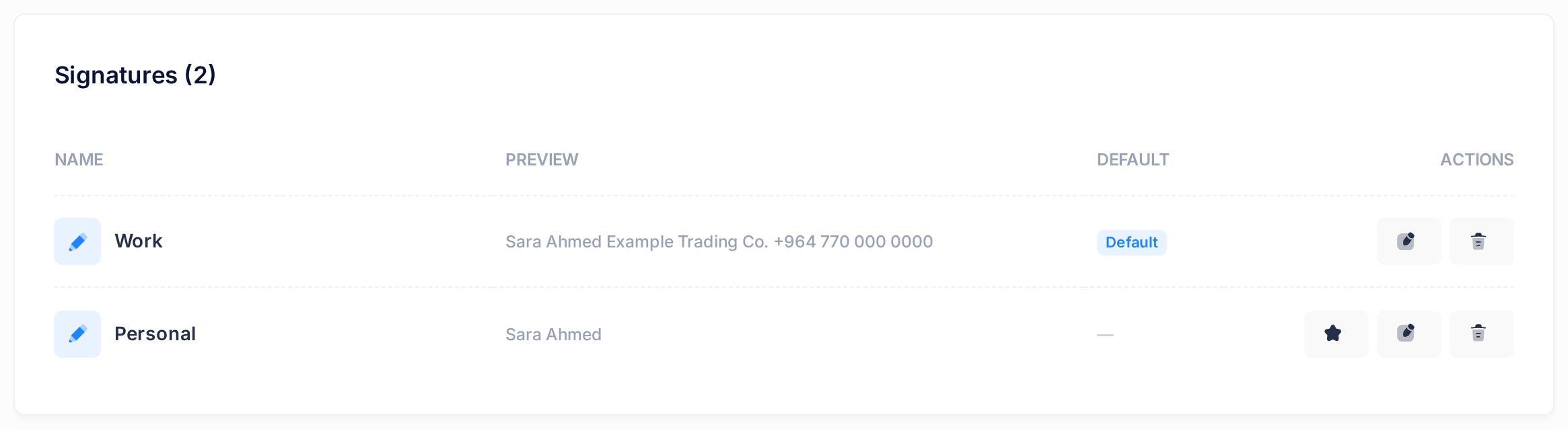
- Edit. The square with a pencil opens the same form, headed Edit Signature and filled in. Change it and click Save Changes; the list comes back with the note Signature updated successfully.
- Change the default. Click the star in the row of the signature you want as the default. A note says Default signature updated and the label Default has moved. Taking the tick off in the form does not leave the account without a default: it passes to the first signature in the list, which can be the same one.
- Delete. If you may want the text again, copy it first. Then click the bin. A box headed Delete Signature asks, with your signature's name: Delete the signature Work? It cannot be brought back. Click Delete to remove it, or Cancel. After Delete, a note says Signature deleted; if it was the default, another signature becomes the default.
If something goes wrong
- Signature name is required — a red note above the form: the name box was empty.
- A signature with this name already exists — this account already has a signature with that name.
- After either note, what you typed is still in the form: put the name right and save again. Cancel shows the list of names already used, without saving.
- A new message opens without your signature. Open the menu Signature. If it holds Manage Signatures alone, the account you are writing from — its address stands after From: — has no signature yet. If yours is listed but another is marked Default, choose yours or change the default.
Still stuck? On the home screen, click Help, then Submit a Ticket, and tell us the mail account's address and what you see on the screen.