
How can we help?

Use this guide to add a Gmail address, or an Outlook, Hotmail or Microsoft 365 address, to Mail in Loop, beside your company mailbox. You do not give Loop that mailbox's password: you sign in on Google's or Microsoft's own page and allow Loop to reach the mailbox. Loop then keeps its own copy of the mailbox, not a live view of it: see Understand How Mail Syncs.
Before you start
- What this guide cannot promise. Google and Microsoft decide whether an account may connect: so far the sign-in has worked for a personal Outlook account; for Gmail it is not yet confirmed for customers' accounts. From the sign-in button on, the pictures here are drawings: the real pages may look different.
- "Tell us" means: click the Loop logo at the top of the page, then Help, then Submit a Ticket.
Step 1 — Open the page Connect Email Account
- Sign in to Loop and click the Mail tile. Your inbox opens.
- Open the page Mail Accounts: click Manage Accounts in the card at the side of the inbox (on a phone, tap the small button beside the folder's name first).
- Click Add Account. The page Mail Setup opens with the form PearlFibers Professional Mail. Leave it empty: it is for a company mailbox (see Connect Your PearlFibers Mailbox).
- Under that form, click Sign in with another account (Gmail, Outlook). The page Connect Email Account opens with two buttons: Gmail (Step 2) and Outlook (Step 3).
With no mailbox connected yet, Mail opens Mail Setup by itself: go straight to the link.
Step 2 — Gmail: sign in with Google
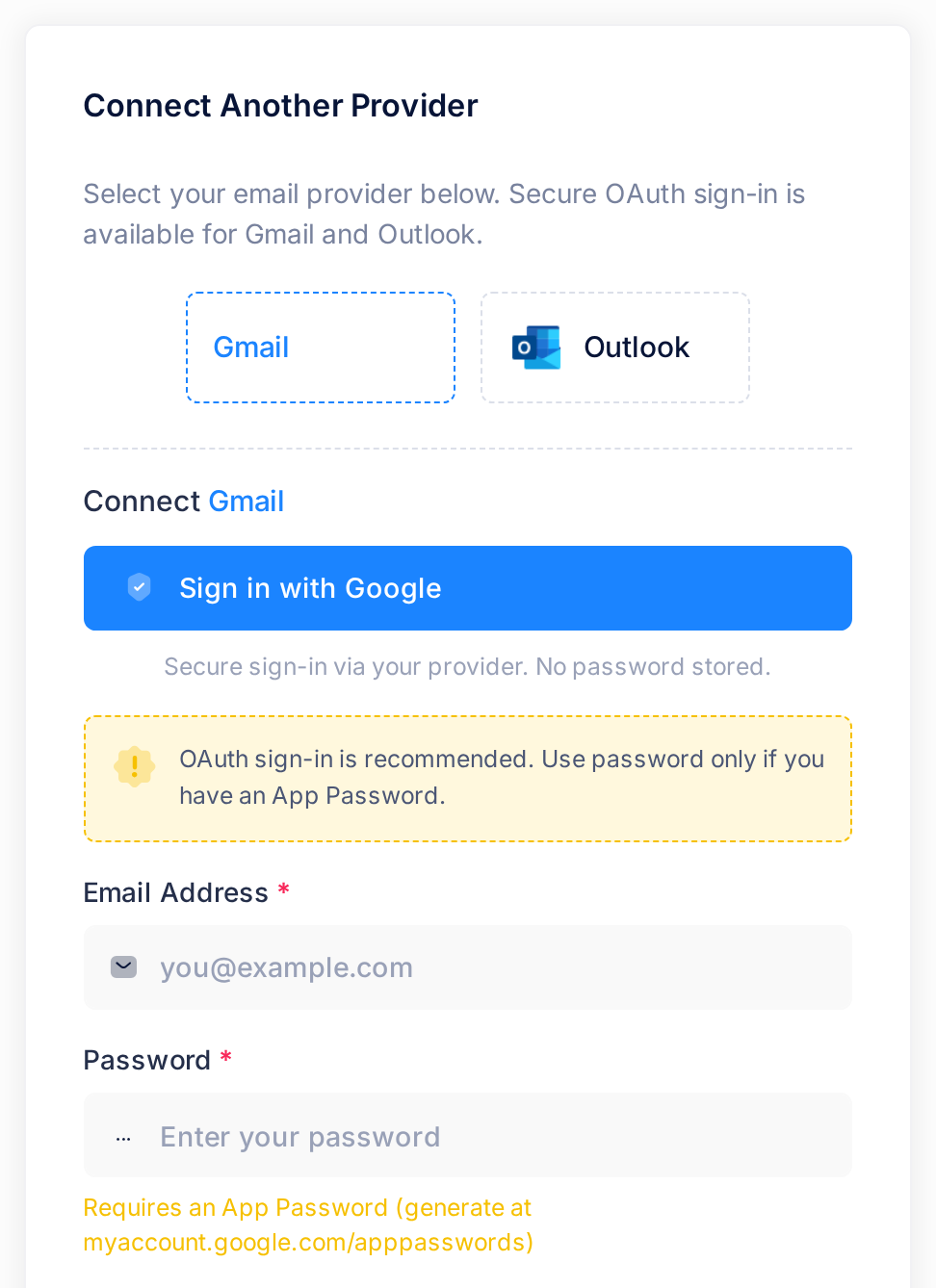
- Click Gmail. The card shows the heading Connect Gmail and a wide blue button, Sign in with Google.
- Click Sign in with Google, leaving the boxes Email Address and Password under it empty: this sign-in does not use them. You leave Loop for Google's page, titled "Sign in - Google Accounts", which says "to continue to PearlFibers Loop".
- Sign in with the Google account whose mailbox you want. Loop connects whichever account signs in: if your browser is signed in to another Google account, choose the right one there. Google may then show a warning that it has not verified PearlFibers Loop, or may refuse your account. If it stops you, Loop shows nothing: come back and tell us Google's exact words.
- Google says it then shows a consent screen with what the application asks for; its words for the Gmail permission are "Read, compose, send, and permanently delete all your email from Gmail." Allow that permission, however the page offers it, before you go on: without it, Loop cannot open the mailbox.
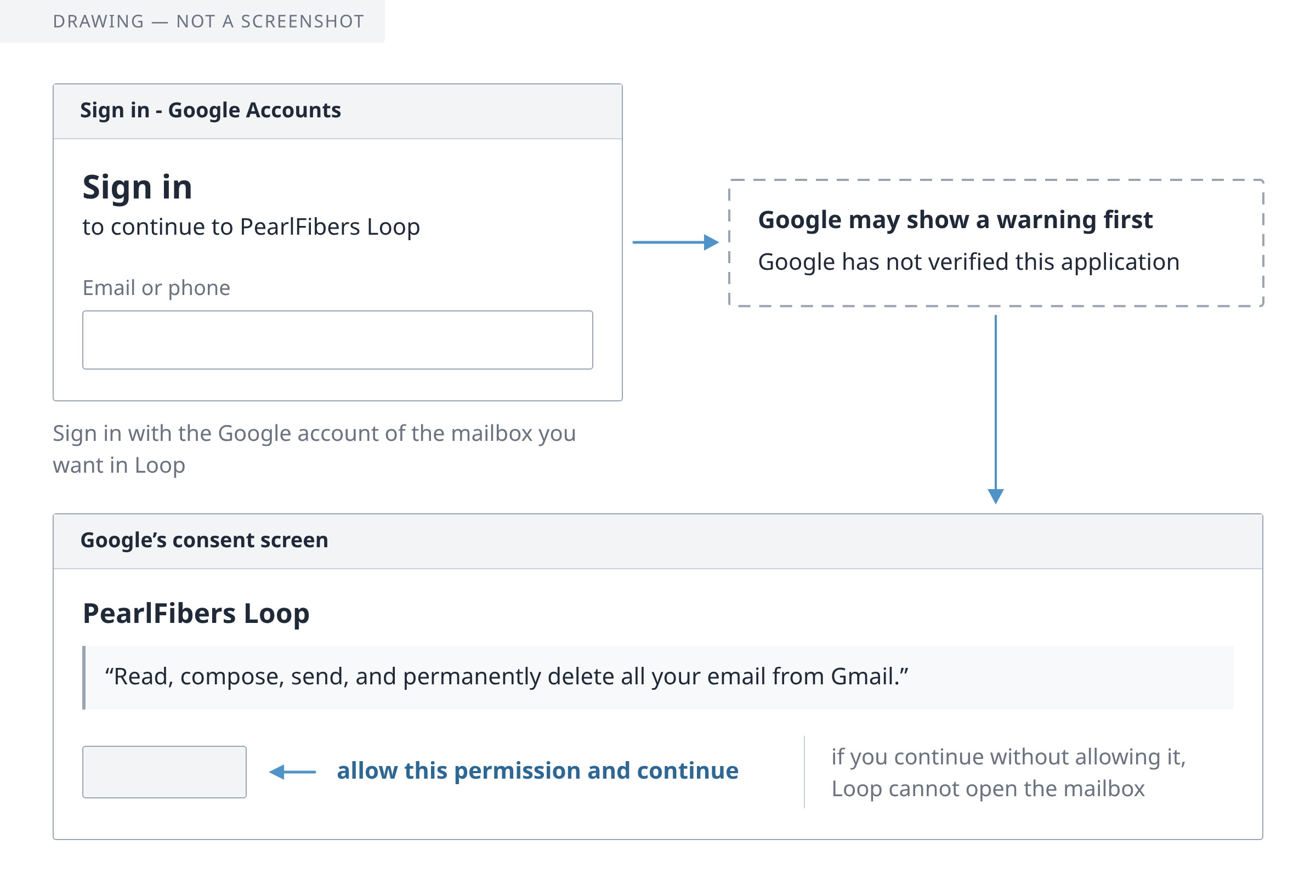
Loop does less than Google's sentence says: it reads the mailbox and sends the mail you write in Loop. It deletes nothing at Google.
Step 3 — Outlook, Hotmail or Microsoft 365: sign in with Microsoft
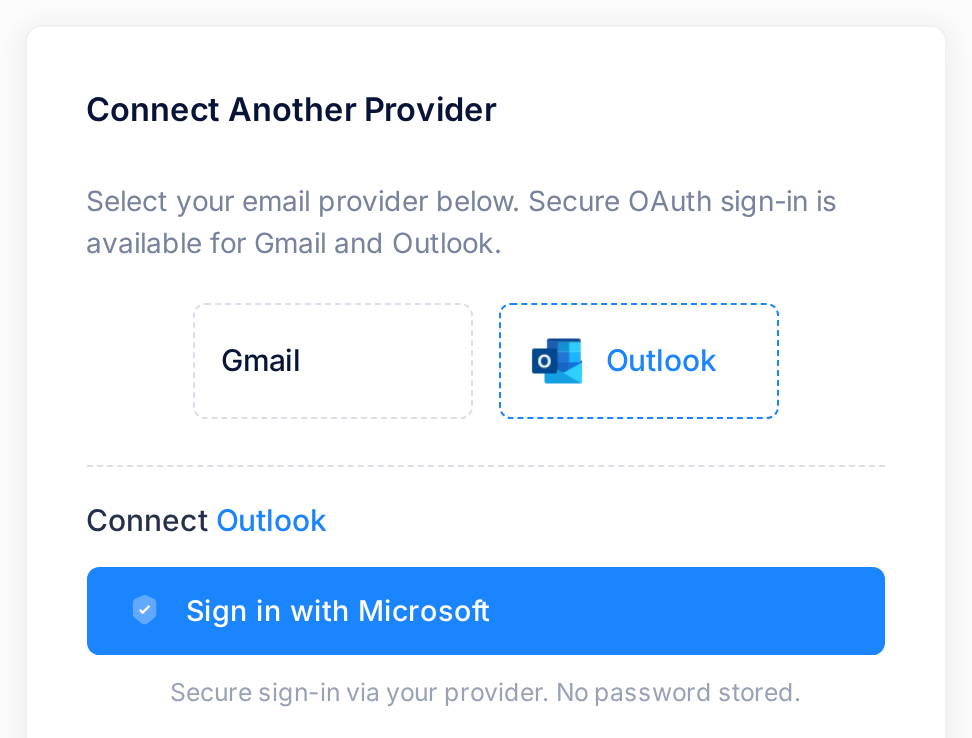
- Click Outlook. The card shows the heading Connect Outlook and one button, Sign in with Microsoft; there are no boxes.
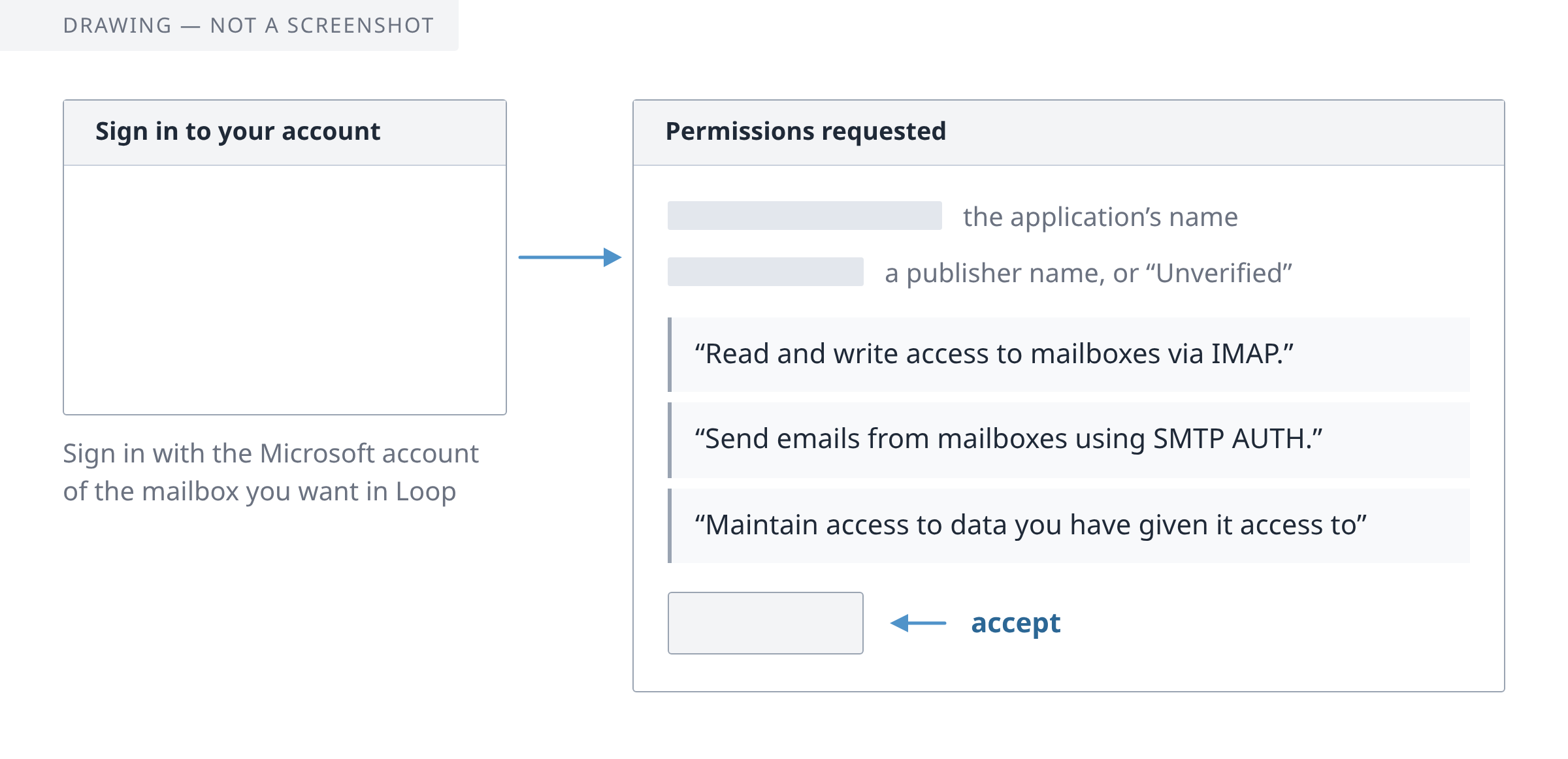
- Click Sign in with Microsoft. You leave Loop for Microsoft's page, titled "Sign in to your account".
- Sign in with the Microsoft account whose mailbox you want. Loop connects whichever account signs in: if your browser is signed in to another Microsoft account, choose the right one there.
- Microsoft says its next page, ordinarily titled "Permissions requested", lists what the application asks for. Loop asks to read the mailbox, send mail from it, stay connected and learn your email address; it deletes nothing there. Agree. With a work or school account, your organisation may have to allow the application first: Microsoft says you are then told to ask your admin for access.
What happens next
When you have agreed, your browser returns to Loop: Mail opens with a green box, Account connected successfully via OAuth2. If you use Loop in Arabic, you may land in the English interface: switch back with the flag at the top of the page.
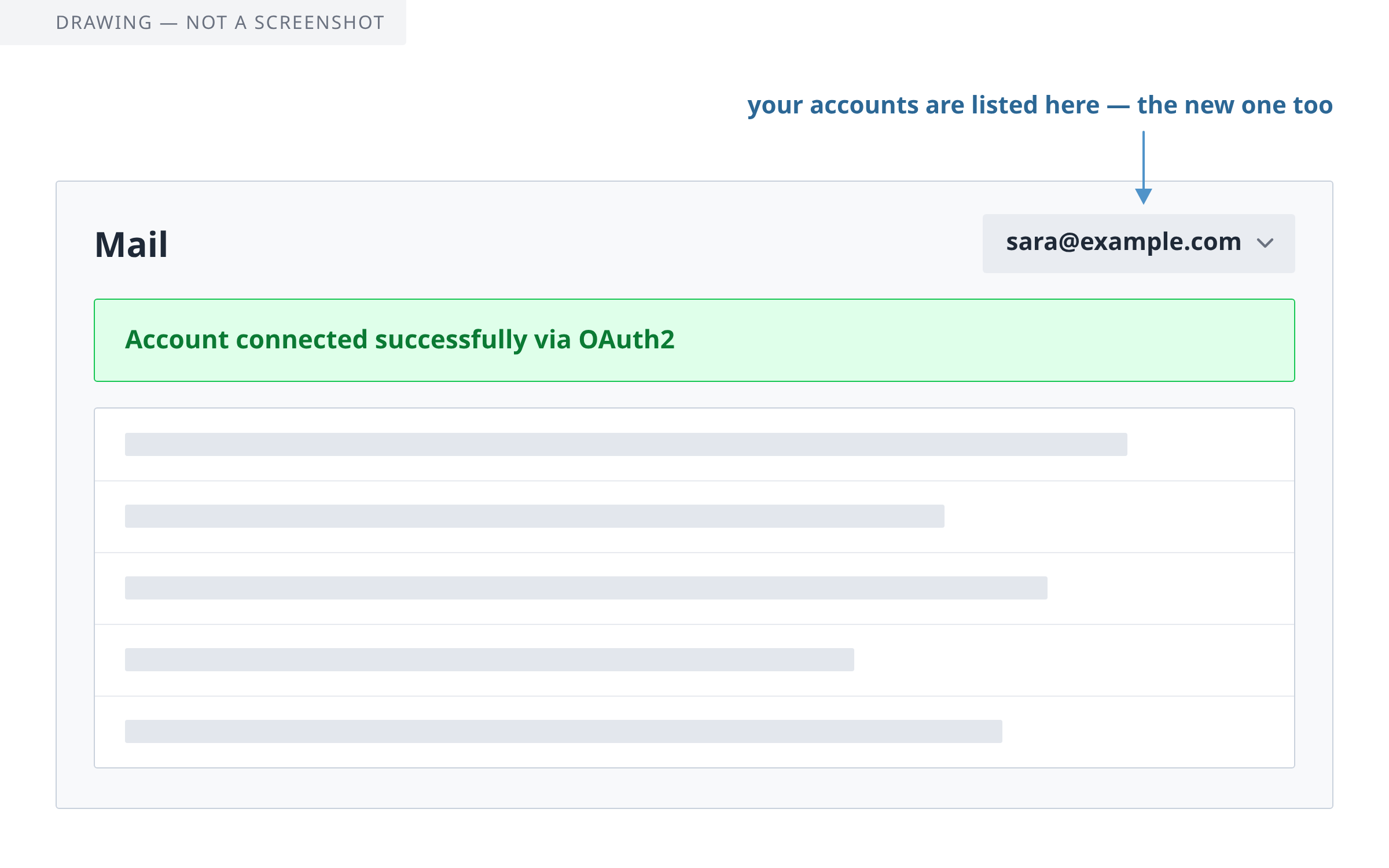
- Where the new account is. If a mailbox was already connected, Mail still opens that mailbox's inbox: the button with an address at the top of the inbox lists your accounts; choose the new one to open its inbox.
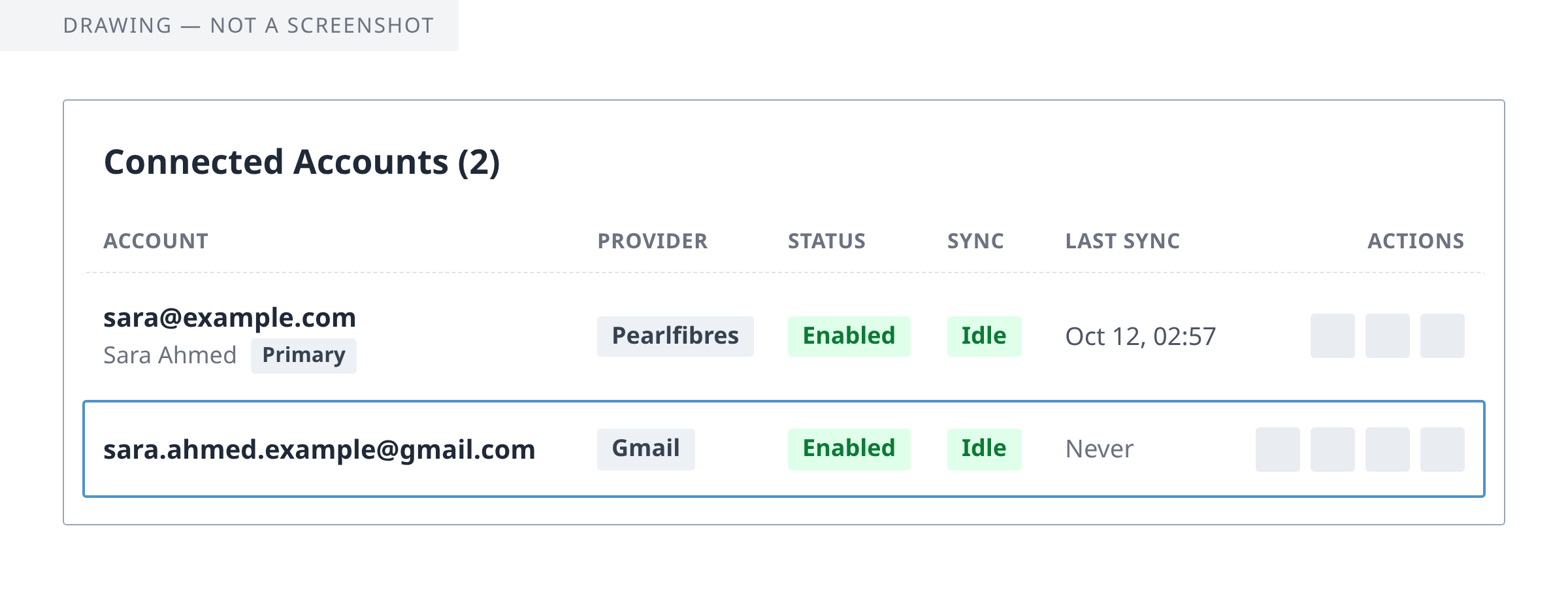
- Check the address. On Mail Accounts (see Step 1) the new row shows the address in bold. If it is not the one you meant, remove the account (see "Removing the account") and sign in again.
- The first mail. Connecting fetches no mail. A sync (Loop copying in new mail) runs by itself every five minutes; or open the new account's inbox and click Sync Now, above Manage Accounts. Each sync brings at most 50 messages per folder, the oldest first (about 600 an hour), so in a large mailbox today's mail can come hours later. It worked when LAST SYNC on Mail Accounts shows a date and time instead of Never (on a phone, drag the table sideways); if SYNC reads Error, follow Fix a Mailbox That Stopped Syncing.
What looks different in such a mailbox
Loop shows the folders under the names Google or Microsoft gives them and translates none. In the Gmail account we looked at, the names were English and All Mail held every message once more, so each message was in Loop at least twice.
Later: when the permission ends
A permission can end: Google names, among other reasons, a changed Google password and six months without use. Loop then turns the account off without a notification or an email. Its inbox shows the yellow line This account is disabled. New mail will not appear here until you enable it again. and, on Mail Accounts, its row reads Disabled and Error and gains a yellow button, Re-authenticate. If it was your only account, Mail opens Mail Setup instead of an inbox: reach Mail Accounts through Accounts in the bar of icons at the side of the page (on a phone, the first button of the top bar opens it).
Enabling the account is not enough. Click Re-authenticate and sign in again at Google or Microsoft with the account's own address. You come back to Mail with the green box Account re-authenticated successfully.
For Gmail, Google also says that a permission given to an application still in its testing state ends after seven days. If your Gmail account goes off about a week after each sign-in, tell us.
Removing the account
On Mail Accounts, click the bin button at the end of the account's row; in the window Remove Account, click Remove. A green box reads Account removed.
This does not take the permission back: at Google or Microsoft, Loop stays among the applications allowed to reach the mailbox. Remove it there yourself. Google's own steps:
- Go to "your Google Account’s linked apps page":
myaccount.google.com/linkedapps. - Select "Access to your Google Account".
- Select PearlFibers Loop, then "See details".
- Select "Remove access", then "Confirm".
Microsoft's steps for a work or school account: in the My Apps portal, select "..." on the app, then "Manage your application", then "Revoke Permissions". For a personal account, Microsoft gives the way only on a help page about another app: open microsoft.com/consent, find Loop's application and select "Remove these permissions".
If something goes wrong
When the sign-in fails on the way back, you land on the page Mail Setup (the company-mailbox form, not the page you left) with one sentence in a red box at the top. Nothing was saved. For a new account, try again from the link of Step 1; after Re-authenticate, go back to Mail Accounts and click that button again.
- It begins OAuth2 authorization denied: Usually you cancelled or refused at Google or Microsoft; the words after the colon are theirs. Try again and agree.
- It reads Invalid OAuth2 state. Please try again. The page you came back to was opened twice: a reload, the browser's Back button, or a sign-in started in two tabs. Start again, in one tab.
- It reads This email account is already connected. That account is already on Mail Accounts; nothing was changed. If its row has the button Re-authenticate, use it; if you meant another address, choose it on Google's or Microsoft's page.
- It begins OAuth IMAP test failed: OAuth connection failed: Google or Microsoft agreed, but the mailbox did not open. For Gmail, the likely reason is that the Gmail permission was not allowed: sign in again and allow it. For an Outlook.com mailbox, Microsoft says "POP & IMAP access is disabled by default" (IMAP is how Loop reads a mailbox) and gives these steps in Outlook.com: "Select Settings > Mail > Forwarding and IMAP.", turn "Let devices and apps use IMAP" to ON, "Select Save."; then sign in again.
Still stuck? Tell us (Help, then Submit a Ticket) which address it is and the exact words on the screen. Never put a password in a ticket.