
How can we help?

Moving and deleting keep your mail in Loop in order: handled mail goes into folders, and what you do not need goes out of the way. Understand one thing first. Mail shows Loop's own copy of your mailbox, and moving and deleting change that copy only: in Outlook, on your phone and in the mailbox itself every message stays where it was.
Before you start
- Your mailbox is connected to Mail. If it is not, follow the guide Connect Your PearlFibers Mailbox.
- You want order in Loop, not free space. To remove mail from the mailbox itself, delete it in your mail program — Outlook, or the mail app on your phone.
- Tidying there does not tidy Loop: a message that Loop has already copied stays in Loop when you move or delete it in the mail program.
Step 1 — Open Mail and look at your folders
- On the home screen, click the Mail tile. Mail opens on your inbox.
- Find the folder list. On a computer it is in the card beside the messages, under the button New Message. On a phone, tap the small button beside the name of the open folder: a panel headed Folders opens with the same list.
- Look for the bin folder — the folder deleted mail goes to. Loop draws a bin icon beside it: on most mailboxes it is Deleted Items, on others a name such as Trash. If no folder carries the bin icon, the mailbox has no bin folder for Loop, whatever its folders are called. Step 4 depends on it.
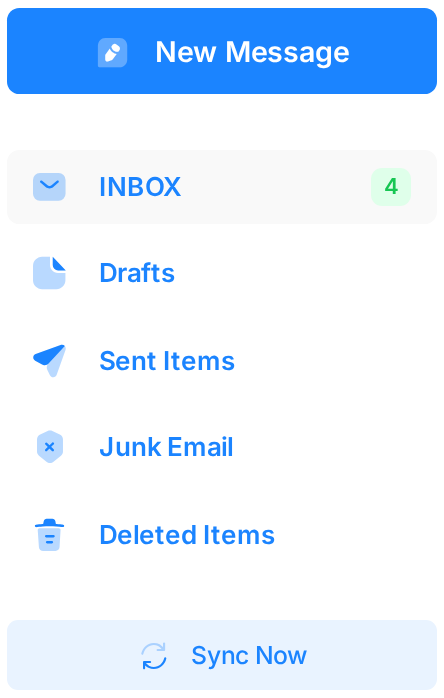
The folders are the mailbox's own, under the names the mailbox gives them. The examples in this guide use a mailbox with INBOX, Drafts, Sent Items, Junk Email and Deleted Items.
Step 2 — Move one message from its page
Opening a message marks it as read — in Outlook and on your phone too; to move mail without opening it, use Step 3. A draft you wrote in Loop opens for writing, without the buttons used below: move or delete it from the list.
- Click the sender or the subject of the message. It opens on its own page.
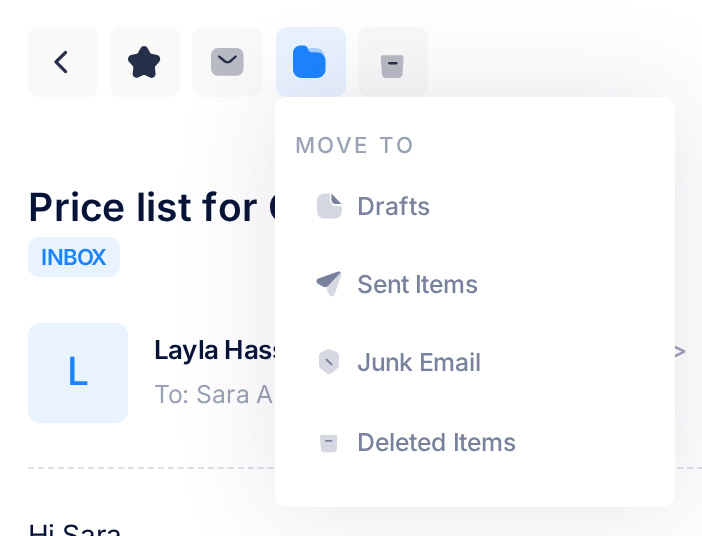
- Above the subject is a row of five buttons with icons and no words. Click the fourth, the folder. On a computer, resting the pointer on it shows its name, Move to Folder.
- A menu headed MOVE TO opens with the other folders of the mailbox. Click the folder you want.
The message is moved as soon as you click the folder; nothing on the screen confirms it. Loop returns to the list of the folder the message was in, and its line is gone. To see that it worked, open the folder you chose — the message is listed there. If you clicked the wrong folder, move it back the same way.
Step 3 — Move several messages from the list
- In the list, tick the box at the start of each line you want to move.
- Look above the list. Four buttons have appeared — Read, Unread, Move and Delete — and after them a small number: how many lines are ticked.
- Click Move. A menu lists the other folders of the mailbox.
- Click the folder you want. The page loads again without the moved messages; as in Step 2, nothing confirms the move.
The tick box above the list ticks every line of the page — at most 50 messages — and a second click clears them all. With a filter on (the funnel button), it ticks only the lines the filter shows. Move asks no question: read the small number first — that is how many messages the button will act on.

Step 4 — Delete a message
- On a message's page, click the last button of the row above the subject, the bin. In the list, tick the lines instead and click Delete.
- Read the question your browser asks in a box of its own: Delete this message? on a message's page, Delete the selected messages (2)? in the list, where the number is how many lines are ticked.
- Click OK to delete, or Cancel to keep the message. Warning: if the mailbox has no bin folder, OK removes the message from Loop at once, and nothing in Loop brings it back.
In a mailbox with a bin folder the message goes into that folder and stays there. Either way Loop shows the list again without it, and nothing on the screen confirms it. To see that it worked, open the bin folder: the message is listed there. If two folders carry the bin icon, look in both — Loop uses only one of them as the bin.
Step 5 — Delete for good and empty the bin folder
The bin folder is an ordinary folder, and Mail has no button that empties it. To get a message back, do it before you empty: open the bin folder, tick the message, click Move and choose the folder it belongs in.
- Open the bin folder from the folder list.
- Tick the box above the list to take the whole page, or tick only the lines you want gone.
- Click Delete, then OK in the browser's question.
- The page loads again. If it lists more messages, repeat, until the folder shows No Messages and Folder is Empty.
A message deleted inside the bin folder is removed from Loop for good: Loop has no way to bring it back, and it does not return when Loop next fetches mail. The message itself is still in your mailbox, and your mail program still shows it.
What happens next
- Loop fetches new mail from the mailbox by itself every five minutes; this is called a sync. A sync does not undo your tidying: a moved message stays in its new folder, and a deleted one in the bin folder.
- The number beside a folder is Loop's own count of the unread messages it holds in that folder; a folder with none shows no number. After you move or delete unread mail these numbers change, and they need not match the numbers in your mail program.
- Nobody is told: moving and deleting send nothing to anyone.
Good to know
Where folders come from
Mail has no button for making, renaming or removing a folder: it lists the folders the mailbox has. A new folder has to be made in the mailbox itself, with your mail program. Loop lists it after its next sync, or at once when you click Sync Now under the folder list.
On a phone
On a phone a message's page has the same row of five icons, under a strip with two more buttons. In the list, the four buttons that appear after ticking show icons only, in the same order: the third, two arrows, is Move, and the fourth, the bin, is Delete.
If something goes wrong
- The menu for moving opens with no folder in it. The mailbox has a single folder, so there is nowhere to move to. Add a folder first, as described under Where folders come from.
- The small number, or the number in the question, is higher than you meant. Do not choose a folder under Move, and answer the question with Cancel: nothing is moved or deleted. Then click the tick box above the list until no line is ticked, and tick the lines one by one.
- Nothing happens after you click a folder or OK on a message's page, or in the list the browser shows a box such as Network error. Please try again. Load the page again and look: what is still in its place was not moved or deleted. Repeat the step for it.
- The list reads No Messages after you moved or deleted everything on the last page of a long list. Messages of the earlier pages are still there: click the folder's name in the folder list to see them.
- You deleted the wrong message. Look in the bin folder and move it back (Step 5). If it is not there — the mailbox has no bin folder, or you deleted it inside the bin folder — Loop cannot return it; your mail program still has it.
Something else? Click the Loop logo at the top of the page to go back to the home screen, click Help, then Submit a Ticket, and tell us what you clicked and what you saw. The guide Describe a Problem So We Can Fix It Fast shows what helps us most.