
How can we help?

A Kanban board shows your tasks as cards in columns, one column for each stage of the work. Todo can show the same tasks as a list or as this board. This guide shows how to switch to the board and work on it.
Before you start
- You need at least one task in Todo. If you have none, see "Create Your First Tasks".
- Dragging cards needs a mouse. For a phone, see On a phone below.
- Todo shows no message such as "saved": each step says what to look at instead.
Step 1 — Switch to the board
- On the home screen, click the Todo tile. Todo opens on My Day.
- At the far end of the big heading's row are two small buttons with a picture instead of words: the first shows two short bars, one above the other; the second, three small squares and a plus sign. The one in use is blue. Resting the pointer on a button shows its name: List View or Kanban Board.
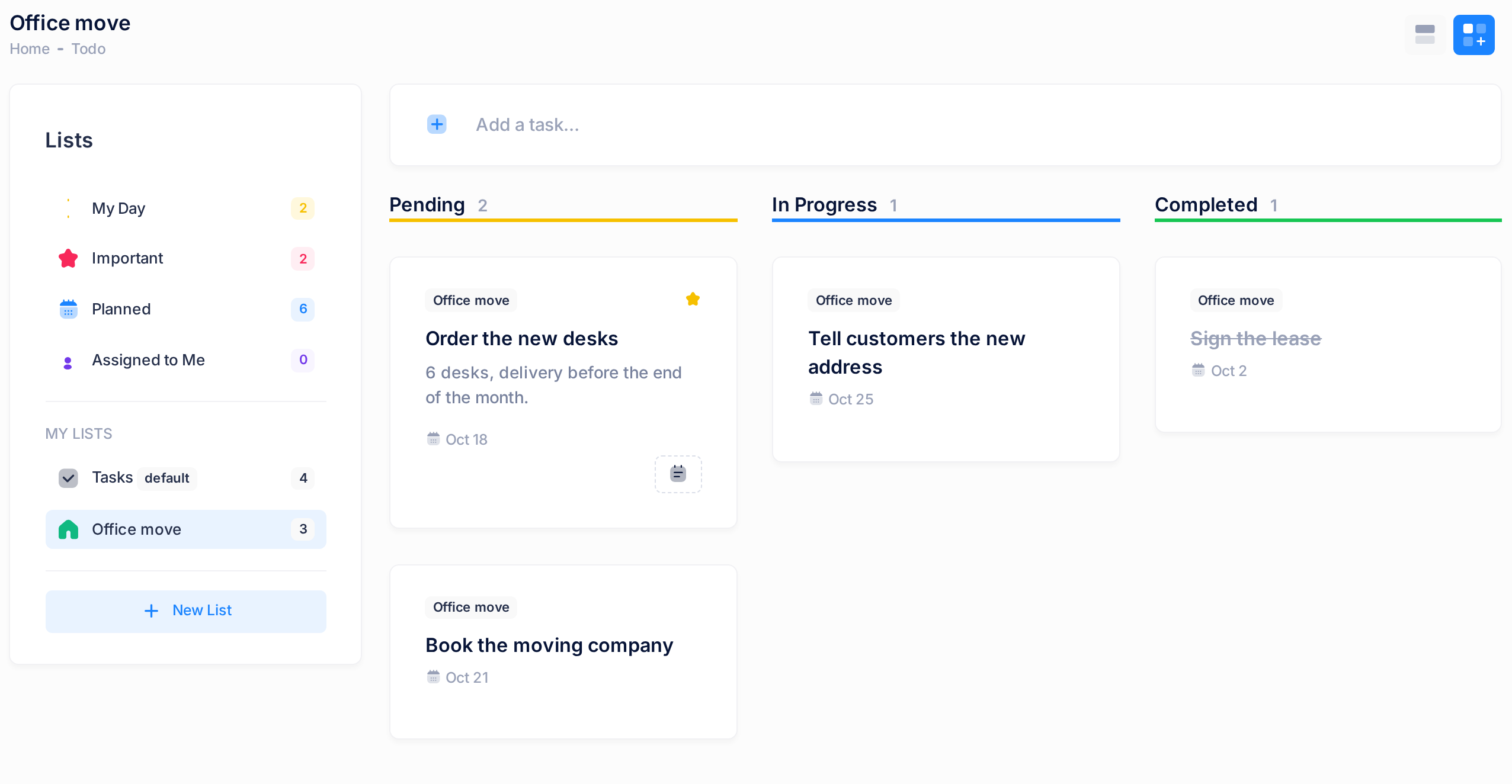
- Click the second button, Kanban Board. The rows of tasks are replaced by three columns headed Pending, In Progress and Completed — side by side if the window is wide enough, otherwise one under another.
To return to the list, click the first button, List View.
Step 2 — Choose what the board shows
The board shows the tasks of whatever is selected in the Lists card. Right now that is My Day, so the board can be empty although you have tasks.
- In the Lists card, click a list — for example Tasks, the list every account has.
- Check the big heading: it now shows the list's name, and the columns hold that list's tasks.
The ready-made views work the same way: Important puts your starred tasks on the board, Planned those with a due date.
A card shows the name of its list in a small tag, the title in bold and, under it, any notes and due date. An important task has a yellow star in the corner of its card.
What the three columns mean
A task's column is its status: the stage Todo stores for the task.
| Column | What is in it |
|---|---|
| Pending | Every new task starts here. |
| In Progress | Tasks you have put in progress. The list view shows them like pending ones. |
| Completed | Finished tasks, their titles struck through — the ones the list view keeps under Completed. |
The number beside each heading counts the cards in that column. An empty column reads No tasks.
Step 3 — Move a task to another column
- Put the pointer on a card, hold the mouse button down and drag the card onto the cards of another column — or onto its No tasks box, which is tinted blue while the card is over it. A column's heading and the empty space below its last card do not take a card.
- Let go. A moment later the card is in that column and the numbers beside the two headings have changed.
Cards cannot be re-ordered: dropping a card in its own column changes nothing.
Dropping a card in Completed completes the task, the same as ticking it in the list view. Dragging it out again makes it unfinished, with the status of the column you drop it in.
After several moves, a dropped card takes longer and longer to land. Once it has landed, reload the page: the board is quick again and nothing is lost.
Step 4 — Open a task from the board
- Click a card once, without dragging. The panel Task Details slides in from the side.
- To move the task from here, choose Pending, In Progress or Completed under Status. The choice is saved at once: the panel has no Save button.
- Close the panel with the X button in its header. The card is now in the column you chose.
Step 5 — Add a task from the board
- In the Lists card, click the list the task belongs in.
- Type the title in the Add a task… box above the columns and press Enter once: a second Enter pressed too soon can add the task twice.
- Look at the Pending column: the box is empty again, the new card is the last one there and the column's number is one higher.
With My Day or Important selected instead, the task goes into your list Tasks, marked for My Day or starred. With Planned or Assigned to Me selected it goes there too, but no card appears on the board.
What happens next
Todo remembers the board in the browser you are using: next time, it opens there on the board — and on My Day again, not on the list you had open. The choice does not follow you to another browser or device.
The right-click menu on a card
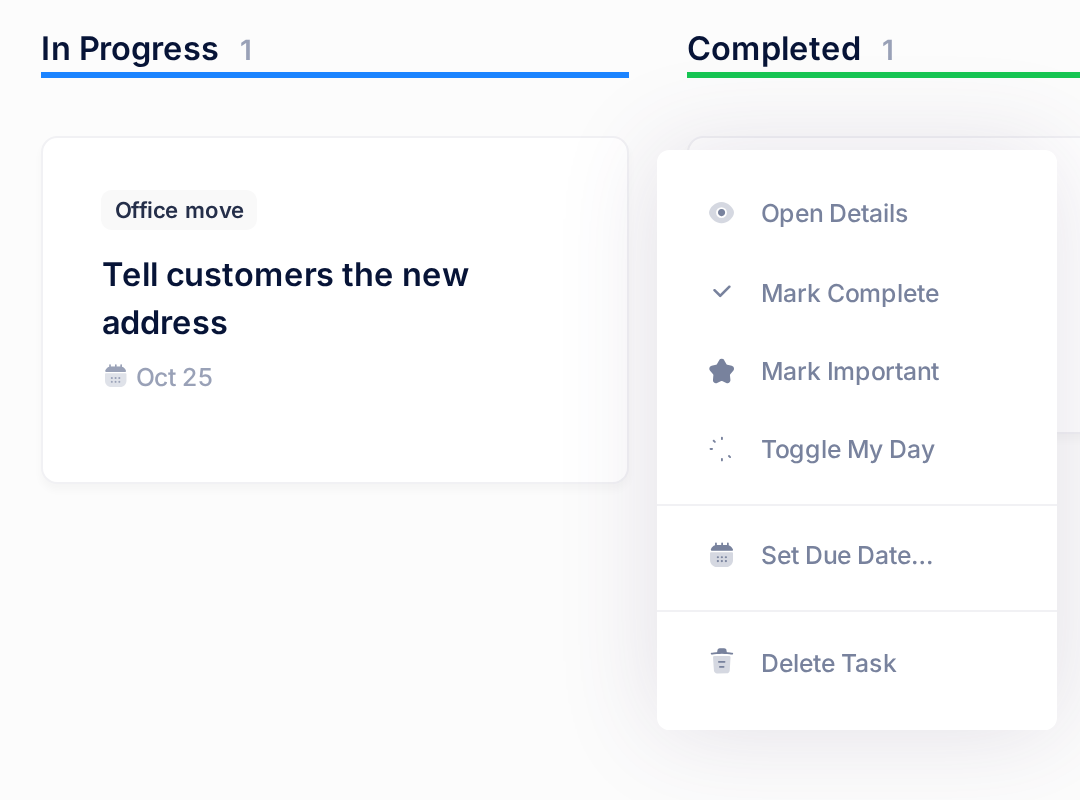
A right-click on a card opens a small menu:
- Open Details — the same as clicking the card.
- Mark Complete — moves the card to Completed. On a completed card the item reads Mark Incomplete and sends the card back to Pending.
- Mark Important — puts the star on the card; Remove Importance takes it off. Clicking the star itself only opens the details.
- Toggle My Day — see "Plan Your Day with My Day".
- Set Due Date… — opens the details with the cursor in Due Date.
- Delete Task — asks Are you sure you want to delete this task? After Delete the task is gone for good: Todo has no trash and no undo.
On a phone
On a phone the Lists card comes first: scroll down past it to the columns, which stand one under another. Dragging and the right-click menu are made for a mouse, so do not count on them. Tap a card and choose under Status, as in Step 4. The same panel ends with the button Delete Task. To star a task, switch to the list view and tap the star at the end of its row.
If something goes wrong
- Every column reads No tasks, or cards are missing. Click your list in the Lists card, as in Step 2. If cards are still missing, text left in the search box of the list view is still hiding them: click List View, empty the search box and return to the board.
- A card stays in its old column after you drop it. Wait a few seconds. If it has not moved, it was let go outside the column's cards: drag it again as in Step 3. If that fails too, reload the page.
- A task you added is not on the board. Look in Tasks (end of Step 5). If it is not there, Todo did not save it (a title over 500 characters is refused): type a shorter one.
Still stuck? On the home screen click Help, then Submit a Ticket, and name the list and the task. The guide "Describe a Problem So We Can Fix It Fast" shows what to include.