
How can we help?

A task in Todo can hold more than its title: notes for the details of the job, and files for its documents. This guide shows how to write notes, attach a file, download it again and remove it. Todo never shows a message such as "saved", so each step tells you what to look at instead.
Before you start
- You need a task. If you have none yet, see the guide Create Your First Tasks.
- To attach a file, use the device the file is on.
Step 1 — Open the task's details
- On the home screen, click the tile Todo. It opens on the view My Day; if your task is not in that view, click its list in the Lists card, for example Tasks. On a narrow screen, such as a phone's, this card is above the tasks instead of beside them.
- Click the title of the task, not the round box before it, which marks the task as completed. A panel headed Task Details slides in from the side of the screen. Below Due Date and Reminder it holds the two parts this guide is about: Notes and Attachments.
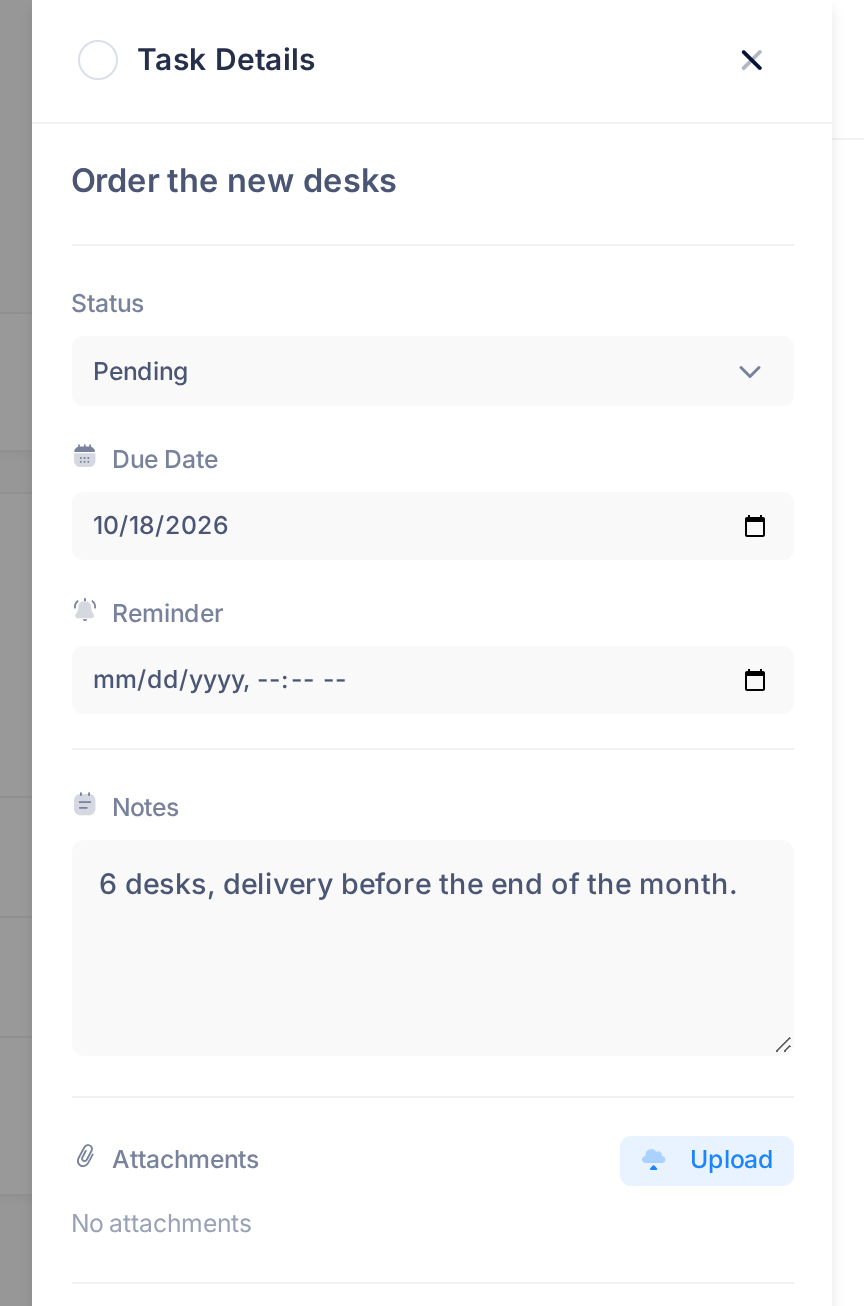
The panel has no button to save: each change is saved by itself. To close it, click the X in its header.
Step 2 — Write your notes
- Click in the box under Notes, which reads Add notes… while it is empty, and type. The box takes plain text only and stops at 10,000 characters: a longer text that you paste is cut off there.
- Stop typing and wait about a second: the notes are saved one second after your last key, and not before. You may close the panel meanwhile. If you reload or leave the page within that second, your last words are lost; opening a task that quickly can lose them too.
If you type on straight after such a pause, read your last words again: text typed at the instant of saving can be replaced by the saved text.
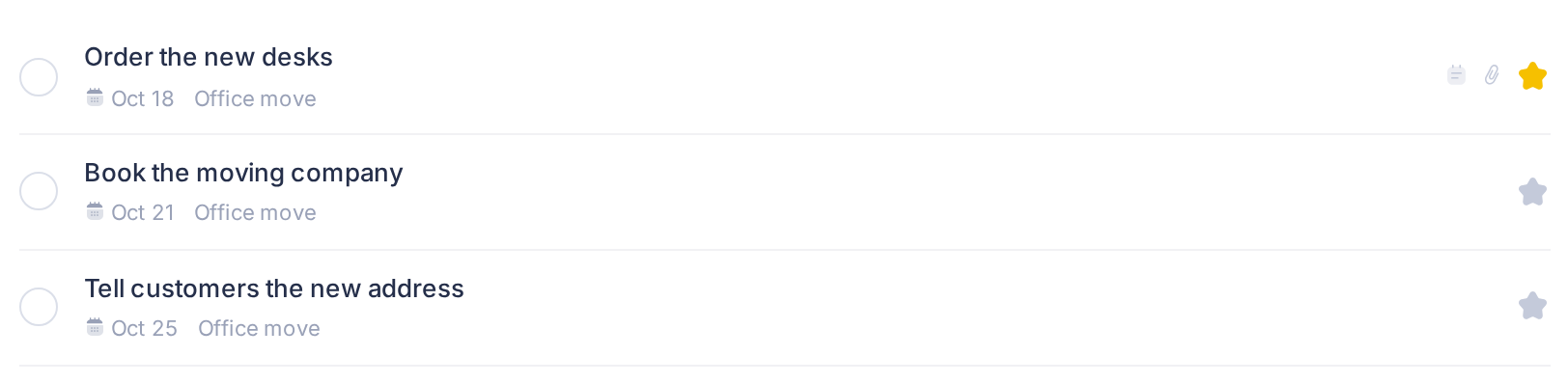
To check, close the panel and look at the task's row: a task with notes has a small notepad icon at the end of its row, before the star. On a computer, the icon shows Has notes under the pointer. If the task had notes before, the icon was there already and proves nothing: click the title again and read the notes in the panel. What you see there is what is saved.
Step 3 — Attach a file
Todo accepts these kinds of file, each up to 25 MB:
- pictures: JPEG, PNG, GIF, WebP and SVG;
- PDF documents;
- Word, Excel and PowerPoint files in the current formats (DOCX, XLSX and PPTX);
- plain text, CSV and ZIP files.
Other kinds are refused, for example video, audio and archives other than ZIP; so is an empty file. Todo judges a file by its content, not by the ending of its name, so renaming a file does not help.
- In the panel, click Upload, beside the heading Attachments. The file chooser of your device opens; it offers every file, also the kinds Todo refuses.
- Choose one file. It is sent as soon as you choose it: there is nothing more to press.
- Keep the page open and watch the list under Attachments, which reads No attachments as long as the task has no file. The page shows nothing while the file is on its way, and a large file or a slow connection makes the wait longer. Meanwhile, do not type in the Notes box: when the file arrives the whole panel is filled in again, and words that were not saved yet are lost. Do not choose the same file again either: if both copies arrive, the file is listed twice.
When the file has arrived, a new line appears at the top of the list: an icon, the file's name, its size in KB under the name and a small trash icon at the end.
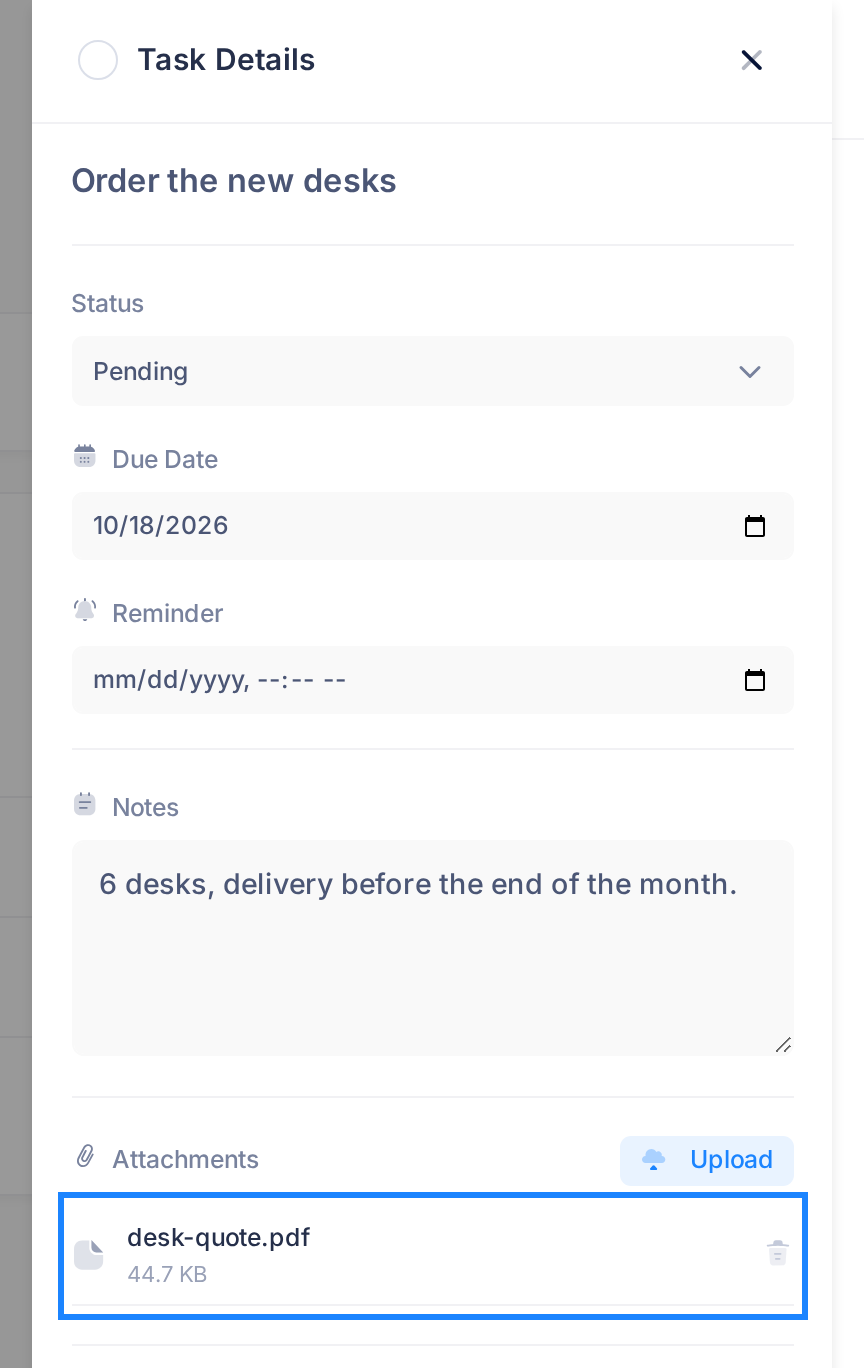
If no line appears, the file was not attached: Todo shows no message for a file it refuses, or for one that did not get through. For another file, click Upload again: the chooser takes one file at a time, and Todo sets no limit on the number of files of a task.
Step 4 — Download or remove a file
To get a file back, open the task's details and click the name of the file under Attachments. Your browser downloads it to your device. It does not open inside Loop, and a picture is not shown in the panel.
A removed file cannot be brought back. If you have no other copy, download it first. Then:
- Click the small trash icon at the end of the file's line.
- A dialog headed Confirm Delete asks Delete this attachment? Click Delete to remove the file, or Cancel to keep it. If the question reads Are you sure you want to delete this task? instead, you clicked the red button Delete Task at the foot of the panel: click Cancel.
After Delete, the file's line is gone from the list. When no file is left, the list reads No attachments again.
What happens next
In the list, a task with files has a paper-clip at the end of its row, beside the notepad icon if it has notes too; on a computer, the paper-clip shows the number of files under the pointer, for example 2 attachments. The paper-clip does not change at the moment you add or remove a file. To bring the rows up to date, close the panel and click your list, or the view you are in, in the Lists card.
If you use the board instead of the list, the task's card shows the first words of the notes and a paper-clip with the number of files.
Good to know
- Who sees them. The notes and files of your tasks are shown to you alone, unless the list is shared: then everyone it is shared with can read the notes and download the files.
- Deleting takes them along. When you delete a task, or the list it is in, its notes and files go with it. Todo has no trash and no undo, so download the files you still need first.
If something goes wrong
- No line appears for your file. Give a large file more time: the page cannot tell you whether a file is still on its way or was refused. Then check it against Step 3: its kind, its size, and that it is not empty. An older Office file (DOC, XLS or PPT) may be refused: save the document in the current format or as a PDF, and attach that. Before you choose a file again, close the panel and click the task's title once more, to see the files the task has now.
- Your notes are missing or cut short when you open the task again. They were not saved, for example because the page was left within a second of your last key. Type them again, wait a moment, and check as in Step 2.
- Nothing you add is kept any more. Your sign-in may have run out. Reload the page, sign in again if Loop asks you to, and repeat the step.
If the page still does not do what this guide describes, tell our support team: click the Loop logo at the top of the page to go to the home screen, then click Help, then Submit a Ticket. The guide Describe a Problem So We Can Fix It Fast lists what to send.