
How can we help?

A due date gives a task a deadline: the date shows under the task's title, the task joins the view Planned, and the date turns red once the day has passed. A reminder adds one line to your notifications in Loop at a time you choose. This guide shows how to set both and what you get when the time comes.
Before you start
- You need a task to work on. The guide Create Your First Tasks shows how to add one.
- A reminder in Todo is one line in Loop's notifications list, not an alarm: it makes no sound, opens no pop-up, sends no email and sends nothing to your phone. It shows only after you next open or reload a Loop page, and then as a number on the notifications icon, with the line in the list behind it. Do not rely on it alone for anything you must not miss.
- Todo never shows a "saved" message or an error. Each step below says what to look at instead.
- On a phone, tap where this guide says click.
Step 1 — Open the task's details
- On the home screen, click the tile Todo. It opens on the view My Day.
- In the card Lists, click the list that holds the task, for example Tasks. On a phone this card stands above the tasks instead of beside them.
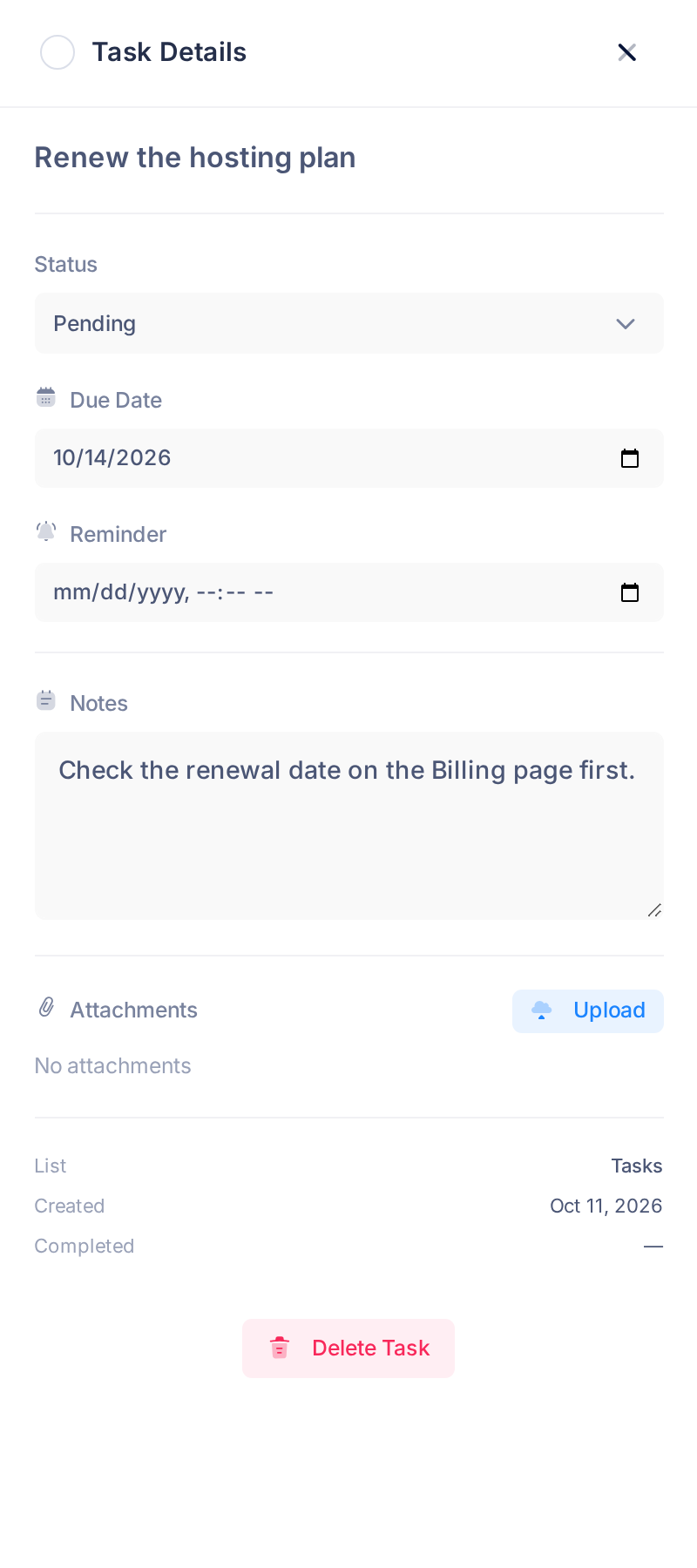
- Click the task's title, not the round box before it: the box marks the task as completed. A panel headed Task Details slides in.
Step 2 — Choose the due date
- In the panel, click the field Due Date. It is your browser's own date field and takes a day only: a due date has no time.
- Choose the day. It is saved the moment you choose it; the panel has no button for saving.
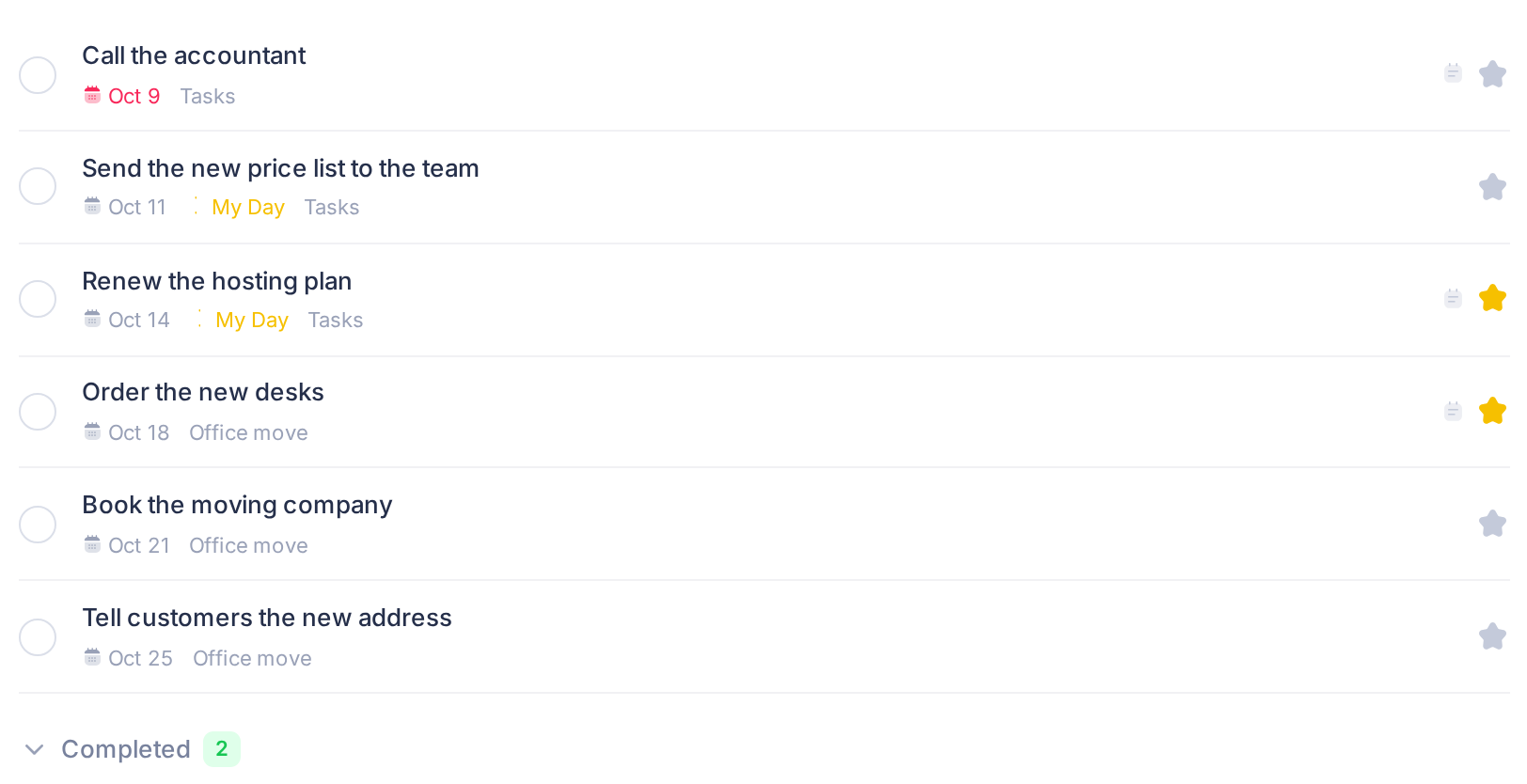
- Close the panel with the X at its top and look at the task's row. Under the title there is now a small calendar icon and the date as a short month and a day, for example
Oct 15. If no date is there, it was not saved: open the details and choose it again.
Step 3 — See your deadlines in Planned
- In the card Lists, click Planned. The heading at the top of the page changes to Planned.
- Read the rows: every unfinished task you created that has a due date, from all your lists, with the earliest date first. Under each title you see the date and the name of the task's list.
- If the heading Completed stands under the rows, click it: it unfolds the finished tasks that have a due date.
Step 4 — Set a reminder
- Open the task's details as in Step 1 and click the field Reminder. It is your browser's own field as well, this time for a date and a time.
- Choose the date and the time. The time is your own local time, as on the clock of the device you are using: with your device on Iraq time, 09:00 means 09:00 in Iraq, and there is nothing to convert. The reminder is stored as soon as every part of the field is filled in, AM or PM included where the field has that part.
- Check it. Nothing on the task's row shows that a reminder is set, so close the panel with the X, click the task's title again and read Reminder: it shows your date and time. If the field is empty, the reminder was not stored: fill in every part of it again.
What happens next
When the reminder is due
Up to two minutes after the time you set, Loop adds one line to your notifications. On the next Loop page you open or reload, the notifications icon in the bar at the top of the page carries a number in a red circle. The icon is a small rounded square with two short lines inside and a dot on its upper corner. Rest the pointer on it, or tap it on a phone: in the tab Alerts you find the line Task Reminder and, under it, the word Reminder: followed by the task's title, cut short where the line ends. The line is in English, also when you use Loop in Arabic. Click it, and Todo opens with that task's details.
A reminder is sent once, and only to the person who created the task. A deleted task gets none. A task that is completed when the time comes gets none either, unless you mark it unfinished again later: then the reminder arrives late.
When a due date has passed
From the day after its due date, an unfinished task has its date in red instead of grey. Nothing else changes: the row gets no label, and Loop neither moves the task nor completes it. The date stays red until you complete the task or give it a date that has not passed. In Planned, overdue tasks are the first rows, because the earliest date comes first.
Each day that tasks of yours are overdue, at about 3:00 in the morning Iraq time, your notifications get one more line for all of them together, for example You have 1 overdue task, with the beginning of their titles under it. Like a reminder, it is a line in English for the person who created the tasks, and nothing more. A click on it opens Todo on a view headed Overdue, which lists them; no entry in the card Lists leads to this view.
Good to know
- To change a due date or a reminder, choose another value in the same field. A reminder moved to a new time is sent again at that time.
- To remove one, empty its field. In Chrome on a computer, click the field and press Backspace: that one key removes the due date or the reminder at once, also when you only meant to correct one part of it. In another browser or on a phone, use its own way of clearing a date field. It worked when the date is gone from the task's row, or when Reminder is still empty after you reopen the details.
- A day in the past is accepted without a warning: its date is red from the start, and the line about overdue tasks comes within two minutes. So does a reminder set for a time that has already passed.
- The two are separate. A reminder needs no due date, and a due date sets no reminder.
- Do not add a task while Planned is open. A task typed in the box Add a task… has no due date yet, so it goes to the list Tasks and does not show in the view in front of you.
If something goes wrong
- The date is not under the title, or the reminder is gone when you reopen the details. The change was not stored, and Todo does not say why. Reload the page and set it again.
- The reminder's time has passed and you see nothing. Wait two minutes, reload the page, then open the notifications icon and look in Alerts. If the line is not there, look whether the task is under Completed: such a task gets no reminder.
- The task left the rows when you clicked it. You clicked the round box, which completed it. Click the heading Completed under the rows and click the task's round box again: the task returns to the unfinished rows.
Still stuck? Click the Loop logo at the top of the page to go back to the home screen, click Help, then Submit a Ticket, and tell us which task it is and what you saw.