
How can we help?

Todo is the app in Loop where you keep the things you have to do. This guide takes you through your first tasks: adding one, completing it, opening its details and deleting it. Todo shows no message such as "saved", so each step says what you see instead.
Before you start
- You are signed in to Loop and on the home screen, the page that shows your apps as tiles. If it is new to you, read Find Your Way Around the Home Screen first.
- You can use a computer or a phone. On a phone, tap where this guide says "click"; the page is in one column there, the Lists card first and the tasks under it, so scroll down to reach them.
Step 1 — Open Todo and your list
- On the home screen, click the tile Todo. The page opens with the heading My Day and a card headed Lists.
- In the Lists card, under MY LISTS, click Tasks. The heading of the page changes to Tasks.
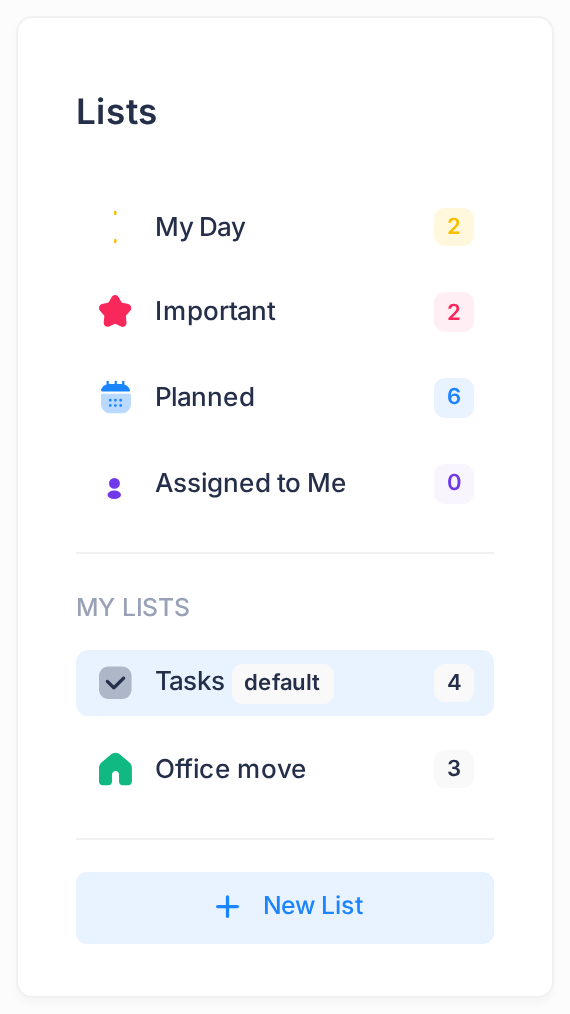
Tasks is the list Todo made for you, marked with a small grey tag default; the second list in the picture, Office move, is one we added. The four entries at the top of the card, My Day, Important, Planned and Assigned to Me, are views: a view keeps no tasks of its own, it picks out tasks by a rule, such as the ones you marked for today.
Step 2 — Add a task
A new task goes into the list that is open: here, Tasks.
- Click the box Add a task…, the one with a plus icon at its start. The box Search tasks… under it does not add tasks.
- Type what you have to do, for example
Call the accountant. Keep it short: a title of more than 500 characters is not saved, and what you typed is lost. - Press Enter once, or click the plus icon, then wait for the row: a second press before it appears adds the task twice (delete the extra one as in Step 5). The box empties and the task appears as a new row, below the unfinished tasks already in the list.
The new row is your confirmation. The counter above the rows, such as 4 tasks, and the number beside Tasks in the Lists card each go up by one: both count the tasks that are not completed. Under the title, the small grey word Tasks names the list the task is in.
Step 3 — Complete a task, and bring it back
- Click the round box at the start of the task's row. The task leaves the rows and the counter goes down by one. Below the remaining rows, a heading Completed shows the number of completed tasks.
- Click the heading Completed. The completed tasks unfold: yours is there, greyed, with a line through its title. A second click on the heading folds them away.
- To bring a task back, click its round box once more. It returns to the unfinished rows.
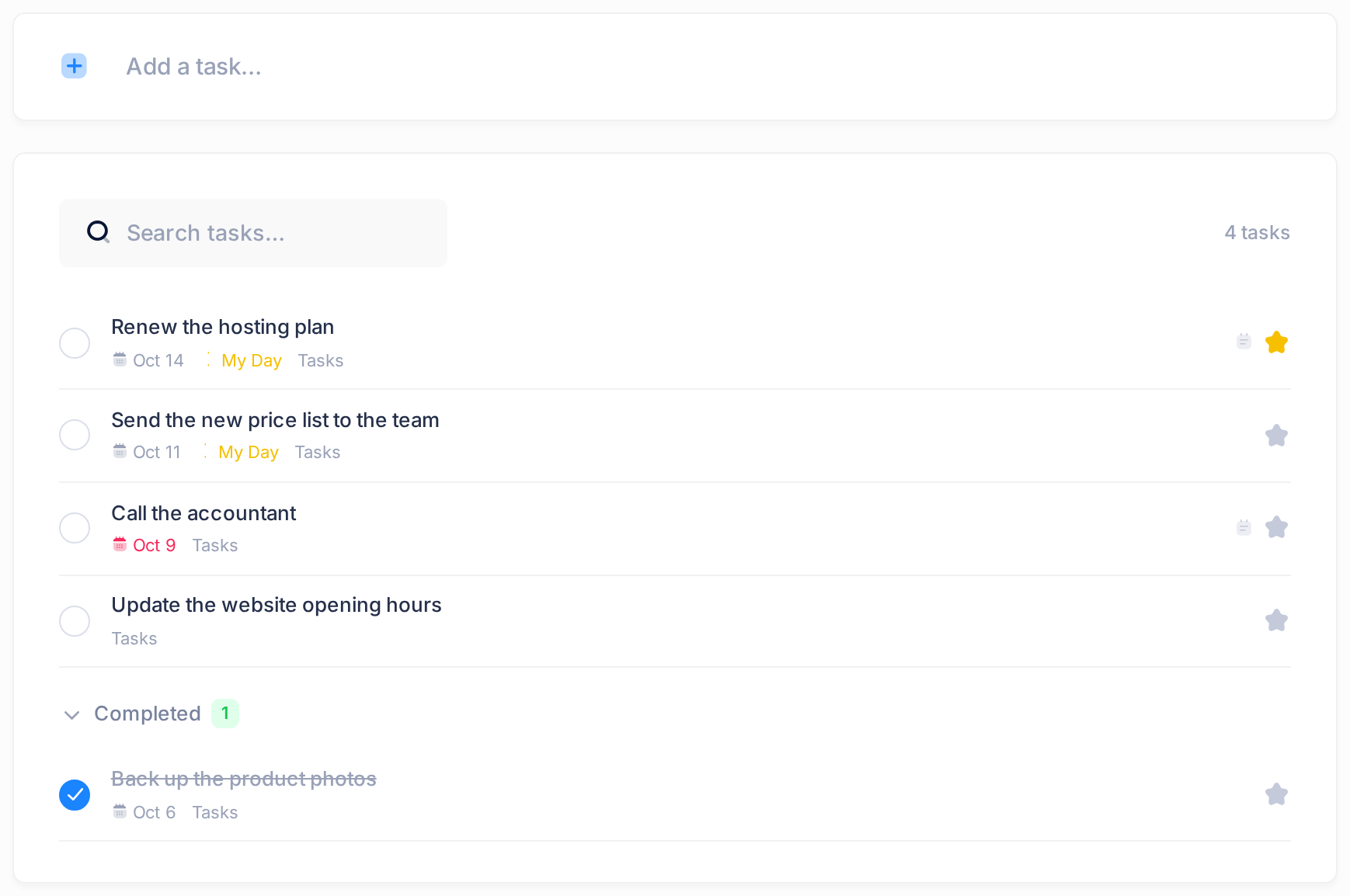
A completed task is not deleted: it stays in its list, under Completed.
Step 4 — Open a task's details
- Click the title of the task. A panel headed Task Details slides in from the edge of the screen.
- When you have finished, click the X at the top of the panel, after the heading, to close it.
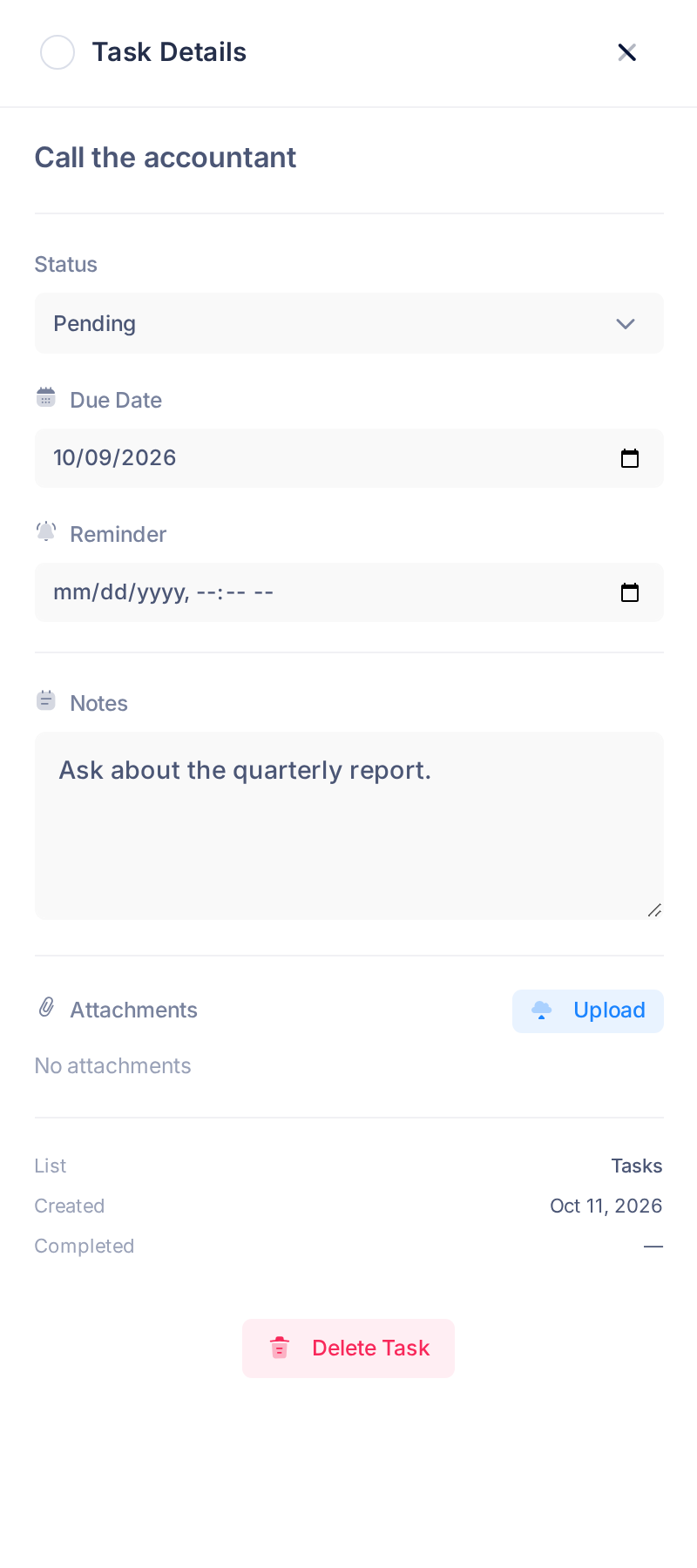
The panel has no Save button: each part saves itself. From top to bottom, it shows:
- A round box before the heading: it completes the task, like the box on its row.
- The title, in bold. It looks like plain text, but you can type in it: click it, change the text, then click anywhere else in the panel (Enter does not save it). The task's row in the list now shows the new title; on a phone, close the panel to see the row. If the old title comes back instead, the new one was empty or over the limit given in Step 2.
- Status: Pending (every new task), In Progress or Completed, saved as soon as you choose. Completed does the same as the round box. In Progress changes nothing in the list: you see it only here and on the board (see Work on a Kanban Board).
- Due Date and Reminder: see Set Due Dates and Reminders.
- Notes: a box for the details of the task. What you type is saved by itself about a second after you stop typing. Attachments is not covered in this guide.
- List, Created and Completed: three small lines to read, not to change. List names the list the task is in.
- Delete Task, a red button: see Step 5.
Step 5 — Delete a task
A deleted task cannot be brought back. For a task that is done, use Step 3 instead.
- Click the title of the task to open its details.
- Click the red button Delete Task, at the foot of the panel.
- A small window headed Confirm Delete asks Are you sure you want to delete this task? Click Delete, or Cancel to keep the task.
The panel closes. Look at the list: the task's row is gone. The missing row, not the closing panel, is the sign that the task is deleted.
What happens next
Todo opens on My Day every time, whichever list you used last. That view lists only tasks marked for today, so on your next visit it can read No tasks yet. Add one above! while all your tasks are still in their list: click Tasks in the Lists card to see them.
To leave Todo, click the Loop logo at the top of the page. On the home screen, the Todo tile then carries a number, your tasks that are not completed; with none left, it carries no number.
Good to know
If you type a task while one of the four views is open, it goes into Tasks all the same:
| Open when you add the task | What you get |
|---|---|
| My Day | The task is in Tasks and, for today only, in My Day. See Plan Your Day with My Day. |
| Important | The task is in Tasks, with the star at the end of its row turned on. See Mark What Matters as Important. |
| Planned or Assigned to Me | The task is in Tasks, but no row appears in the view you are looking at. |
For more lists, use the button New List at the foot of the Lists card: see Organise Tasks with Lists.
If something goes wrong
- You pressed Enter and no row appeared. If Planned or Assigned to Me was open, click Tasks: the task is there. If it is not, it was not saved, as happens when the title is too long or your sign-in has run out. Reload the page, sign in again if Loop asks you to, and add the task again.
- A task you deleted is still in the list, or one you completed did not move. Reload the page in the same way. If the task is still as it was, the change was not saved: do the step again.
- The page shows cards under the headings Pending, In Progress and Completed instead of rows. You have switched to the board. Of the two small icon buttons at the top corner of the page, level with the heading, click the one that is not highlighted: the list returns.
If Todo still does not do what this guide describes, tell our support team: on the home screen, click Help, then Submit a Ticket. The guide Describe a Problem So We Can Fix It Fast lists what to send.