
How can we help?

My Day is the view Todo opens on: one short list of the tasks you choose for today, from any of your lists. It lasts one day. This guide shows the two ways to put a task into it, how to take one out, and a daily routine that fits the hour at which it empties.
Before you start
- You are signed in to Loop and on the home screen, the page with the tiles. From another Loop page, the Loop logo at the top of the page leads back to it.
- Step 3 uses a menu that opens with a right-click, and Todo has no button for that menu: do that step on a computer. On a phone or tablet, use Step 2: a task typed while My Day is open goes into My Day.
- If you have not used Todo before, read Create Your First Tasks first.
Step 1 — Open My Day
- On the home screen, click the tile Todo.
Todo opens on My Day: the big heading at the top of the page reads My Day. The card Lists, beside the tasks on a computer and above them on a phone, starts with the entry My Day, marked with a sun and followed by a number.
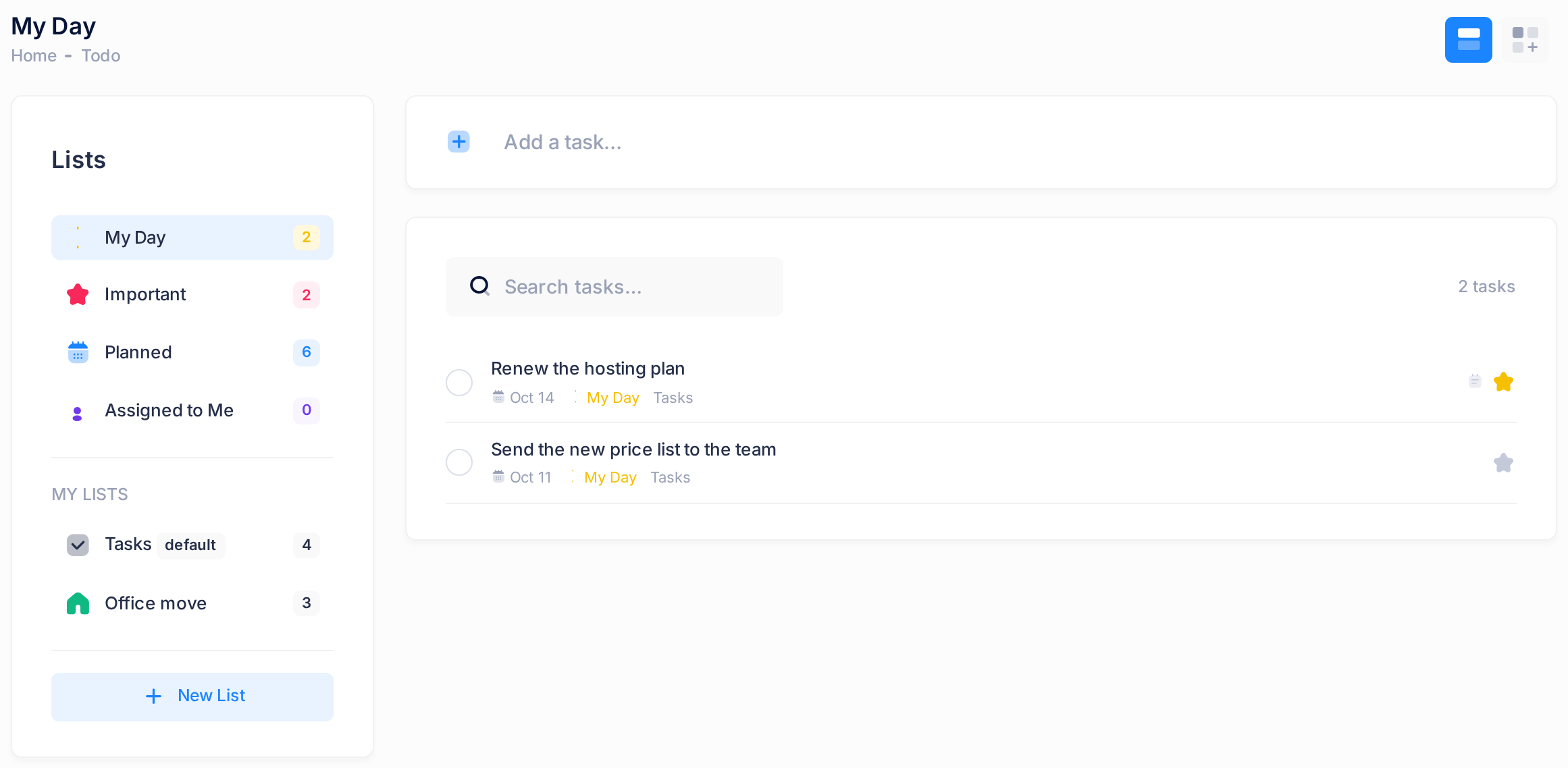
The page shows two counts. The number beside My Day counts the tasks in My Day today, finished ones included. The counter above the rows, such as 2 tasks, counts only those not finished yet. When nothing is in My Day, the page reads No tasks yet. Add one above!
Step 2 — Type a new task into My Day
What is open when you type decides where a task goes. It goes into My Day only while the big heading reads My Day; if the heading reads anything else, click My Day in the card Lists first.
- Click in the box Add a task… above the tasks and type the task, for example
Call the bank. - Press Enter once, or click the plus icon at the start of the box, and wait for the new row. A second Enter before the row shows can add the task twice.
No message appears. The box empties and the task shows as a new row; under its title you read My Day with a small sun, then Tasks. The number beside My Day is one higher.
A task typed here is always kept in Tasks, the first list of every account. For a task that belongs in another list of yours, open that list, type the task there, and use Step 3.
Step 3 — Put a task you already have into My Day
This step needs a right-click. A plain click on a task's title opens the panel Task Details, which has no control for My Day; if it opens, close it with the X in its header.
- In the card Lists, click the list that holds the task, for example Tasks.
- Right-click anywhere on the task's row. A small menu opens at the pointer.
- Click Toggle My Day.
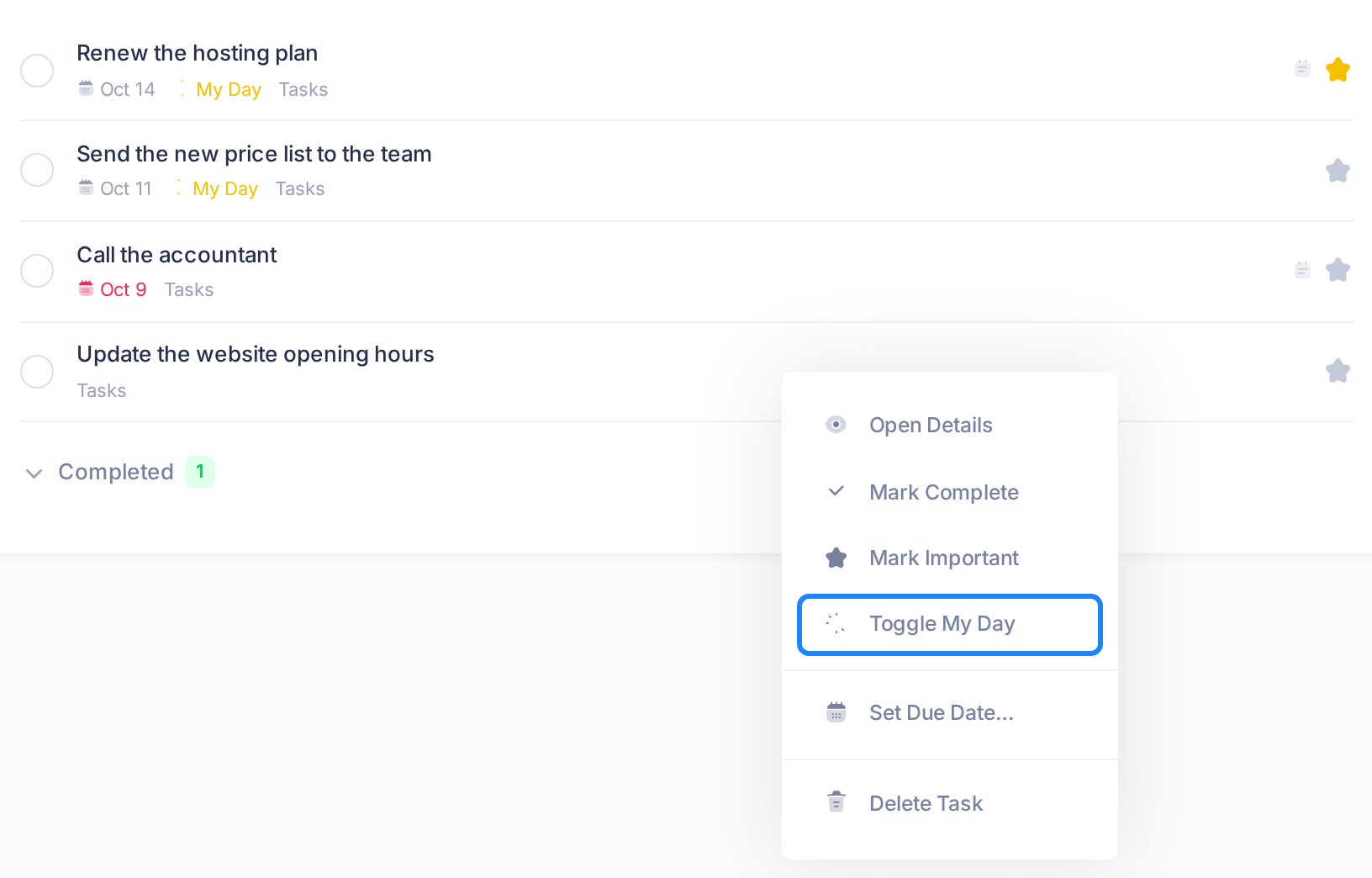
Look at the number beside My Day: it is one higher. The row now shows My Day with a small sun under the title, as it does in every view and list. The task stays in its list, and My Day lists it too.
To take a task out of My Day, right-click it again, in My Day or in its list, and click Toggle My Day: the entry has the same words for both. The number beside My Day is one lower; the row is gone from My Day, and in its list the task no longer shows the words My Day.
What happens next
My Day follows Loop's clock, not yours: the view empties when the date changes there, at 3:00 in the morning in Iraq. If you work late, your list stays until 3:00, and a task you put in between midnight and 3:00 leaves with the others.
The tasks themselves are not completed, deleted or moved. A task you did not take out even keeps the words My Day under its title on the following days, although My Day no longer lists it. So go by the view and by the number beside My Day, not by those words. To have such a task in My Day again, use Toggle My Day on it once, as in Step 3; the number goes up by one.
A daily routine
- In the morning, choose. Open Todo. If it stayed open overnight, reload the page first: it still shows yesterday's list. Type the new tasks of the day (Step 2). On a computer, add the tasks you already have (Step 3), yesterday's unfinished ones among them.
- During the day, tick. Work from My Day. When a task is done, click the round box at the start of its row: the task goes under the heading Completed at the bottom of the view. The counter above the rows drops by one; the number beside My Day does not.
- In the evening, leave it. There is nothing to tidy: tomorrow you choose again.
If something goes wrong
- No new row after Enter, or no change after Toggle My Day. Todo shows no error message when a change is refused, for example because your sign-in has run out. Reload the page, sign in again if you are asked to, and repeat the step.
- The number beside My Day moved the wrong way. The menu entry did the opposite of what you wanted: the task was in My Day already and is out now, or it carried only the words of an earlier day and is in now. Use Toggle My Day on it once more.
- Your new task is not in My Day. Another view or a list was open when you typed it. The task is in the list that was open, or in Tasks: add it with Step 3.
- You see columns headed Pending, In Progress and Completed instead of rows. Todo is showing its board, where a task in My Day carries the sun without the words. For the rows of this guide, look at the two small icon buttons at the top corner of the page and click the one that is not highlighted.
If a step still fails after a reload, send us a ticket: on the home screen, click Help, then Submit a Ticket. The guide Describe a Problem So We Can Fix It Fast says what to include.