
How can we help?

Loop lists the domain names on your PearlFibers account and gives each one a page of its own. This guide shows where they are and how to read them: what state each domain is in, when it runs out, and what the word Hosted tells you. Where it says "contact support": go to the home screen and click Help, then Live Chat or Submit a Ticket.
Where to find it
Your domains are inside the Portal; the home screen has no tile of their own.
- Sign in to Loop and go to the home screen — the page that shows your apps as a grid of tiles.
- Click the Portal tile.
- On the page that opens, click View All Services. It is on the tile My Services.
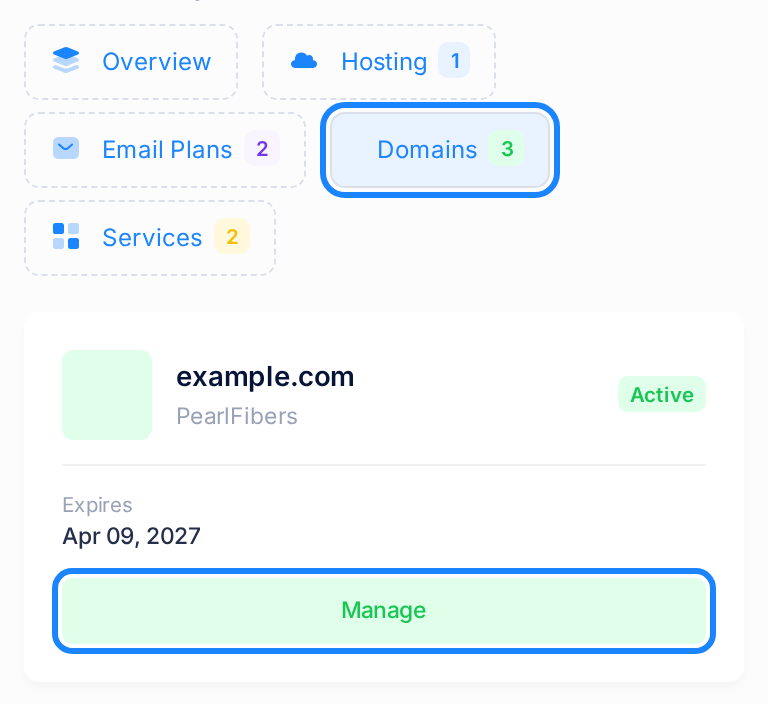
- On the page My Services, click the Domains tab. The number beside it is how many domains you have.
- The tab shows a short card for each domain. Click Manage on one of them. That domain's page opens.
- Click Back to My Domains at the top of that page. The page My Domains opens: the list this guide reads, with a fuller card for each domain.
The My Domains list
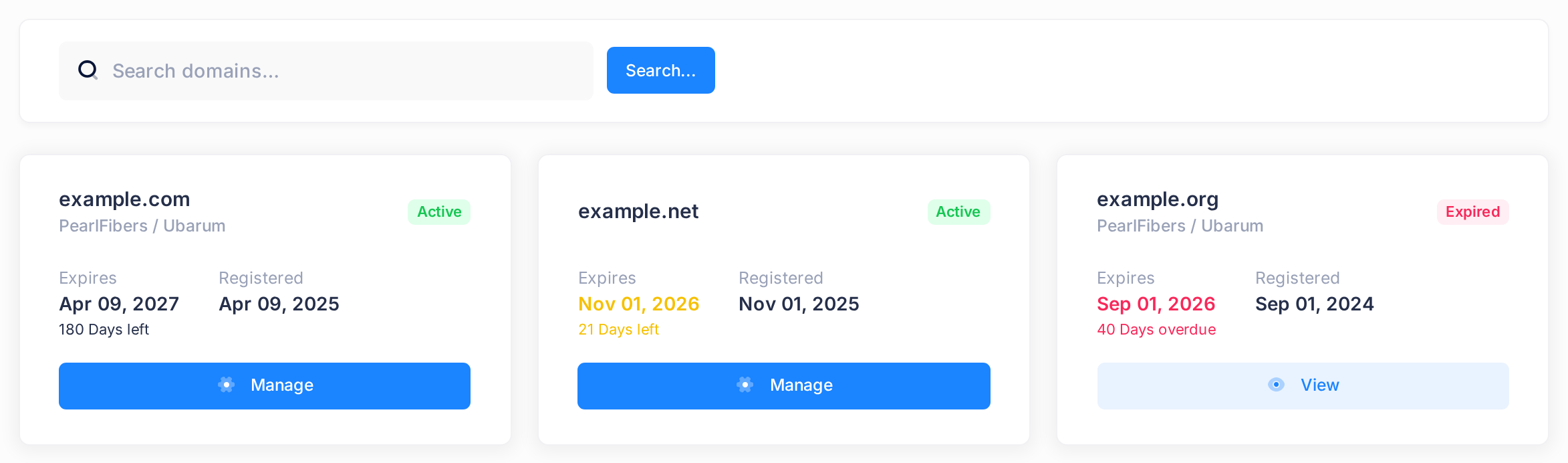
The page shows one card for each of your domains, in A–Z order of the name. This is how to read the card of example.com in the picture.
| On the card | Example | What it tells you |
|---|---|---|
| Name | example.com | The domain. |
| The line under the name | PearlFibers / Ubarum | The registrar: the company the domain is registered with. Some domains show PearlFibers / Ubarum here; others show no line at all. Neither tells you who looks after your domain. In both cases, contact PearlFibers support about the domain; only if you registered it yourself with another company do you make changes there. |
| Badge in the corner | Active | The status: see What each status means below. |
| Expires | Apr 09, 2027180 Days left | The expiry date on record and, under it, the days: 180 Days left here, 21 Days left on example.net and, on example.org, whose date has passed, 40 Days overdue. Date and days turn yellow at 30 days or fewer and red when none are left. |
| Registered | Apr 09, 2025 | The registration date on record. |
| Manage or View | — | Opens the domain's page. The button reads Manage on an Active or Expiring soon domain and View on any other. |
| A red button with a bin, on a Suspended domain's card only | — | Removes the domain from your pages once you confirm. It cancels nothing and you cannot undo it yourself: ask support first. |
Above the cards is a search box: type part of a name and click Search...; Clear brings the full list back.
What each status means
| Badge | What it means and what to do |
|---|---|
| Active (green) | Every part of the domain's page is open to you. The badge says nothing about the date: read on under the table. |
| Suspended (red) | The domain has been suspended. Contact support to ask why and what is needed. |
| Expired (red) | The domain has been marked as expired. Contact support for renewal options. |
| Pending (purple) | Our team has still to complete the registration. Contact support to ask where it stands. |
| Transfer pending (purple) | Our team has still to carry out the transfer to PearlFibers. Contact support to ask where it stands. |
| Expiring soon (yellow) | Ask for a renewal, then ask support to confirm the new date: see the next section. |
| Grace period (yellow) | Contact support at once. |
A status is a label that our team sets. Loop does not change it by itself when the expiry date comes near or passes, so a domain can read Active with few days left — like example.net in the picture of the list — or with a date that has already passed. Many Active domains look like this. On the page of a domain whose date has passed, the Overview tab still says the domain is active, while a small Expired badge stands beside the date. The next section says what to do.
Your domain and its subscription
Paying for a domain is handled elsewhere: a domain can have a subscription, billed yearly, and the next year is asked for there. Paying does not by itself renew the domain name or change the date on the domain page — our team does that. The domain page has no renew button and no link to the subscription. To find it:
- Click the logo at the top of the page. The home screen opens.
- Click the Billing tile. The page My Subscriptions opens.
- Find the card named after the domain —
example.comorDomain: example.com— with the word Domain under the name. If there is none, contact support. - Read the date under RENEWS ON. It is the day the paid period ends.
Compare that date with the one on the domain page.
- RENEWS ON is still ahead, but the domain page shows a date that is near or has passed. You have paid for the period. That does not prove the name itself has been renewed. Contact support with the domain name and both dates, and ask us to confirm when the domain really runs out.
- RENEWS ON is near or has passed too. The next period has not been paid for yet. Follow the guide "Renew a Subscription"; then contact support and ask us to confirm the domain's new expiry date.
The rest of that card is explained in "Understand Your Subscriptions".
The domain page
Click Manage or View on a card. The domain's page opens.
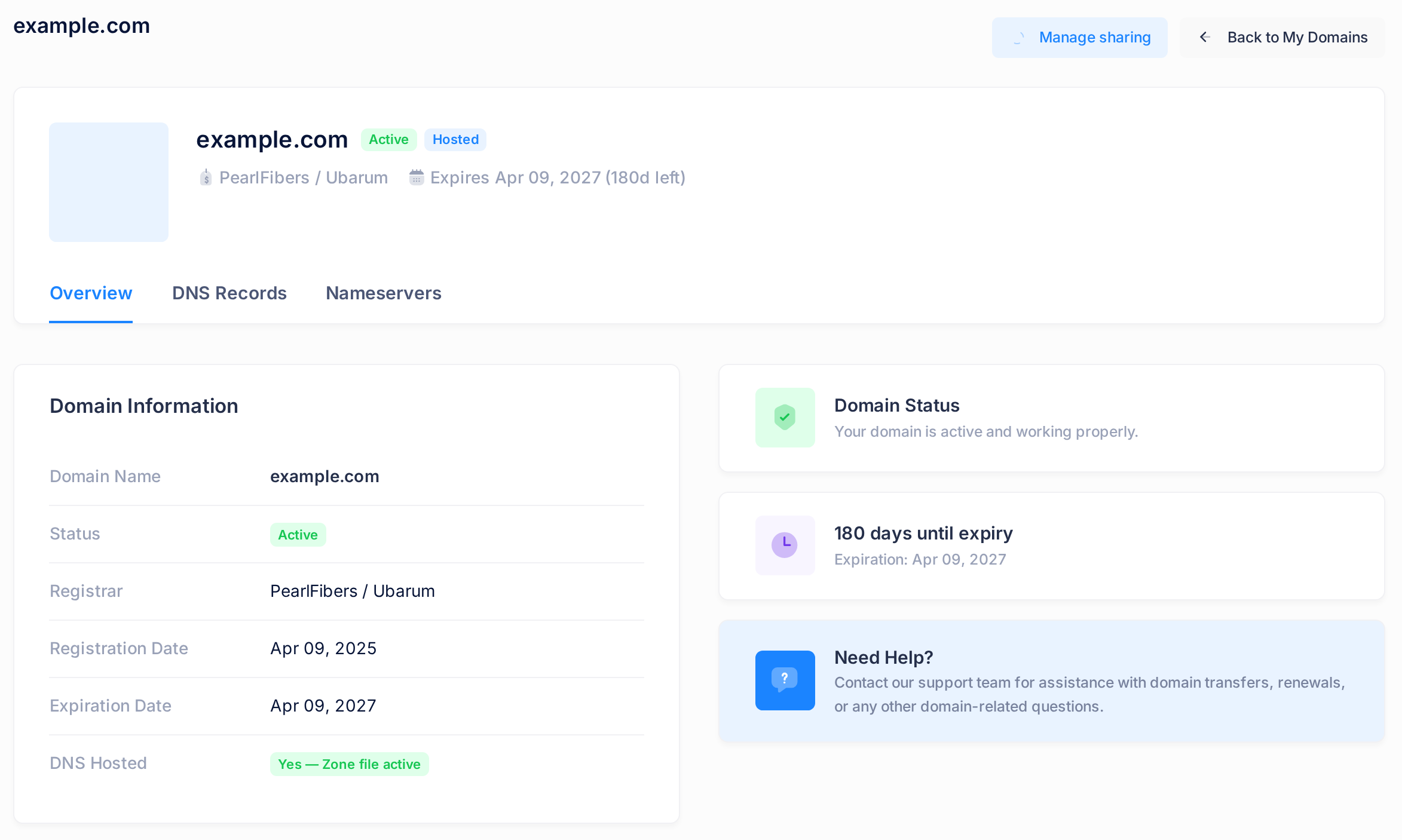
At the top are the buttons. Back to My Domains returns to the list. Manage sharing opens the sharing page, which this guide does not cover. A domain that is not Active or Expiring soon also has a Delete button: for you it does what the red bin on the list does, and the same warning applies.
Under the buttons, a header card gives the essentials: the domain name, the status badge, a Hosted badge (explained below), the registrar when the list card shows one, and Expires with the date and, in brackets, the days left or overdue.
Then come the tabs. An Active or Expiring soon domain has three. Any other has Overview alone and, under it, a card headed Domain Management Unavailable that names the status.
- Overview opens first; the next section reads it.
- DNS Records lists the domain's DNS records — the entries that point its names to the servers that run its website and receive its email — and lets you add, change and delete them. The guide "How to Manage Your Domain's DNS Records" explains how.
- Nameservers is for reading only. When the domain page names PearlFibers / Ubarum as the registrar, the tab asks the registrar for the domain's name servers — the servers that answer DNS questions for it — and lists the answer, or shows a message if no answer comes; for a domain with no registrar shown, it shows a notice in their place. To check which name servers your domain uses, or to have them changed, see the guide "Understand Nameservers".
The Overview tab
The card Domain Information has six rows.
| Row | What it means |
|---|---|
| Domain Name | The domain. |
| Status | The same badge as in the header card. |
| Registrar | The same name as on the list card. The row is left out when the card shows none. |
| Registration Date | The registration date on record. |
| Expiration Date | The expiry date on record. When 30 days or fewer are left a small badge follows it: the days left or, once none are left, Expired. |
| DNS Hosted | A green badge Yes — Zone file active, or a grey No. The green badge says the same as Hosted: see What "Hosted" means below. |
The tab has three more cards.
- Domain Status — one sentence about the status, for example "Your domain is active and working properly."
- A countdown — the days until expiry or, after the date, the days since — with Expiration: and the date under it.
- Need Help? — a note that our support team helps with transfers and renewals. The card has no button; contact support as described at the top of this guide.
What "Hosted" means
The Hosted badge and the green DNS Hosted badge mean one thing: PearlFibers keeps a set of DNS records for the domain on its own server — the records on the DNS Records tab. A grey No means it keeps none. Hosted says nothing about where the domain is registered or whether you have a hosting plan.
It is also not proof that the internet uses those records. DNS records take effect only on the name servers the domain actually uses, and Loop does not check which ones those are. If your domain uses another company's name servers, the records that count are kept at that company: make changes there. The guide "Understand Nameservers" shows how to check.
Common questions
How do I register a new domain, transfer one or lock it?
These are done through support, not on these pages. Contact support and tell us the domain name and what you need.
Will Loop remind me before a domain runs out?
Reminders are sent for the domain's subscription 30, 14, 7, 3 and 1 day before the end of its paid period, as long as that subscription has not been suspended or cancelled. They are counted from the subscription's date, not from the date on the domain page, so keep an eye on both dates yourself.
If something looks wrong
- The badge reads Active but the date is near or has passed. This is common. See Your domain and its subscription above.
- The Domains tab says No domains registered. Your account holds no domain. If you expected one, or want to register or transfer a domain, contact support.
- A domain has gone from the list. A domain that was cancelled or deleted is no longer listed. If the red bin or Delete was used by mistake, nothing else about the domain was changed: contact support.
Need a hand? On the home screen, click Help, then Live Chat or Submit a Ticket. Tell us the domain name and what its page shows.