
How can we help?

Email on your domain works only when its DNS records — the entries that tell other networks where its services are — name the right mail service. With PearlFibers email, follow Step 1 to Step 3: you only check the records. With another provider, follow Step 1, Step 2, then Step 4 to Step 7 in that order.
Before you start
- "Contact support" means: on the Loop home screen click Help, then Live Chat or Submit a Ticket.
- You already have an email service: a PearlFibers email plan with its mailboxes, or an account with another provider and its list of DNS records. This guide does not create mailboxes.
Step 1 — Check your domain's name servers
Records in Loop count only if your domain uses PearlFibers' name servers, the servers that answer DNS questions for it.
- Sign in to Loop and click the Portal tile on the home screen.
- Click View All Services.
- Open the Domains tab and click Manage on your domain.
- Open the DNS Records tab. A Suspended or Expired domain does not have it.
- Open a command window: on Windows, press the Windows key, type
cmdand press Enter; on a Mac, press Command and Space together, typeTerminaland press Return. - Type
nslookup -type=NS example.comwith your own domain name, nothing after it, and press Enter.
Skip the first two lines (they describe the DNS service that was asked) and the words Non-authoritative answer. Look for lines with nameserver = and a name.
- Names ending in
ubarum.comorpearlfibers.net, with or without a final dot or capitals: PearlFibers' name servers. Go on. - Other names: another company keeps the records that count. Make the changes there, not in Loop; if unsure, contact support.
- No such line, and a last line such as
NXDOMAIN: the domain is not in the DNS. Contact support.
No computer? On the web page Google Admin Toolbox — Dig, type your domain in Name and press NS.
Step 2 — Find the mail records
- In the table, find the row with MX in the TYPE column. It names the server that receives email for the domain; the number before the name is the priority: the lowest is tried first.
- Find the TXT row whose VALUE starts with
"v=spf1. This is the SPF record: the services allowed to send email in the domain's name.
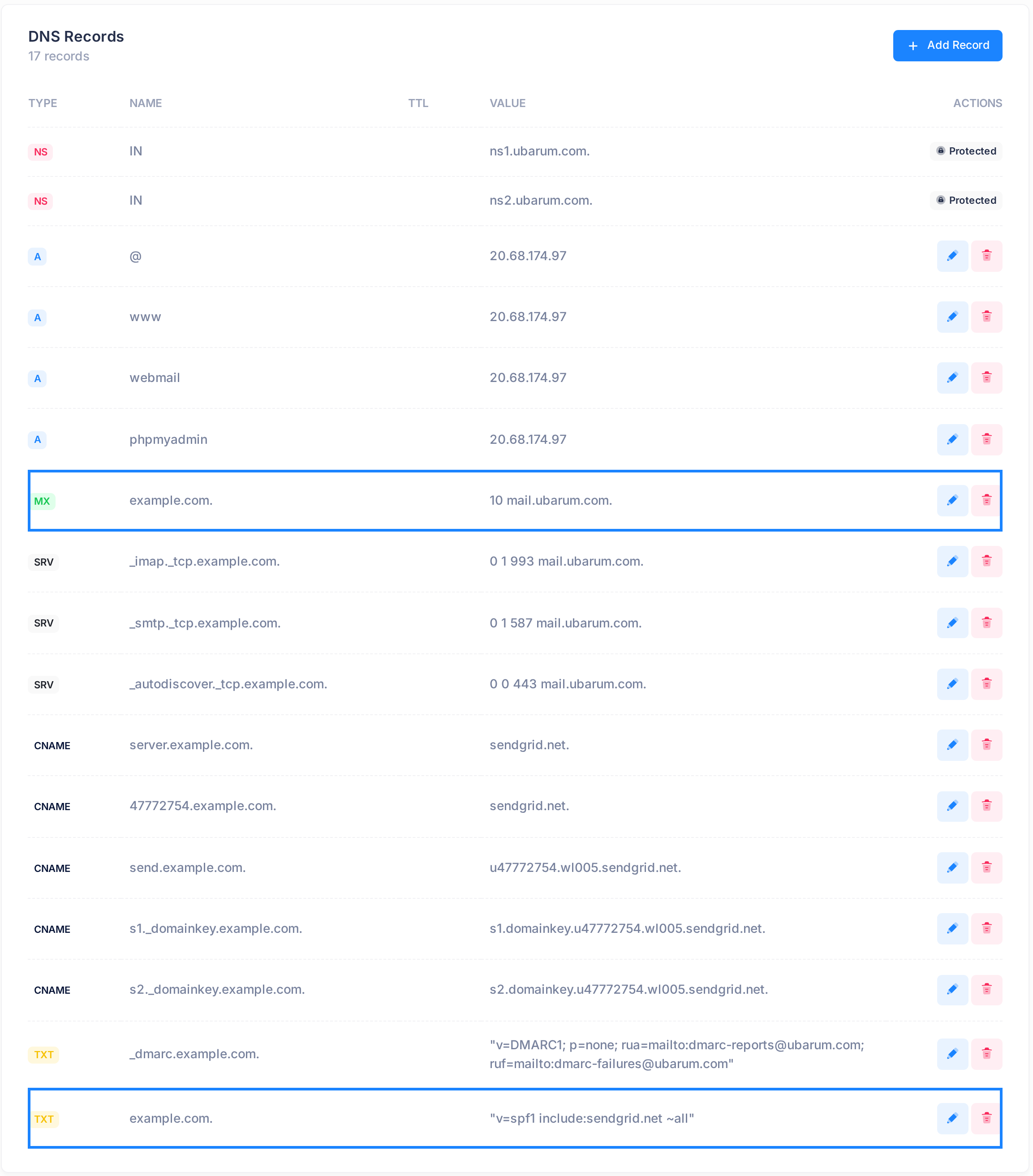
In the picture, the sample domain's name example.com. — with its final dot — means the domain itself, the same as @.
Step 3 — PearlFibers email: check the rows
- Check that the VALUE of the MX row is
10 mail.ubarum.com. - Check that the table also has the SPF row, a TXT row whose name starts with
_dmarc, three SRV rows ending inmail.ubarum.com.and five CNAME rows ending insendgrid.net. - In the command window, type
nslookup -type=MX example.comwith your own domain name. The answer must have a line with the wordsmail exchangerthat namesmail.ubarum.com. - If a row is missing or different, or the answer names another server, contact support with the domain name.
You are finished. While your email is with PearlFibers, do not edit or delete these rows.
Step 4 — Another provider: get it ready first
A saved MX record is answered at once, so email can reach the new provider the moment you save it: the provider must be ready first.
- At the provider, create your mailboxes.
- If the provider asks you to confirm the domain, add the verification record it gives you, as in Step 7. The guide Verify Your Domain with Google, Microsoft and Other Services shows every click.
- Wait until the provider confirms the domain. A new record can take up to a day to be seen.
Step 5 — Replace the MX record
Edit the MX row; do not delete it. One save swaps the old server for the new one, so the domain is never without an MX record.
- Write down the NAME and VALUE of the MX row.
- Click the pencil icon at the end of the MX row.
- In the box under VALUE, replace the text with your provider's priority number, one space, its mail server name and exactly one final dot, like
10 mail.example.net. - Click the tick at the end of the row. A dialog titled Success says DNS record updated successfully.
- If your provider lists more mail servers, add each as in Step 7: Type MX, Name
@, Value its priority number, one space, its name and one final dot. - Delete any MX row left from an earlier provider: bin icon, then Yes, delete it.
Without the final dot the save still succeeds, but your own domain is added after the server name. Edit one row at a time: with two rows open, the wrong values are saved.
Step 6 — Change the SPF record
A domain should have only one SPF record: change the row that is there, never add a second. If your website stays hosted with PearlFibers, the new value must keep include:sendgrid.net beside your provider's part: the website's emails go out that way. If unsure how to write both, contact support first.
- Copy the whole VALUE of the SPF row into a note.
- Click the pencil icon at the end of the SPF row. The box under VALUE opens empty; the other two boxes are filled.
- Paste the complete new value into the empty box, with one straight double quote (
") at the start and one at the end. - Click the tick and wait for the Success dialog. To leave the row as it was, click the cross instead.
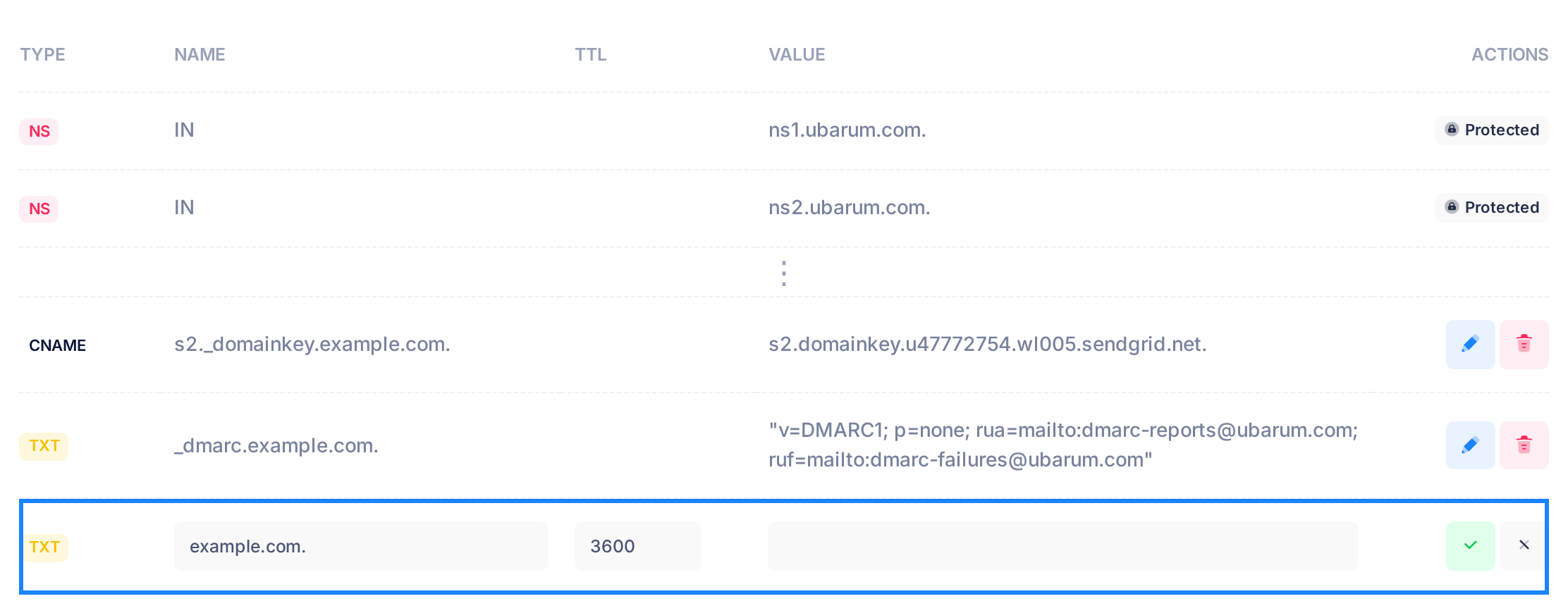
- Loop does not check the quotes: a wrong value is saved all the same. If your phone puts in curly quotes, use a computer.
- A record named
_dmarcon your provider's list: change the_dmarcrow in the same way.
Step 7 — Add the remaining records
Add each remaining record on your provider's list, one at a time, writing its name and value as below.
- Read down the NAME column. A CNAME row cannot share its name with another row; if your new record would cause that, stop and contact support.
- Click Add Record.
- In Type, choose the type your provider names.
- In Name, type the name without your domain at the end, or
@for the domain itself. With your domain at the end, the record is saved under your domain twice and Loop still reports success. An MX name takes English letters, digits and hyphens only. - Leave TTL at
3600. - In Value, type the provider's value: a server name ends in exactly one dot, a TXT value stands inside straight double quotes.
- Click Save once. A dialog says DNS record added successfully; the record is the last row of the table.
Leave all other rows as they are unless support tells you otherwise.
What happens next
- Other networks keep the old answer for the TTL the row had before your change: an empty TTL cell counts as
86400seconds, one day, and rows with the same name and type share one TTL. The3600an edited row shows counts for later changes. - So for up to a day some email still arrives in your old mailboxes. Keep and read them for one more day before you close anything.
Check your records
In the command window, type this with your own domain name; for the SPF record write TXT in place of MX:
nslookup -type=MX example.com ns1.ubarum.com
The name at the end asks PearlFibers' name server directly, so you see what is saved now. After the first two lines, the sample domain answers example.com mail exchanger = 10 mail.ubarum.com.; the layout and wording differ slightly on Windows and Mac.
- MX: your provider's server, with or without a final dot, and nothing after it — not your own domain.
- SPF: one pair of quotes around the text. Several quoted pieces mean the row was saved without straight quotes.
NXDOMAINorNo answerin the last line: no such record on that name. Compare the NAME of the row with the name you asked for.
Without ns1.ubarum.com at the end, and on the Dig page, you see what other networks see: that can still be the old record. For any other record, see the guide Check That a DNS Change Is Live.
If something goes wrong
- The dialog says Failed to update DNS record. Do not delete the row you were editing: the domain would lose its MX or SPF record. Correct what you typed and click the tick again. If it fails again, reload the page, find at the end of the table a row you added earlier, delete it, then check the row you edited. No cause found: contact support.
- The dialog says Failed to add DNS record. Do not click Save again: each click stores another copy. Reload the page and open DNS Records: the refused row is the last one. Delete it and every copy — bin icon, Yes, delete it, reloading after each — then add it again as Step 7 says.
- The check with
ns1.ubarum.comstill shows the old record. The change is not in service; waiting does not help. Reload the page and look for a refused row as above, or contact support.
Did email stop after a change? Put back the values you kept. Need a hand? Click Help, then Live Chat or Submit a Ticket.