
How can we help?

A subdomain is an address made by putting a name in front of your domain, such as shop.example.com. You create it by adding one DNS record, a line that points the name to a server's address or to another name. The record only points: the website or service has to be set up at the other end by whoever runs it.
Before you start
- The domain is Active in Loop and uses PearlFibers' name servers, the servers that answer DNS questions for a domain (Step 1 checks this).
- You have the destination from whoever runs the site or service: an IP address such as
203.0.113.10, or a host name such astarget.example.net. - To reach our support team: on the home screen, click Help, then Live Chat or Submit a Ticket.
Step 1 — Check which name servers your domain uses
- On a computer, open the command window. On Windows, press the Windows key, type
cmdand press Enter. On a Mac, press Command and Space together, typeTerminaland press Return. - Type
nslookup -type=NS example.comwith your own domain in place of example.com, and press Enter. - Read the lines that contain
nameserver =, one for each name server. Names ending inubarum.comorpearlfibers.netare PearlFibers' name servers: go on to Step 2. Capital letters and a final dot make no difference.
No computer? Open Google Admin Toolbox — Dig, type your domain in the Name box and click NS.
If the names belong to another company, the records that count are kept at that company: create the subdomain there. A record saved in Loop has no effect for visitors. If you are not sure, or the answer ends in NXDOMAIN, contact support.
Step 2 — Open your DNS records
- Sign in to Loop. On the home screen, click the Portal tile.
- Click View All Services.
- Open the Domains tab and click Manage on the card of your domain.
- Check for the badges Active and Hosted next to the domain's name, then open the DNS Records tab. If one is missing, contact support.
Step 3 — Choose the record type and a free name
| You were given | Type to choose | What the record does |
|---|---|---|
| An IP address | A | Points the name to that address |
| A host name | CNAME | Makes the name an alias of that other name |
- Decide the name, the part that goes before your domain, such as
shop. Use English letters, digits and hyphens only. Do not begin or end with a hyphen, and do not use an underscore (_). - Read down the NAME column and make sure no row has that name; if one has, pick another. A name can be listed short (
www) or in full with a final dot (send.example.com.).
A domain that Loop set up starts with rows named www, webmail, phpmyadmin, server and send, and several more that email uses.
Step 4 — Add the record
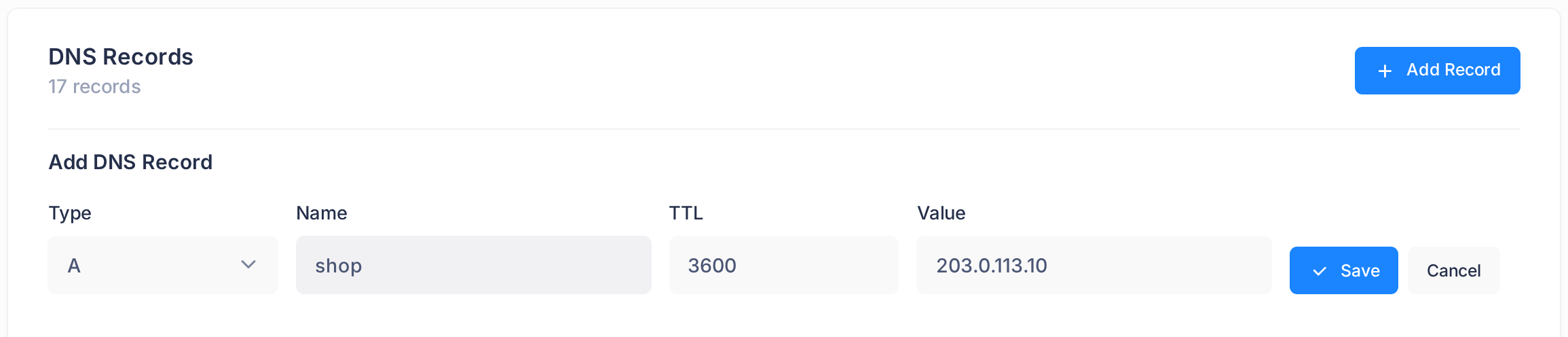
- Click Add Record. A form headed Add DNS Record opens above the table.
- In Type, choose A or CNAME.
- In Name, type only the part before your domain:
shop, not shop.example.com. Do not leave the box empty: an empty name is saved as@, the domain itself. - Leave TTL at
3600. It is the number of seconds other networks may keep the answer. - In Value, type the IP address for an A record:
203.0.113.10. For a CNAME record, type the host name only, ending with exactly one dot:target.example.net.Without the final dot, your own domain is added to the end, and the page still reports success. - Click Save once.
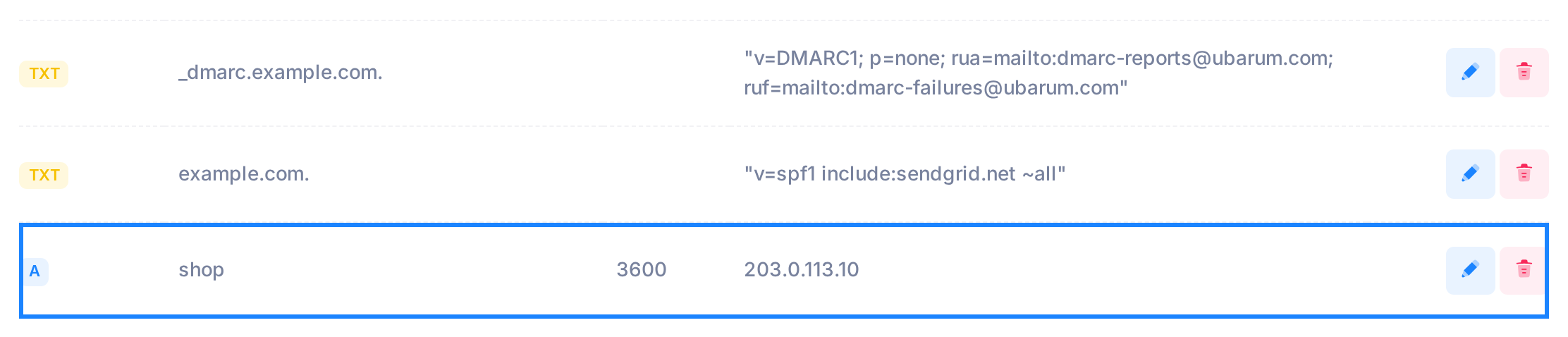
A box titled Success with the words DNS record added successfully appears for 3 seconds. The new record is the last row of the table.
Step 5 — Check the record
- In the command window, type
nslookup -type=A shop.example.com ns1.ubarum.comwith your own subdomain in place of shop.example.com, and press Enter. For a CNAME record, type-type=CNAMEin place of-type=A. - Skip the first two lines,
Server:andAddress:— they describe the name server. Your record comes after the empty line:Address: 203.0.113.10for an A record,canonical name = target.example.net.for a CNAME record. - If the last line ends in
NXDOMAINinstead, the record is not in service (see "If something goes wrong").REFUSED: the domain in the command is misspelt.
This command asks the PearlFibers name server directly, so it proves that the record is saved, not that visitors reach it. If it ends in timed out, your network does not let the question through: use the Google check below, as you do without a computer.
What happens next
The record is in service on the PearlFibers name server by the time the Success box shows, but the address can still take time to open: a network that asked for the name before the record existed may keep answering "not found" for up to a day.
To see what visitors get, type the subdomain in the Name box of the Google page from Step 1 and click A or CNAME. It prints Record not found! while it gets no record; if it still does after a day, repeat Step 1. The guide "Check That a DNS Change Is Live" shows the same check from your computer.
After a later change or removal, other networks keep the old answer for as long as its TTL says — one hour for a TTL of 3600.
A name with a CNAME record holds nothing else
Add a CNAME record only under a name that no row has yet, and add no other record under that name later, not even a TXT record that a service asks for. If you do, the save ends with Failed to add DNS record — see "If something goes wrong".
Deeper names and wildcards
The Name box accepts a name of more than one part: type dev.shop for dev.shop.example.com. It also accepts a wildcard, written with a star (*): a record that answers for every name under your domain that has no record of its own. Add one only when your provider's instructions ask for it.
Change or remove the subdomain later
- To point it somewhere else, write the old value down, click the pencil at the end of its row, change the value in the row and click the tick. The page confirms with DNS record updated successfully. Do not add a second row with the same name: both would be served. Finish one row before you open another.
- To change its type, delete the row and add the new record straight away: the type of a row cannot be edited.
- To remove it, click the bin at the end of its row and confirm with Yes, delete it. The page confirms with DNS record deleted successfully.
If something goes wrong
When a record cannot be saved, a box titled Error gives the reason.
- A record must be a valid IPv4 address (e.g., 192.168.1.1) — the value is not an IP address of that form. For a host name, choose CNAME.
- CNAME target must be a valid hostname (e.g., example.com.) — the value must be the host name alone: no https:// in front and no slash after it.
- CNAME record cannot be created at the zone apex (@) — the name was left empty or is
@. Type the subdomain's name. - Name contains invalid characters. Use alphanumeric, hyphens, or underscores. — remove spaces, Arabic letters and other signs. Do not put an underscore in their place, although the message offers it.
- Failed to add DNS record — the name server refused the record: a CNAME record and another record share one name, or the host name ends with two dots. The refused record is stored all the same, and so is every further attempt, so do not click Save again. Reload the page in your browser, open DNS Records and delete the row you added; it is the last row of the table. If you clicked Save more than once, delete each copy and reload the page after each one: Failed to delete DNS record can show although the row is removed.
- The page said Success, but Step 5 does not show your record. If the NAME of the new row is
@, the Name box was empty and visitors of your main address can now be sent to the new destination: delete the row. If the NAME is typed in full without a final dot (shop.example.com), it is served as shop.example.com.example.com: change it toshop. An A record whose NAME has an underscore or ends in a hyphen is never put into service and holds back every later change to the domain: delete the row and add the record again with a valid name.
Still stuck? Contact our support team with the domain, the name and where it should point.