
How can we help?

A service such as Google, Microsoft or Meta may ask you to add a record holding a code to your domain's DNS, the public records kept for your domain. The service then reads the code back, which proves the domain is yours. This guide shows how to add that record in Loop, check it and remove it.
Before you start
- Keep the service's page open: you need the record type, the name (also called "host") and the value. Copy them from the service; they are its own and can change.
- In Loop, your domain's status is Active. If it is not, its page has no DNS Records tab: contact our support team.
- Our support team: on the home screen, click Help, then Live Chat or Submit a Ticket.
Step 1 — Check which name servers your domain uses
Name servers are the servers that answer DNS questions for a domain. A record added in Loop reaches the service only if your domain uses the PearlFibers name servers.
- Open a command window. On Windows, press the Windows key, type
cmdand press Enter. On a Mac, press Command and Space together, typeTerminaland press Return. - Type
nslookup -type=NS example.com, with your own domain in place ofexample.com, and press Enter. - Read the lines that contain
nameserver =and ignore the rest. Names ending inubarum.comorpearlfibers.netare the PearlFibers name servers: go on to Step 2.
No computer? On the page Google Admin Toolbox — Dig, type your domain in the Name box and press NS: it lists the same names.
If the names belong to another company, the records that count are kept at that company: add the record there, not in Loop. If you are not sure, or a line ends in NXDOMAIN (your domain is not in the DNS at the moment), contact our support team.
Step 2 — Open your domain's DNS records
- Sign in to Loop. On the home screen, click the Portal tile.
- Click View All Services.
- Open the Domains tab.
- Click Manage on the card of your domain.
- Open the DNS Records tab.
Step 3 — Add a TXT record
A TXT record holds a line of text. If the service asked for a CNAME record, read this step, then Step 4. The table shows what to type as the name.
| Name or host from the service | What you type in Loop |
|---|---|
@, an empty host, or your domain alone (example.com) | @, which means the domain itself |
A name ending with your domain, such as _example-check.example.com | Only the part before your domain, _example-check: your domain is added to whatever you type |
A short name, such as _example-check or selector._domainkey | The same name, unchanged |
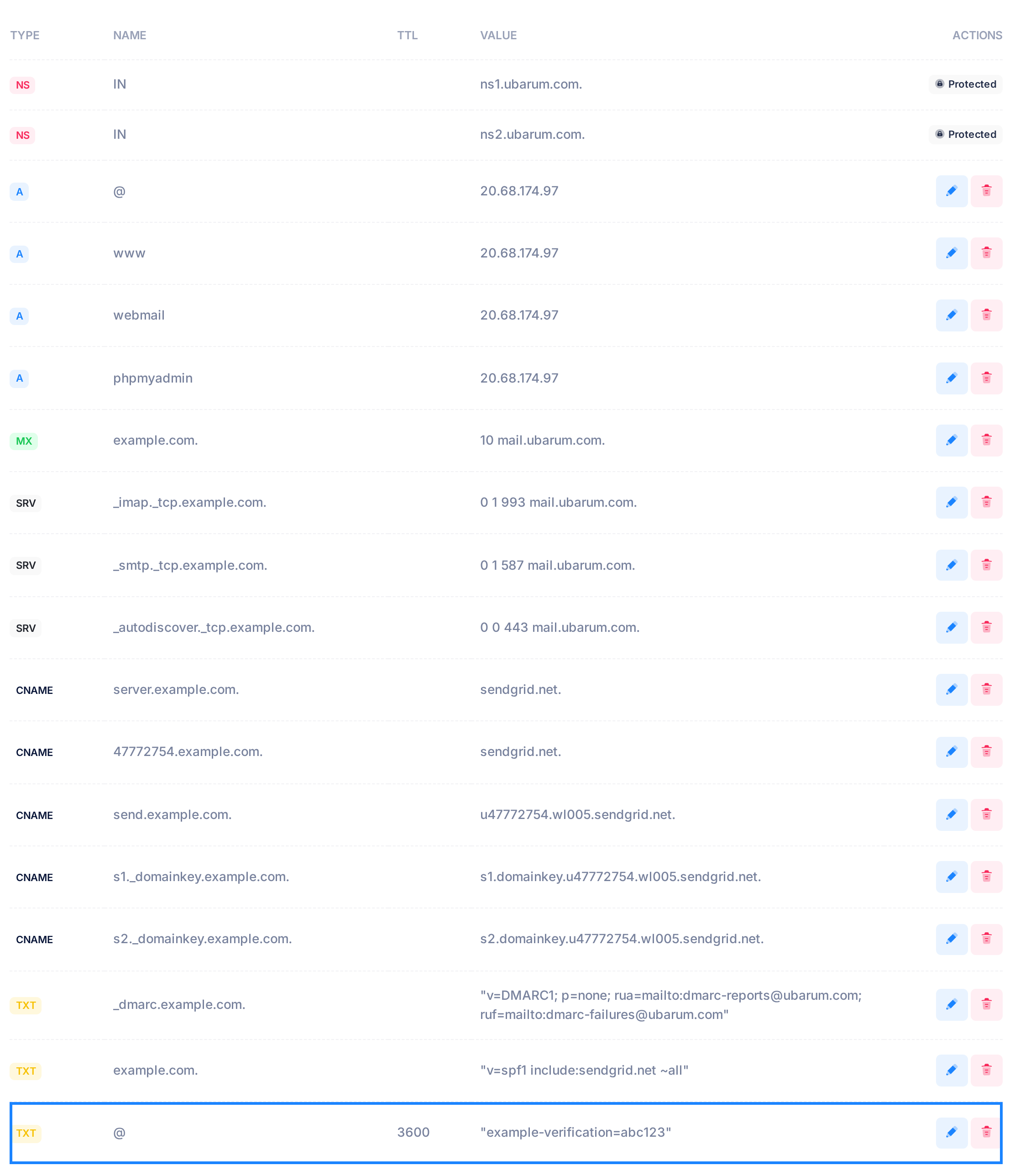
The example adds the made-up code example-verification=abc123 for the domain itself.
- Unless the name is
@, read down the NAME column. If a row of type CNAME already has your name, short (send) or in full (send.example.com.), stop and contact our support team: that name cannot take another record. - Click Add Record. The form Add DNS Record opens above the table.
- In Type, choose TXT.
- In Name, type the name from the table above — in the example,
@. - Leave TTL, the time other networks may keep an answer, at
3600. - In Value, put the value inside one pair of straight double quotes (
"):"example-verification=abc123". If your keyboard turns them into curly quotes (“ ”), the service will not find the code: add the record from a computer. - Click Save. A message titled Success with the words DNS record added successfully appears and closes by itself, and the new record is the last row of the table.

Your domain already has a TXT record for the domain itself: the SPF record, one of its mail records. On example.com it is the row example.com. whose VALUE begins "v=spf1. Leave it as it is: a name can have several TXT records, and the verification record is a row of its own.
Step 4 — Add a CNAME record instead
A CNAME record makes one name an alias of another. If the service asked for one, follow Step 3 with these changes. The example uses the made-up name example-check and value verify.example.net.
- In the NAME column, no row of any type may already have your name: a name with a CNAME record cannot have any other record. If one does, contact our support team.
- In Type, choose CNAME.
- In Name, type a name of its own, such as
example-check; a CNAME record cannot be named@. - In Value, paste the host name only: no quotes, nothing before it and no slash after it. It must end with exactly one dot, so type a dot only if the pasted value has none:
verify.example.net.
Without the dot Loop still shows Success, but the record points inside your own domain.
Step 5 — Ask the service to verify
- On the service's page, ask it to verify your domain. If it does not find the record, ask again later (it can take up to a day); do not add the record a second time.
What happens next
The PearlFibers name server answers with your record from the moment Success appears. Other networks may keep the answer they had before you added it for up to a day, whatever the TTL box says, so the service may not find the record at its first try.
Whether the record must stay after your domain is verified is for the service to say: follow what it tells you.
Check that the record is saved
In the command window of Step 1, type nslookup -type=TXT example.com ns1.ubarum.com, with your own domain, and press Enter. This asks the PearlFibers name server directly. The first two lines of the answer describe that server, not your record. Below them your code must appear in a line such as example.com text = "example-verification=abc123", beside the line of the SPF record. If your code is missing, or the last line ends in NXDOMAIN or says No answer, the record is not saved correctly.
This proves that the record is saved, not that your domain uses these name servers: Step 1 answers that. For a CNAME record, a record with a name of its own, or a check through other networks, see the guide Check That a DNS Change Is Live.
Remove an old verification record
- On the DNS Records tab, find the record's row and note its NAME and VALUE: a deleted record cannot be brought back, only added again. It must not be the row whose VALUE begins
"v=spf1. - Click the bin icon at the end of the row.
- In the question Delete DNS Record?, which names the record's type and name, click Yes, delete it. The message DNS record deleted successfully appears and the row is gone.
If something goes wrong
- Failed to add DNS record — the name server refused the record, but Loop stored it, and while it stays no other change to your records takes effect. Do not click Save again: each click stores one more copy. Reload the page and open DNS Records: the refused record is the last row. Delete it and any copy, reloading the page after each: a copy can be gone although an Error box appeared. Then add the record again without the cause: a missing quote or a value ending in two dots. If the cause is a name that already has a CNAME row (for a CNAME record, any row), contact our support team.
- CNAME record cannot be created at the zone apex (@) — the Name box of a CNAME record held
@or was empty. Type the name the service gave you. - The service still cannot find the record. Compare the row's NAME with the table in Step 3 and its VALUE with what the service gave you. If one differs, delete the row as described above and add the record again. If both are right, allow for the wait under What happens next.
Need a hand? On the home screen, click Help, then Live Chat or Submit a Ticket, and tell us your domain name and what the service asked for. For the rest of the DNS Records tab, see the guide How to Manage Your Domain's DNS Records.