
How can we help?

A public holiday, a payment deadline or a three-day trade fair belongs to whole days, not to hours. In Calendar you add it as an all-day event: the tick box All Day in the event form makes it one.
Before you start
- You are signed in to Loop and on the home screen. Click the tile Calendar: it opens in the month view, on the current month.
- Steps 1 and 2 need a computer and a mouse. On a phone or tablet, use Step 3, and tap where this guide says "click".
- The form's other boxes are explained in Create and Edit Events.
Step 1 — Add an event for one whole day
- For a day in another month, first click the arrows above the calendar, beside today, until that month is shown.
- In the month view, click the empty part of the day's box. The form Add Event opens with All Day ticked and that day in both Event Start Date and Event End Date. It has no time boxes.
- Type a name in Event Name, for example
Public holiday. - Click Submit. The form closes, a green note Event created successfully shows under the top bar for 5 seconds, and the event appears on its day as a coloured bar.
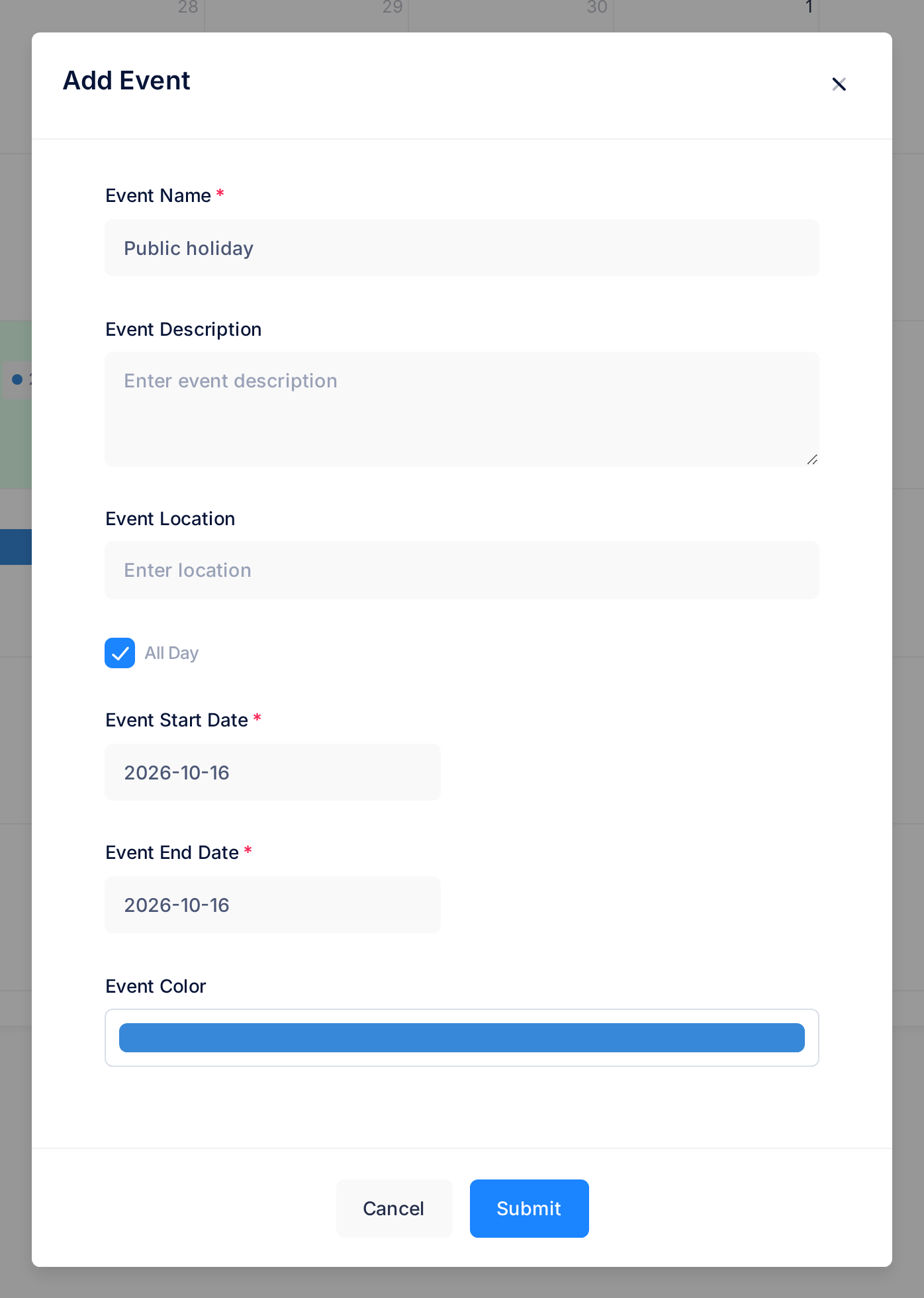
If the day view opens instead of the form, you clicked the day's number, a link to that view: click month and click beside the number.
Step 2 — Add an event over several days
- In the month view, press the mouse button on an empty part of the first day's box, move the pointer to the last day and let go. The same form opens, with the first day in Event Start Date and the last day in Event End Date. Do not start on an event: that drags the event to another day and saves the move at once. If it happens, drag the event back.
- Check the two dates. They are written year first, like
2026-10-27. To correct one, click it and click the right day in the small calendar that opens. - Type the Event Name, for example
Trade fair. - Click Submit. The event appears as a bar across all its days, the last day included; past the end of a week, it continues on the next row.
When the last day is not on the screen, click the first day as in Step 1 and choose the last day in Event End Date.
Step 3 — Use the Add Event button
- Click Add Event, above the calendar. The form opens with today in both date boxes and with two time boxes.
- Type the Event Name.
- Tick All Day. The two time boxes disappear.
- Click Event Start Date and choose the first day. On a computer a small calendar opens; a phone or tablet opens its own date chooser.
- Click Event End Date and choose the last day. For a one-day event, the same day again.
- Click Submit. A green note, Event created successfully, confirms the save.
The calendar stays on the month it was showing: an event in another month appears when you go there with the arrows beside today.
On a phone the month view has no room to draw events: each day of your event shows a link such as +1 more. Tap it for the list of that day and tap the event there to open its window, or tap week to see the bar.
On a computer, the week and day views offer a shortcut: click in the row all-day at the top, under the day you want. The form opens as in Step 1. If it shows time boxes, you clicked among the hours: tick All Day.
Step 4 — Give an all-day event times, or take them away
- Click the event in the calendar. A small window about it opens.
- Click the pencil icon at the top of the window. The form opens, now titled Edit Event, with All Day ticked.
- Clear the tick. The two time boxes come back, holding
00:00and23:59. - Click Event Start Time and set the hour and the minutes in the small panel that opens (a phone opens its own time chooser). Do the same in Event End Time.
- Click Submit. A green note reads Event updated successfully.
The panel uses a 24-hour clock, the calendar a 12-hour one: an event that starts at 08:00 shows 8a in the month view, one at 22:00 shows 10p.
On an event of several days the start time belongs to the first day and the end time to the last, and the event stays one bar in the month view. For the same hours on every day, add one event for each day.
The other way round, open the form of an event with times, tick All Day and click Submit. Its times are not kept: note them first if you may want them back.
What happens next
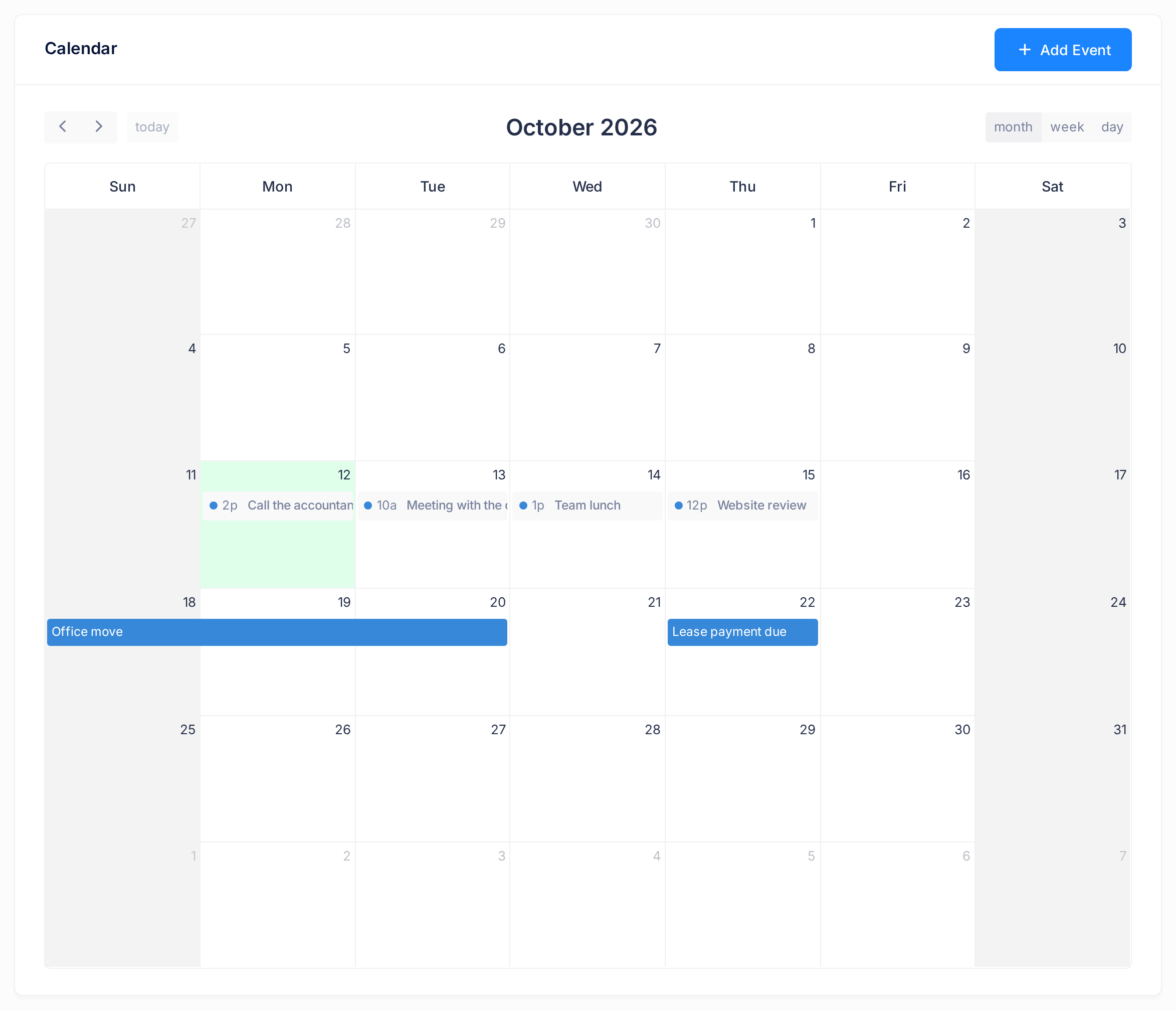
In the month view an all-day event is a bar filled with its colour, showing its name and no time. A one-day event with times looks different: a small dot, the start time and the name.
In the week and day views all-day events sit in the row all-day at the top: a three-day event as one bar under its three days.
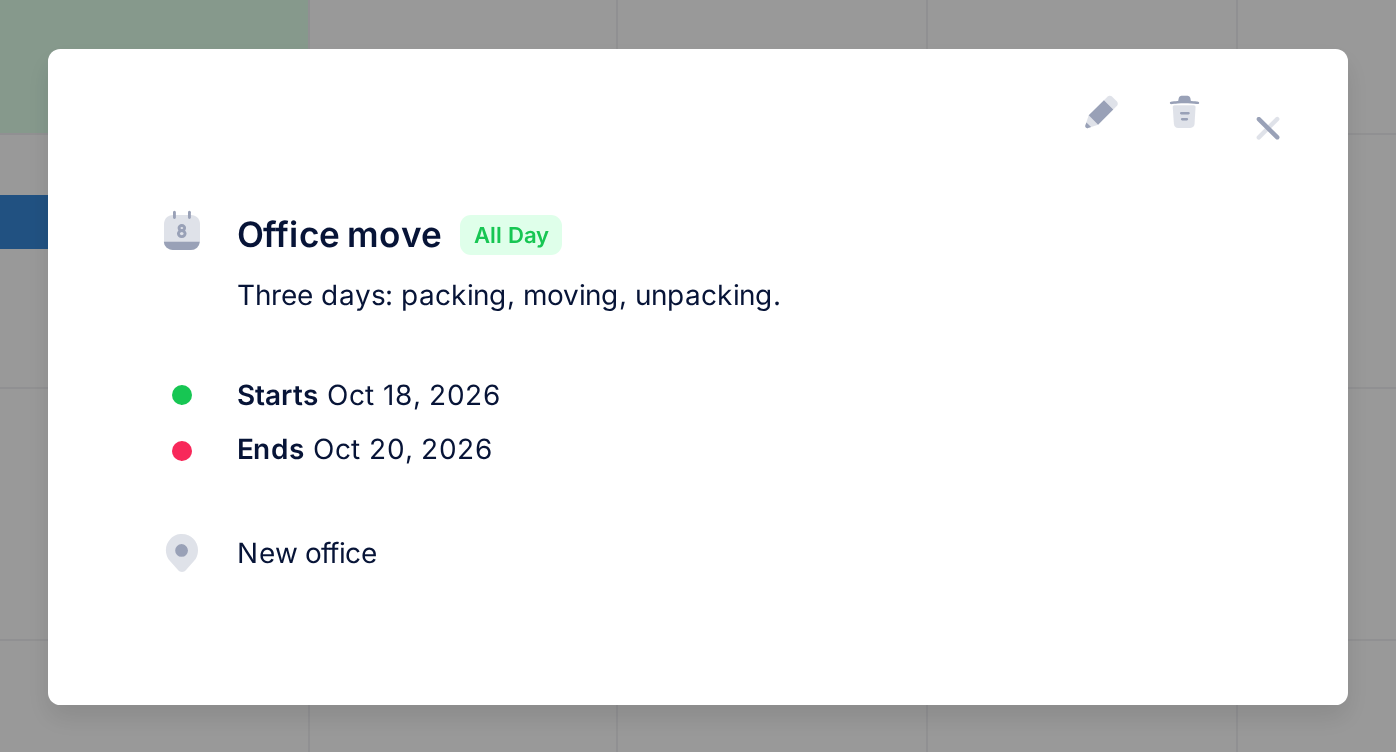
To check an event, click it. Its window shows the green badge All Day beside the name, and Starts and Ends give dates without times: the first day and the last day. A one-day event shows the same date twice. An event with times has no badge, and a time after each date.
To move an event of several days or change its length, correct the dates in its form, or drag the bar or its end: see Reschedule by Dragging.
Rules that prevent mistakes
- Without the tick it is not an all-day event. An event added with Add Event, a name and nothing else is saved for today as an event with times, from 00:00 to 23:59. You recognise it by the time in front of its name in the month view,
12a; in the week view it is a block among the hours reading12:00 - 11:59. To repair it, tick All Day in its form, as at the end of Step 4. - Calendar does not remind you of an event and cannot repeat one: add a yearly holiday once for each year.
If something goes wrong
- A red note says Title is required. Event Name is empty. The form is still open: type the name and click Submit again.
- A red note says End date must be after start date. The end is not later than the start: look at Event End Date and, on an event with times, at the end time.
For any other red note, or if Calendar does not do what this guide describes, tell our support team: click the Loop logo at the top of the page to return to the home screen, then click Help and Submit a Ticket. The guide Describe a Problem So We Can Fix It Fast lists what to send.