
How can we help?

Your calendar can show two things you did not put there: a company event, which is one event shown in every Loop account, and a grey tint that marks the time outside working hours. To contact support: on the home screen, click Help, then Submit a Ticket.
Where to find it
- On the home screen, click the tile Calendar. The calendar opens on the current month.
- To see the grey areas hour by hour, click week or day above the calendar. The hours then run down the side, from 6am.
- To find out what an event is, click it. A small window opens. If the form Add Event opens instead, you clicked beside the event: click Cancel.
On a phone the month view draws no events, only links such as +1 more, each one row below its day. Press week or day instead: you see a few hours at a time, so slide the hours up to reach the rest of the day.
Company events
A company event appears in every Loop account that has Calendar, other customers' as well as yours, beside each account's own events. Creating one takes a special right, which an ordinary customer account does not have, so the form you open with Add Event has no box for it.
If one is added, it looks like any other event: no icon, no frame, and whatever colour its creator chose. You tell it apart by clicking it:
- Its window has a blue badge, Company Event, beside the name.
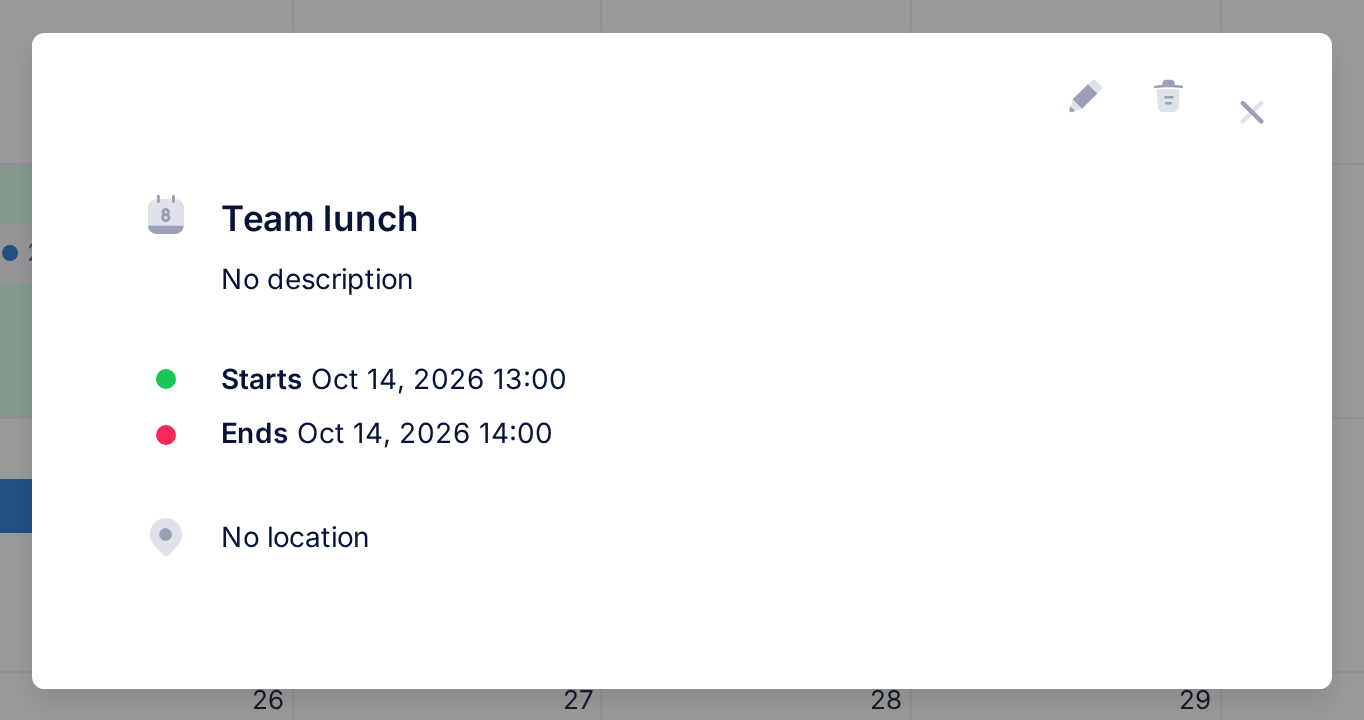
- The top of its window has only a cross; your own event's window, as in the picture, also has a pencil to change it and a bin to delete it.
- The cross reads Hide Event when the pointer rests on it, but it only closes the window. You cannot hide, change or delete a company event.
The grey areas: working hours
Loop keeps one set of working hours, the same for every account: Monday to Friday from 09:00 to 17:00, none on Saturday and Sunday. The calendar tints grey whatever lies outside them.
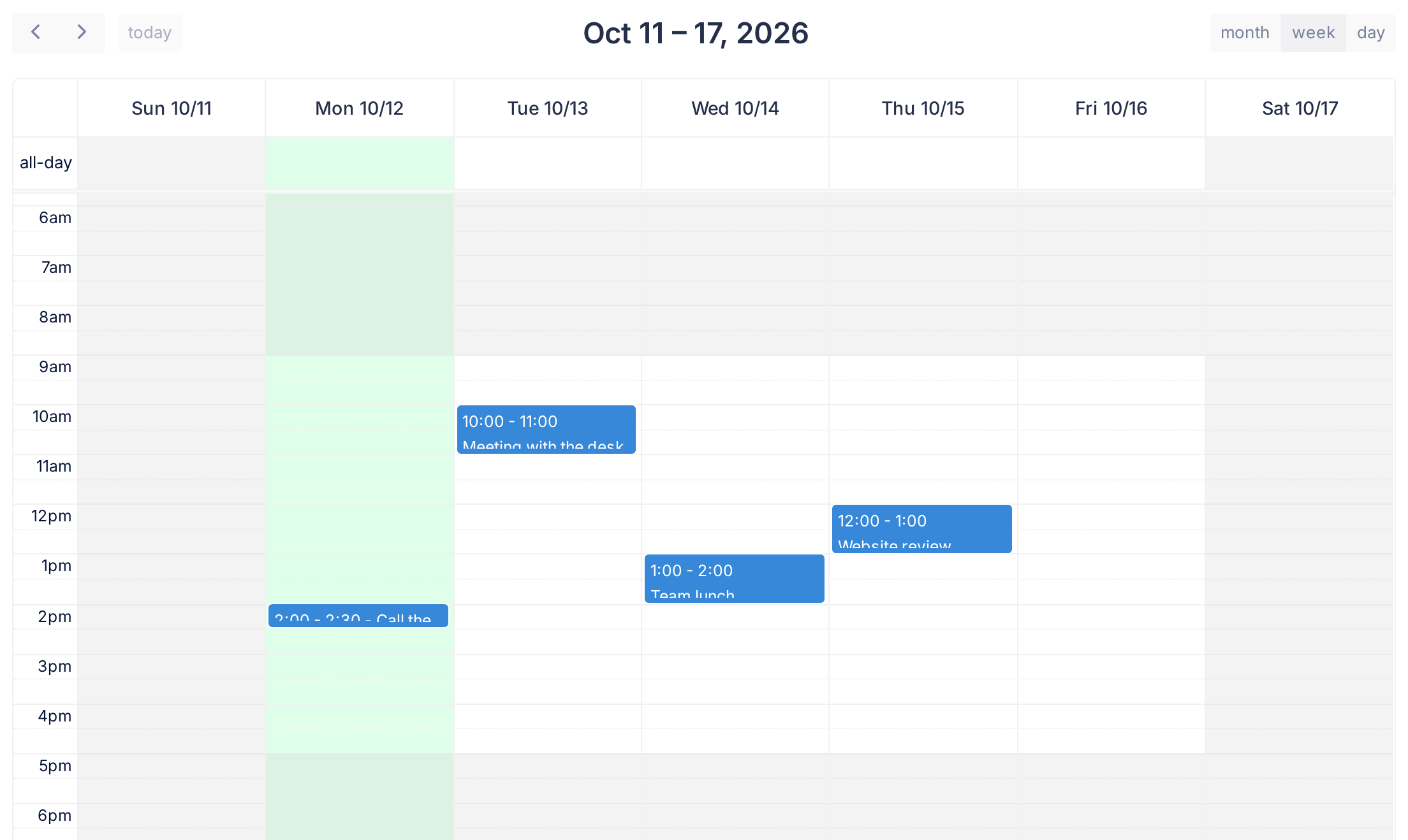
- In the week and day views, from Monday to Friday the rows before 9am and from 5pm on are grey.
- Saturday and Sunday are grey for the whole day, in the month view too.
- Today has a light tint of its own, so its grey rows look different, as on Monday in the picture.
The tint limits nothing: you can add, drag and stretch events at any hour and on any day.
Which clock the times follow
Calendar does not convert times between countries and has no setting for a time zone. An event is drawn at the clock time entered for it, on every device: a company event entered for 10:00 reads 10:00 for everybody, and nothing on it says which country's 10:00 that is.
Common questions
Will I be told when a company event is added or removed?
No. Nothing in Calendar sends an email, a notification or a reminder. A new company event is there the next time you open the calendar; a deleted one is gone for everyone.
Can I change the grey areas to my own working days?
No. Loop has no page for changing the working hours.
Can other people see my events?
No. Each account sees its own events and the company events, nobody else's.
Why does the calendar say 1:00 when the window says 13:00?
The calendar writes times on a 12-hour clock, the event's window on a 24-hour clock. In the pictures, "Team lunch" is 1:00 - 2:00 on Wednesday in the week view and 13:00 to 14:00 in its window; the month view writes 1p.
If something looks wrong
- An event you do not recognise has no blue badge. It belongs to your own account, and you can change or delete it (see the guide Create and Edit Events). If nobody who uses your account added it, contact support before you delete it: a deleted event cannot be brought back.
- A company event looks wrong. Contact support.
- An event you dragged jumped back. A red note reads Failed to update event and goes after 5 seconds. Click the event: with the badge Company Event, that is expected. For an event of your own, see the guide Reschedule by Dragging.
To reach support from Calendar, click the Loop logo at the top of the page to return to the home screen. Tell us the event's name and date; the guide Describe a Problem So We Can Fix It Fast lists what else helps.