
How can we help?

Calendar shows your events by month, by week or by day. This guide shows how to switch between them, move forward and back, and read your events in each, on a computer and on a phone.
Before you start
- You are signed in to Loop and on the home screen, the page that shows your apps as tiles.
- Your calendar shows your own events; the guide Create and Edit Events shows how to add them.
Step 1 — Open Calendar and find the toolbar
- On the home screen, click the Calendar tile. The calendar opens in the month view, on the current month.
- Look at the toolbar above the days: two arrows, the button today, a title that names what is on the screen, such as
October 2026, and the buttons month, week and day. - Find today: its box is tinted, pale green on the light theme.
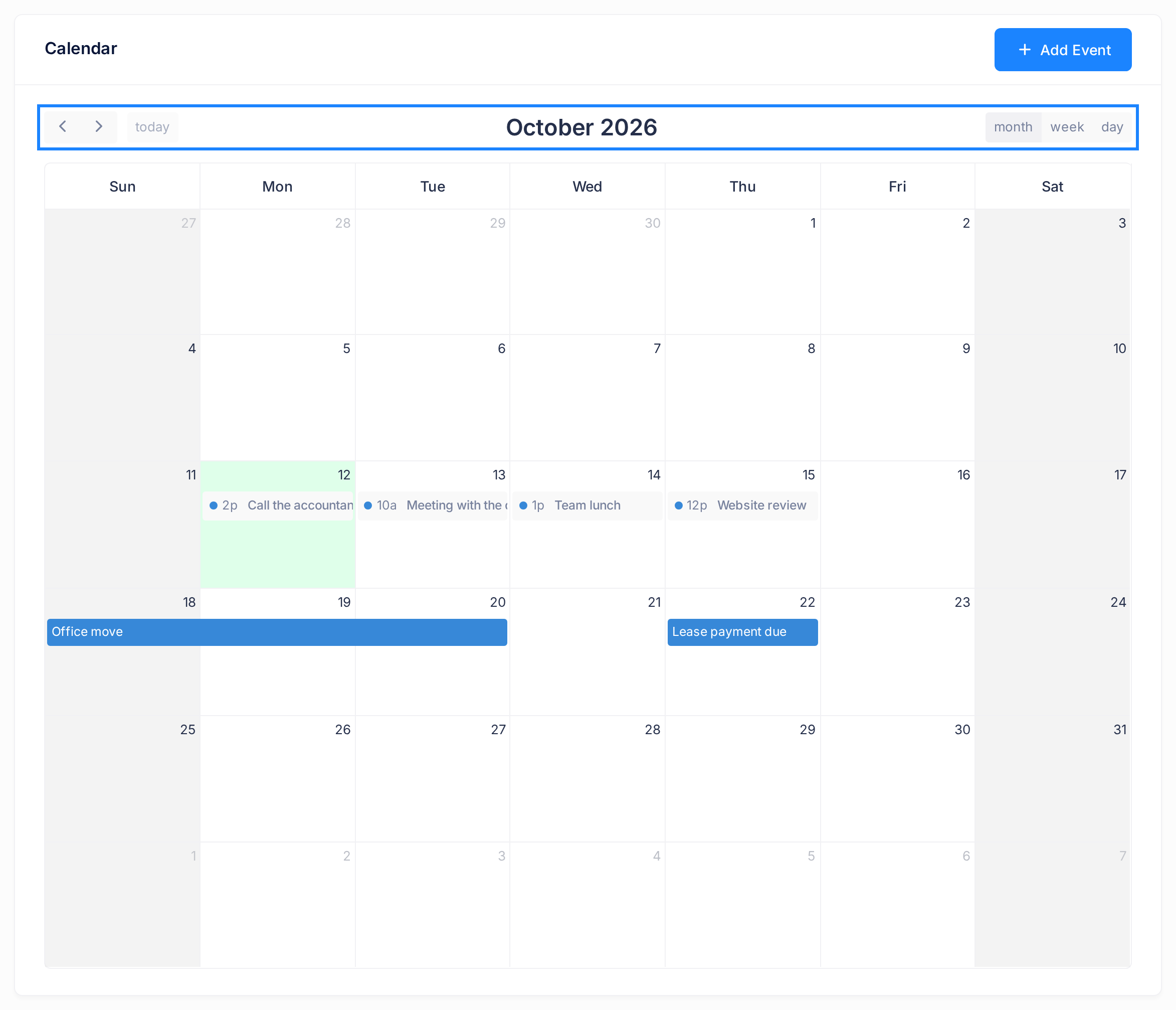
In the month view an event with times shows a small dot in its colour, the time it starts and its name. The time is written short: 1p is 1 in the afternoon. An event that lasts all day, or runs over several days, is a coloured bar with its name.
Grey shading marks time outside working hours, which are the same for every account. It is only a tint; see the guide Understand Company Events and Working Hours.
Step 2 — Switch between month, week and day
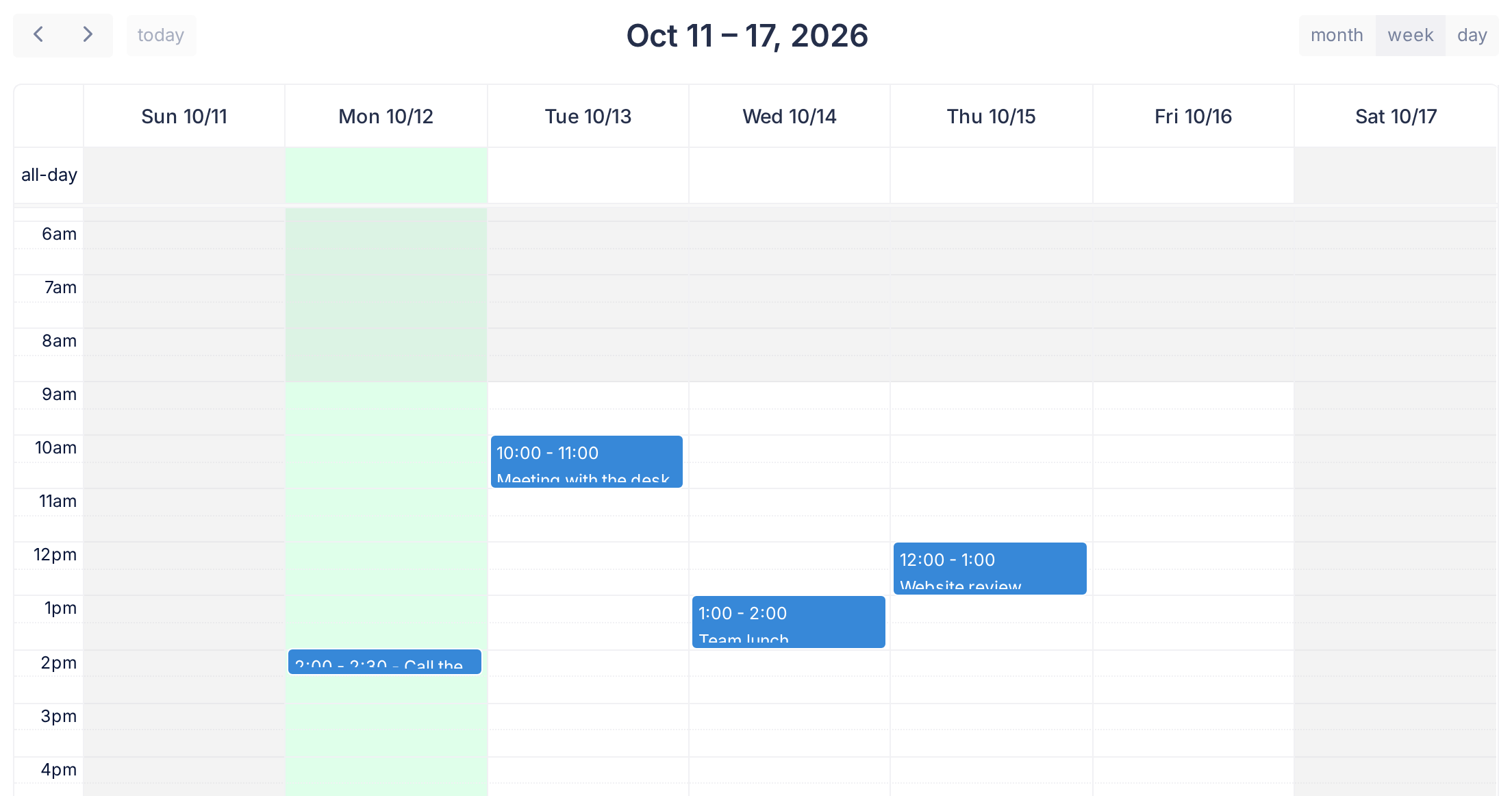
- Click week. Seven days stand side by side, Sunday first, and the title becomes the dates of the week, such as
Oct 11 – 17, 2026. - Click day. One day fills the calendar and the title becomes its date, such as
October 12, 2026. - Click month to see the whole month again.
Right after Calendar opens, week shows the current week and day shows today. After an arrow in the month view they show the 1st of that month and its week, even back on the current month; today (Step 3) brings back the present.
The week and day views draw each day in half-hour rows, with a label every hour. They open at 6am: scroll inside the calendar for earlier or later hours. An event with times is a filled block from the row of its start time, as tall as the event is long. It shows its times, such as 1:00 - 2:00, without am or pm: the label of its row says which. On a block of an hour or less the name is cut off; click the block to read it. All-day events sit in the row labelled all-day at the top.
Step 3 — Go forward, go back and return to today
- Click the second arrow to go forward, or the first to go back: one month, one week or one day at a time, according to the view. The title changes with each click.
- Click today to return to the month, week or day that holds today's date. While that period is on the screen, the button is grey and cannot be clicked.
To look at next week: click week, click today unless it is grey, then click the forward arrow once.
Calendar has no box for typing a date. For a date far away, click month, click an arrow until the title names the month you want, then open the day as in Step 4.
Step 4 — Open one day
- Click month.
- Click the number of the day you want. The day view of that day opens, with its date as the title.
On a computer, a click beside the number, on the empty part of a day's box, or on an hour row in the week and day views, opens the form Add Event instead. Click Cancel to close it: an event is added only with Submit.
In the week view, the heading of a day, such as Sun 10/11, opens that day in the same way.
When a day has more events than its box can show, the month view replaces the rest with a link such as +2 more. Click it for a small list of all that day's events; the cross in its corner, or a click outside it, closes the list.
What happens next
Moving around changes only what is on the screen, and Calendar does not remember where you were: each time it opens, it is back on the current month.
To read an event in full, click it. A small window shows its name, its description, the lines Starts and Ends and its location. The times there are on a 24-hour clock: an event drawn at 1p reads 13:00. The cross at the top of the window closes it.
On a phone
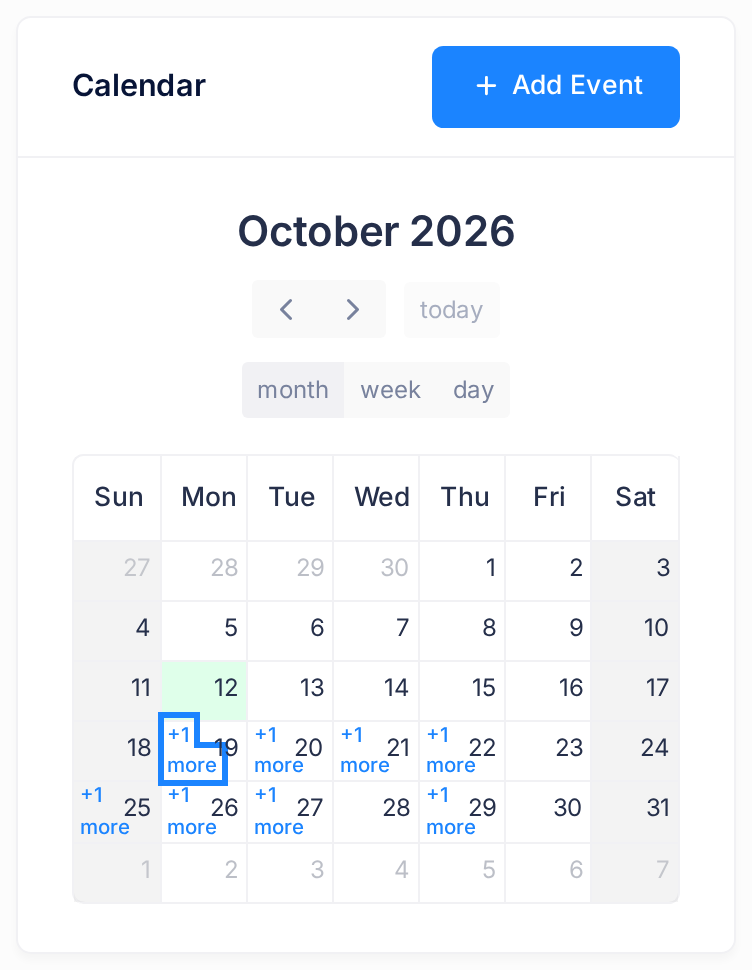
On a narrow screen the toolbar is in three rows: the title, the arrows with today, then month, week and day.
In the month view the boxes are too small to draw events: a day that has events gets a link such as +1 more, and an event over three days gets one on each day. The link hangs under its day's number, into the row of the week below, so it is easy to take for the next week's; the list it opens is headed with its date. To be sure of a day, press its number.
The week and day views show only a few hours at a time on a phone, from 6am: scroll the hours before you decide that a day is empty.
A quick look from the home screen
- Click the Loop logo at the top of the page to return to the home screen.
- Click the first button of the top bar, the one before the logo. A panel headed Widgets slides in; its first box is CALENDAR.
- Read the box: one month, with today's date in a filled circle and a small dot under each day on which one of your events starts. The arrows on each side of the month's name move a month back or forward.
- The days in the box cannot be clicked: to open Calendar, click the small arrow at the end of the line CALENDAR. To close the panel, click the arrow at the end of the line Widgets.
A day without a dot is not always free: an event that lasts several days puts a dot under its first day only, and an event with times on the last day of a month gets none.
If something goes wrong
- An event moved when you only wanted to look. You dragged it, and a drag is saved at once: a green note, Event updated successfully, shows for 5 seconds. Drag the event back to where it was, then click it and check the lines Starts and Ends. If they are not as before, set them right with the pencil in that window: see the guide Create and Edit Events.
- Today's tint is on the wrong day. Calendar takes today from the clock of your phone or computer. Set its date right, then open Calendar again.
Does Calendar not open, or does it show an error? Click the Loop logo at the top of the page, click the Help tile, then Submit a Ticket.