
How can we help?

Calendar is the app in Loop where you keep your meetings, calls and deadlines. This guide shows you how to add an event with a day and a time, how to read it in the calendar, and how to change or delete it later.
Before you start
- You are signed in to Loop and on the home screen, the page that shows your apps as tiles. If it is new to you, read Find Your Way Around the Home Screen first.
- This guide says "click"; on a phone, tap.
Step 1 — Open Calendar and the form
- On the home screen, click the tile Calendar. The calendar opens in the month view, on the current month, and today's box is lightly tinted.
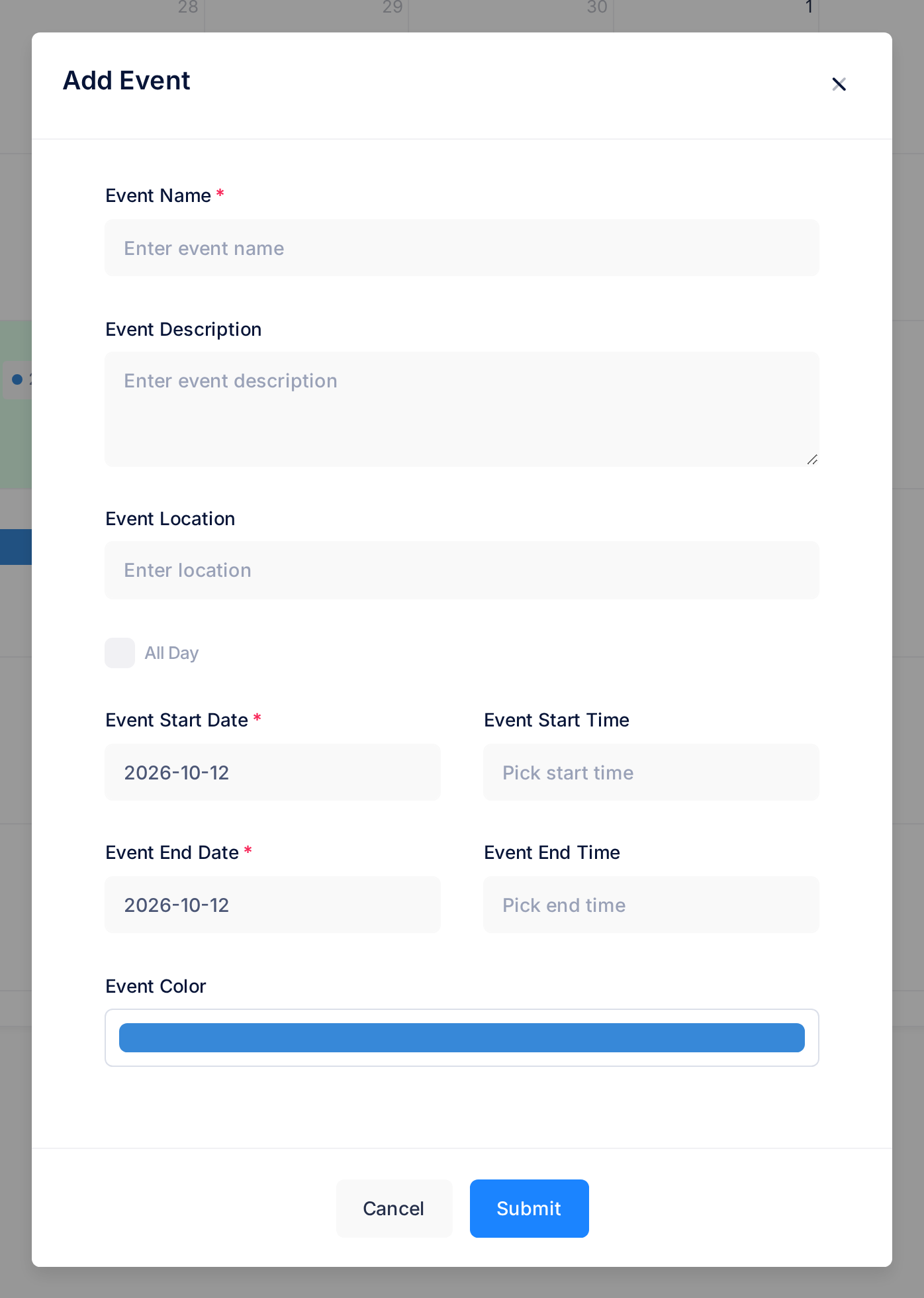
- Click Add Event, above the calendar, on the same line as the title Calendar. A window titled Add Event opens over the page.
Step 2 — Describe the event
- Type the Event Name, the box marked with a red star:
Meeting with the desk supplier. An event is not saved without a name. - Event Description is optional. Use it for a note to yourself:
Agree the delivery day for the 6 desks. - Event Location is optional too. It is plain text, like
Office, Al-Mansour Street. - Leave All Day without its tick, because the tick hides the two time boxes. On a computer, a click on a day's box opens this same form with the tick already set: click it away to get the time boxes back. Events for whole days have their own guide, Use All-Day and Multi-Day Events.
Step 3 — Set the day and the times
The two date boxes, marked with a red star like the name, already hold today's date. The two time boxes are empty. On a phone or tablet these four boxes open the device's own date and time choosers, which look different from the ones described here.
- Click Event Start Date. A small calendar opens, with the month and the year at the top and an arrow at each side. Click the day: the small calendar closes and the box shows the date as year, month and day, like
2026-10-13. You cannot type in the box. - Click Event End Date and choose the day the event ends. For a meeting, that is the same day again.
- Click Event Start Time. A small panel opens under the box with two numbers, the hour and the minutes. It counts 24 hours and has no AM or PM: two in the afternoon is 14. Type over each number, or rest the pointer on it and use the small arrows that appear, which change the hour by one and the minutes by five. Then click an empty part of the form: the panel closes, and the box shows
10:00. A click on the darkened page around the form closes the form, and what you typed is lost. - Set Event End Time in the same way:
11:00.
Always set both times. A time box that you open starts at 12:00 and keeps 12:00 when the panel closes, even if you changed nothing. A box left empty counts as 00:00 for the start and 23:59 for the end.
Step 4 — Choose a colour and save
- Event Color is optional: a new event is blue. To change that, click it and pick any colour in your browser's own chooser.
- Click Submit. While the event is being saved the button reads Please wait.... Then the form closes and a green note at the top of the screen says Event created successfully. It goes by itself after 5 seconds.
- Look at the box of the event's day, when that day is on screen: the event is there.
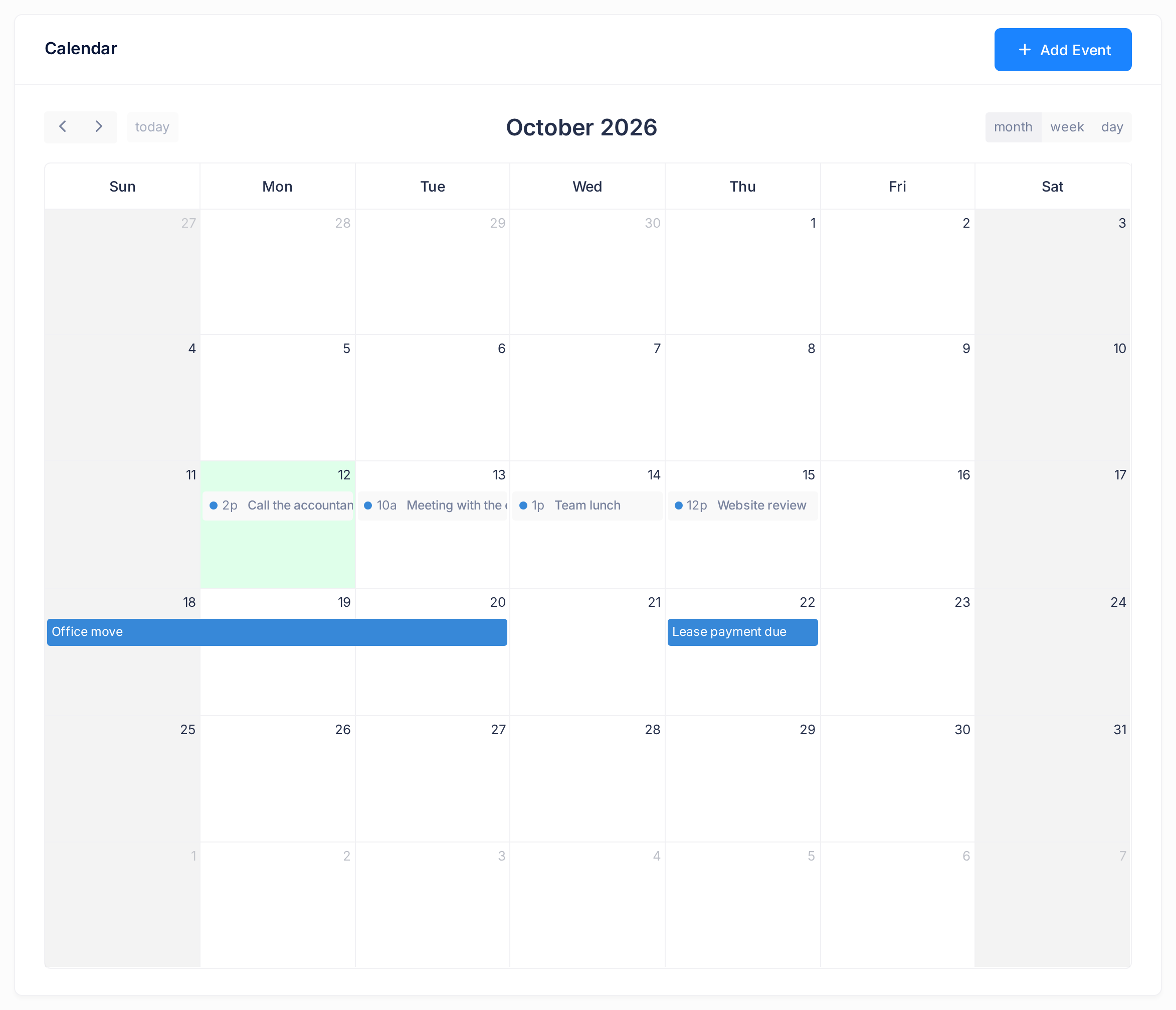
In the month view an event with times is one line: a dot in the event's colour, the start time in the calendar's own short form, and the name. The meeting of 10:00 reads 10a; a long name is cut off at the edge of the box. The coloured bars in the picture are events for whole days.
On a phone the month view has no room for events: a day that has one shows a link such as +1 more. Tap the link: a small list headed with the date opens, with the event written in the same way.
If the form stays open, nothing was saved, and a red note says why: see "If something goes wrong". To leave the form without saving, click Cancel or the cross at its top corner.
Step 5 — Open an event
- Click the event in the calendar; on a phone, tap the link in the day's box, then the event in the small list. A small window about it opens.
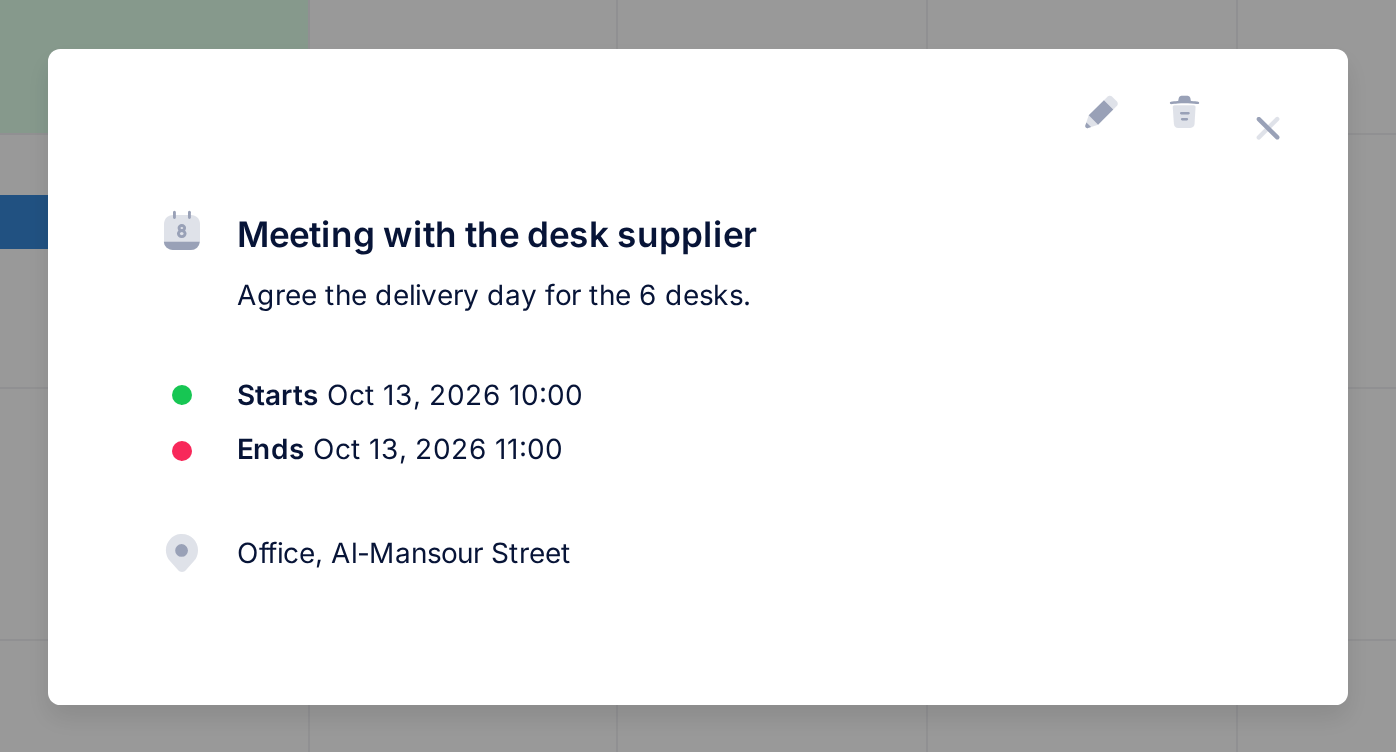
From top to bottom, the window shows:
- Three small icons without words: a pencil, a bin and a cross.
- The name of the event and, under it, the description. An event without one reads No description.
- The lines Starts and Ends, each with the date and the time, like
Oct 13, 2026 10:00: the 24-hour clock of the form again. - The location, or No location.
To close the window, click the cross. Its name, shown when the pointer rests on it, is Hide Event, but it hides nothing: the event stays in the calendar.
Step 6 — Change an event
- Open the event as in Step 5 and click the pencil. The form opens again, now titled Edit Event and filled in with what the event holds.
- Change what you need, in the way of Steps 2 to 4. For another day, change both dates: the end date does not follow the start date.
- Click Submit. The form closes, a green note says Event updated successfully, and the calendar shows the event as it is now.
An event can also be moved by dragging it in the calendar, which is saved at once and without a question: see Reschedule by Dragging.
Step 7 — Delete an event
- Open the event as in Step 5 and read its name. A deleted event cannot be brought back.
- Click the bin. Your browser asks Are you sure you want to delete this event? Nothing is deleted until you answer OK.
- Answer OK. The window closes, the event leaves the calendar and a green note says Event deleted successfully.
What happens next
Only you see your events. Loop does not remind you of an event and tells nobody about it — an event has no guests and does not repeat — so open Calendar to see what is coming.
Events in other months are reached with the two arrows at the top of the calendar: see Move Around the Calendar.
To leave Calendar, click the Loop logo at the top of the page: it leads to the home screen.
How the calendar writes your times
The form and the event's window use the 24-hour clock. The calendar itself uses a 12-hour clock, and each view writes it in its own way:
| In the form and the event's window | In the month view | In the week and day views |
|---|---|---|
10:00 to 11:00 | 10a | 10:00 - 11:00 |
14:00 to 14:30 | 2p | 2:00 - 2:30 |
12:00 to 13:00 | 12p | 12:00 - 1:00 |
In the week and day views the block of an event carries no a or p. The labels beside the rows, such as 2pm, tell you whether it is morning or afternoon.
If something goes wrong
- A red note says Title is required. Event Name is empty. Type a name and click Submit again.
- A red note says End date must be after start date. Check that Event End Date is not earlier than Event Start Date and that, on the same date, the end time is later than the start time.
- The form closed, but you do not see the event. Look on its start date, in another month if need be, and on a phone behind the link in the day's box. If it is there, do not add it again: Loop would keep both. If it is not there and no green note appeared, the form closed without saving, as it does after a click outside it: fill it in again.
- The event reads
12aor12pand you meant another time. A time box stayed empty (12a) or kept its 12:00 (12p). Open the event, click the pencil, set both times and click Submit. - A red note says something else, such as Failed to create event or Failed to update event. Load the page again and try once more. If the note comes back, tell our support team its exact words.
To reach our support team: on the home screen, click Help, then Submit a Ticket. The guide Describe a Problem So We Can Fix It Fast lists what to send.