
How can we help?

When a meeting moves by an hour or by a day, you can drag its event to the new place in Calendar, or pull its edge to change how long it lasts. Every drop is saved the moment you let go, with no question first, so this guide also shows how to put a slip right.
Before you start
- You have an event in Calendar. To add one, see Create and Edit Events.
- You use a mouse or a trackpad. On a touch screen, see "On a phone or tablet" below.
Step 1 — Open Calendar and find the event
- On the home screen, click the tile Calendar. It opens in the month view, on the current month.
- Find the event. An event with times is one line: a dot, its start time in short form and its name, such as
10aMeeting with the desk supplier (10 in the morning). An all-day event (days but no times) is a coloured bar with its name only. - Click the event and note its day and times, because Calendar has no undo. A small window shows them on the lines Starts and Ends, on a 24-hour clock (
14:00is 2 in the afternoon). Close it with the cross at its top.
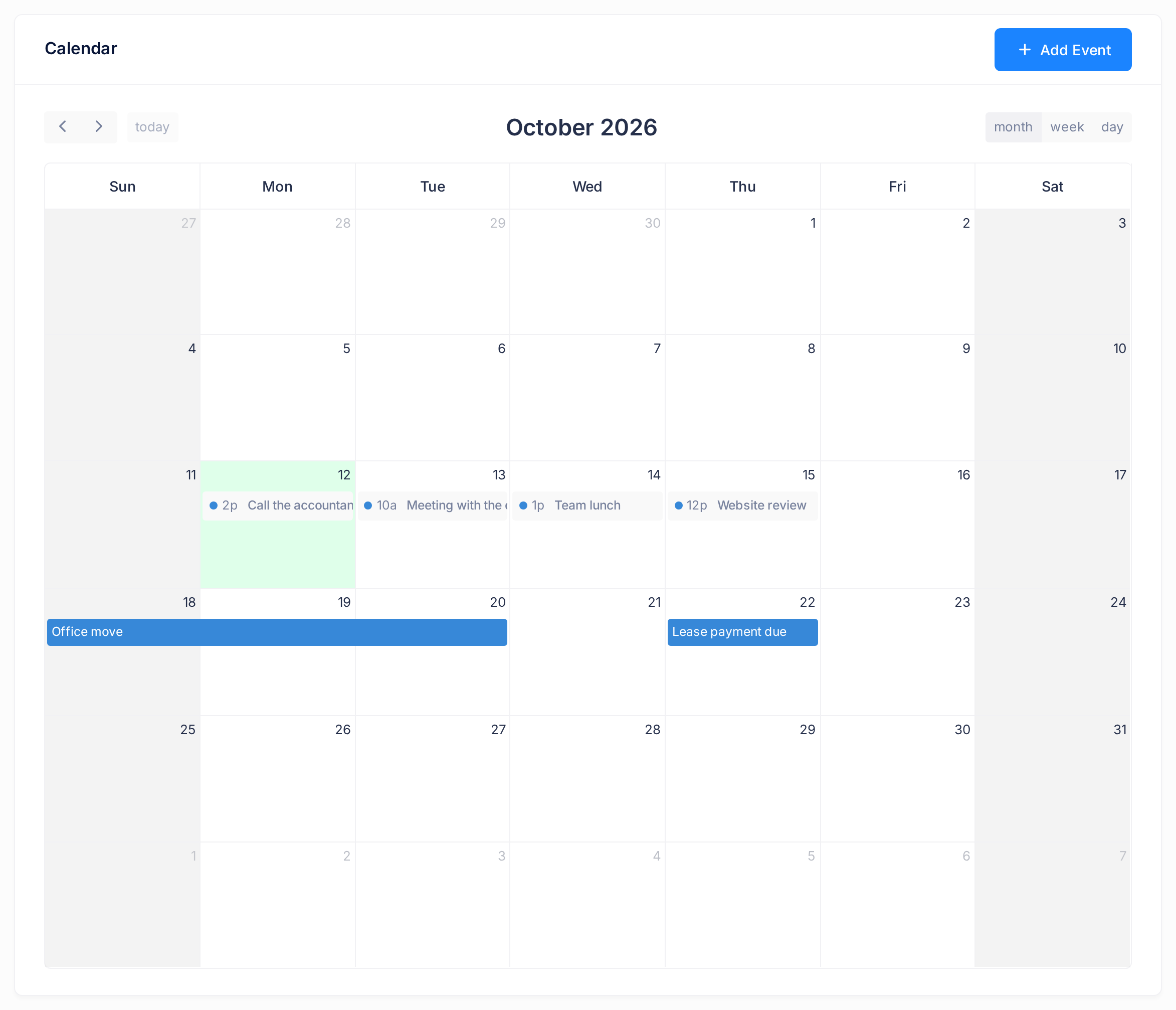
For another month, click the arrows at the start of the toolbar above the days (see Move Around the Calendar).
Step 2 — Move an event to another day
- In the month view, press on the event's line or bar and keep the button down.
- Drag it into the box of the new day and let go.
A green note, Event updated successfully, appears under the top bar and goes after 5 seconds; the same note follows every drag and stretch below. An event with times keeps them: the meeting still reads 10a on its new day. A bar of several days keeps its length.
For a day that is not on the screen, use the form under "Put a slip right".
Step 3 — Move an event to another time
- At the end of the toolbar, click week or day. Each day is now a column of half-hour rows, with a label on every hour and a row all-day at the top. If the event's day is not shown, move to it with the arrows.
- Find the event: a block as tall as it lasts. A one-hour block shows its times, such as
10:00 - 11:00, and cuts its name off; a half-hour block is too small to read. If you are not sure which event a block is, click it. The times have no "am" or "pm": the hour labels tell morning from afternoon. - Press on the middle of the block, drag it up or down to the row where it should start (in the week view, into another column for another day) and let go. It moves in steps of half an hour: two rows down, and the meeting reads
11:00 - 12:00.
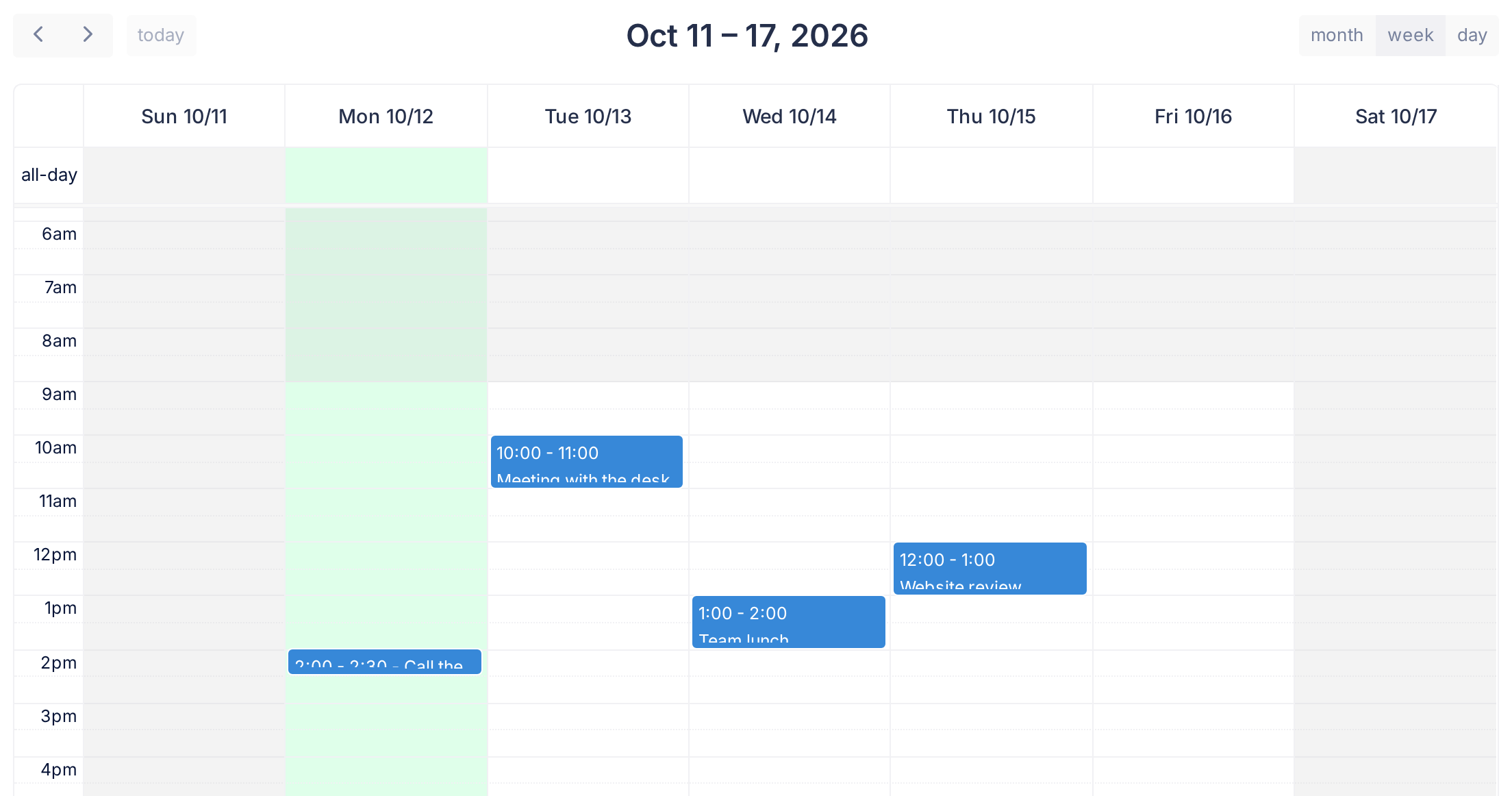
The grey areas are outside working hours; you can drop an event there too.
Step 4 — Make an event longer or shorter
- Move the pointer onto the event, then to its end edge: the lower edge of a block in the week or day view, or the edge of an all-day bar at its last day. The pointer changes shape on the edge.
- Drag that edge, down or up for a block, across the days for a bar, and let go. Two rows down turn
10:00 - 11:00into10:00 - 12:00.
Only the end moves: to change the start, move the whole event. If the whole event moved instead, you caught its middle: drag it back. An event with times has no edge to pull in the month view: use the week or day view.
Step 5 — Change an all-day event into one with times, or back
- Open the week or day view.
- To give an all-day event times, drag its bar down from the row all-day onto the hour row where it should start. It now lasts one hour from that row, even if the bar was several days long. Right after the drop its block shows the start only, such as
2:00; reload the page and it reads2:00 - 3:00. - To make an event with times all-day, drag its block up into the row all-day. It becomes a bar on that day and its times are gone.
What happens next
The event stays where you dropped it. If it went back and no note appeared, you let go outside the days and hours, or where it already was: nothing was changed. If you missed the note, reload the page: an event that is back in its old place was not saved.
Calendar tells nobody that an event moved, so tell the people you are meeting yourself.
Put a slip right
- The event is in the wrong place. Drag it again.
- You want exact times, or the right day is not on the screen. Click the event, then the pencil at the top of its window: the form Edit Event opens. For another day, change both Event Start Date and Event End Date; for another time, the time beside each. Click Submit: the form closes and the green note appears. If a red note reads End date must be after start date, correct the end and click Submit again.
- A block landed in the row all-day and lost its times. Drag it back down to its hour, then stretch it to its length.
- A window opened instead. A click without a drag opens the event's window. A press beside the event opens the form Add Event: click Cancel and nothing is added.
On a phone or tablet
On a touch screen the form is the sure way: tap the event, tap the pencil, change the dates or the times and tap Submit. On a narrow phone screen the month view draws no events: a day that has one shows a link such as +1 more. Tap it, then the event in the small list that opens.
If something goes wrong
- The event jumps back and a red note reads Failed to update event. Check that you are online, reload the page and drag again.
- One event jumps back every time. Click it: the badge Company Event in its window means it is shown to everybody and is not yours to change.
If dragging still does not work as described here, tell our support team: click the Loop logo at the top of the page to return to the home screen, click Help, then Submit a Ticket.