
How can we help?

Drive is the app in Loop where your business keeps its documents and pictures. This guide shows how to put files into it, one at a time or several together, in the folder you choose.
Before you start
- You are signed in to Loop and on the home screen. If Drive is new to you, read Getting Started with Drive first.
- On a phone, tap where this guide says "click".
- Each file is of a kind and a size Drive accepts: see What Drive accepts below.
Step 1 — Open the folder the files belong in
- On the home screen, click the tile Drive. The page that opens is headed File Manager and lists your folders, then your files.
- Click the name of the folder the files belong in; in our example, Product photos. For the top level, outside every folder, leave this step out.
- Read the line under the buttons New Folder and Upload Files. It starts with My Drive, and the last name on it is the folder that is open. My Drive alone means the top level.
Files go into the folder that is open when you upload them, and cannot be moved to another folder afterwards. If the folder does not exist yet, create it first: see Organise Files with Folders.
Step 2 — Choose the files
- Click Upload Files. A small window titled Upload Files opens, with three buttons: Attach Files, Upload All and Remove All.
- Click Attach Files. The file chooser of your own device opens.
- Choose one file, or several at once, and confirm. Each file is now listed in the window with its name, its size and a progress bar. Nothing has been sent yet.
- Read the list. Under each file are a small arrow and a small cross: the cross takes that file out of the list, and the arrow does nothing. Remove All empties the list.
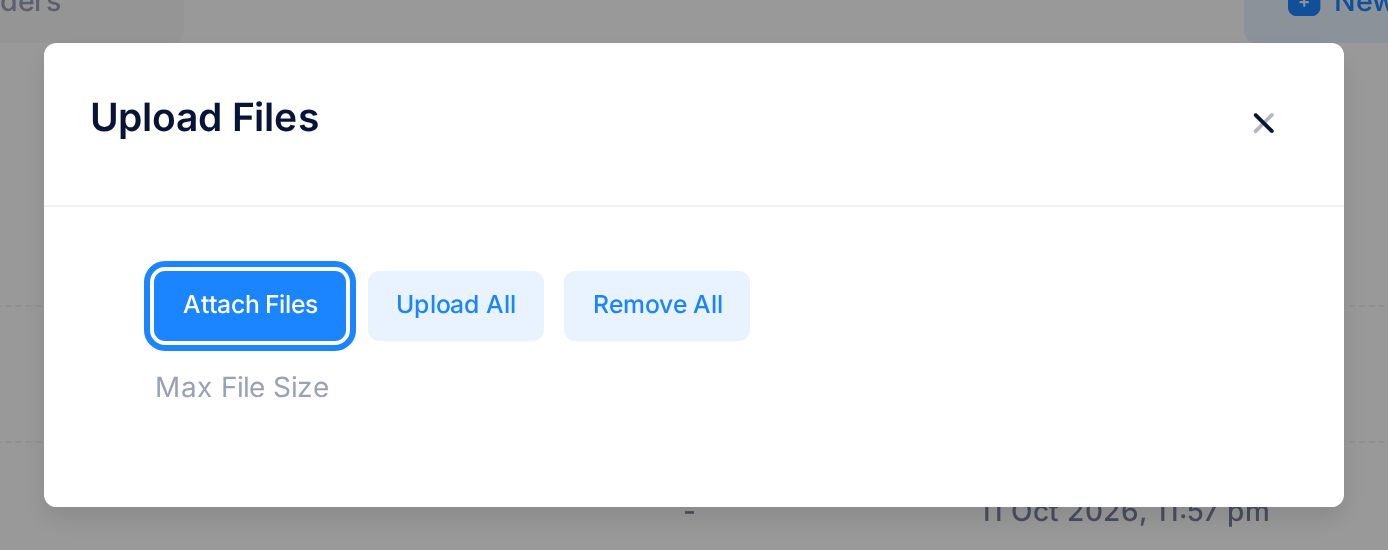
To leave without uploading, click Remove All, then the cross at the top of the window. A click outside the window closes it too, and closing does not empty the list: files left in it are sent by the next Upload All.
Step 3 — Send the files
- Click Upload All. The button now reads Uploading..., and a note headed Upload in progress appears at the top corner of the screen.
- Follow the note. With three files it reads Uploading files... (0/3), then (1/3) and (2/3): the files go one after another, and the first number counts those that are finished. With a single file it stays at (0/1) to the end.
- Wait for the green note, such as 3 files uploaded successfully. About a second later the page reloads by itself and shows the list with your files in it.
While files are being sent, the Uploading... button and Remove All are switched off, so a second click does nothing. If no green note comes, or it counts fewer files than you sent, read If something goes wrong.
Step 4 — Check that the files arrived
- Look at the counter at the other end of the line that starts with My Drive, such as 3 Items: it has gone up by the number of files in the green note.
- Find each file in the list. Folders come first, then files from A to Z, so a new file is not always at the top.
- Read the file's row. NAME is the name the file had on your device, SIZE its size, and LAST MODIFIED, right after an upload, the moment of the upload, written like
05 Mar 2026, 3:04 pm.
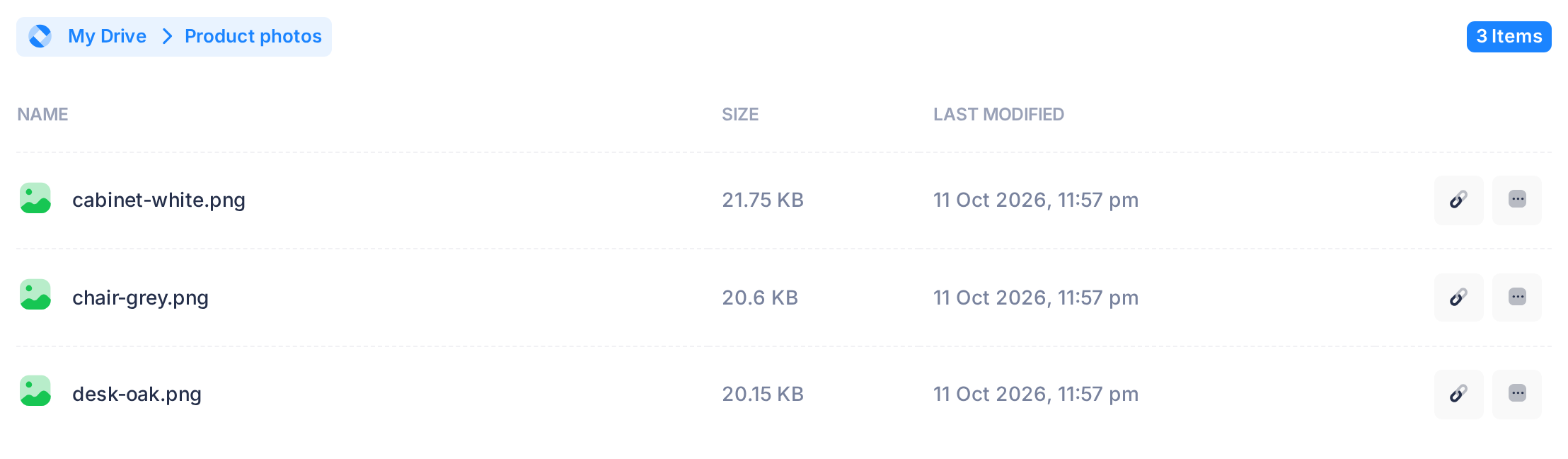
The time is not your local time: in Iraq it reads three hours behind. On a phone the list is wider than the screen: slide it sideways to reach the date.
What happens next
Nobody is told about an upload. Each upload is written on the Activity tab of Drive, as an entry Upload with the file's name: see Follow Activity in Drive.
To open a file or save it back to a device, see Preview and Download Files.
What Drive accepts
| Kind | Accepted |
|---|---|
| Pictures | JPEG, PNG, GIF, WebP, SVG, BMP, TIFF |
| Documents | PDF; Word, Excel and PowerPoint files, old and new formats |
| Text | Plain text, CSV, HTML, CSS, JSON |
| Video | MP4, MPEG, QuickTime (MOV), AVI, WebM, Matroska (MKV), FLV, 3GP, 3G2, Ogg |
| Audio | MP3, WAV, Ogg, FLAC, M4A |
| Archives | ZIP, 7z, gzip, tar |
Loop decides the kind from what is inside the file, not from its name, so renaming a file does not get it accepted. A file it recognises as any other kind is refused: a RAR archive, for example, or a phone photo in the HEIC format.
In the window Max File Size is followed by no figure: the largest single file Drive takes from you is 1 GB. A larger one is refused, but only after it has been sent in full, so check a big file's size first.
When the name is already there
Drive never replaces a file and never asks. A file whose name is already in the folder is added beside the old one, and you see two rows with one name. To tell them apart, rename the new file on your device before you upload it.
If something goes wrong
A refused file shows its reason in red under its name in the window, and for a few seconds in a red note at the top corner of the screen. The other files are still sent: the green note counts only the accepted ones, and the window stays open so you can read the reasons. When the button reads Upload All again, close the window with the cross at its top; the page then reloads and shows the accepted files. If every file was refused, no green note appears, the page does not reload and nothing was added.
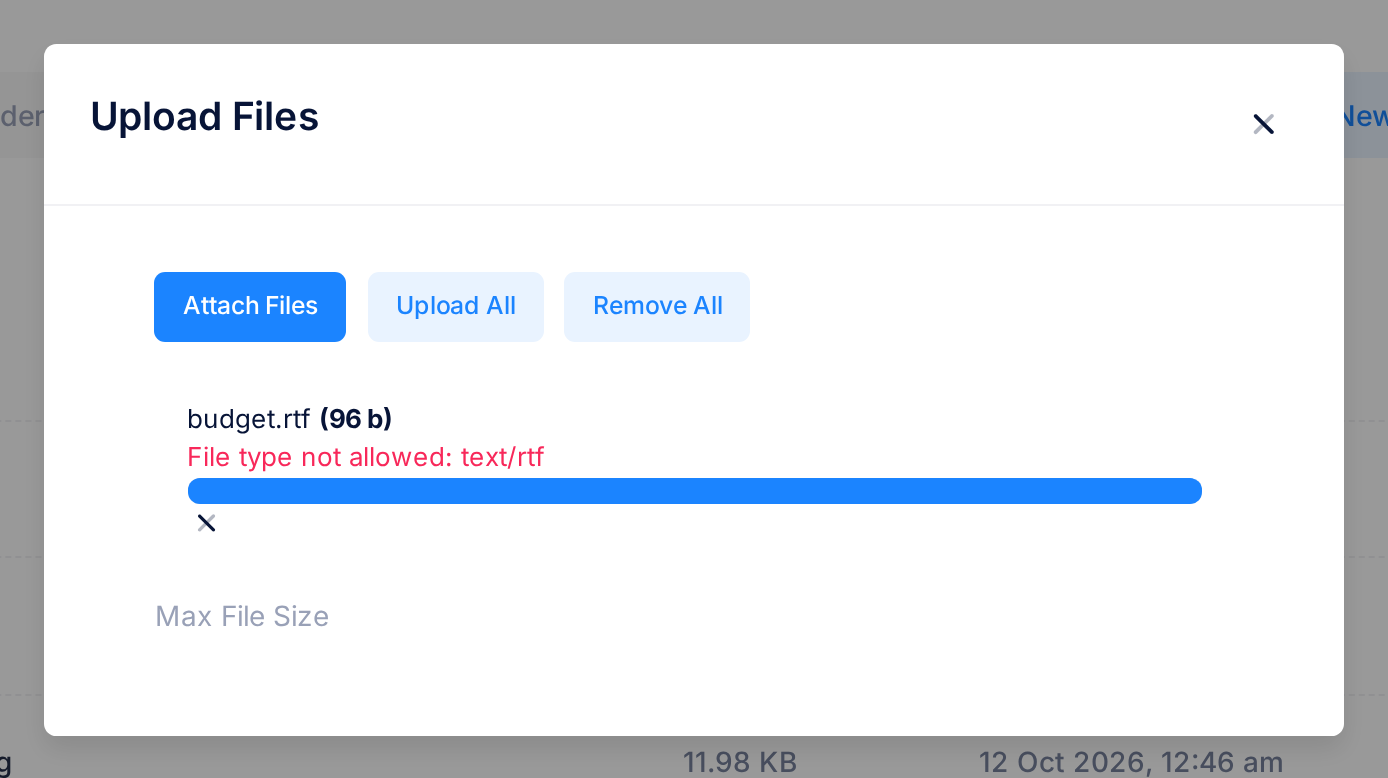
- File type not allowed: text/rtf, or the same words followed by another name. That name is the kind Loop found inside the file, and it is not in the table above. Save the file as an accepted kind, a document as PDF or a photo as JPEG for example, or pack it into a ZIP archive, and upload that.
- Insufficient storage quota. The file is larger than 1 GB, or than the free space Loop has on record for your account. A smaller file can still go through; only our support team can change the space of an account.
- File is too big, in red as soon as you attach a file: it is over 5 GB. Your limit is 1 GB, not the one this message names.
- No files in queue. Nothing in the window is waiting to be sent: the list is empty, or every file in it was already sent or refused. Click Remove All, then attach the files you still want to send.
- Any other red reason. Close the window, reload the page and look for the file in the list. If it is not there, upload it once more; if the same words come back, copy them for our support team.
- The files went into the wrong folder, or you sent a wrong file. Upload them again in the right folder, then delete the misplaced ones: see Delete and Restore Files.
To reach our support team, click the Loop logo at the top of the page to return to the home screen, click the tile Help, then Submit a Ticket. The guide Describe a Problem So We Can Fix It Fast lists what to send.