
How can we help?

Folders keep Drive from turning into one long list. This guide shows how to create folders, move between them, rename a folder or a file, and find one item in a crowded folder with search and sorting.
Before you start
- Open Drive: on the home screen, click the Drive tile. The page opens on My Drive, the top level of your files.
- On a phone the list is wider than the screen: slide it sideways, inside its own box, to reach the date and the buttons at the end of each row.
Step 1 — Create a folder
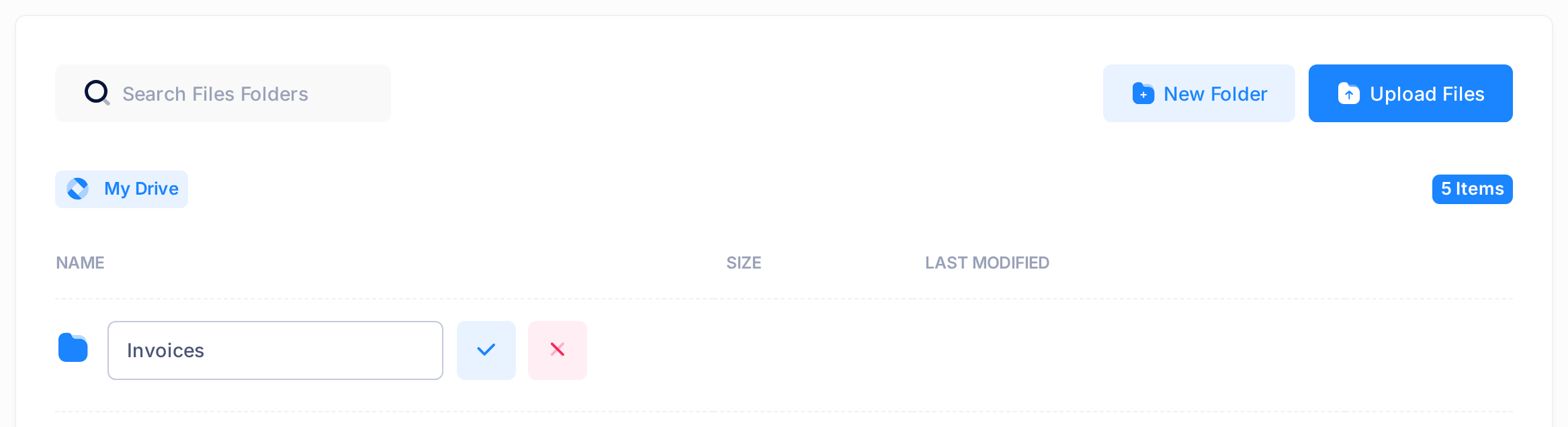
- Above the list, click New Folder. An empty row opens at the top of the list, with a box that reads Enter folder name, a tick and a cross.
- Type the name, for example
Invoices. - Click the tick once, or press Enter. To give up instead, click the cross or press Esc.
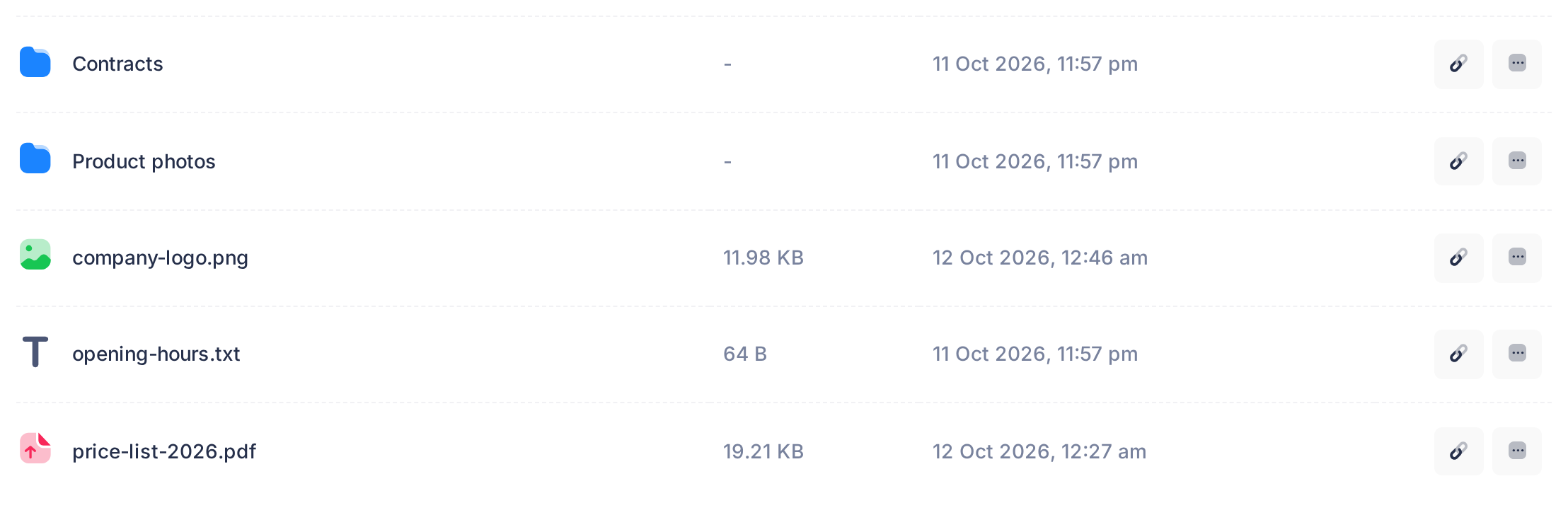
- A green note, Folder created successfully, shows briefly in a top corner of the screen. Then the page reloads by itself and the folder is in the list: folders come first, then files, each group from A to Z.
Step 2 — Open a folder and move around
- Click a folder's name to open it. The list now shows only what that folder holds; a folder with nothing in it shows one line, No files yet.
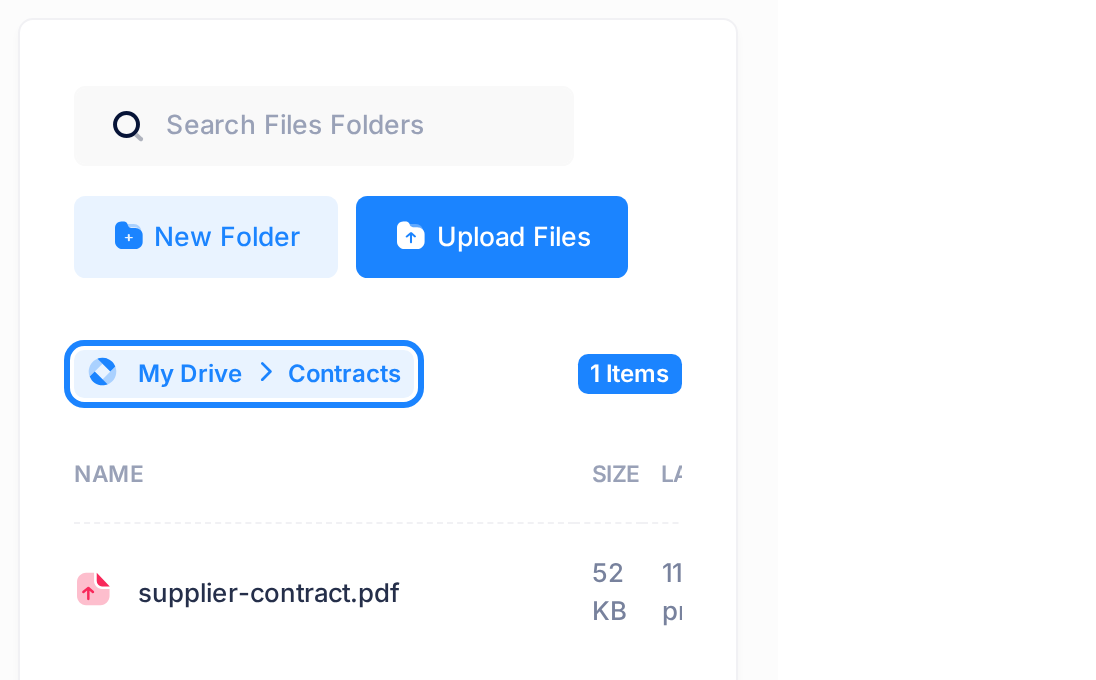
- Look at the path line above the list. It starts with My Drive and adds each folder on the way down — in the picture below, My Drive, then Contracts. At the other end of the same line, a count such as 1 Items says how many items the open folder holds.
- To create a folder inside this one, click New Folder here. A new folder is always made in the folder that is open, and folders can sit inside folders.
- To go back up, click a name in the path line: My Drive for the top level, or any folder named after it.
Step 3 — Rename a folder or a file
- At the end of the item's row, click the last button, the one with three dots (not the chain-link button before it). A menu opens.
- Click Rename. The name turns into a box that holds the current name, already selected, with a tick and a cross.
- Type the new name. The first key you press replaces the whole selected name — for a file, its ending such as
.pdftoo — so type the ending as well: Drive does not put it back, and the file is downloaded under the name you give it here. - Click the tick or press Enter; the cross or Esc cancels. A green note says Renamed successfully and the row shows the new name at once.
Delete, in the same menu, moves a folder and everything inside it to Trash; the guide “Delete and Restore Files” explains deleting and bringing items back.
Step 4 — Put files into a folder
- Open the folder the file belongs in, and check its name in the path line.
- Click Upload Files. In the window that opens, click Attach Files and choose the file on your device.
- Click Upload All. A green note says 1 file uploaded successfully, the page reloads by itself and the file is in the folder's list. The guide “Upload Files to Drive” has the details.
A file that is already in Drive cannot be moved. Upload it from your device into the right folder in the same way; when it is listed there, go back to the old copy and remove it with Delete in its menu. If the file is no longer on your device, save it first with Download in that menu.
Step 5 — Find an item in a crowded folder
A folder shows everything it holds in one list, with no “next page”. A long list scrolls inside its own box.
- Click the search box above the list — it reads Search Files Folders — and type part of a name, for example
price. - The list narrows with each key you press — no Enter needed, but pasted text is searched only once you press a key. In our example one row stays, price-list-2026.pdf, and the count at the end of the path line follows: 1 Items.
- Clear the box to bring every row back.
The search looks only at the folder that is open. So No results found means “not in this folder”: a file kept in Contracts is not found while My Drive is open. Open the folder and search there. The search also reads each row's size and date, so 2026 can match every row through its date.
To sort, click a column heading: NAME, SIZE or LAST MODIFIED. The first click sorts from A to Z, smallest first or oldest first, and a small arrow appears beside the heading. A second click reverses the order. A third click takes the arrow away and puts the list back as it opened, folders first.
- Sorted by NAME, folders are mixed in with the files. Sorted by SIZE, folders count as nothing, so they come first when the smallest is on top.
- The LAST MODIFIED date changes when a file is downloaded and, for most kinds of file, previewed, so that order shows what was touched last, not what was uploaded last.
What happens next
A search or a sort lasts only until the page loads again; the list is then back to folders first.
Drive also keeps a record: each folder you create and each rename is listed on the Activity tab, a rename with its old and its new name. The guide “Follow Activity in Drive” explains that page.
Rules for names
- A name cannot be empty or longer than 255 characters. Red words under the box say so as you type: Folder name is required (for a rename, Name is required) or Max 255 characters. While the box is empty or holds only spaces, the tick and Enter do nothing, even when no message shows.
- Any characters are accepted.
- Drive does not check whether a name is already in use: type one that exists in the same place and you get two items with the same name, so look at the list before you type. If two folders share a name, open each to see which holds your files, then rename one.
If something goes wrong
- A red note appears instead of the green one. It gives a reason, or reads Failed to create folder or An error occurred while creating the folder for a new folder, and Failed to rename or An error occurred while renaming for a rename. Reload the page and read the list before you try again: it shows what Drive really holds.
- The new folder is not where you expected. It was made inside the folder that was open at the time. To find it, open the Activity tab and click Open Folder under the entry that names it; the path line then shows where it sits. If it is still empty, delete it there and create it again where it belongs.
- Rows seem to be missing. Look at the path line — you may be inside another folder — and clear the search box.
Still stuck? Click the logo at the top of the page to return to the home screen, click Help, then Submit a Ticket, and tell us what you clicked and the exact words on the screen. The guide “Describe a Problem So We Can Fix It Fast” shows what to include.