
How can we help?

In Drive you can look at a file on its own page without saving anything, or save a copy of it on your device. This guide shows both, and what the page shows for each kind of file.
Before you start
- You are on the home screen of Loop. From a page inside an app, click the Loop logo at the top of the page to get there.
- The file is in your Drive. If the list there says No files yet, add a file first — see the guide Upload Files to Drive.
- The file is not in Trash. A file there cannot be opened or downloaded until it is restored — see Delete and Restore Files.
Step 1 — Open the file's page
- On the home screen, click the Drive tile. The page File Manager opens with your folders and files in a list.
- If the file is inside a folder, click the folder's name: the list then shows what is in it.
- Click the file's name, for example
company-logo.png. A page headed File Preview opens.
If you land on the file list instead — at its top level, My Drive, with no message — Drive has no page for that kind of file: a CSV file, for example. Open its folder again if it is in one, then download it from the list (Step 3).
Step 2 — Look at the file
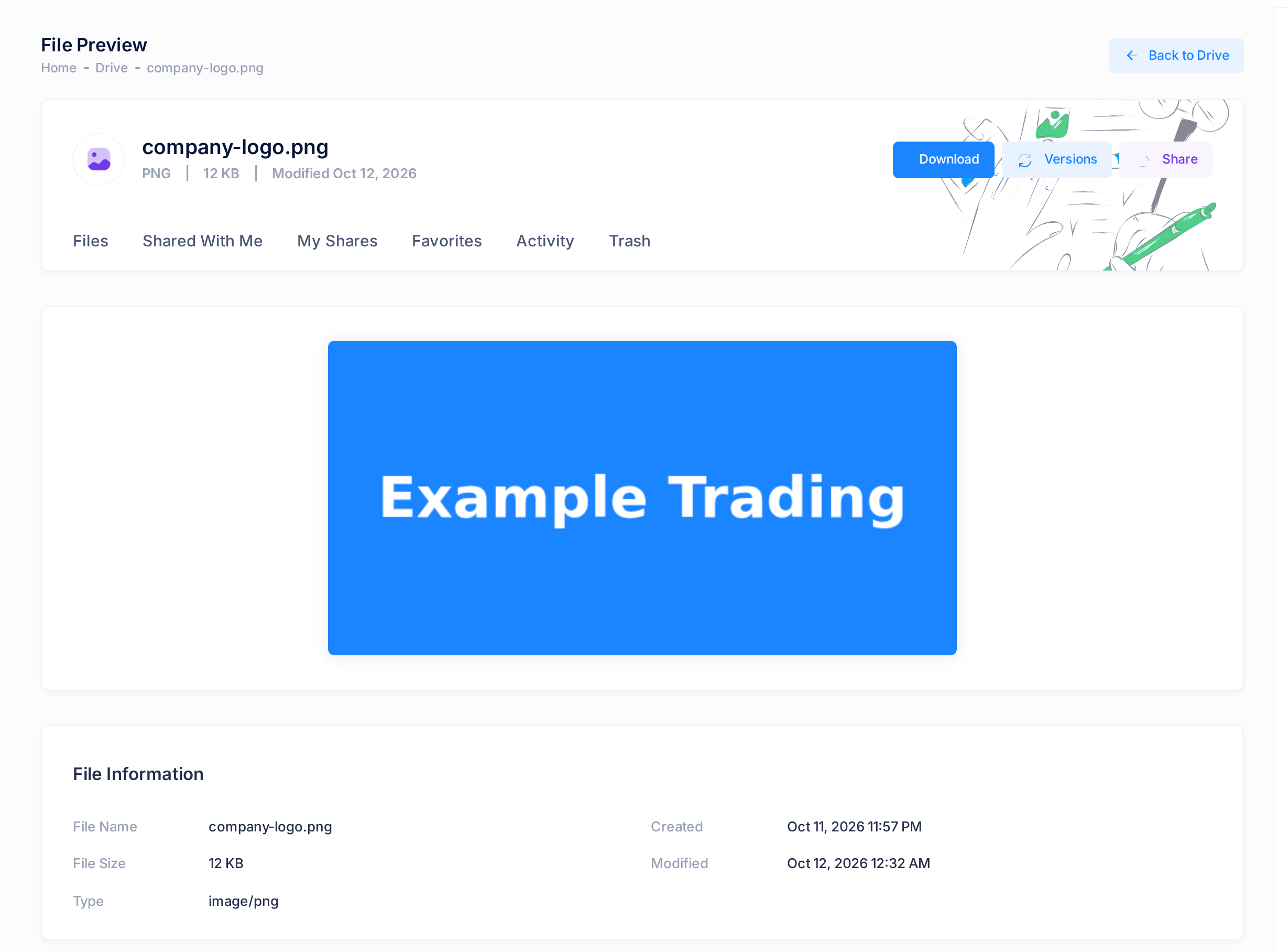
- Under the file's name, read the line with the file's ending in capital letters, its size and the word Modified with a date. For
company-logo.pngit startsPNG | 12 KB. - Look at the file itself, below the row of tabs: in this example, the picture. For other kinds of file, see the table further down.
- Scroll down to the card File Information. It lists File Name, File Size, Type (a technical name, such as
image/png), Created (when the file was uploaded) and Modified. - To go back to your files, click Back to Drive at the top of the page. It opens the top level, My Drive, even when the file is in a folder: open the folder again from there.
Modified does not tell you when the file was changed: its date moves when the file is downloaded, and can move when this page is opened. The same goes for the LAST MODIFIED column of the list. The times on the page are world standard time (UTC), three hours behind the time in Iraq.
The page also has the buttons Versions and Share beside Download, and Add Comment at its foot: do not rely on them.
Step 3 — Download a copy
If the file's page is open, click Download at the top of the page. To download from the list instead:
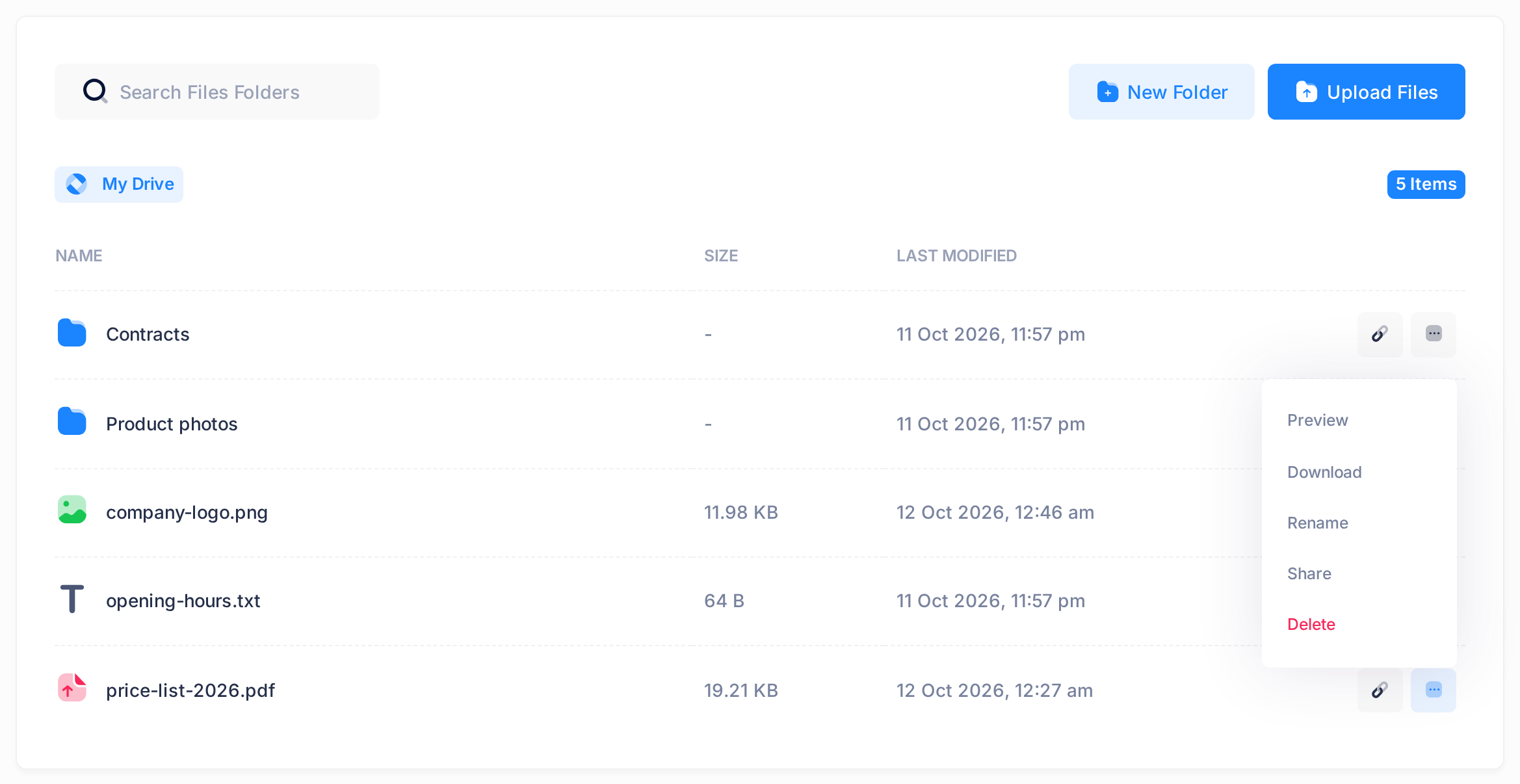
- Find the file's row. On a phone the list is wider than the screen: slide the list sideways until the two small buttons at the end of the row are in view.
- Click the last of the two buttons, a small square with three dots. Leave the chain-link button before it alone: the link it shows does not work.
- In the menu that opens, click Download. (Preview, in the same menu, opens the file's page.)
What happens next
Your browser saves a copy of the file on your device. Drive shows no message of its own, so look for the copy where your browser keeps its downloads. A name in Latin letters is kept: price-list-2026.pdf is saved as price-list-2026.pdf. If the name has Arabic letters, check what your browser called the copy.
The file in Drive is not changed, and nobody is told. The Activity tab gets a new line reading Download with the file's name. On a phone, slide the row of tabs sideways to reach it.
What the page shows for each kind of file
| Kind of file | What the File Preview page shows |
|---|---|
| Picture (JPEG, PNG, GIF, WebP, SVG) | The picture, made smaller when needed to fit the screen. |
| The document inside the page, in your browser's own PDF viewer. | |
| Plain text (also HTML and JSON) | The text as it is written, in a box you can scroll. An HTML file shows as code, not as a web page. |
| Video or sound | Your browser's own player. |
| Word | Loading document... at first, then the text, tables and pictures in a plain form, not in the original layout. |
| Excel | The contents of the cells as plain tables, one for each sheet. |
| PowerPoint, or a Word or Excel file that cannot be shown | Unable to preview this document and the button Download the file to view it locally. |
| ZIP archive | A list of the files inside, each with its size. |
| RAR or 7z archive, or a ZIP that cannot be read | Unable to read archive contents and the button Download Archive. |
| Any other kind, such as CSV | No page (see Step 1). |
Good to know
- Files are downloaded one at a time, and a folder cannot be downloaded: open the folder and download each file you need.
- Opening a file's page can add a Download line to Activity too, although you saved nothing. A text file's page adds none.
- If you change the copy on your device and upload it again, Drive adds it as a second file with the same name; it does not replace the first one.
If something goes wrong
- A PDF or a video does not appear or play inside the page. That depends on your browser. Click Download at the top of the page and open the copy on your device.
- A file of a kind in the table sends you back to the file list, as in Step 1. Drive goes by the kind of file the browser reported when the file was uploaded, so two files of the same kind can behave differently. Download the file from the list.
- After a click on Download you land on the top level of the file list and nothing is saved. The download was refused, and Drive does not show why. If the file is no longer in its list, look for it in Trash. If it is still listed, send us a ticket with the file's name.
To reach our support team, click the Loop logo at the top of the page, then the Help tile on the home screen, then Submit a Ticket. The guide Describe a Problem So We Can Fix It Fast lists what to include.