
How can we help?

Deleting a file or folder in Drive does not erase it: the item moves to Trash, and you can bring it back from there. This guide shows how to delete an item, find it in Trash, restore it, or remove it for good. If you are looking for something you deleted by mistake, start at Step 2.
Before you start
- Open Drive: on the home screen, click the tile Drive. The page File Manager opens with the list of your files and folders.
- You work on one row at a time: the lists have no way to select several.
- On a phone the lists are wider than the screen: slide a list sideways to see its last columns and the button at the end of each row.
Step 1 — Delete a file or folder
- Find the item in the list. If it is inside a folder, click the folder's name to open it first.
- At the end of the item's row are two small buttons without words. Click the last one, with three dots, not the chain. A menu opens.
- Click Delete, the last entry of the menu.
- A pop-up asks Delete Item? and names the item, for example: Are you sure you want to delete "price-list-2026.pdf"? It will be moved to trash. Check the name, then click Yes, delete it, or Cancel if it is the wrong item.
- The next pop-up reads Deleted! and "price-list-2026.pdf" has been moved to trash. Click OK.
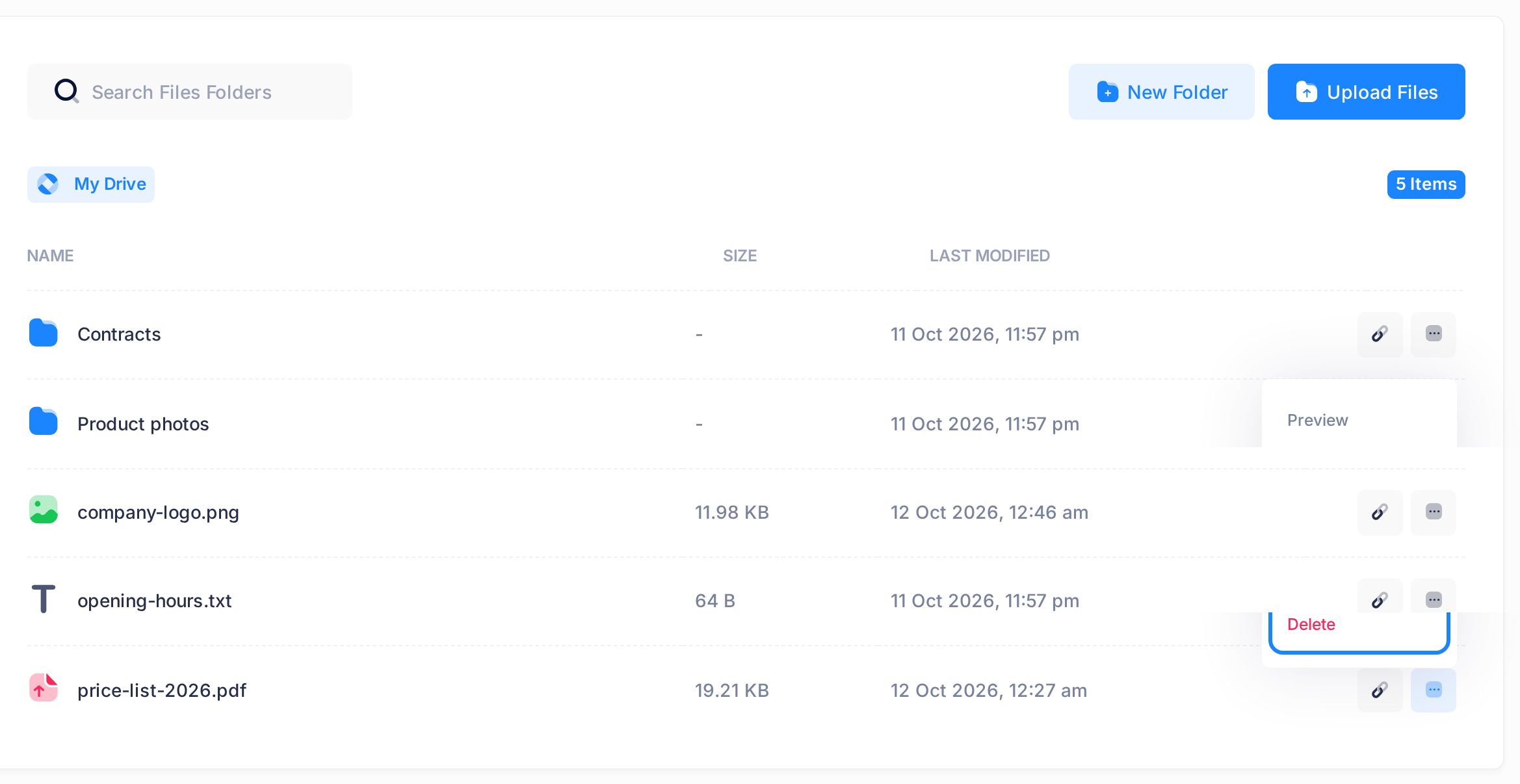
The row has left the list, and the count at the end of the line that starts with My Drive is one lower.
A folder is deleted in the same way. The question does not say so, but everything inside the folder moves to Trash with it.
Step 2 — Find the item in Trash
- In the row of tabs above the list, click Trash, the last tab. On a phone, slide the row of tabs sideways to reach it.
- Look for the item in the list: the item deleted last is at the top.
At the top of the page, a line counts the items, for example 1 Items in Trash. The list has five columns:
| Column | What it shows |
|---|---|
| NAME | The file or folder. The name is not a link: an item in Trash cannot be opened or downloaded. |
| TYPE | File or Folder. |
| SIZE | The size of a file. |
| DELETED | When the item moved to Trash, in world time (UTC), not your local time. |
| ACTIONS | The button with three dots, which opens the row's menu. |
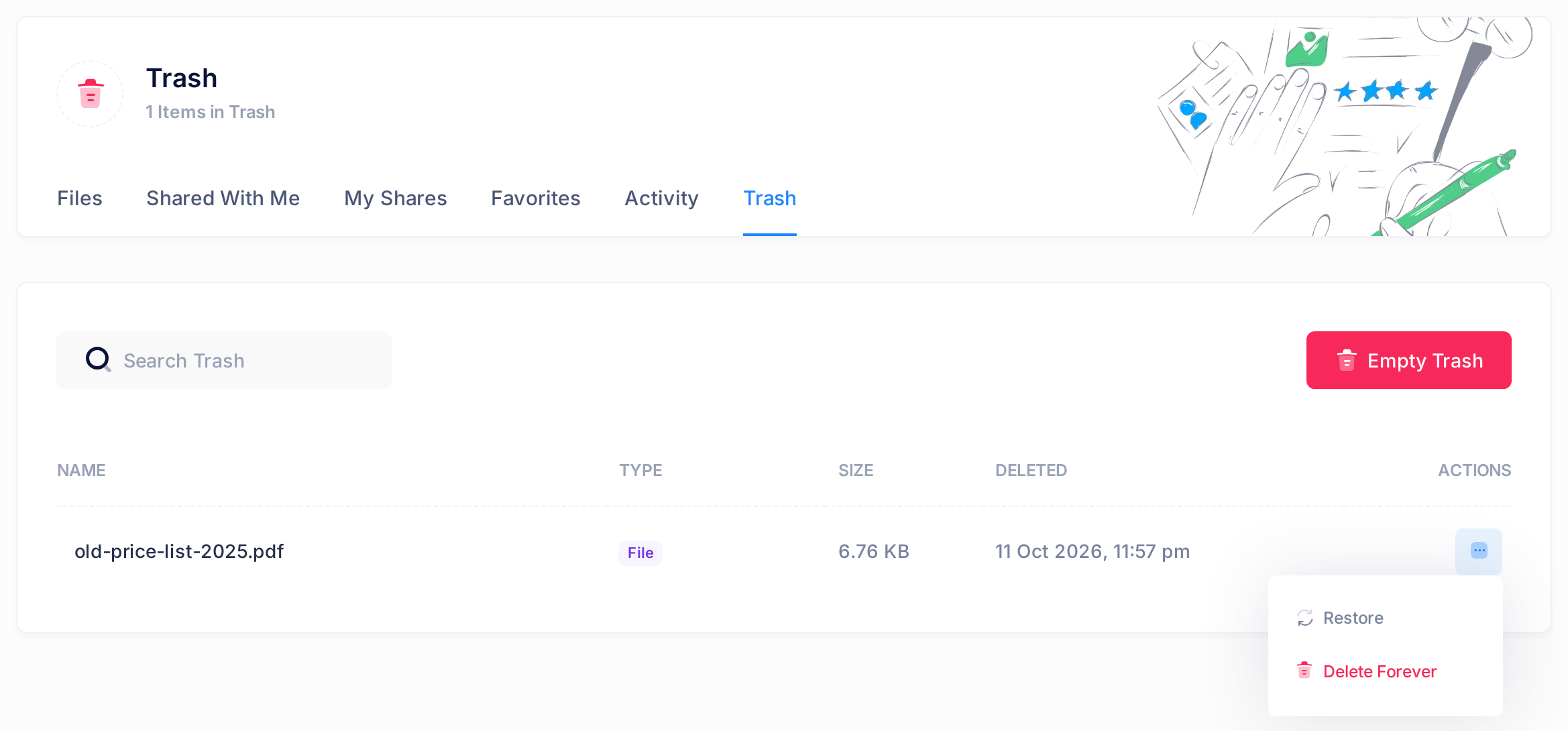
A deleted folder has a row of its own, and so does each file and folder that was inside it. Trash does not show which folder an item came from.
Step 3 — Restore the item
If the item was inside a folder that is also in Trash, restore the folder's row, not the item's own. Restoring a folder brings back everything under it that is in Trash, including items you deleted from it earlier. An item restored on its own while its folder is still in Trash leaves Trash but shows in no list until the folder is restored too.
- At the end of the row, under ACTIONS, click the button with three dots. The menu has two entries: Restore and Delete Forever.
- Click Restore. A pop-up asks Restore Item? and names the item, for example: Restore "old-price-list-2025.pdf" from trash? If it asks Permanently Delete? instead, you clicked the other entry: click Cancel.
- Click Yes, restore it.
- The next pop-up reads Restored! and "old-price-list-2025.pdf" has been restored. Click OK. The Trash page loads again without the item.
- Click the tab Files. The item is back where it was, under the same name: in this first list, or inside the folder it was in.
Step 4 — Or remove items for good
Nothing in this step can be undone. The files are removed from our server, and nothing in Drive brings them back. If you may need a file again, restore it first and save a copy with Download in its menu.
Delete Forever removes the item of one row. Empty Trash removes everything in Trash: all the items counted at the top of the page, also rows the search box is hiding. A folder removed either way takes everything inside it along, including an item you restored from it on its own.
To remove one item:
- Open the row's menu as in Step 3 and click Delete Forever.
- A pop-up asks Permanently Delete? and names the item, for example: Are you sure you want to permanently delete "old-price-list-2025.pdf"? This cannot be undone! Check the name, then click Yes, delete forever, or Cancel if you are not sure.
- The next pop-up reads Deleted! and "old-price-list-2025.pdf" has been permanently deleted. Click OK. The Trash page loads again without the item.
To remove everything in Trash:
- Click the red button Empty Trash above the list.
- A pop-up asks Empty Trash? and Are you sure you want to permanently delete all items in trash? This cannot be undone! Click Yes, empty trash, or Cancel to stop.
- A pop-up headed Success! reads, for example, Permanently deleted 1 items. Click OK. The page loads again and reads Trash is empty, and the red button is gone.
What happens next
An item you deleted stays in Trash until you restore it or remove it for good. Trash does not empty itself.
A file in Trash is still kept on our server.
Good to know
A long Trash. Type part of the item's name in the box Search Trash above the list. The list narrows as you type; when nothing matches, it reads No results found.
If something goes wrong
- You restored an item and cannot find it. If the folder it was in is missing from the list too, that folder is still in Trash: restore it as in Step 3.
- The item is not in Trash. Empty the search box so that every row shows. An item that is still not listed was either not deleted (look on the Files tab, inside its folder) or removed for good.
- A pop-up headed Error! appears. Click OK and load the page again: the list shows whether the item is still there. If it is, repeat the step.
- An item is still in Trash after you removed it for good. The pop-up read The stored file could not be removed, so nothing was deleted, or the note after Empty Trash ended with the word “failed”. It can still be restored. Tell our support team.
If Drive does not do what this guide describes, tell our support team: click the Loop logo at the top of the page to go to the home screen, then click Help, then Submit a Ticket. The guide Describe a Problem So We Can Fix It Fast lists what to send.