
How can we help?

Drive keeps a list of what you did with your files and folders, and when. Open it to check when a file was added, renamed, downloaded or deleted.
Where this guide says send us a ticket: click the Loop logo at the top of the page to go back to the home screen, click Help, then Submit a Ticket.
Where to find it
- On the home screen, click Drive. Your file list opens, headed File Manager.
- In the row of tabs inside the page, click Activity. On a phone, slide the row sideways if the tab is out of view.
The card Recent Activity lists your actions, newest first. Above the tabs, a line such as 11 Recent Activities counts the entries on the page.
If you have not used Drive yet, the card reads No activity yet. Ignore the line Drag and drop or click to upload files under it: nothing on this page takes files. The button Back to Drive opens your file list; the guide "Getting Started with Drive" shows you around.
What one entry shows
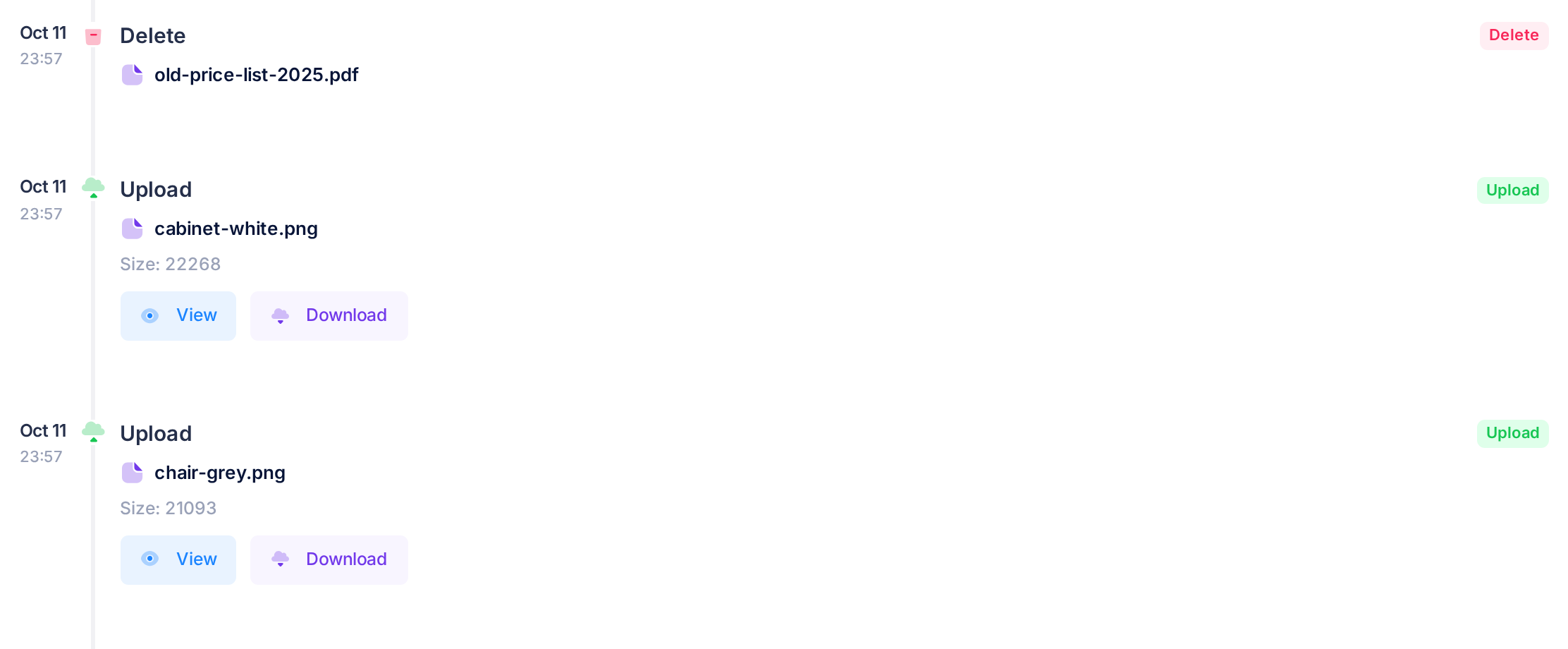
- The day and the time, for example
Oct 11and23:57, with no year. The time is UTC, the world's reference clock, not your local time. In Iraq, add 3 hours: what you do before 3 in the morning is listed under the day before. - The action word, written twice and explained in the table below.
- The name of the file or folder, beside its icon.
- A line of detail, on two kinds of entry. After an upload:
Size:and the size in bytes, so a file listed as 21.75 KB readsSize: 22268. After a rename: Renamed from with the old name and Renamed to with the new one. - Buttons: Open Folder under a folder; under a file View, which opens its preview page, and Download. A Delete entry has none.
What each action word means
| Word | What you did |
|---|---|
| Upload | You added a file. |
| Download | You downloaded a file, or opened the preview of a picture, PDF, video, sound file, Word or Excel file or ZIP, which is listed the same way. One video can add several entries, a preview you open again may add none, and the preview of a text file adds none. |
| Create | You made a new folder. On a file, the word means you wrote a comment on it. |
| Rename | You changed a name. |
| Delete | You moved the item to Trash, or deleted it for good: the word is the same for both. |
| Restore | You brought an item back from Trash. |
Deleting or restoring a folder adds one entry, for the folder: the items inside it get none.
See older entries, or one kind of action
The page shows your 100 newest entries and has no next page.
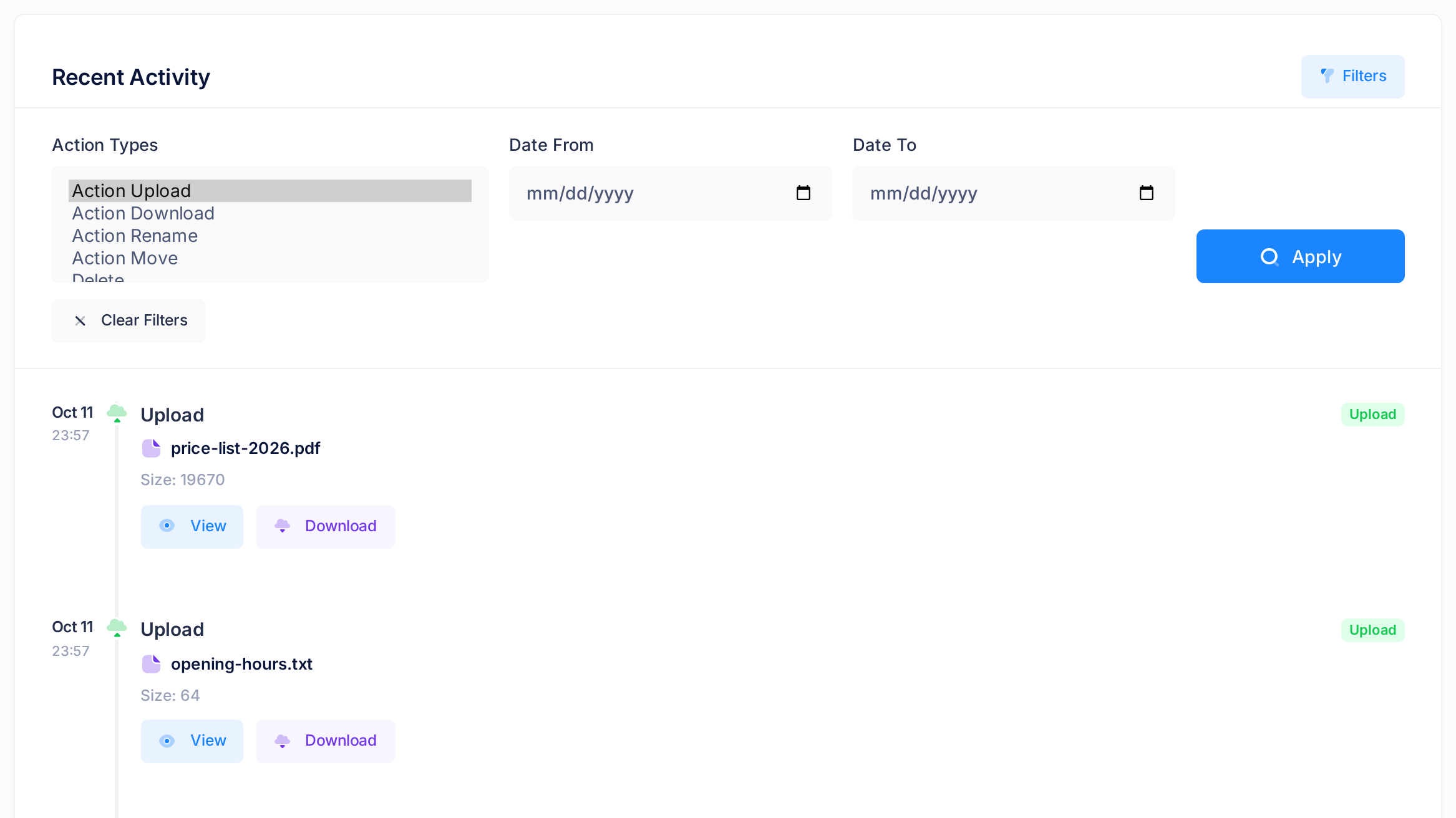
- Click Filters. A panel opens above the entries: in one row on a computer, one under another on a phone.
- For one kind of action, click its line in the list Action Types: Action Upload, Action Download, Action Rename, Delete or Restore. On a computer four lines show at a time: scroll inside the list for the rest. Mark one line only: if several are marked, only the last in the list counts. Action Move and Share find nothing: Drive lists no such entries.
- For certain days, fill Date From, Date To or both: each day you choose is included, counted on the UTC clock. For entries older than the page shows, fill only Date To, with the day of the oldest entry you see.
- Click Apply. The page loads again with the panel open: the list and the count above the tabs hold only the matching entries, and Clear Filters appears at the bottom of the panel. If nothing matches, the card reads No activity yet: check the action and the dates.
- To see the whole list again, click Clear Filters: it takes off the action and both dates.
Common questions
Does the page show what other people do with my files?
No, only what was done from your own account. One exception: a download through a public link to one of your files is listed as a Download, as if you had made it.
Why does an entry read Unknown in place of a name?
The item was deleted for good. Its entries stay, the one for that deletion included, without the name and without buttons. So a Delete entry that still shows a name means the item was only moved to Trash: it is there now, or was restored.
If something looks wrong
- A button under an entry opened your file list, with no message. The item is now in Trash: restore it first, as the guide "Delete and Restore Files" explains. If only View does this, Drive has no preview for that kind of file: use Download.
- An entry is not yours. Rule out a preview you opened and a public link, both explained above. Otherwise send us a ticket with a picture of the entry; the guide "Describe a Problem So We Can Fix It Fast" shows how.
For any other question about this page, send us a ticket.