
How can we help?

Mail in Loop does not show your mailbox live. Loop signs in to the mailbox, copies its folders and messages, and shows you that copy; bringing new mail into the copy is called a sync. Outlook and the mail app on your phone work with the mailbox itself, so the two can differ. Here "mailbox" means the address and its mail on the mail server; "account" means its connection in Mail.
Where to find it
- Sign in to Loop and go to the home screen, the page that shows your apps as tiles.
- Click the Mail tile. Your inbox opens (with several accounts, the primary one's). If the page Mail Setup opens instead, Mail has no account to show yet: the guide Connect Your PearlFibers Mailbox shows how to connect one.
- On a computer, find the card beside the list of messages. From top to bottom it holds New Message, your folders, Sync Now, the line Last Sync and Manage Accounts.
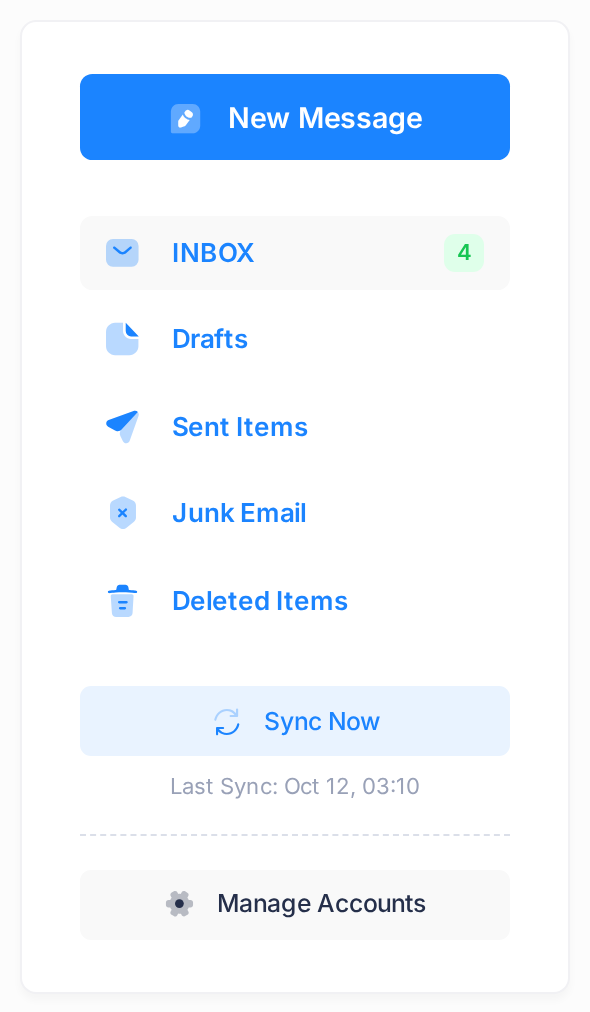
On a phone this card is not shown. Tap the small button beside the name of the open folder: the panel Folders opens and holds the same things in the same order.
When Loop syncs
Loop syncs by itself every five minutes, whether Mail is open or not. An account you turned off is skipped until you turn it on again.
An open Mail page does not change by itself. To see what a sync brought, reload the page, or click the round-arrow button above the list of messages: it only redraws the page and fetches nothing from the mailbox.
To fetch mail at once, click Sync Now; it syncs only the account whose inbox is open. The button reads Syncing... and cannot be clicked until the sync is done; then the page reloads by itself and Last Sync shows the new time.
What a sync brings
- Every folder of the mailbox, under the name it has there. The names are not translated: on a mailbox of your email plan they can be INBOX, Sent Items, Drafts, Junk Email and Deleted Items.
- At most 50 messages per folder at a time, the oldest first. Each sync adds the next 50 until Loop has a copy of every message, however old. From then on a sync brings only newer mail.
- Of each message, first its head: the sender, the subject, the date, and whether it was read or starred in the mailbox at that moment. The text and attachments smaller than 25 MB are fetched from the mailbox the first time you open the message; until then the list on a computer repeats the subject, for example Quarterly report – Quarterly report, where the start of the text will stand.
What stays in Loop and what reaches the mailbox
Loop reads the mailbox and, with one exception, never changes it: what you do to a message in Mail changes Loop's copy, and nothing you do there deletes anything from the mailbox.
| What you do in Mail | In Loop | In the mailbox, and so in Outlook and on your phone |
|---|---|---|
| Open a message for the first time | Loop fetches its text and shows it as read. | It is marked as read there too: the one exception. |
| Mark a message as read or unread with the buttons | The mark changes. | Nothing changes. |
| Star a message | The star is set. | No star. |
| Move a message to another folder | Loop's copy is filed in the other folder. | The message stays where it was. |
| Delete a message | Loop's copy goes to the mailbox's bin folder, for example Deleted Items. With no such folder, or when the message is already in it, Loop's copy is removed for good. | The message stays where it was. |
| Send a message | It goes out at once; a copy is saved in the sent folder. | No copy is put in the mailbox's sent folder. |
| Save a draft | The draft is listed in the drafts folder. | No draft. |
In the other direction, a sync adds what is new and does not look again at a message Loop already has. So what you read, star, move or delete in Outlook or on your phone afterwards stays in Loop as Loop first saw it. Mail sent from Outlook or the phone and saved in the mailbox's sent folder does come into Loop with a sync.
What this means in daily use
- Open a message in Loop only when it may count as read everywhere. Anyone who uses the same mailbox in another program then sees it as read, and marking it unread in Loop does not undo that.
- A message sent from Loop is found again only in the sent folder in Mail. When a sent message must be in every program, send it from Outlook or the phone. If your folder list has no sent folder such as Sent Items, or no Drafts folder (a new mailbox can have INBOX alone), Loop adds a folder Sent or Drafts of its own the first time you send a message or save a draft.
- Deleting in Loop frees no space in the mailbox. To remove a message from the mailbox, delete it in Outlook or on your phone; Loop's copy of it stays.
The notification for new mail
When a sync finds new unread mail in the inbox folder of an account, Loop raises a notification, for you alone. For one message its title is New email from and the sender, with the subject as its text. For several it reads, for example, 10 new emails with the text You have 10 new messages in your inbox. Mail that arrives in other folders raises none, and Loop sends no email about new mail.
You find it under the notifications icon in the top bar, on the tab Email. The list is loaded when a page opens, so a new notification shows after you open or reload a page.
The Last Sync line
Last Sync is the time of this account's last sync that succeeded, for example Last Sync: Oct 12, 02:30. A failed sync does not move it. The Accounts page, which Manage Accounts opens, shows the same time in its column LAST SYNC. Until a first sync has worked, the line is not there and the column reads Never.
The time is that of Loop's server, which keeps world time (UTC), written as a 24-hour time; not that of your computer or phone, so it can look hours off. What matters is that it moves: a time still the same on a reload more than five minutes later means that this account is not syncing.
Common questions
Why is the unread number beside a folder not the one in Outlook or on my phone?
The number, and with it the number on the Mail tile, is Loop's own count of the unread messages in Loop's copy, not the mailbox's count; what was read or marked on one side only makes the two differ.
My mailbox is large. When is all of it in Loop?
A folder with 1,000 messages needs 20 syncs, and its newest mail is the last to appear. Each click on Sync Now adds one more step of 50.
If something looks wrong
- No new mail arrives, and the Last Sync time no longer moves, or there is still none more than five minutes after you connected the account. This account is not syncing. When its last sync failed, a yellow line above the list of messages says so: The last sync of this account failed. New mail will not appear here until syncing works again. For an account that is turned off, the line reads This account is disabled. New mail will not appear here until you enable it again.
- Sync Now opens a browser message that begins Sync failed: The sync did not work; the words after it are the reason, in technical English. For example, Sync failed: IMAP authentication failed: NO [AUTHENTICATIONFAILED] Authentication failed. means that the mailbox refused the password Loop holds, as happens after the mailbox's password was changed.
In both cases, follow the guide Fix a Mailbox That Stopped Syncing.
Need a hand? Click the logo at the top of the page to go back to the home screen, click the Help tile, then Submit a Ticket. Tell us the address of the account, what Last Sync shows and the exact words of any message on the screen. Never send us the mailbox's password.