
How can we help?

Signing out ends your PearlFibers sign-in in the browser you are using. Do it every time you finish on a shared or borrowed computer. This guide shows where Sign Out is in Loop, how to check that it worked, which other PearlFibers apps it covers, and what to do about a device you cannot reach. It is about the apps you open in a web browser.
Know the way back before you sign out: signing in again takes your password and a 6-digit code, sent by WhatsApp if your account has a phone number saved and by email if it has none. If you have forgotten your password, follow the guide "Reset a Forgotten Password".
Where to find it
- In the browser you want to sign out, open Loop's home screen, the page that shows your apps as tiles. Its address is
loop.pearlfibers.com/launcher. - Look at the end of the bar at the top of the page. You see your picture, or the first letter of your first name if you have no picture.
- Click it; on a phone, tap it. A menu opens. On a computer it also opens when the pointer rests on the picture. Sign Out is its last entry, below My Profile and Account Settings.
- Click Sign Out. Nothing asks you to confirm: the browser is signed out at once.
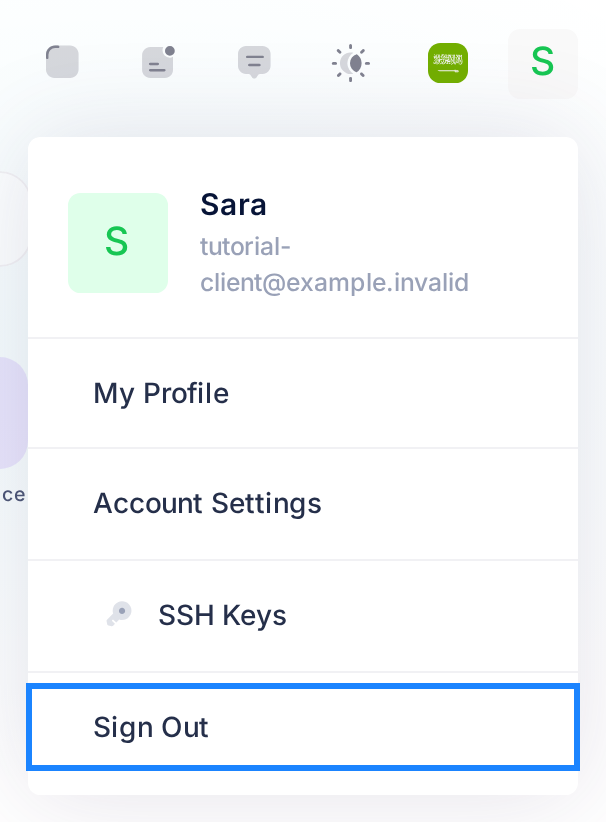
The other Loop pages that show your picture at the top, your account pages among them, have the same menu with Sign Out in it.
What you see after you click Sign Out
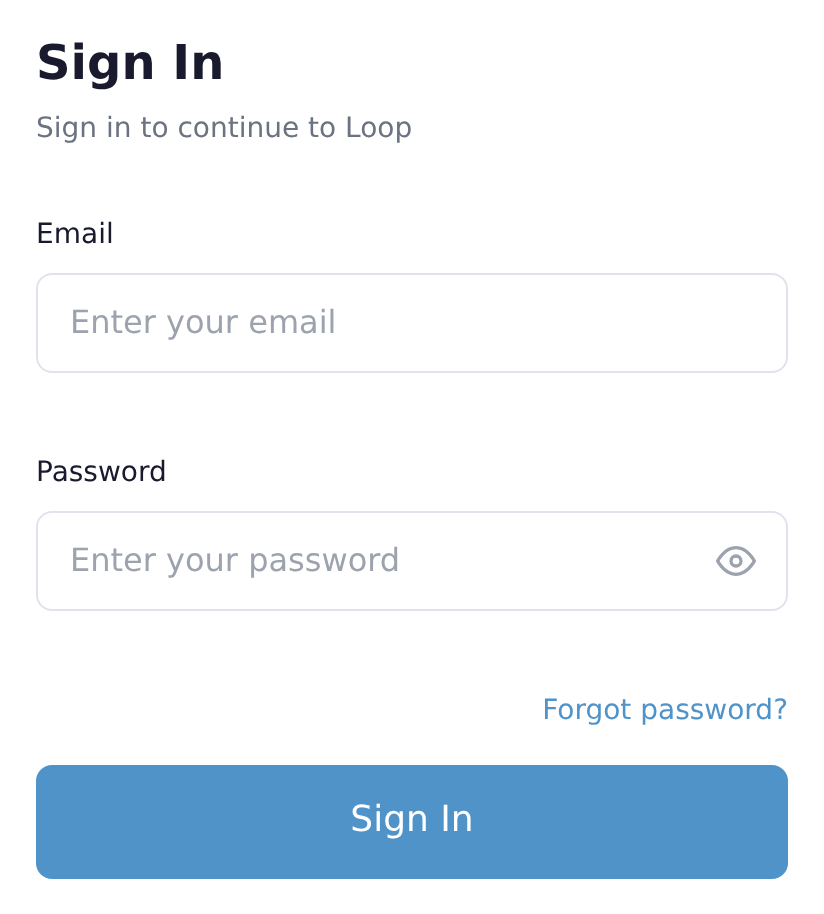
A page reading You have been signed out and Redirecting... appears for a moment. Then the browser shows Loop's public front page, the one a visitor sees at loop.pearlfibers.com. From some Loop pages the browser goes straight to the sign-in form, headed Sign In, instead. If your home screen with the tiles comes back, the browser is still signed in: click Sign Out again.
To be sure, for example before you leave a shared computer, check:
- In the browser's address bar, the line that shows the address of the page, type
loop.pearlfibers.com/loginand press Enter. - Look at what opens. A form headed Sign In, with the boxes Email and Password, means that the browser is signed out. Leave the form empty. If your home screen opens instead, the browser is still signed in: see "If something looks wrong" below.
Then close every other tab that shows Loop or another PearlFibers app: a page that was left open keeps showing what was on it.
What one sign-out covers
Sign Out in Loop ends the PearlFibers sign-in of that browser as a whole, not only Loop's. The apps follow it in different ways:
| App | Signed out together with Loop? | What to know |
|---|---|---|
| Loop | Yes | Your Loop pages ask for a sign-in again from the next page opened in that browser. |
| Peak AI (ai.pearlfibers.com), the Pearl IDE dashboard (ide.pearlfibers.com), PearlFibers Analytics (analytics.pearlfibers.com) | Yes | Each of them notices on the next page you open there. |
| PearlGit (git.pearlfibers.com) | Not always | PearlGit keeps a sign-in of its own. The browser can stay signed in to PearlGit until someone signs out in PearlGit itself, or until PearlGit has been left unused for 24 hours. Open PearlGit in that browser; if you are still signed in there, sign out in PearlGit as well. |
| Ledgerious (finance.pearlfibers.com), sell.pearlfibers.com | No | Each has a separate sign-in. Signing out of Loop changes nothing there: sign out inside each of them. |
What signing out does not do
Signing out ends the sign-in of one browser only: the one you clicked Sign Out in. Your other browsers, phones and computers stay signed in, and Loop has no button that signs out another device or all of them at once.
On the Security page of your account, the buttons Revoke and Revoke All under Trusted Devices only remove entries from that list: they do not sign a browser out.
If a device is lost, or someone else may be signed in
- You can still get to the device. Open Loop on it and sign out there.
- Someone may know your password. Change it; the guide "Change Your Password" shows how. The old password stops working, but neither changing nor resetting a password signs out a browser that is already signed in.
- You cannot get to the device, or you do not know where the other sign-in is. You cannot end that sign-in yourself. PearlFibers staff can: contact support and ask us to end it. After that, your Loop pages ask for a sign-in again from the next page opened in that browser, and Peak AI and the Pearl IDE dashboard follow within an hour. PearlGit and PearlFibers Analytics are not covered: if you use either of them on that device, say so in your message. If nobody ends it, a sign-in lasts 30 days from the moment it was made; using the apps does not make it longer.
To contact support, click Help on the home screen, then Submit a Ticket. If you cannot sign in, or you do not see Submit a Ticket, follow the guide "Reach Us on WhatsApp". Tell us the email address of your account and what you know about the device: which browser, what kind of device, and when you last signed in on it. Never send a password or a sign-in code.
Is the lost device the phone that receives your sign-in codes on WhatsApp? Then keep the browser you still use signed in: the sign-in pages offer no other way to receive a code. Ask us to end only the sign-in on the lost phone.
Common questions
I signed out in another PearlFibers app, not in Loop. Is Loop signed out too?
Signing out in Peak AI, in the Pearl IDE dashboard or in PearlGit also ends the PearlFibers sign-in of that browser, and Loop is signed out with it. Peak AI and the Pearl IDE dashboard do not do so in every case, so run the check above: if your home screen opens, sign out in Loop. PearlFibers Analytics has no sign-out button of its own; its account menu links back to Loop, where you sign out.
I closed the window without clicking Sign Out. Am I signed out?
Do not count on it: closing a tab or a window is not signing out. Open Loop in that browser again and click Sign Out. If you cannot get back to that browser, follow "If a device is lost, or someone else may be signed in" above.
If something looks wrong
- You landed on a page this guide does not describe, or the page did not change. Run the check in "What you see after you click Sign Out".
- The check opens your home screen. The browser is still signed in. Open the menu behind your picture, click Sign Out again and repeat the check. If your home screen still opens, contact support before you leave that computer, and copy the exact words you see on the screen into your message.
Need a hand with any of this? Click Help on the home screen, then Submit a Ticket.