
How can we help?

Loop keeps a list of sign-ins to your account, and of changes to its password and email address. Read it when something looks odd: a sign-in code you did not ask for, or an email about a change you did not make.
Where this guide says send us a ticket: on the home screen, click Help, then Submit a Ticket.
Where to find it
- Click your picture at the end of the top bar. Without a picture, the first letter of your first name stands there. A menu opens.
- Click Account Settings. The page that opens has a row of ten tabs inside the card at its top.
- For sign-ins, click Logs, the last tab. The page is headed Account Logs.
- For changes, click the tab Activity. The page is headed Account Activity.
Do not judge a sign-in from the shorter lists on the Security tab.
Sign-ins: the Logs tab
Under the row of tabs, the card Recent Login Sessions lists the 20 newest sign-ins, newest first, however old they are.
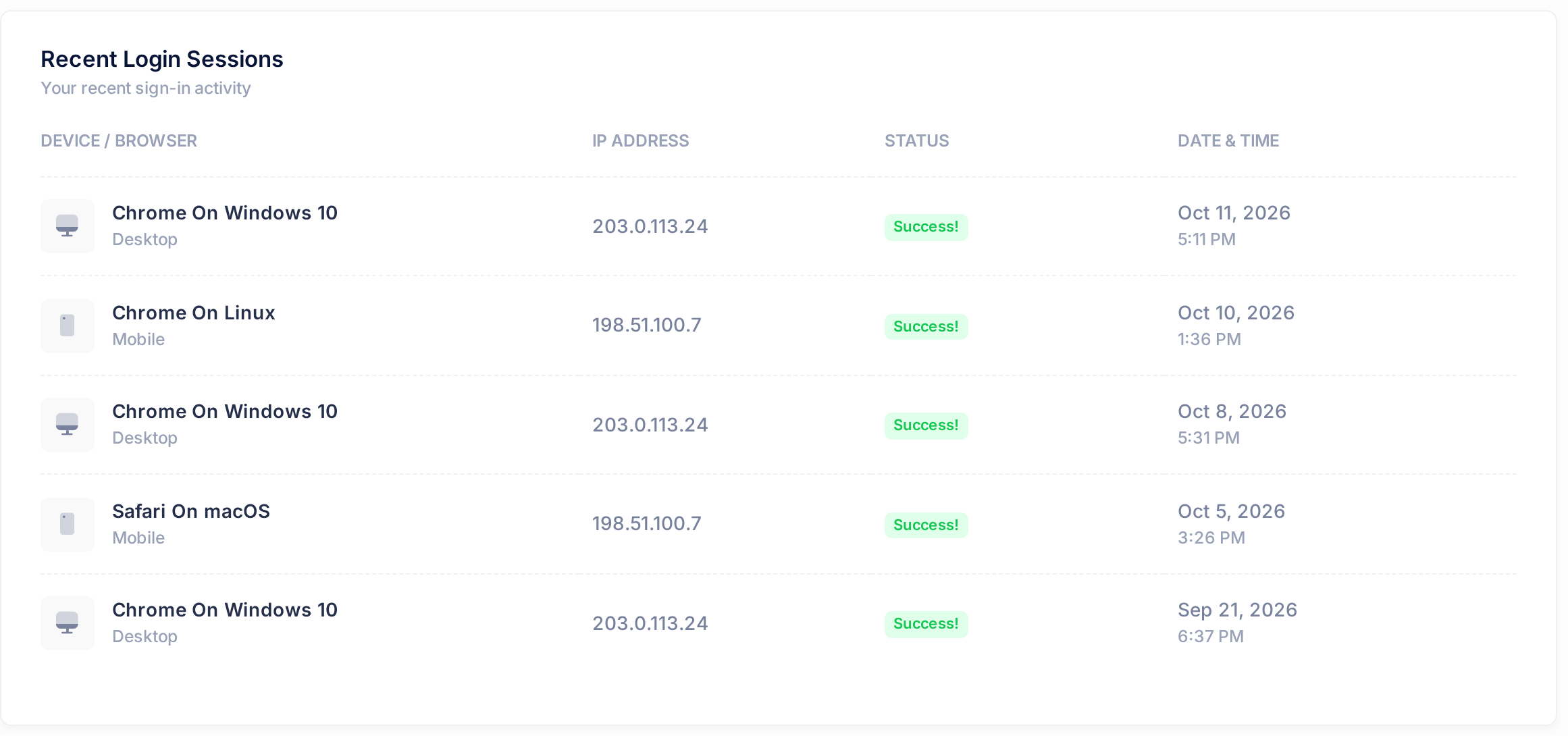
| Column | What it shows | How to read it |
|---|---|---|
| DEVICE / BROWSER | A browser and a system, for example Chrome On Windows 10, with Desktop or Mobile under it. | A kind of browser, never one particular phone or computer. For your own devices, see the list under this table. |
| IP ADDRESS | The internet address the sign-in came from, for example 203.0.113.10. | It belongs to a connection, not to a person: everyone on one office connection shares one address. |
| STATUS | Success! | Every row reads the same, because failed tries are not listed. |
| DATE & TIME | The day and, under it, the time, for example Oct 11, 2026 and 9:15 AM. | Not your local time but UTC, the world's reference clock. In Baghdad, add 3 hours: 9:15 AM on the page was 12:15 PM on your clock. |
Your own devices appear under these names:
- A Windows computer:
Chrome On Windows 10orEdge On Windows 10, on Windows 11 too. - An iPhone:
Safari On macOSwithMobileunder it, also when you use Chrome on it. A Mac hasDesktopunder it. - An Android phone:
Chrome On LinuxwithMobileunder it.
A row is written when a browser goes through the PearlFibers sign-in page on its way into Loop. Password and code together make one row, not two. A sign-in that starts in another PearlFibers app, such as Peak AI, is not listed, and opening Loop afterwards in that same browser adds no row either. So a list with nothing strange in it does not prove that nobody else signed in.
Below this card, Security Event Log shows the same sign-ins again as Login lines. For changes to the account, read the Activity tab instead.
Changes: the Activity tab
The list at the top of the page sets the period. It opens on Last 30 Days; choose All Time to see everything. The page reloads.
Three figures count the whole period: Sign-ins (the sign-ins of the Logs tab), Security Events (the changes in the table below) and Notifications (those you received inside Loop).
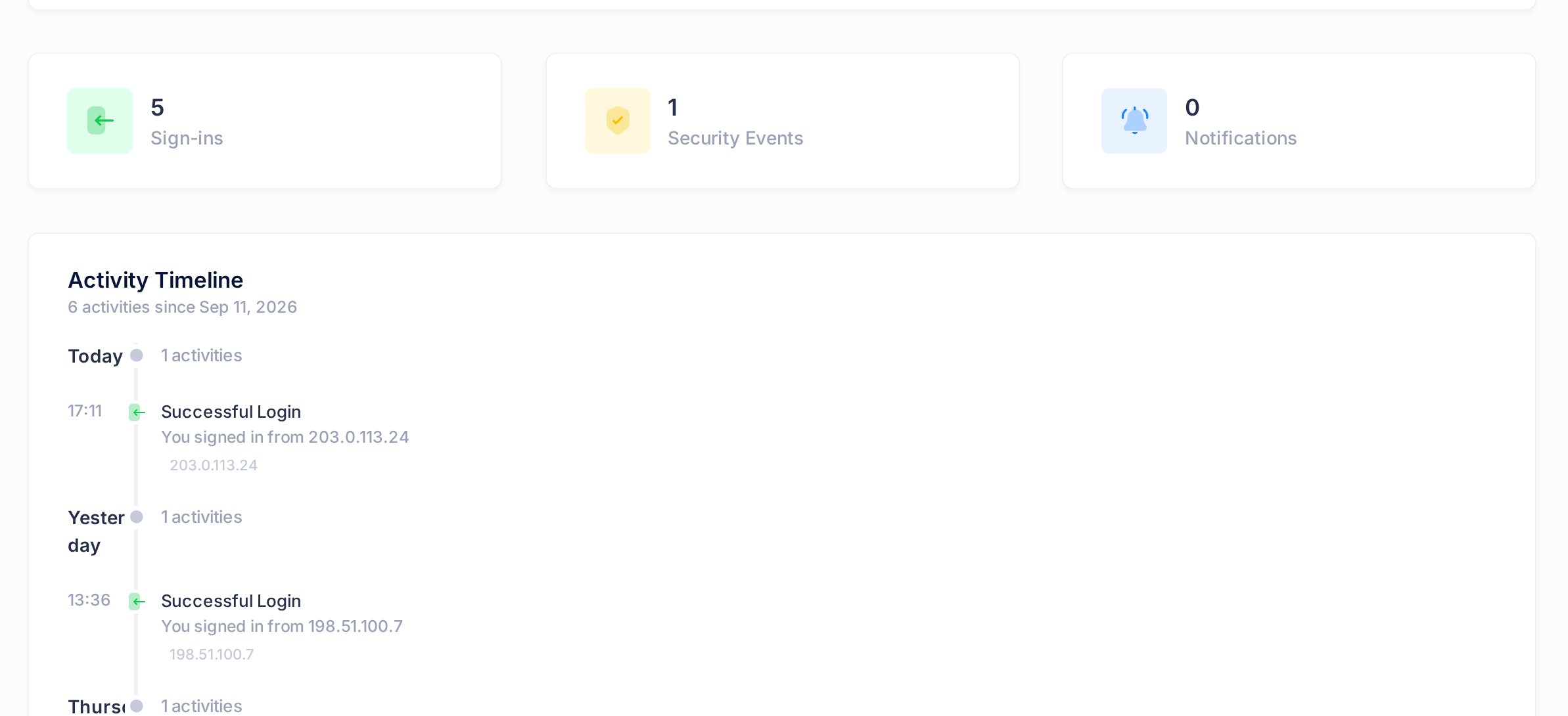
Under the figures, Activity Timeline shows the 50 newest lines of the period, grouped by day, and no older ones. Each line starts with its time, in UTC here too and on a 24-hour clock: 14:05 here is 2:05 PM on the Logs tab.
| Line | What it means |
|---|---|
| Successful Login, with You signed in from and an IP address | A sign-in from the Logs tab, without the device. |
| Password Changed, with Your password was changed and an IP address | The password was changed in Account Settings. Loop also sends you a notification and an email with the same title, so a change shows as two lines. One such line alone, with no email, is written when a device is removed with Revoke on the Security tab. |
| Email Changed, with Your email address was updated and an IP address | The email address of the account was replaced. An email about it goes to the old address. |
| A line without an IP address | A notification you received inside Loop, under its own title. It is not a sign-in. |
A password reset made with Forgot password? on the sign-in page leaves no line and is not counted, so Security Events at 0 does not prove that the password is unchanged. After a reset you did not make, your own password stops working.
Is this sign-in yours?
Test a row you doubt on three points.
- The time. With your hours added to UTC: were you signing in then?
- The address. Do rows that you know are yours show it? A new address is a reason to look closer, not proof: your phone and your office have different addresses.
- The device. Does it fit one of your devices, as named above? This is the weakest point:
Chrome On Windows 10stands for any Windows computer with Chrome, a stranger's too.
Treat a row as not yours when you were not signing in at that time and none of your own rows has its address, whatever the device says.
Common questions
Why is there a row at a time when I typed no password?
A browser that is still signed in to PearlFibers can pass through the sign-in page without being asked for anything, and that writes a row as well. Such a row is yours if its address is one of yours.
Can I see which devices are signed in right now?
No. A row tells you when a sign-in started, not whether it is still open. A sign-in lasts 30 days on its browser unless it is ended sooner. The list Trusted Devices on the Security tab is not that list either, and Revoke there signs nobody out: it only removes the entry.
Will Loop warn me about a sign-in from a new device?
Not with a message of its own. What reaches you is the sign-in code: every sign-in with your password sends one to your WhatsApp or your email. A code you did not ask for is the warning.
If something looks wrong
- A sign-in that is not yours. Somebody either used a browser you left signed in, or has your password and could read your sign-in code. Change your password first (see Change Your Password): the old one stops working, but nobody who is already signed in is signed out. If your codes come by email, change the password of that mailbox too: the code for resetting a Loop password goes there. Then send us a ticket and ask us to end the sign-ins on your account; no page in Loop lets you do that for another device. Copy the row into the ticket (day, time, address, device), never your password or a code. If the row is from a browser you can reach, signing out on it ends that sign-in (see Sign Out of Loop and Other PearlFibers Apps).
- A Password Changed or Email Changed line that you did not make. Send us a ticket at once and copy the line into it. After an email change, password reset codes go to the new address, so do not wait.
- A sign-in code you did not ask for. A sign-in code is sent only after the right password, so somebody typed yours. Change your password, whether or not a new row appears. An email with the subject Your Password Reset Code is different: anybody who knows your address can cause one, and without your mailbox it is of no use to them.
- The timeline reads No activity found for this period. Nothing is on record in the period chosen. Click View All Activity, which switches to All Time.
Still not sure whether a line is yours? Send us a ticket with the line copied into it: we can see sign-ins that these pages do not list.