
How can we help?

If you forgot your Loop password, you can set a new one from the sign-in page: Loop emails a 6-digit code to the address of your account, and you type that code with a new password. If you know your password and only want a different one, follow the guide "Change Your Password" instead.
Before you start
- You can open the mailbox of the email address you sign in to Loop with. The reset code comes by email only, even if your sign-in codes come by WhatsApp.
- Your account already has a password: you have signed in with one before. A reset cannot give an account its first password; for that, write to us.
Where this guide says write to us: a ticket needs you to be signed in, so message us on WhatsApp at +964 770 805 8050, the number on the contact page of pearlfibers.com.
Step 1 — Open the Forgot Password page
- Open loop.pearlfibers.com/login. The sign-in page appears, headed Sign In. If Loop opens instead, this browser is still signed in: open auth.pearlfibers.com/forgot-password and go on with Step 2.
- Under the Password field, click Forgot password?. A page headed Forgot Password opens.
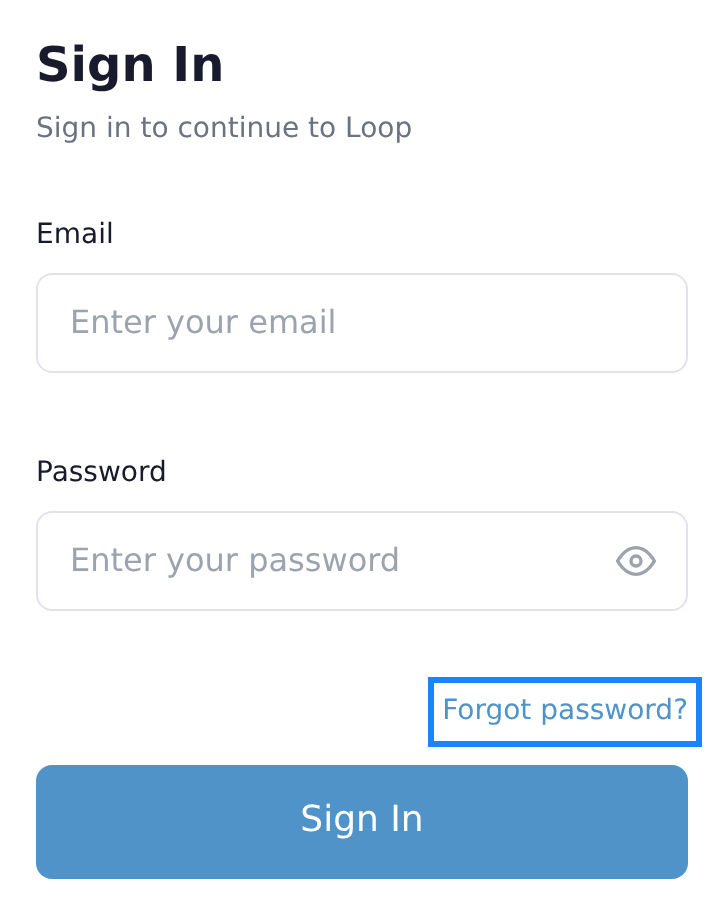
These pages are in English until you press the button العربية at the bottom.
Step 2 — Ask for a reset code
- In Email, type the email address you sign in to Loop with.
- Click Send Reset Code once. The page shows Reset code sent! Check your email. and, 2 seconds later, moves to the page Reset Password.
The page says this for any address, also a mistyped one or one with no Loop account. Only the email arriving proves that the address was right.
Step 3 — Find the code in your email
- Open your mailbox in another tab or app, so that the Reset Password page stays open.
- Find the message from PearlFibers (
noreply@pearlfibers.com) with the subject Your Password Reset Code. If it is not in the inbox, look in the spam or junk folder. - Read the 6-digit code after the words Your verification code is:.
The email says This code will expire in 10 minutes. A reset code works for 15 minutes from your click on Send Reset Code: go by the 15 minutes.
No email? Check the Email box of the Reset Password page for a typing slip; your account may also use another address. To ask again, click Back to Sign In, then Forgot password?, and repeat Step 2. Only the newest code works, so use the latest email.
Step 4 — Type the code and a new password
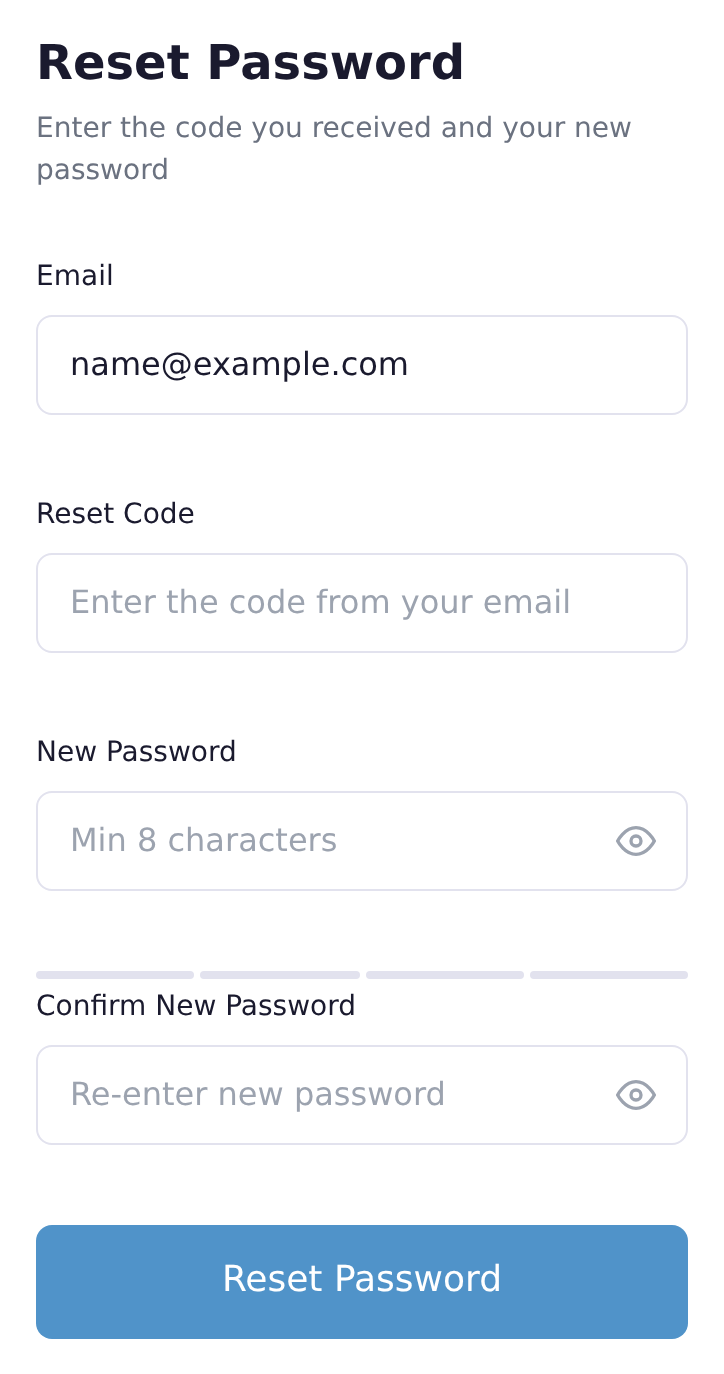
- On the Reset Password page, check that Email shows your address; it is already filled in.
- In Reset Code, type the 6 digits from the email. Type them as the digits 0 to 9: digits in their Arabic form are not accepted.
- In New Password, type the password you want: at least 8 characters. The word that appears under the field (Weak, Fair, Good or Strong) is advice only; the 8 characters are the only rule.
- In Confirm New Password, type the same password again.
- Click Reset Password. The page shows Password reset successfully! Redirecting to sign in... and returns to the sign-in page after 2 seconds.
Step 5 — Sign in with the new password
- On the sign-in page, type your email address and the new password, then click Sign In.
- A page headed Verify Your Identity opens and asks for a sign-in code: a new code, not the reset code.
- Type its 6 digits into the six boxes. After the sixth, the page checks the code and Loop opens.
Where the sign-in code arrives
The page says only Enter the verification code sent to your device. Loop sends the code to one of two places, never by SMS:
- WhatsApp, when a phone number is saved on your account: a message in English to that number, from the WhatsApp number
+44 7418 318382. - Email, when no phone number is saved: subject Your Login Verification Code, from the same sender as the reset email.
Not sure which applies? Look in both. A sign-in code works for 10 minutes. The button Resend Code on this page does not send one: for a fresh code, click Back to Sign In and sign in again.
What happens next
From now on only the new password works. No email confirms a reset: the message at the end of Step 4 is the confirmation.
Good to know
A reset signs nobody out: a browser already signed in to your account stays signed in until it signs out or its own sign-in ends, and a sign-in lasts 30 days. If somebody else may be using your account, write to us: only PearlFibers can end a sign-in on a device that is not in your hands.
If something goes wrong
On the Reset Password page
- Invalid OTP code — the code typed is not the newest code sent to you ("OTP" means a one-time code). Read the latest email again and retype it.
- Maximum verification attempts exceeded — three wrong codes were typed; this code is now refused even when typed correctly.
- Invalid OTP session — no code is waiting for this address: the 15 minutes are over, or none was asked for it.
After either of the last two, ask for a new code as Step 3 describes.
When you sign in
- Invalid credentials — the email address or the password does not match. Type both again with care. Refused again? Stop and write to us: your account may never have had a password.
- CAPTCHA verification required after multiple failed attempts. — sign-in failed 3 times for your address within 15 minutes. Drag the handle of the puzzle above the Sign In button onto the blue dot until it shows Verified, then click Sign In.
- Too many failed login attempts for this email. Please try again in 15 minutes. — wrong passwords were tried 5 times or more within 15 minutes; the new password is refused too. Wait until 15 minutes have passed since the last try: every try before that counts as one more failure, also after solving the puzzle shown with the message.
- Too many login attempts. Please try again later. — more than 5 sign-in attempts came from your internet connection within 5 minutes. Wait 5 minutes, then sign in once.
- Account is not active — the account's email address was never confirmed, or the account was deactivated. Another reset will not help; write to us.
- On the code page: Invalid OTP code — retype the newest code. Maximum verification attempts exceeded or OTP has expired (the 10 minutes are over) — sign in again for a fresh code.
- The sign-in code does not come. Look in both places named in Step 5, then sign in again once; only the newest code is accepted. Still none, or the code goes to a phone number you no longer use? Write to us: a reset does not change where the code is sent.
When you write to us on WhatsApp, give your account's email address and the exact words on the screen, never a password or a code. Once you are signed in, you can also click Help on the home screen, then Submit a Ticket.