
How can we help?

Loop keeps the postal addresses of your account in a card named Billing Addresses, where you add, change and remove them and choose one as the primary address. The primary address is shown on your account pages, and when a new domain is registered for you it can be given as your contact address to the registrar, the company a domain is registered with. Saved addresses are not printed on your invoices: if the details on an invoice are wrong, click Help on the home screen, the page that shows your apps as tiles, then Submit a Ticket.
Before you start
- Have the address at hand. The street line, the city, the postal code and the country are required, so find your postal code first.
- You can save as many addresses as you need.
Step 1 — Open the Billing tab of your account
- At the end of the top bar, click the first letter of your first name, or your picture if you have added one. A menu opens.
- In the menu, click Account Settings.
- The page that opens has a row of tabs in the card that shows your name. Click Billing. Do not use the Billing tile of the home screen: it opens a different page.
On the Billing tab, find the card Billing Addresses. Until you save an address it reads No billing addresses added yet.
Step 2 — Add an address
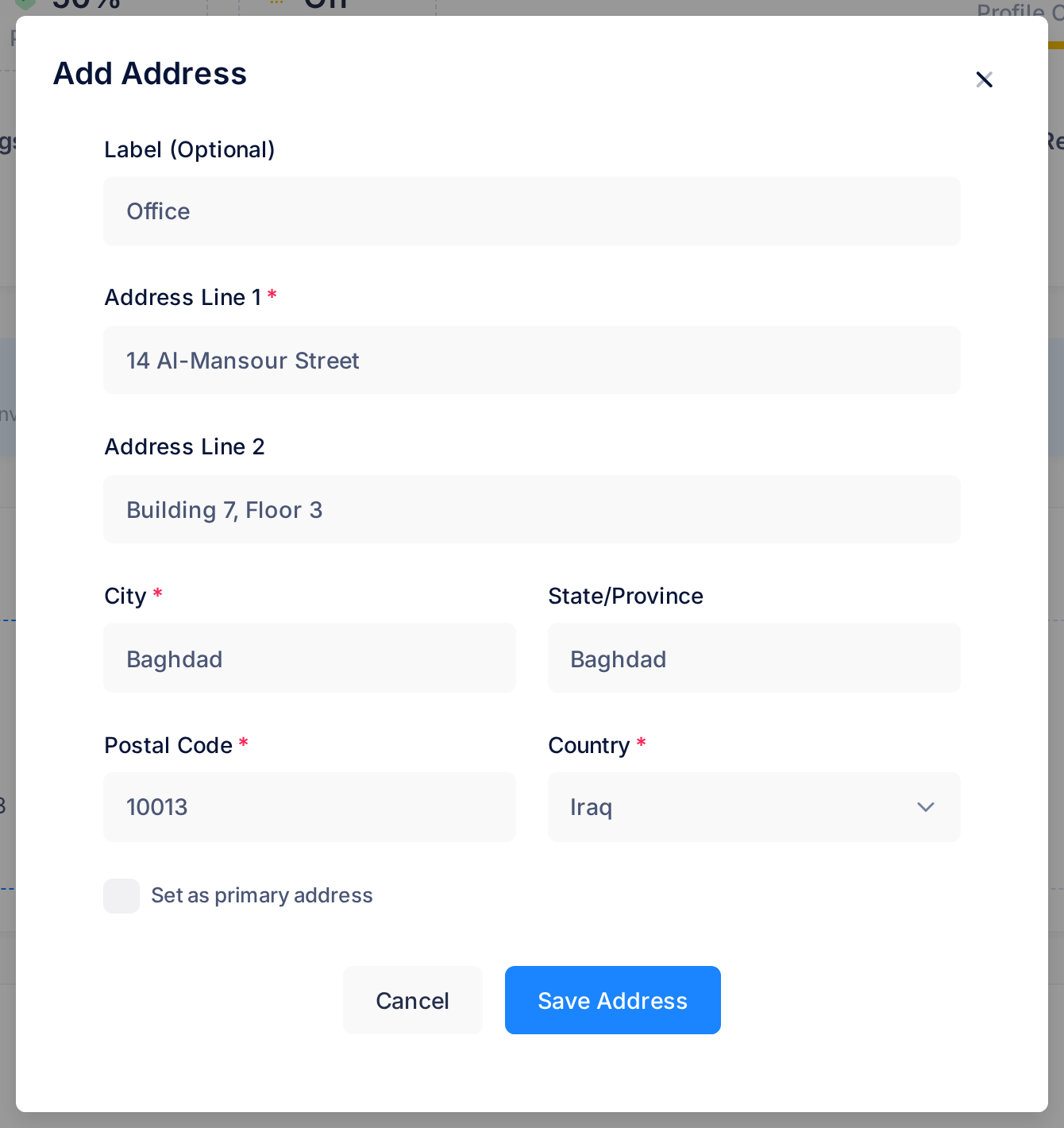
- On the card, click Add Address. A window with the same title opens.
- In Label (Optional), type a short name if you want one; the grey text suggests e.g., Home, Office, Headquarters. It is shown on the saved address.
- In Address Line 1, type the street address. Address Line 2 is for an apartment, suite or unit and may stay empty.
- In City, type the city. State/Province may stay empty, but fill it in if your address has one: the registrar asks for it when a domain is registered.
- In Postal Code, type the postal code.
- Open the Country list, which reads Select country, and choose your country. Iraq is the first name in the list; the other countries follow in alphabetical order.
- Tick Set as primary address only if this address should take the primary place. Your first address becomes the primary one whether you tick it or not.
- Click Save Address. The window closes and a box titled Success with the words Address created successfully shows for a moment, then goes away by itself. The page reloads with the address on the card.
Step 3 — Choose the primary address
Each saved address is a card of its own: the label, the address lines, the city, the state, the postal code and the country as a two-letter code such as IQ. The primary address comes first and carries the badge Primary. Each address has small icon buttons, whose names show when the pointer rests on them: a tick (Set as Primary) on every address except the primary one, a pencil (Edit) and a bin (Delete).
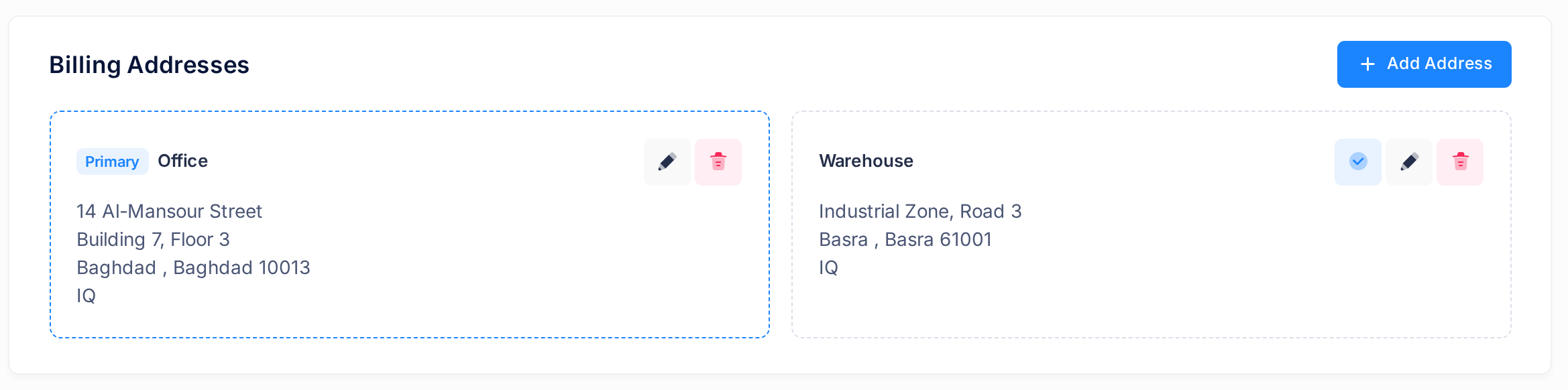
- On the address that should become primary, click the tick icon. Nothing asks you to confirm: the box Success shows Primary address updated for a moment, and the page reloads with that address first and the badge on it.
Un-ticking Set as primary address on the primary address and saving changes nothing: it stays primary until another address takes its place.
Step 4 — Change an address
- On the address, click the pencil icon. The window opens again under the title Edit Address, filled with the saved values.
- Correct what is wrong. If nothing needs changing, click Cancel.
- Click Save Address. The box Success now reads Address updated successfully, and the page reloads with the change.
Step 5 — Remove an address
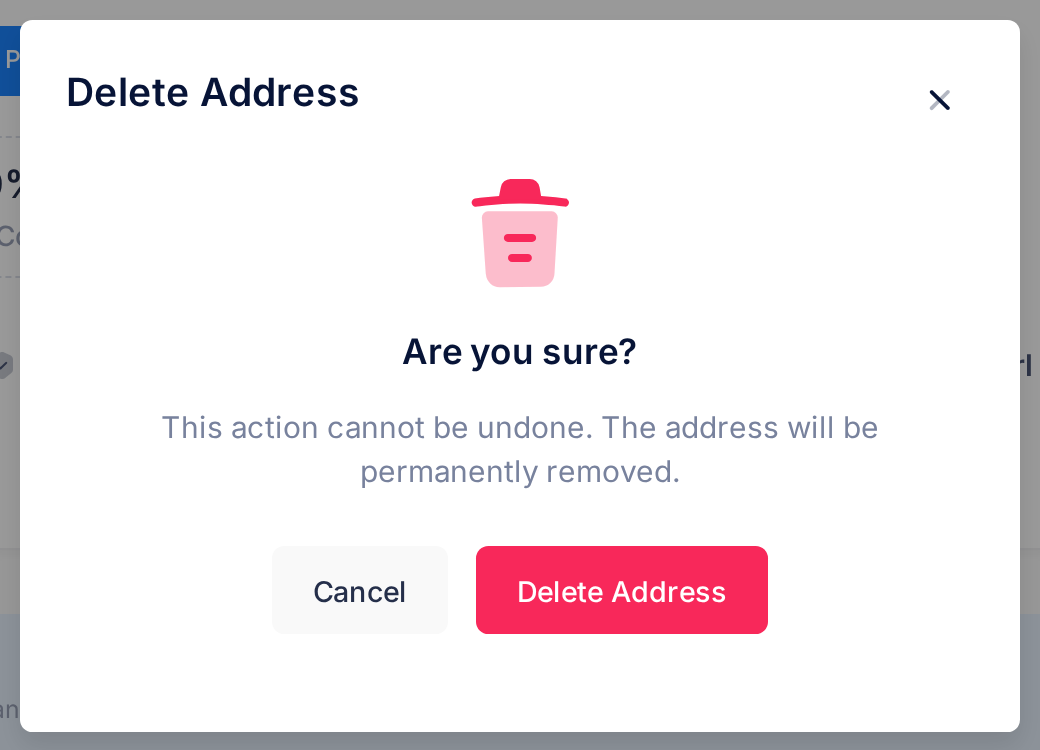
- On the address, click the bin icon. A window titled Delete Address asks Are you sure? and warns This action cannot be undone. The address will be permanently removed.
- Click Delete Address, or Cancel to keep the address. After Delete Address, the box Deleted shows Address has been deleted for a moment and the page reloads without the address.
If you remove the primary address while others remain, Loop makes the most recently added of them primary. Check where the badge is afterwards and move it if needed (Step 3).
What happens next
You see the result at once: the card at the top of your account pages shows the city and country code of the primary address before your email address, for example Baghdad, IQ. The Overview tab shows the primary address on the line Address. With no address saved, neither is shown.
Adding, changing or removing an address, or choosing another primary one, sends nothing: no email to you and no notice to our team. If you want us to know your new address, tell us in a ticket.
Good to know
- Your office moved. Correct the saved address (Step 4), or add the new one with Set as primary address ticked and then remove the old one — in that order, so that the primary address is always one you chose.
- Domains you already have. Changing an address here does not change their contact details, and those cannot be seen or changed in your account. To have them changed, send us a ticket.
If something goes wrong
- You click Save Address and the window stays open with a small note pointing at one of the boxes. A box marked with a red star is empty. The note comes from your browser, which points at the first empty one, and nothing is saved. Fill it in and click Save Address again.
- A box titled Error names a field, for example Postal code is required or, while you change an address, Postal code cannot be empty. That field holds only spaces. Type the real value and save again.
- A box titled Error says that saving failed, for example Failed to create address. One of the boxes holds more than Loop keeps: 50 characters for the label, 255 for each address line, 100 for the city, 100 for the state or province and 20 for the postal code. Shorten it and save again.
- The city at the top of the page did not change. That card shows the primary address only. Check which address carries the badge (Step 3).
For anything else, click Help on the home screen, then Submit a Ticket, and give us the exact words of the message you saw.