
How can we help?

The email address of your Loop account is the address you sign in with, and the one Loop writes to. This guide moves your account to another address: you ask for the change in Account Settings, then confirm it from a link that Loop sends to the new address.
Before you start
- You are signed in to Loop and you know the password you sign in with today: the form asks for it. If you have forgotten it, follow the guide Reset a Forgotten Password first.
- You can open the mailbox of the new address now. The link goes there and works for 60 minutes. The mailbox of your old address is not needed.
- Where this guide says "our support team": on the home screen, click Help, then Submit a Ticket. If you cannot sign in — for example because your sign-in code goes to a mailbox you can no longer open — open the contact page of pearlfibers.com and click Open WhatsApp instead.
Step 1 — Open the Sign-in Method card
- At the end of the bar at the top of the Loop home screen, click the first letter of your first name — or your picture, if you have added one. A menu opens.
- In the menu, click Account Settings. A page headed Account Settings opens.
- Scroll down past the card Profile Details to the card Sign-in Method. Its row Email Address shows your present address and the button Change Email.
Step 2 — Ask for the change
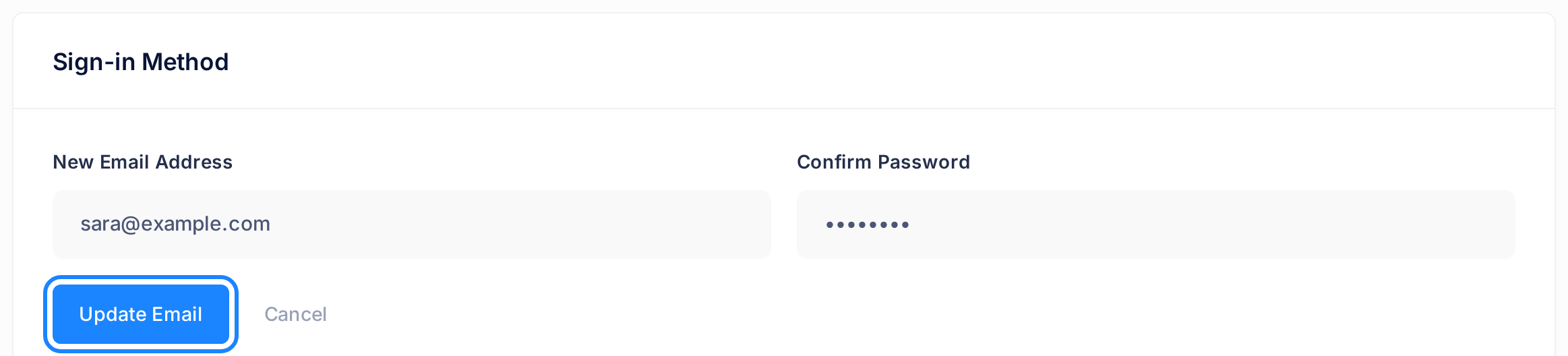
- Click Change Email. Two fields open in the card: New Email Address, already filled with your present address, and Confirm Password. Both are required.
- In New Email Address, replace what is there with the new address, for example
sara@example.com. Read it once more: the link goes to exactly what you typed, and whoever opens it completes the change. - In Confirm Password, type the password you sign in with today. The field does not ask for a new password.
- Click Update Email. To back out, click Cancel instead: the fields close and nothing is sent.
A message appears. If its title is not Email Updated, the request was refused: go to If something goes wrong. Email Updated reads A verification link has been sent to your new email address. Please check your inbox. It closes by itself after about three seconds, or when you click OK. Whatever the title says, your address has not changed yet. The page loads again and the card still shows the old address, which goes on signing you in until you open the link.
Nothing on the page shows that a change is waiting, and there is nothing to cancel: a link that is never opened stops working by itself. If you typed the wrong address, repeat this step with the right one at once — a new request makes the earlier link stop working.
Step 3 — Open the link in the email
Loop sends one email straight away, to the new address only. It is in English, whatever language you use Loop in. It says This link will expire at and a clock time, for example 5:28 AM, with no date and no time zone. That time is UTC, the world's reference time, not the time on your clock: count 60 minutes from your click on Update Email instead.
- Open the mailbox of the new address and find the email from PearlFibers (
noreply@pearlfibers.com) with the subject Verify Your New Email Address. - Click the button Verify Email Address. Any browser will do, signed in to Loop or not. If the button does nothing, copy the link written out lower in the email into your browser's address bar.
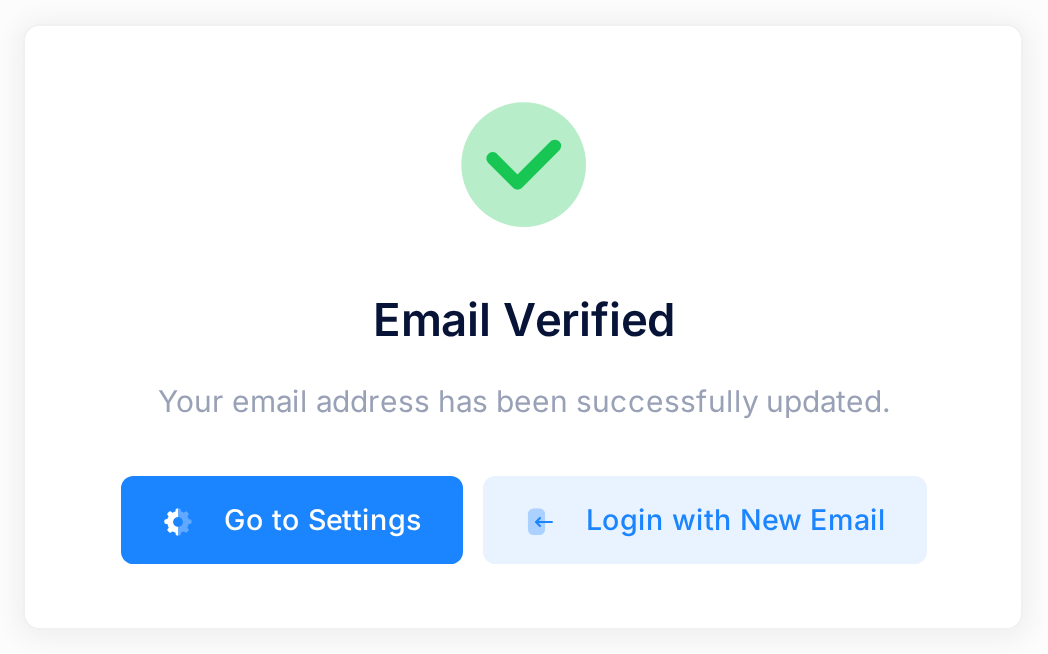
A page opens with a green tick, the heading Email Verified and the sentence Your email address has been successfully updated. It has two buttons: Go to Settings and Login with New Email.
Step 4 — Check that the address changed
- Click Go to Settings. In a browser where you are not signed in, Loop asks you to sign in first: use the new address and your usual password.
- Look at the card Sign-in Method. Email Address now shows the new address. If it still shows the old one, the change was not made: go to If something goes wrong.
What happens next
Within about a minute of opening the link, a second email, also in English, goes to your old address, with the subject Your Email Address Has Been Changed. It shows the two addresses after Previous email: and New email:. If you made the change, do nothing with it.
From now on:
- You sign in with the new address and the same password. The old address no longer signs you in.
- What Loop sends you by email goes to the new address: notifications, the code for a forgotten password, and the sign-in code.
- If your sign-in code comes by WhatsApp, it still does: the phone number on your account decides that, not the email address.
- At the top of the account pages, the new address carries the badge Verified.
The only way to undo the change is to make a second one, back to the old address: the same steps, with the link going to the old mailbox.
If you get one of these emails without asking
- The email Verify Your New Email Address. Someone typed your address as the new address of a Loop account. The email says If you did not request this change, you can safely ignore this email. Do not click its button.
- The email Your Email Address Has Been Changed. It says If you did not make this change, please contact our support team immediately as your account may have been compromised. Do so at once: the change can only be asked for by someone who is signed in to your account and types its password. If you can no longer sign in, use the WhatsApp route from Before you start. Either way, give the two addresses the email shows, never a password.
If something goes wrong
The first four messages come in a box titled Update Failed; nothing was sent.
- New email is same as current email — the field still holds your present address. Type the new one.
- Email address is already in use — another Loop account has that address. Use a different one.
- Current password is incorrect — what you typed in Confirm Password is not your account's password. Type it again, or follow Reset a Forgotten Password.
- Too many email change requests. Please try again later. — Loop accepts three requests in 60 minutes. Wait an hour, then ask again.
- No email arrives. Look in the spam folder of the new mailbox. If it is not there, the address may have been mistyped: repeat Step 2.
If the link opens a page headed Verification Failed, read the sentence under the heading.
- This verification link has already been used — open Account Settings as in Step 4. If the card shows the new address, the link was opened before and the change is made. If it shows the old one, you asked again after this email was sent: use the link in the newest email.
- This verification link has expired. Please request a new one. — the link's time has run out. Repeat Step 2.
- A sentence that starts with Invalid, such as Invalid or expired verification link — the link was not opened whole. Click the button in the email again, or copy the complete link.
Still stuck? Click Help on the home screen, then Submit a Ticket, and give us the exact words on your screen. The guide Describe a Problem So We Can Fix It Fast shows what else helps.