
How can we help?

This guide adds a PearlFibers mailbox — an address such as sara@example.com — to the mail app of your phone, so that you can read and send its mail there. You type a few values by hand, all listed below. Phones differ by maker and version, so the guide names the choices and boxes every phone's mail app asks for, not the taps that lead to them.
Before you start
- The mailbox must exist, and you need its full address. To add a mailbox, see the guide Create a Mailbox.
- You need the mailbox's own password — not the password of your Loop account. Loop cannot show it to you; if nobody knows it, read "When the mailbox's password is reset" below before you replace it.
- If you already have both, begin at Step 2. If someone else manages your company's email, ask them for both.
- For help: on the Loop home screen, click the Help tile, then Submit a Ticket.
Step 1 — Read the address in Loop
- On the Loop home screen, click Portal.
- Click View All Services.
- Click the Email Plans tab.
- Click Manage on the card of the mailbox's domain. The plan's page opens on the Mailboxes tab.
- Find the mailbox in the list and note its address from the EMAIL column, letter for letter.
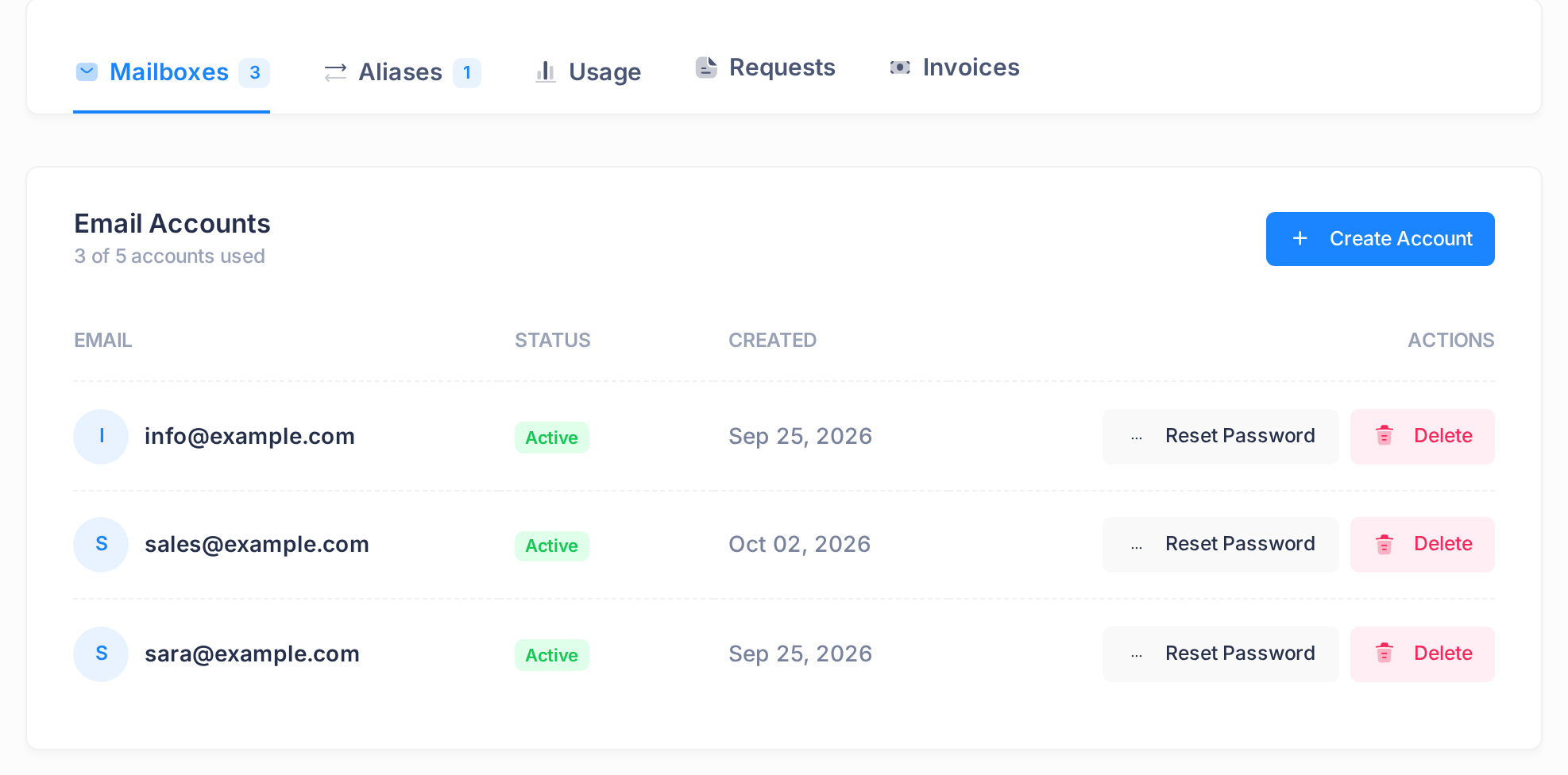
Step 2 — Start a new account on the phone
- Open the phone's mail app, or the part of the phone's settings that holds mail accounts, and choose to add an account.
- When the phone lists mail services by name, choose the entry for any other kind of account, not a named service such as Google or Outlook: the mailbox's server accepts no Google or Microsoft sign-in.
- Type the mailbox's full address and its password. A name or a description, if the phone asks for one, is yours to choose.
- When the phone asks for the type of account, choose IMAP, not POP: both are ways of receiving mail, and the values in Step 3 are the ones for IMAP.
- Whatever the phone fills in by itself — even if it says the account is ready — compare every value in the account's settings with Step 3.
Step 3 — Enter the server values
The phone asks about two servers: an incoming one, which it reads your mail from, and an outgoing one, often marked SMTP, which it sends through.
| What the phone asks for | Incoming mail server | Outgoing mail server |
|---|---|---|
| Host name (server name) | mail.ubarum.com | mail.ubarum.com |
| User name | the mailbox's full address | the same address |
| Password | the mailbox's password | the same password |
| Port (a number) | 993 | 587 |
| Encryption (security): it protects the password | SSL/TLS, sometimes shown as SSL | STARTTLS, sometimes shown as TLS |
| Sign-in (authentication) | ordinary password | ordinary password |
Every phone needs the first three rows; the last three only where the phone shows such boxes, often among its advanced fields.
- In the incoming part, type the host name
mail.ubarum.com. It is the same for every domain and does not contain your own domain's name. - Type the full address as the user name —
sara@example.com, notsara: the server refuses the part before the @ on its own. - Type the password.
- Fill in the same three values in the outgoing part, also where the phone marks its user name and password as optional: with these two boxes empty the server refuses every message.
- In the last three rows, encryption must be on for both servers; where the phone has only a switch for it, turn it on. The outgoing port must be 587: change any other number, such as 465, on which the server does not answer.
- Save the account. If the phone answers with an error or a warning, see "If something goes wrong"; never accept a warning about the server.
Step 4 — Send a message to yourself
- In the phone's mail app, write a new message from this account to the mailbox's own address.
- Send it. If the phone shows an error or keeps the message unsent, check the outgoing part.
- Open the account's Inbox and refresh it. Your message should be in it; if it was sent and does not appear, check the incoming part.
This test shows that the phone can sign in to send and to receive, not that mail travels to and from other mail services: for that, exchange messages with someone at another mail service. If one of them does not arrive although your own test worked, the phone is not the cause; see the guide Set Up Email on Your Domain.
What happens next
The mail app shows the mail that is in the mailbox. Loop sends no welcome message, so your test message may be the only one there.
The same values work on any other phone; for a computer, see the guide Set Up Your Email in Outlook.
When the mailbox's password is reset
A reset in Loop — the guide Reset a Mailbox Password shows how — replaces the password on the server and tells nobody. From its next sign-in the phone is refused, because it still sends the old password. Only the password has changed: the address, the server values and the mail are as before.
- Get the new password from the person who reset it.
- On the phone, open the settings of this mail account.
- Replace the password in the incoming part, and in the outgoing part too if the phone keeps one there.
- Send yourself a message as in Step 4.
Every other phone, tablet and computer that uses this mailbox needs the new password too — so do not reset a password only because one phone was set up wrongly.
If something goes wrong
- The phone says the user name or password is wrong. Check that the user name is the full address in both parts, that the password is typed exactly as it was set, and that the mailbox is still in the list of Step 1. Wrong tries do not lock the mailbox. On a phone that worked before, ask whether the password was reset; if nobody knows the password, it has to be reset. For both, see the section above.
- The phone warns that it cannot verify the server's identity, or that a certificate is not trusted. The server proves its identity for the name
mail.ubarum.comonly: cancel, and make the host name in both parts exactly that. - The phone cannot connect, or mail arrives but cannot be sent. Compare the host name, port and encryption of each part with the table. When only sending fails, look at the outgoing part first: its user name and password must be filled in.
- Only a message with photos or a video is refused. The server accepts messages up to about 10 MB, and attachments take roughly a third more room inside a message than as files. Send the files in several messages.
Still stuck? Send us a ticket with the mailbox's address, the make of the phone and the exact words on its screen — never a password. Without a Loop account, ask the person who manages your company's email to send it.