
How can we help?

The Mail app shows a mailbox of your email plan inside Loop, so you can read its mail in the browser without setting up Outlook or a phone first. What you see is Loop's own copy of the mailbox, which Loop keeps adding new mail to.
Before you start
- The mailbox's complete address, for example
sara@example.com. - The mailbox's password: the one typed when the mailbox was created on the page of your email plan, or at its last reset there. It is not your Loop password. Loop shows it nowhere, so a password nobody knows can only be replaced: read Reset a Mailbox Password first, because a reset shuts out every phone and mail program that still holds the old one.
- Your own Loop account. An account in Mail, the connection to one mailbox, belongs to the one Loop user who connects it, and nobody else can open it there. Creating a mailbox on the plan page does not put it into Mail: anybody who has its address and password can connect it, so each person connects their own mailbox in their own Loop account.
Step 1 — Connect the mailbox
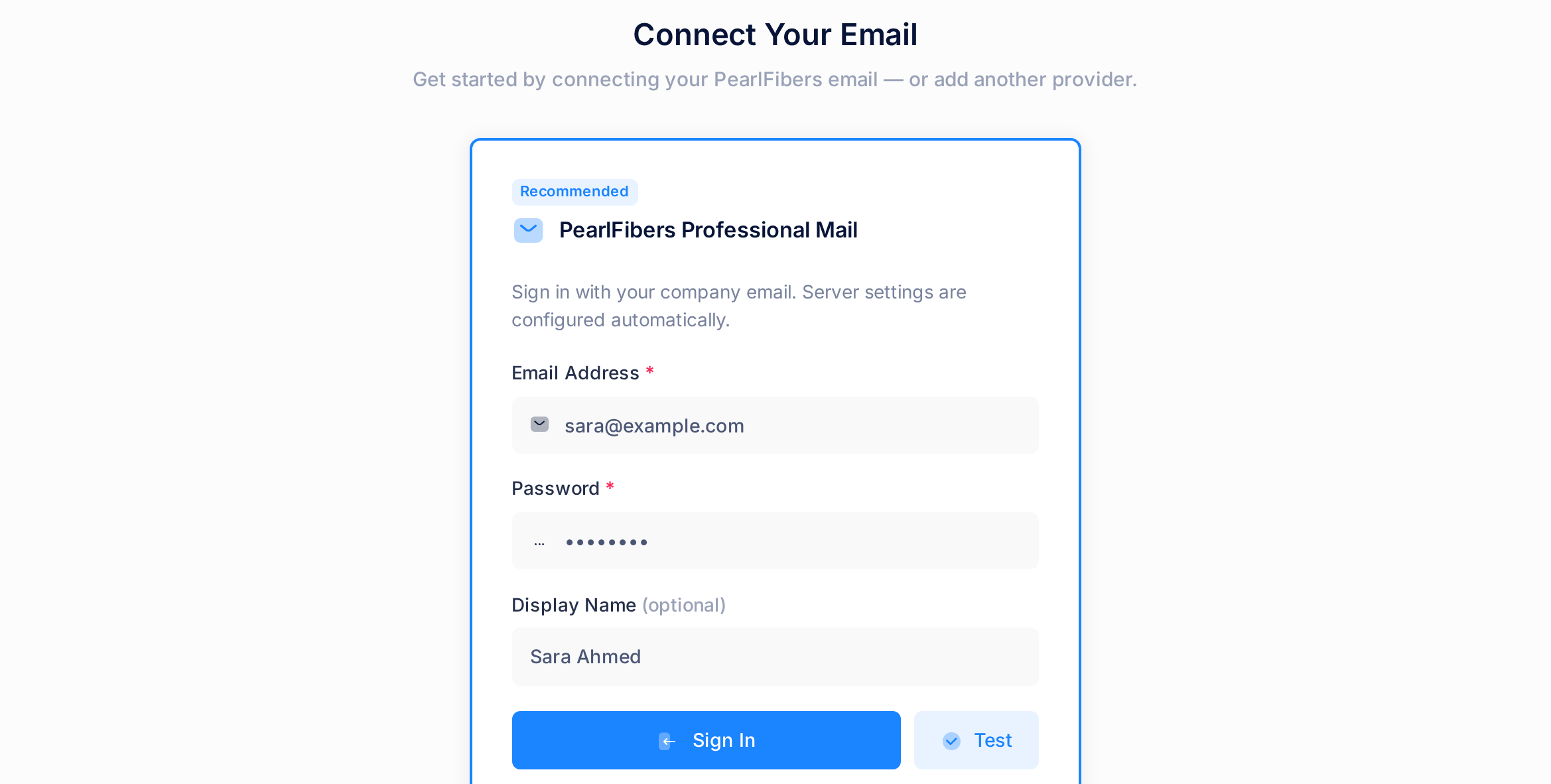
- Click the Mail tile on the home screen. A page headed Connect Your Email opens. If an inbox opens instead, a mailbox is already connected: see Work with Several Email Accounts.
- In Email Address, type the mailbox's complete address.
- In Password, type the mailbox's password.
- In Display Name (optional), type the name that mail written in Loop is sent under. Left empty, that mail goes out under the address alone. The box cannot be edited later.
- Click Sign In. Test only checks the address and password and connects nothing.
Mail opens with a green box Account connected successfully. The inbox reads No Messages and Folder is Empty, as expected: connecting fetches no mail yet. The form's boxes and messages are explained in Connect Your PearlFibers Mailbox.
Step 2 — Bring in the first mail
- On a computer, click Sync Now in the card at the side of the inbox. The button reads Syncing..., then the page reloads by itself. A phone or a narrow window does not show this card: click the small button beside the folder's name, then Sync Now in the panel Folders that opens.
- Check the result: mail from the mailbox is in the list. If the mailbox holds no mail yet, look for its folder INBOX instead: in the card on a computer, in the panel Folders on a phone.
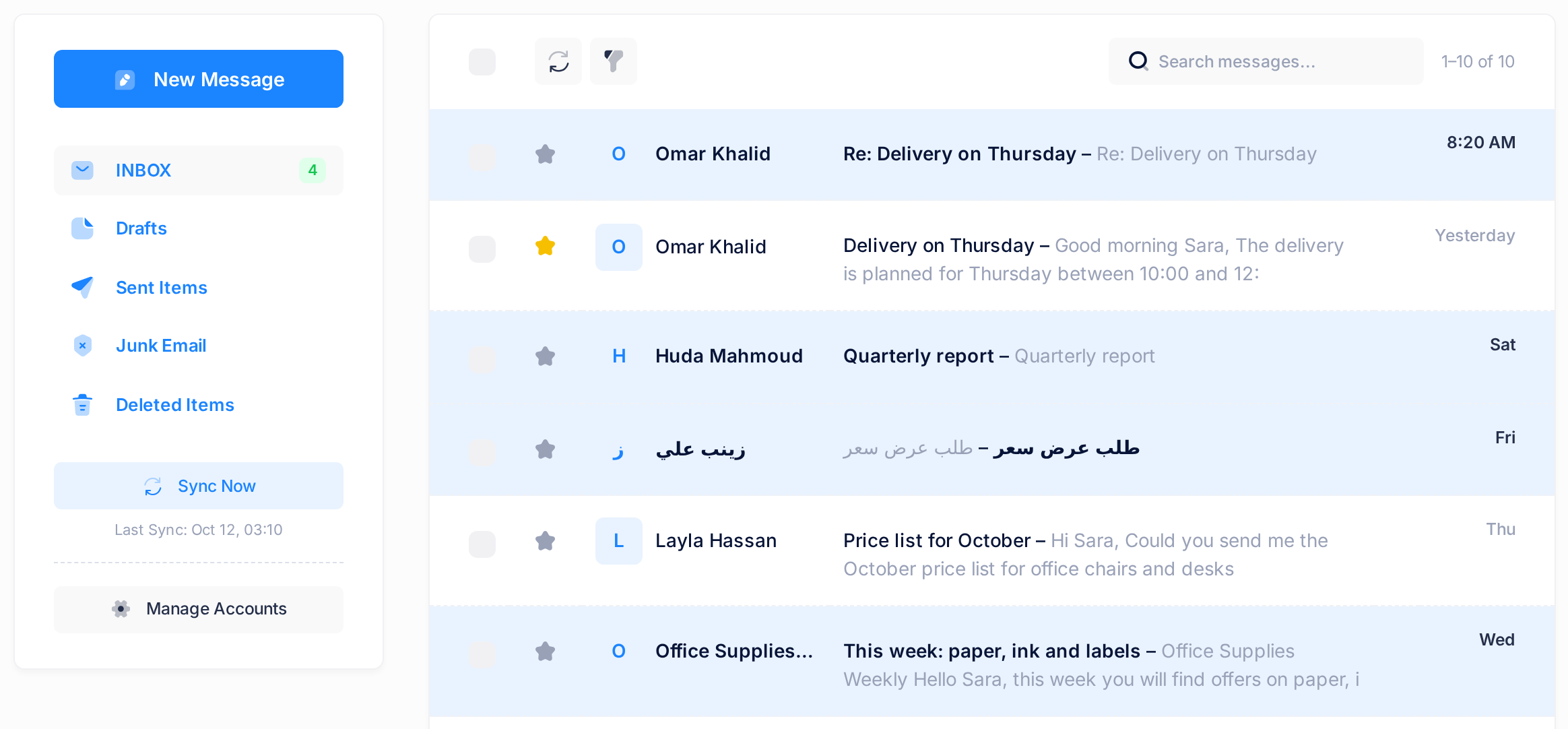
One sync, a round of copying mail into Loop, brings at most 50 messages per folder, the oldest first. Loop syncs again every five minutes, and at each click of Sync Now, so a mailbox with a lot of mail fills step by step and its newest messages arrive last. More in Understand How Mail Syncs.
What happens next
From now on the Mail tile opens this inbox. New mail comes in with the syncs, but the page does not show it by itself: reload the page or click Sync Now.
When a mailbox's password is reset on the plan page, Mail still holds the old one: it stops bringing in that mailbox's mail, and a yellow line above the message list begins The last sync of this account failed. Remove the account from Mail and connect it again with the new password: Fix a Mailbox That Stopped Syncing shows how.
Mail beside Outlook or a phone
Mail and a mail program work on the same mailbox side by side: Loop only reads the mailbox and leaves it on the mail server. For a mail program, see Set Up Your Email in Outlook or Set Up Your Email on iPhone and Android.
Because Mail shows a copy, what you do to a message in Loop (star, move, delete, mark as read or unread with the buttons) changes that copy only: it does not show in Outlook or on the phone, and what is done there to a message Loop has already copied does not show in Loop. The copy of a message you send from Loop, and a draft written in Loop, are not put into the mailbox either. Only one thing reaches the mailbox: opening a message in Loop marks it as read there too. Nothing you do in Mail deletes anything from the mailbox.
If something goes wrong
- A red box at the top of the page reads Authentication failed: Connection failed: IMAP authentication failed: NO [AUTHENTICATIONFAILED] Authentication failed. The mail server refused the address or the password, and nothing was saved. Check the address against the mailbox list on the plan page (see A Tour of Your Email Plan), type the mailbox's password again and click Sign In. If it is refused again, it is not the mailbox's current password: see "Before you start".
- Sync Now answers with a message that begins Sync failed:, the inbox stays empty although the mailbox holds mail, or new mail stops arriving. Mail is not copying this mailbox: see Fix a Mailbox That Stopped Syncing.
Still stuck? From a Mail page, click the Loop logo at the top to return to the home screen, click Help, then Submit a Ticket, and give us the mailbox's address and the exact words on the screen. Never send us a password.