
How can we help?

A mailbox is an email address on your company's domain with its own password and its own mail, for example omar@example.com. Create one when a new person joins and needs an address. On the pages of your email plan a mailbox is also called an account or an email account.
Before you start
- "Send us a ticket" in this guide means: on the Loop home screen, click Help, then Submit a Ticket.
- You have an email plan with PearlFibers, and its status is Active. With any other status the plan's page starts with a yellow notice, This plan is and the status, and nothing can be created until the plan is active: send us a ticket.
- You have chosen an address and a password: Step 2 says what is accepted, and "Good to know" names two kinds of address to avoid.
Step 1 — Open your email plan and check for a free place
- On the Loop home screen, click the Portal tile.
- Click View All Services.
- Open the Email Plans tab. Each plan is a card with its domain, its plan name and a status badge.
- Click Manage on the card. The plan's page opens, with the domain as its title.
- Look at the Mailboxes tab, which is open under the three boxes of the page. Under its heading Email Accounts, a line says how many mailboxes exist and how many your plan allows — 3 of 5 accounts used in the example — and the tab has a button Create Account.
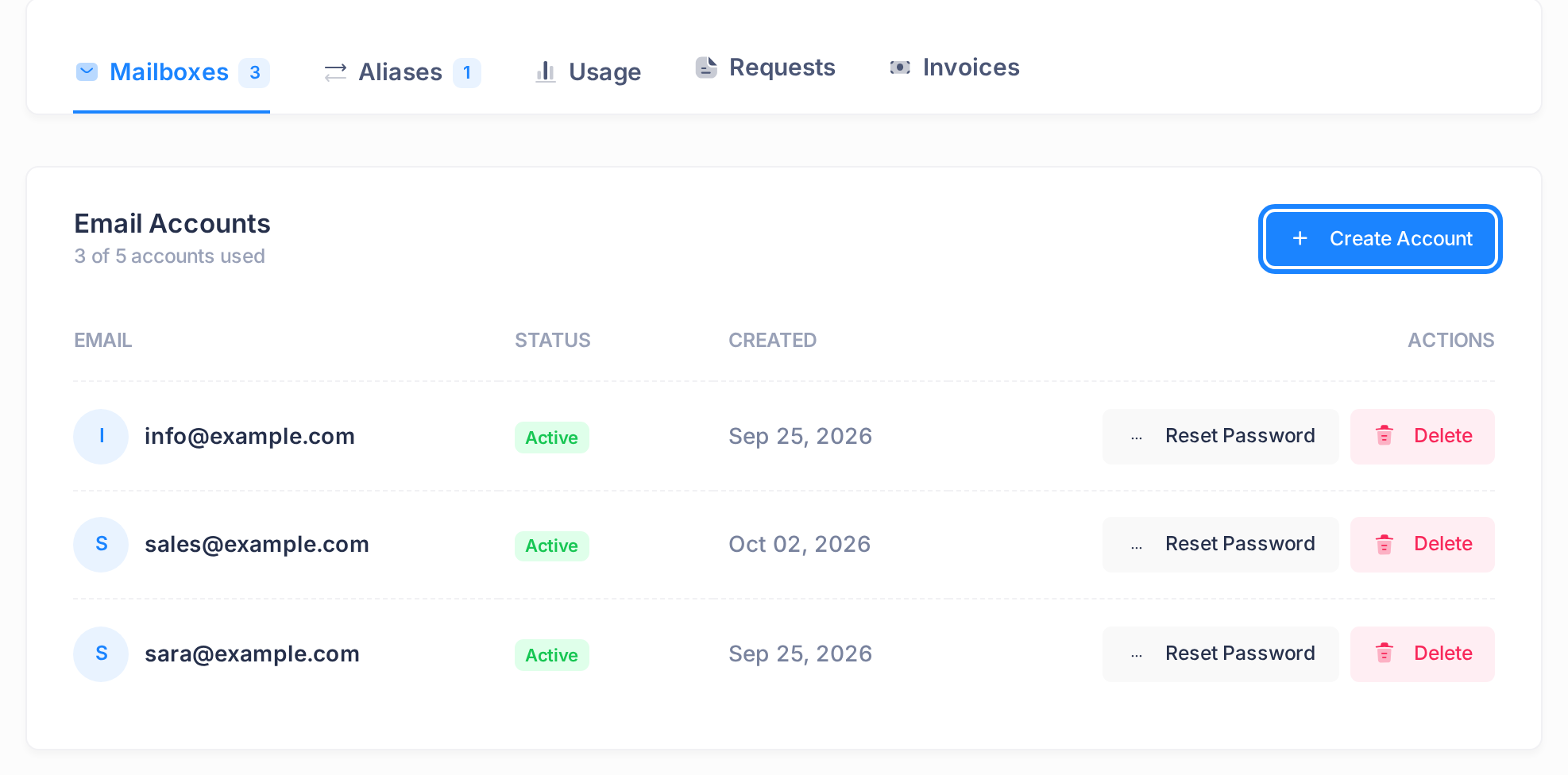
When no place is free, the page has no Create Account button: a red badge Account limit reached stands in its place on the tab. Either delete a mailbox that nobody uses any more — its place is free again at once (see the guide Delete a Mailbox) — or send us a ticket and ask for more places. Do not use Request More Accounts or Service Request on this page for that: nobody is told about a request sent from them.
Step 2 — Fill in the window
- Click Create Account — the one on the tab or the one at the top of the page. Both open the same window, titled Create Email Account.
- In Email Address, type only the part before the @, for example
omar. Your domain already stands after the box and cannot be changed. - In Password, type the password for the mailbox.
- In Confirm Password, type the same password again.
- Check the spelling of the address and keep the password somewhere safe before you go on: a mailbox cannot be renamed, and Loop never shows its password again.
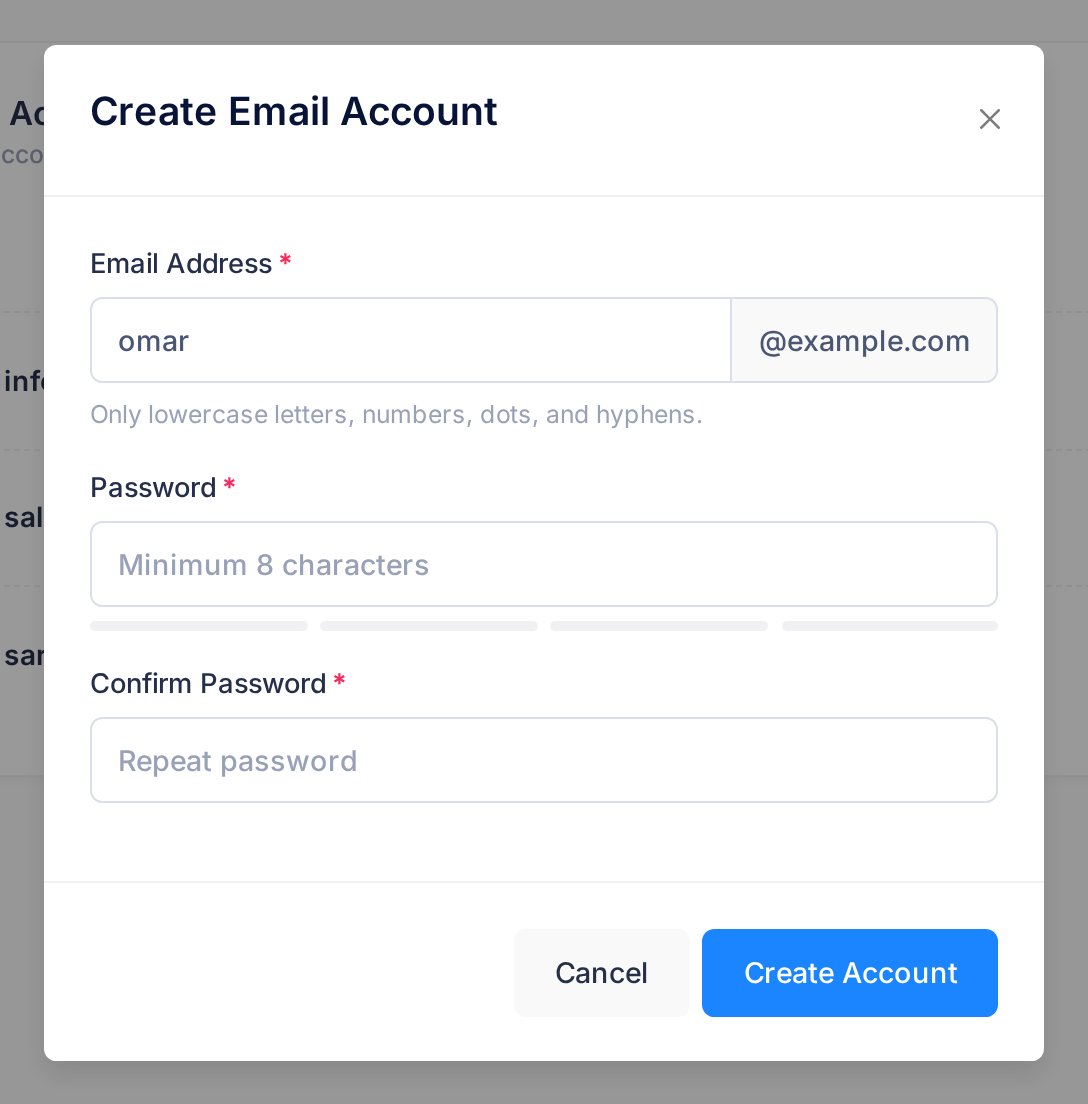
What Loop accepts in this window:
- The address. The letters a to z, digits, the dot, the hyphen and the underscore, 64 characters at most. Capital letters are turned into small ones. A space, an Arabic letter or any other sign is refused.
- The password. 8 to 128 characters; nothing else is required. Every character counts, also a space at the start or the end, and the boxes show only dots. The bar under the box and its word — Weak, Fair, Good or Strong — are advice only.
- Storage. There is nothing to choose. The mailbox is given your plan's storage figure for one mailbox.
Step 3 — Save and find the new mailbox
- Click Create Account in the window. While Loop works, the button reads Please wait... and cannot be clicked a second time.
- Wait for the window to close. A small notice, Email account created, shows briefly at the top corner of the page; about a second later the page reloads by itself.
- Find the new address in the list on the Mailboxes tab. The list is in A–Z order, so look for it at its place in the alphabet, not at the end. Its row has a green Active badge and the day it was created, and the count above the list is one higher — in the example,
4 of 5 accounts used.
If the window stays open and shows a sentence in a red box, go to "If something goes wrong" below. On a phone the list is wider than the screen; push it sideways to see the whole row.
Step 4 — Give the mailbox to its user
- Give the person the complete address and the password yourself: Loop tells nobody about a new mailbox.
- Point the person to the guide for their device: Set Up Your Email in Outlook or Set Up Your Email on iPhone and Android.
If the password is lost later, you set a new one: see the guide Reset a Mailbox Password.
What happens next
- The mailbox exists from the moment its row is in the list: the person can set it up on their device at once.
- Mail sent to the new address arrives only if your domain's mail is directed to PearlFibers. The guide Set Up Email on Your Domain shows how to check that.
- Creating a mailbox makes no invoice and changes nothing in your subscription: it fills one of the places your plan already has.
Good to know
- An address that is already an alias. The Aliases tab lists extra addresses whose mail is delivered to another address. Do not give a mailbox one of them: no message stops you, but its mail still goes to the other address and the new mailbox receives none. Choose another address, or send us a ticket.
- An address that was used before. If a mailbox with this address was deleted in the past, its mail may appear in the new one. If the new person must not see it, choose another address or send us a ticket first.
- Two plans on one domain. If Email Plans shows two cards for the same domain, both pages list the same mailboxes, and each counts them against its own limit. Create the mailbox on the page that shows a free place.
If something goes wrong
A refusal is a sentence in a red box inside the window. Correct what it names, then click Create Account again.
- Email can only contain lowercase letters, numbers, dots, and hyphens. The address holds a space or a sign that is not accepted — or you typed the @ and the domain, which must be left out.
- Password must be at least 8 characters. or Passwords do not match. Type the password again in both boxes.
- Email address already exists. A mailbox with this address is already in the list on the Mailboxes tab. Choose another address; if nobody knows the password of the one that exists, see Reset a Mailbox Password.
- Domain not configured on mail server. Only PearlFibers can put this right. Send us a ticket and copy the sentence into it.
- Any other sentence. Reload the page and look for the address in the list: it may have been created. If it is not there, try again; if the sentence returns, send us a ticket with its exact words.
- You saved a misspelled address. Delete the new mailbox (see Delete a Mailbox) and create it again with the right address.
To send a ticket from the plan's page, go to the home screen first: click the Loop logo — the portal opens — then the logo again. The Help Center link of the plan's page does not lead to tickets. Never write a mailbox password in a ticket.