
How can we help?

This guide adds a PearlFibers mailbox to Outlook, or to another mail program on a computer, so that you can read and send your mail there. Outlook's windows and button names differ between versions and are not shown here: the guide says in plain words what to look for, and the table in Step 2 gives the exact values to type. "Send us a ticket" means: on the Loop home screen, click Help, then Submit a Ticket.
Before you start
- The mailbox's full address, for example
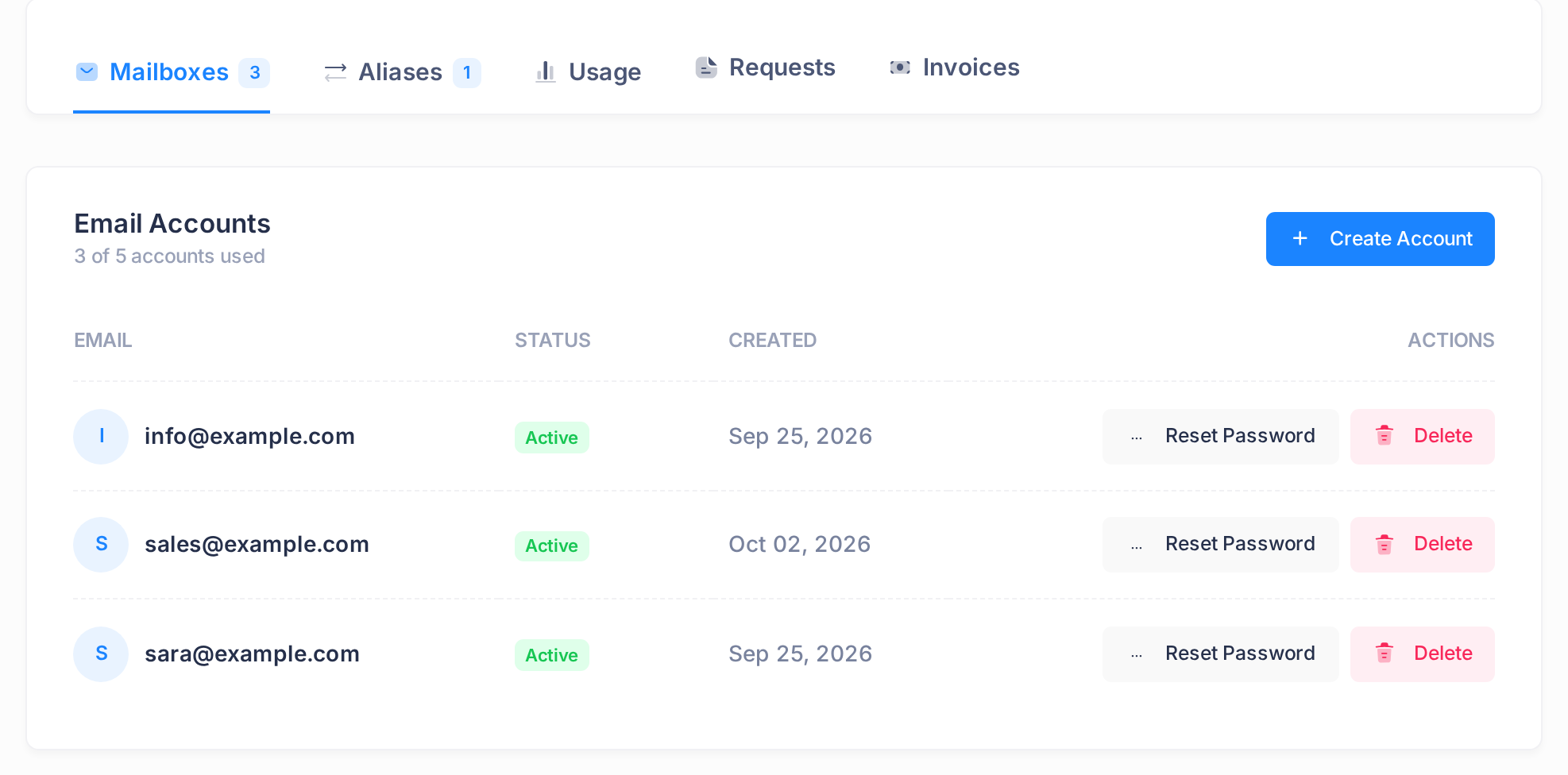
sara@example.com, written as in the EMAIL column of the Mailboxes tab on your email plan's page in Loop, pictured below. "A Tour of Your Email Plan" shows the way to that page. - The mailbox's password. This is the password chosen when the mailbox was created, or set since with Reset Password on that page — not the password of your Loop account. Loop never shows it again, so nobody can look it up. A password nobody knows can only be replaced — see "Reset a Mailbox Password" — and every program and phone that already uses the mailbox then needs the new one.
- Mail records on your domain. Mail from other people reaches the mailbox only when the domain's DNS records — the entries that tell other networks where its mail goes — point to our mail server. "Set Up Email on Your Domain" shows how to check.
Step 1 — Start a new account and choose manual setup
- Open Outlook and start adding an email account.
- When it asks for the email address, type the mailbox's full address.
- Look for the choice to set the account up by hand (manually) — the one that lets you enter the server settings yourself — and take it before you go on.
- When it asks for the kind of account, choose IMAP — the way of receiving mail that the values in this guide are for. Do not choose a Microsoft or Google account: the mailbox is neither.
If the program offers no such choice and sets the account up by itself, go to Step 3: the check there shows whether it can really receive and send. If it cannot, correct the account's settings from the table in Step 2.
Step 2 — Enter the server settings
The program asks for two sets of values: one for incoming mail (IMAP) and one for outgoing mail, which mail programs call SMTP. Each has a server name, a port — a number — and a kind of encryption, which protects your password on the way. The server is the same for every PearlFibers mailbox, whatever your domain.
| Setting | Incoming mail (IMAP) | Outgoing mail (SMTP) |
|---|---|---|
| Server | mail.ubarum.com | mail.ubarum.com |
| Port | 993 | 587 |
| Encryption | SSL/TLS | STARTTLS |
| User name | The full address, like sara@example.com | The same full address |
| Password | The mailbox's password | The same password |
| Sign-in needed | Yes | Yes, also where the form calls it optional |
- For incoming mail, type the server, the port and the encryption from the table, replacing whatever the program has filled in.
- Do the same for outgoing mail.
- As the user name, type the full address. The part before the @ alone is refused.
- Type the mailbox's password.
- Switch on the option that says the outgoing server requires sign-in (authentication), with the same user name and password.
- Press the button that finishes the setup. If the program refuses the settings, go to If something goes wrong.
No box for a port, the encryption or the outgoing sign-in? Look for them in the program's further settings before you finish: the server needs all three.
- Some forms write SSL for SSL/TLS, and TLS for STARTTLS.
- If you need POP instead of IMAP, the incoming server is the same, with port
995and SSL/TLS; the outgoing values do not change.
Step 3 — Check that receiving and sending work
When the program accepts the settings, it signs in and shows the mailbox: the Inbox, with the messages already in it. A mailbox that has never received mail is empty, because nothing is sent to a new mailbox. An Inbox on the screen proves the incoming half only, so test both halves:
- Write a new message to the mailbox's own address.
- Send it.
- Open the program's folder of sent messages and find the message there. If it is waiting in a folder for outgoing mail instead, or an error appeared, it was not sent: go to If something goes wrong.
- Open the Inbox, wait a moment and have the program check for new mail. The message arrives.
If it does not arrive, look in the program's junk folder. If it is in neither place, send us a ticket.
This test stays inside our mail server. To test mail with other people too, ask someone whose address is on another domain to write to you, then answer them. If their message does not arrive, check the mail records from Before you start. If your answer does not reach them, not even in their junk folder, send us a ticket.
What happens next
- The table's values are the same on another computer, in another mail program and on a phone; for a phone, see "Set Up Your Email on iPhone and Android".
- If the mailbox's password is reset in Loop later, the server refuses Outlook at its next sign-in, and nobody is told. Type the new password into the account's settings in Outlook.
Two rules that prevent mistakes
- Only one server name works. Do not type a name made from your own domain, such as
mail.example.com, even if the program proposes one. The server's certificate — its proof of identity — is issued formail.ubarum.comonly, so any other name ends in a failed connection or a security warning. - Port 465 is closed. If the program proposes port
465for outgoing mail, change it to587with STARTTLS: our server accepts no connection on 465.
If something goes wrong
- The program cannot connect, or warns about the server's certificate or its name. Do not accept the warning. Compare the server name, port and encryption with the table, for incoming and for outgoing mail: the name must be exactly
mail.ubarum.com. If all match and it still happens, send us a ticket. - The program says the password is wrong, or keeps asking for it. Check the user name first: it must be the full address. Then type the password again; wrong attempts do not lock the mailbox. If the program lets you choose how the password is sent, choose the ordinary password: the server takes no other kind. If it is still refused, the mailbox needs a new password: see Before you start.
- Mail comes in but does not go out. Look at the outgoing settings: sign-in for the outgoing server switched on, with the full address and the password; port
587; encryption STARTTLS, not none. - One message with attachments does not go out, while others do. The server refuses a message larger than about 10 MB, and attached files take roughly a third more room inside a message than on your disk. Send the files in several messages.
- Incoming mail cannot connect at all, and the program is many years old. For incoming mail the server accepts no encryption older than TLS 1.2. Update the program.
Still stuck? Send us a ticket with the mailbox's address, the step that failed and the exact words on your screen — never the password. If you have no Loop account, ask the person who manages your company's email plan to send it.