
How can we help?

The search box above your message list finds one message among many: by a word, by its sender, by its date, or by a mark such as unread or starred. The examples are from the mailbox of Sara Ahmed, sara@example.com; follow the steps in your own mailbox, with your own word and sender.
Before you start
- A mailbox is connected in Mail. If not, follow the guide Connect Your PearlFibers Mailbox first.
- Know what is searched. The subject of every message is always searched. The text of a message is searched only after you have opened that message in Loop. For mail you have not opened here, search by a word of the subject, or by sender or date (Step 3).
- One search covers every folder of one account, and no other account.
Step 1 — Open Mail and find the search box
- On the Loop home screen, the page that shows your apps as tiles, click the Mail tile. Your inbox opens.
- If more than one account is connected, a button at the top of the page shows the address of the one that will be searched. To search another, click it and choose its address.
- Click in the box that reads Search messages..., above the list of messages.
The box Search everything… in the top bar, and the magnifier that replaces it on a phone, do not search email.
Step 2 — Search for a word
- Type one whole word that you remember from the subject of the message. In Sara's mailbox:
Thursday. - Press the Enter key; on a phone, the Enter key of the on-screen keyboard. The box has no button.
- Read the page that opens, Search Results. Above the messages it repeats your search in quotation marks, keeps it in the search box, and gives a count such as 1–2 of 2 results.
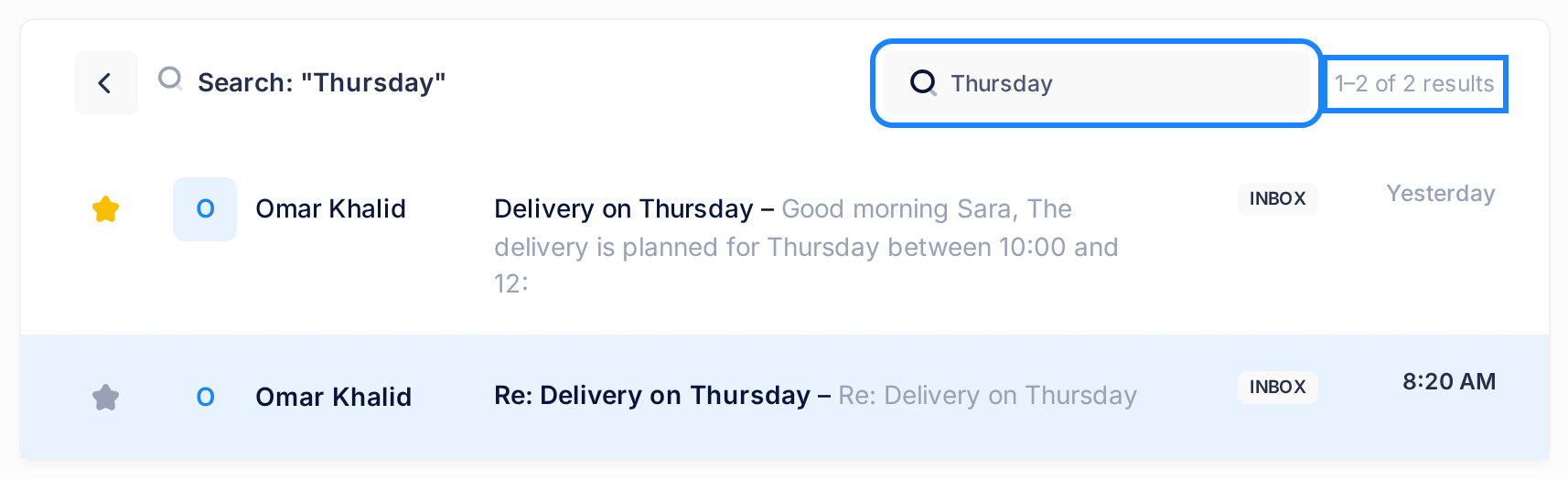
In the picture, Thursday found two messages from Omar Khalid. Words are matched by these rules:
- A word must be whole:
thursfinds nothing. A star at the end stands for the rest of the word:thurs*. - Capital and small letters are the same. Arabic words work the same way:
عرضfound the message «طلب عرض سعر». - Words of fewer than three letters (
Re,to) and a few very common English words (the,for) are skipped: a search made only of them finds nothing. - Several words find the messages that contain any of them, the best matches first. A plus sign makes a word required and a minus sign excludes it:
+cards -printfound the two messages with the word cards but not the word print. Quotation marks do not make an exact phrase. - A hyphen is read as a minus sign too:
cards-prooffound nothing. Type a space in its place. - The names and addresses of senders and recipients are not searched this way. For a sender, use
from:(Step 3).
Step 3 — Search by sender, folder, date or mark
An operator is a short word with a colon, such as from: or is:unread, that limits the search to a sender, a folder, a date or a mark. Type it without a space after the colon.
- Click in the search box. On the results page it still holds your last search.
- Delete your word and type an operator from the table below. For one sender's mail, type
from:and a piece of the name: in Sara's mailbox,from:noor. - Press Enter.
- Check the coloured labels above the results. Each operator in force has one; here it reads From: noor. An operator without a label was not understood: the search ran without it.
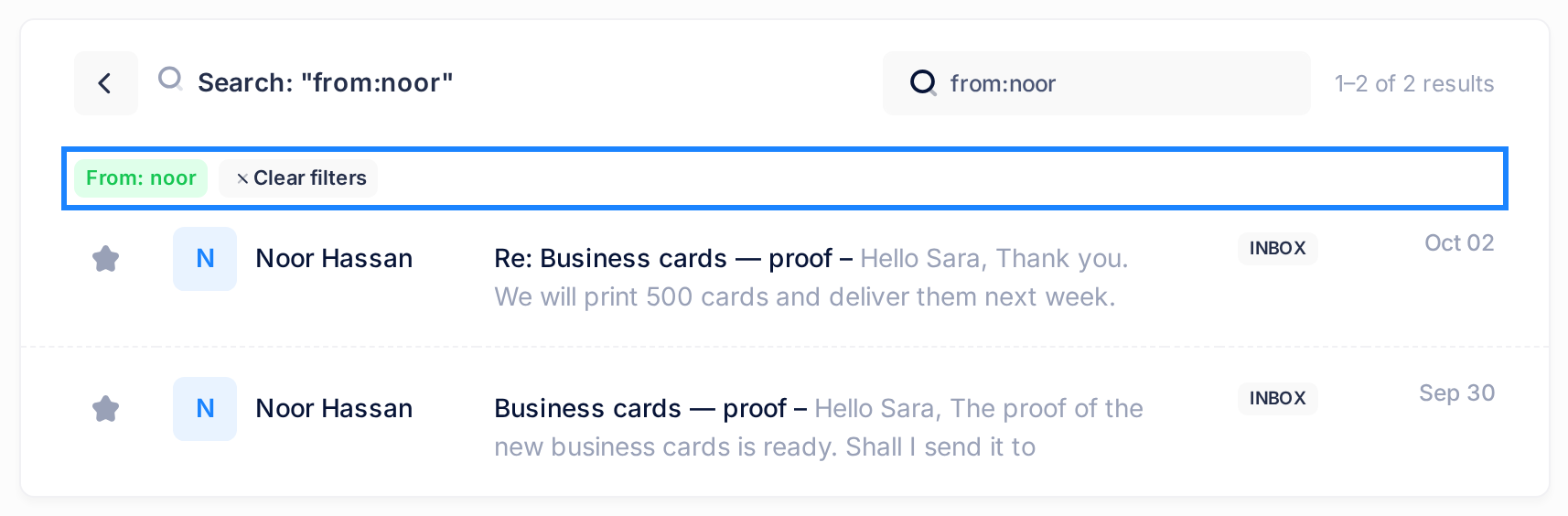
| You type | It finds | In Sara's mailbox |
|---|---|---|
from:noor | Messages whose sender's name or address contains that piece. One piece, no space: in from:noor hassan the second word is searched as an ordinary word | The two messages from Noor Hassan |
in:sent | One folder only. Type the kind of folder in English, not the name on your screen: inbox, sent, drafts, trash (deleted mail), spam (junk mail) or archive | The two replies in Sent Items; the label reads In: Sent Items. in:trash found the message in Deleted Items |
has:attachment | Messages with an attached file, but only those you have opened once in Loop | "Quotation for chairs and desks" |
is:unreadis:read | Messages not yet read, or already read | With a date, is:unread after:2026-10-09 found three messages |
is:starred | Messages with a star | The two starred messages |
before:2026-10-05 | Messages up to that day, the day itself included. Write the date as year, month, day | The label reads Before: 2026-10-05 23:59:59 |
after:2026-10-09 | Messages from that day on, the day itself included | The label reads After: 2026-10-09 00:00:00 |
- Take care with
in:. If your account has no folder of that kind, or you type the folder's name instead (in:deleted), every folder is searched: check for a label beginning In:. - Operators go together with each other and with words:
from:omar is:unread Thursdayfound one message. A message must match every operator. - Nothing else is an operator.
to:,cc:,subject:orlabel:are read as ordinary words:to:saralists the messages with the word Sara in them, not the mail sent to Sara.
Step 4 — Read the results and open the message
Each line shows a star, the sender, the subject, on a computer the start of the text, a paperclip when a file is attached, a small label with the folder the message is in, and the date. It has no tick box: a message can only be opened or starred here. The best match comes first, then the newest; with operators only, the newest comes first. A line that repeats its subject where the text should start belongs to a message you have not opened in Loop.
- Click the sender or the subject of the message you were looking for. It opens on its own page.
- To return to the results, use your browser's Back button: the arrow above the message leads to its folder, not to your search.
The link Clear filters at the end of the labels empties the whole search, your words included, and lists every message of the account, newest first, under the heading All Messages. Pressing Enter in an empty box gives the same list. To drop one operator, delete it in the search box and press Enter.
What happens next
Opening a message marks it as read at once. The first time, this reaches your mailbox itself: Outlook and your phone show it as read too. Loop now keeps its text, so later searches find words from its text too. A designed message such as a newsletter is the exception: only its subject is ever searched.
On a phone
The results page gives each message two rows: first the star, the sender, the paperclip, the folder label and the date, and under them the subject. It has no button for your folders: the arrow beside the line that repeats your search leads back to the inbox.
If something goes wrong
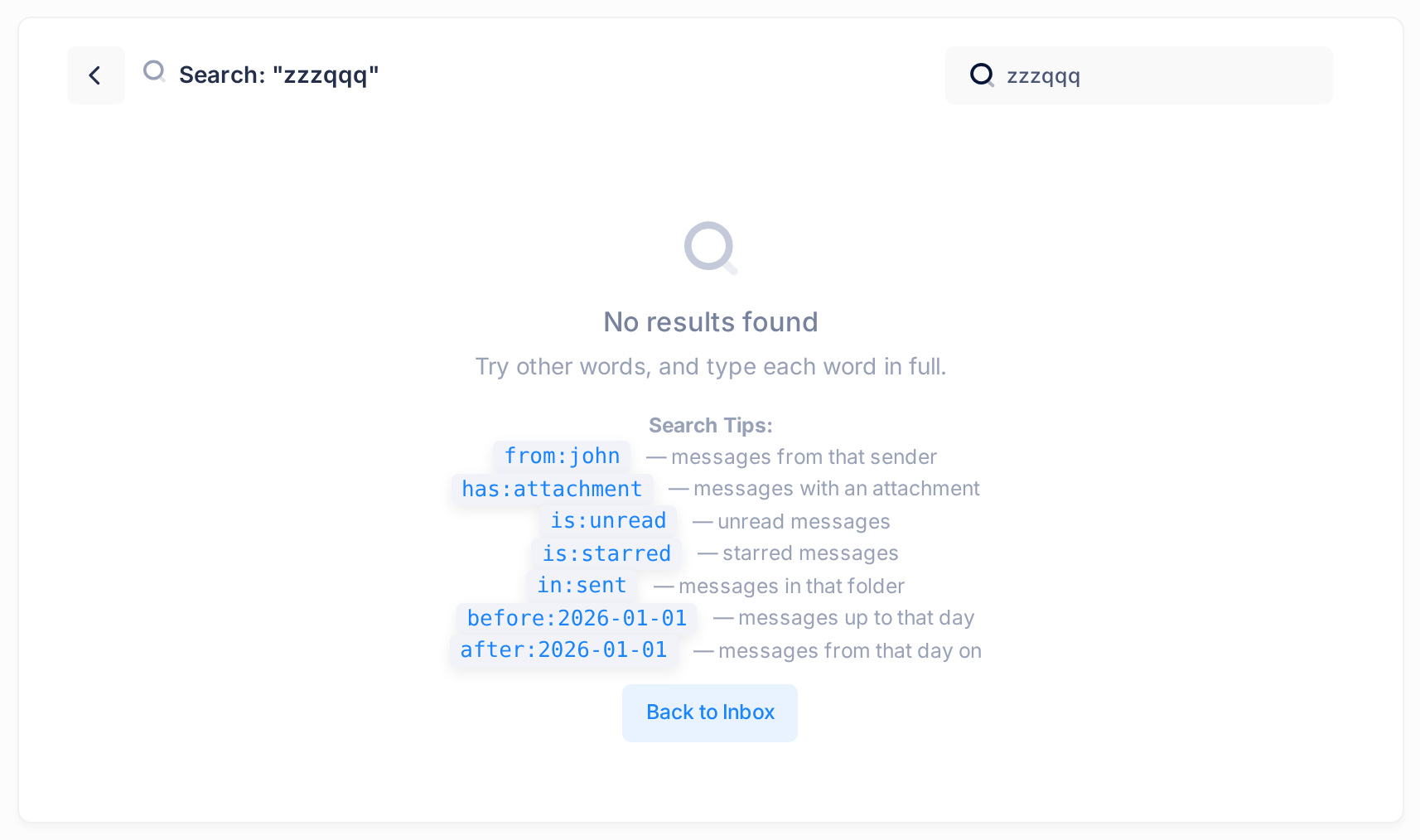
- Nothing is found. The page reads No results found and Try other words, and type each word in full. Under Search Tips: it lists seven examples of operators, then the button Back to Inbox. Type your word in full or end it with a star, choose a word from the subject, and read the labels: an operator may be shutting your message out.
is:orin:misses a message you starred, read or moved in Outlook or on your phone. What you do in another mail program after Loop copied a message does not reach Loop.- The message is in Outlook or on your phone, yet no search finds it. Loop searches only the mail it has copied. It copies new mail every five minutes, and a newly connected mailbox fills in steps, oldest mail first. See the guide Understand How Mail Syncs; if no new mail arrives at all, Fix a Mailbox That Stopped Syncing.
Still stuck? Click the Loop logo at the top of the page to return to the home screen, click the Help tile, then Submit a Ticket. Tell us exactly what you typed in the search box and which message you expected to find.