
How can we help?

When someone is locked out of a mailbox, or has left your company, you give that mailbox a new password on the page of your email plan in Loop. The old password cannot be shown or recovered, by you or by us; it can only be replaced. A reset also shuts out every device that still holds the old password, so read the first point below before you begin.
Before you start
- Every device will need the new password. From the moment you save it, each phone, tablet and mail program on a computer that still holds the old password is refused the next time it signs in, for receiving mail and for sending it, until someone types the new password into it. The same goes for a scanner or a website form that sends mail through this mailbox. Choose a moment when you can reach the people who use them.
- The plan must be active. Its card in Step 1 then shows the badge Active. On the page of any other plan a yellow notice such as This plan is suspended stands at the top and the mailbox rows have no buttons. To have a password reset there, on the Loop home screen click Help, then Submit a Ticket, and ask us.
Step 1 — Open the mailbox list
- Sign in to Loop and click the Portal tile on the home screen.
- Click View All Services.
- Open the Email Plans tab. Each email plan has a card with its domain, for example example.com, the plan's name and a status badge.
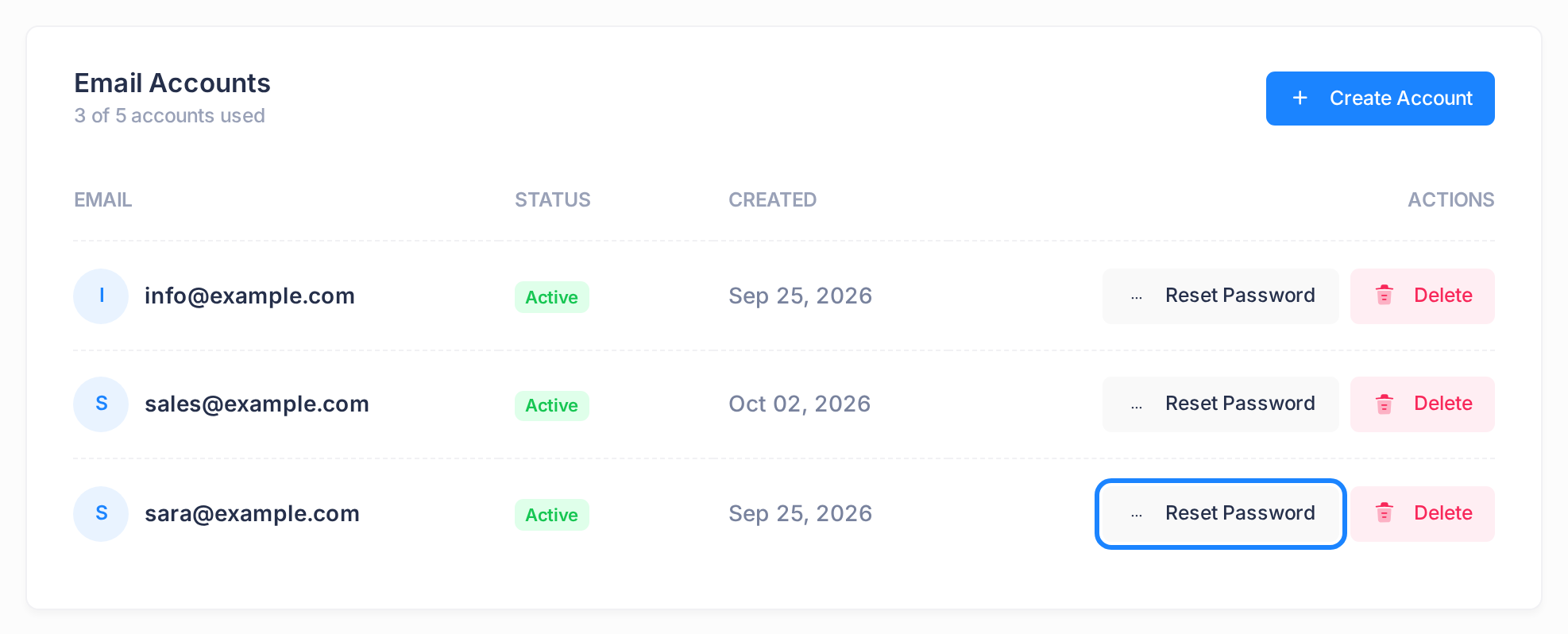
- Click Manage on the card of the mailbox's domain. The plan's page opens on the Mailboxes tab, with one row for each mailbox, in A–Z order.
Step 2 — Set the new password
- Find the row of the mailbox, for example sara@example.com, and click Reset Password in the ACTIONS column. On a phone, slide the list sideways to reach the button.
- A window titled Reset Password opens. Read the address under Account. If it is not the mailbox you mean, click Cancel and start again from the right row.
- Type the new password in New Password, then the same in Confirm Password. It must have at least 8 and at most 128 characters. Keep to English letters, digits and signs, so that it can be typed the same way on every phone and computer.
- Put the password in a safe place now. Once it is saved, Loop shows it nowhere and sends it to no one.
- Click the yellow Reset Password button. The window closes, and a small notice Password reset successfully shows at the top corner of the page for three seconds.
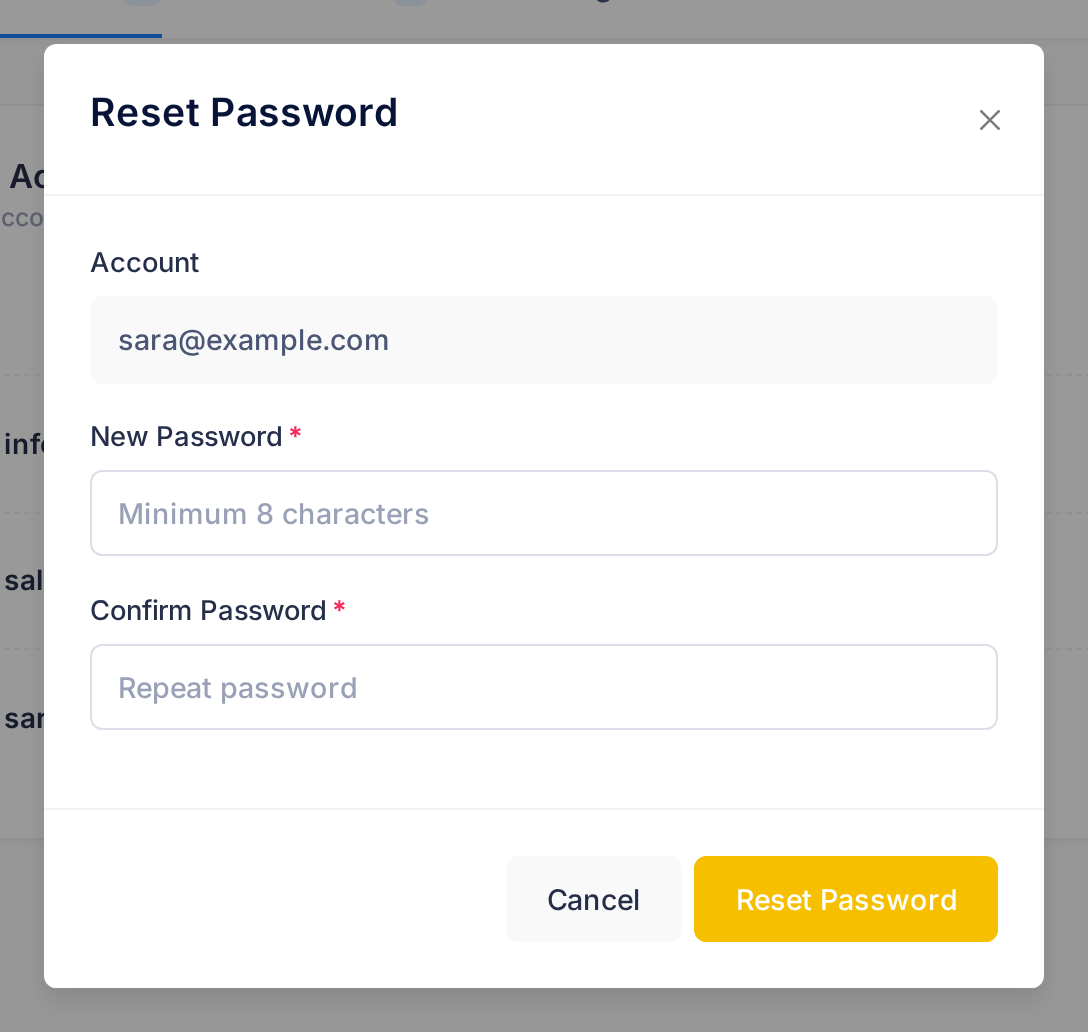
If the window stays open and a red box appears in it, the reset is not done: see "If something goes wrong".
What happens next
Nothing in the mailbox's row changes: the closed window and the notice are the only signs on the screen. If you missed them and are not sure, reset again with the same password; it is accepted a second time.
- The mailbox itself is not touched: its address, its folders and every message in it stay as they are, and new mail still arrives. So when someone leaves, a reset keeps their mail for whoever has the new password.
- Loop tells nobody about the reset, not even the mailbox's user. Give the new password to that person yourself.
Give the new password to each device
The proof that the reset worked is a device that signs in with the new password. On each device that already has the mailbox, open the settings of the mail account and replace the stored password. The address and the other settings stay as they were.
- Incoming and outgoing mail. Where a device keeps one password for incoming mail and another for outgoing mail, change both: the mail server asks for the same password to receive and to send.
- A device that never had the mailbox. Follow the guide Set Up Your Email in Outlook for a computer, or Set Up Your Email on iPhone and Android for a phone or tablet.
- Loop's own Mail app (the Mail tile on the home screen). It keeps the old password, has no box for a new one, and stops fetching this mailbox's mail. The person who connected the mailbox there opens Accounts in the app's side menu (the names show when the pointer rests on the bar of icons; on a phone, tap the first button of the top bar), clicks the bin button at the end of the mailbox's row, then Remove. This takes the mailbox out of the Mail app only; its mail on the mail server is not touched. Then they click Add Account, type the mailbox's address and the new password, and click Sign In.
A device that keeps trying the old password is refused each time. It does not lock the mailbox.
If something goes wrong
- The red box reads Password is required., Password must be at least 8 characters. or Passwords do not match. Nothing was changed. Correct the two boxes and click Reset Password again.
- The red box reads
[object Object]. The password is longer than 128 characters and nothing was changed. Type a shorter one. - The red box reads Network error. Please try again. Loop's answer did not arrive. Check your connection and click Reset Password again until the window closes.
- You reset the wrong mailbox. If its user still knows the old password, reset the mailbox once more with that old password: an earlier password is accepted, and their devices sign in again unchanged. If not, give them the new one.
- A device still refuses the new password. Type it again with care. If nobody is sure which password was saved, reset once more.
Still stuck? Click the Loop logo on the plan's page, then the logo of the Portal that opens, to return to the home screen. There click Help, then Submit a Ticket, and give us the mailbox's address and the exact words on the screen or the device. Never write a password in a ticket.