
How can we help?

Mail in Loop lists the messages of your mailbox, folder by folder. This guide shows how to read the list, open messages, mark them read or unread, star them and filter the list. What you see is Loop's own copy of the mailbox: What happens next says what that means for Outlook and for the mail app on your phone.
Before you start
- Your mailbox must be connected in Mail. If it is not, follow the guide Connect Your PearlFibers Mailbox first.
- The steps describe Mail on a computer; On a phone says what is different there.
Step 1 — Open Mail
- On the home screen, click the Mail tile. Your inbox opens. If you have connected several accounts, see the guide Work with Several Email Accounts.
- Find the card beside the list: it holds New Message, your folders, Sync Now with the line Last Sync under it, and Manage Accounts.
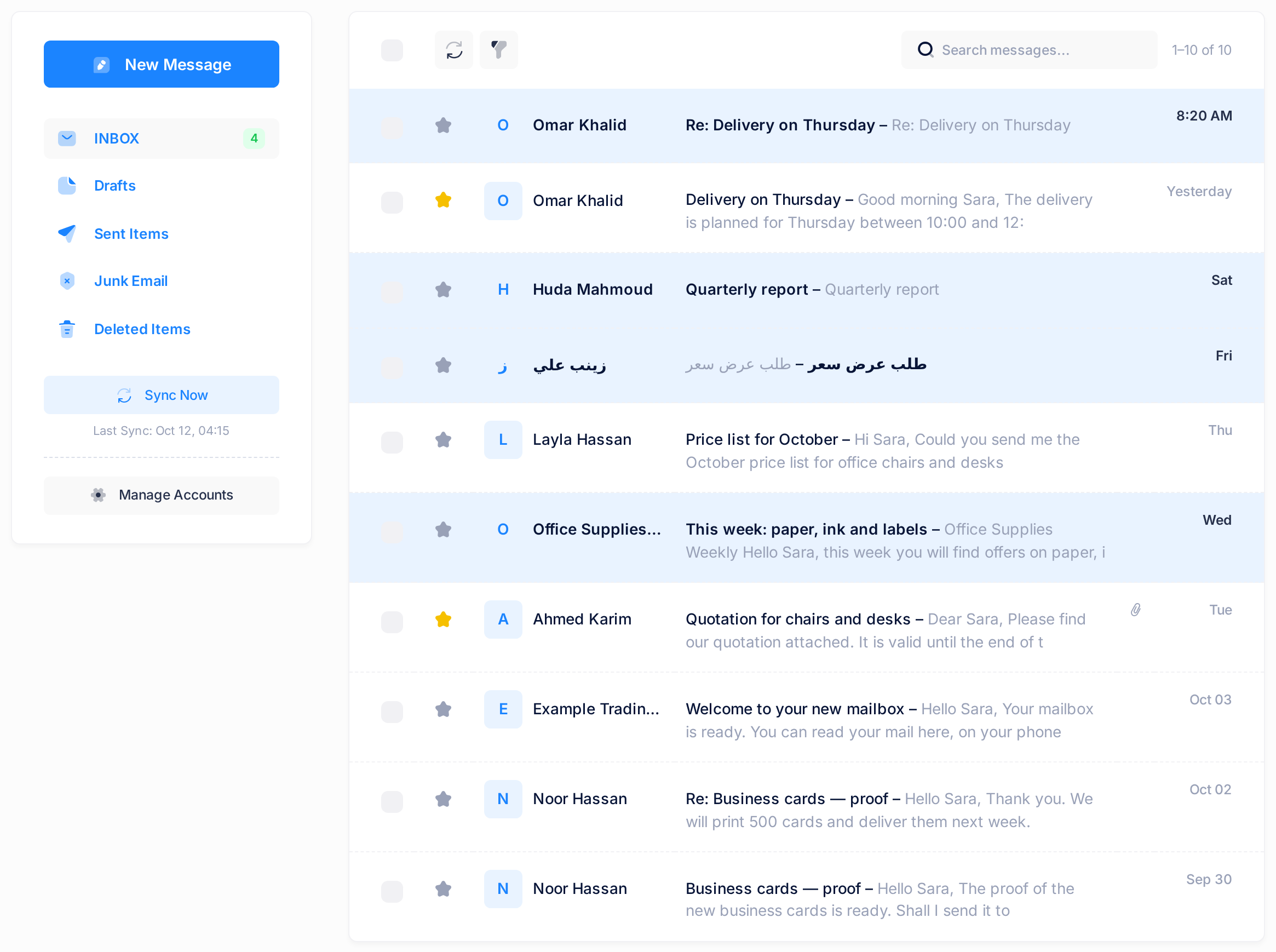
- The folders carry the names your mailbox gives them, untranslated. In the example: INBOX, Drafts, Sent Items, Junk Email and Deleted Items.
- The number beside a folder counts the unread messages Loop holds in it: the bold lines of its list.
- Sync Now starts a sync: Loop fetches new mail from the mailbox, and the page then loads again by itself. Last Sync is the time of the last sync that worked, by Loop's clock, which can differ from yours.
- Manage Accounts opens the list of your connected accounts.
Step 2 — Read the list
The newest message is at the top. Each line shows a tick box, a star, a small square with the first letter of the sender's name, the sender, the subject, the first words of the text and, at its end, the date.
- Unread or read. An unread line has a light-blue background, with the sender, the subject and the date in bold. A read line has neither.
- The subject twice. Loop fetches the text of a message the first time you open it; until then the line repeats the subject in place of the first words: Quarterly report – Quarterly report.
- The paperclip marks an attachment. It too shows only after the message has been opened once.
- The date is the time for today's mail (
8:20 AM), then Yesterday, the weekday for the last seven days (Sat), then the day and month (Oct 03), with the year for mail from earlier years.
- To see another folder, click its name in the card. An empty folder shows No Messages.
- To see older mail, click a page number under the list. The numbers appear when a folder holds more than the 50 messages of one page.
Step 3 — Open a message
- Click the sender or the subject of a line. The message opens on its own page.
- Read the page from the top: a row of five icon buttons, the subject, the folder, the sender with the address, the line To:, the date and time, and the text. At the foot are the buttons Reply, Reply All and Forward.
- To go back, click the first icon button, Back to List. The icon buttons carry no words; a name appears when the pointer rests on one.
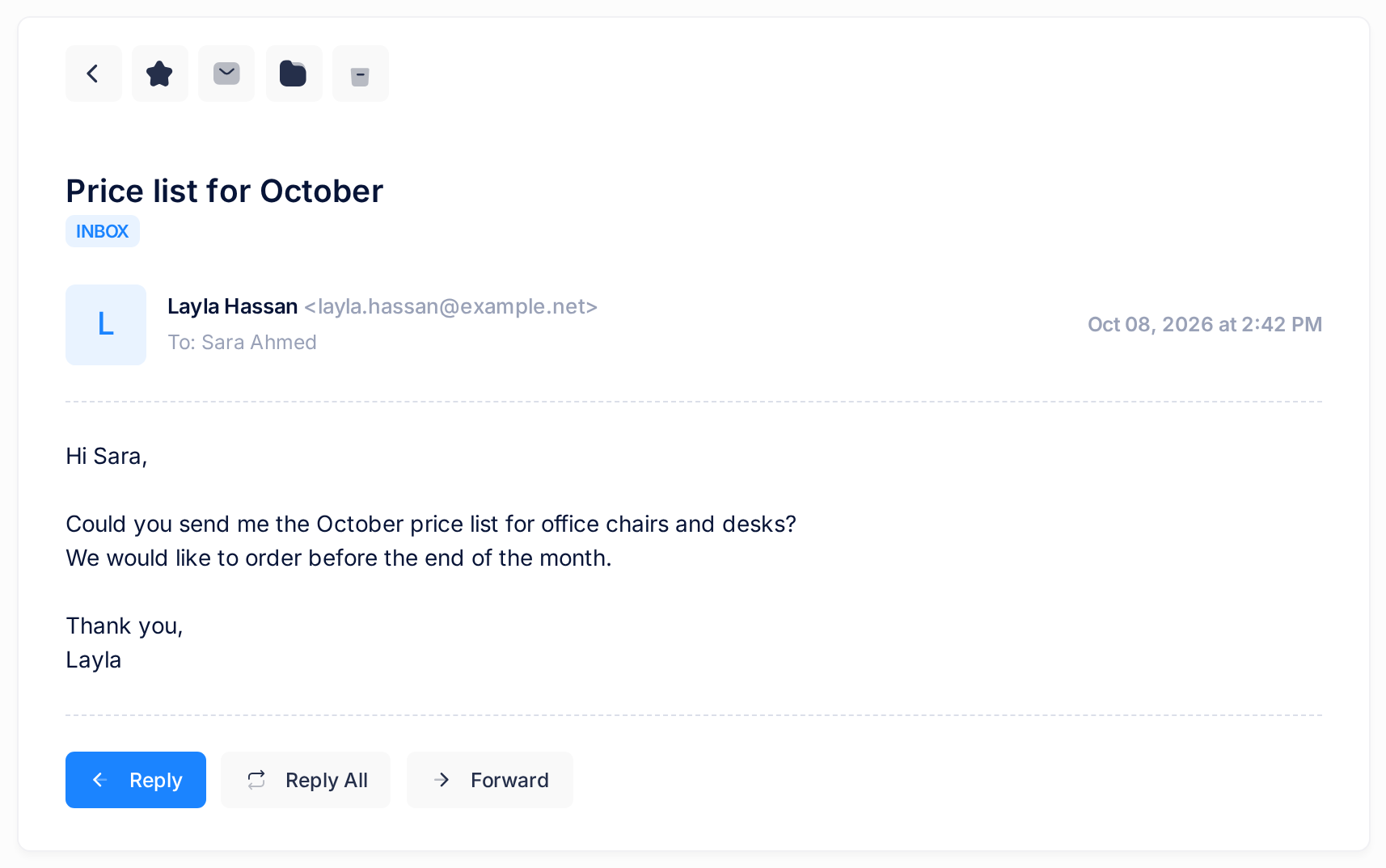
Opening a message marks it as read: back in the list, its line is no longer bold. The first time you open it, it is also marked as read in the mailbox itself, so Outlook and your phone show it as read too.
To: names everyone the message was sent to; a line CC: under it names those who got a copy, when there are any. An attachment is listed under the text by name and size, with a down-arrow button, Download, and for pictures, PDF files and plain text also an eye button, Preview: see the guide Open Attachments and Blocked Images Safely.
Step 4 — Mark messages as read or unread
- In the list, tick the box at the start of each line you want to mark. The tick box above the list ticks every line of the page; clicked again, it unticks them all.
- Look at the row above the list: the buttons Read, Unread, Move and Delete have appeared, with the number of ticked lines.
- Click Read or Unread. The page loads again and the ticked lines look read or unread, as in Step 2.
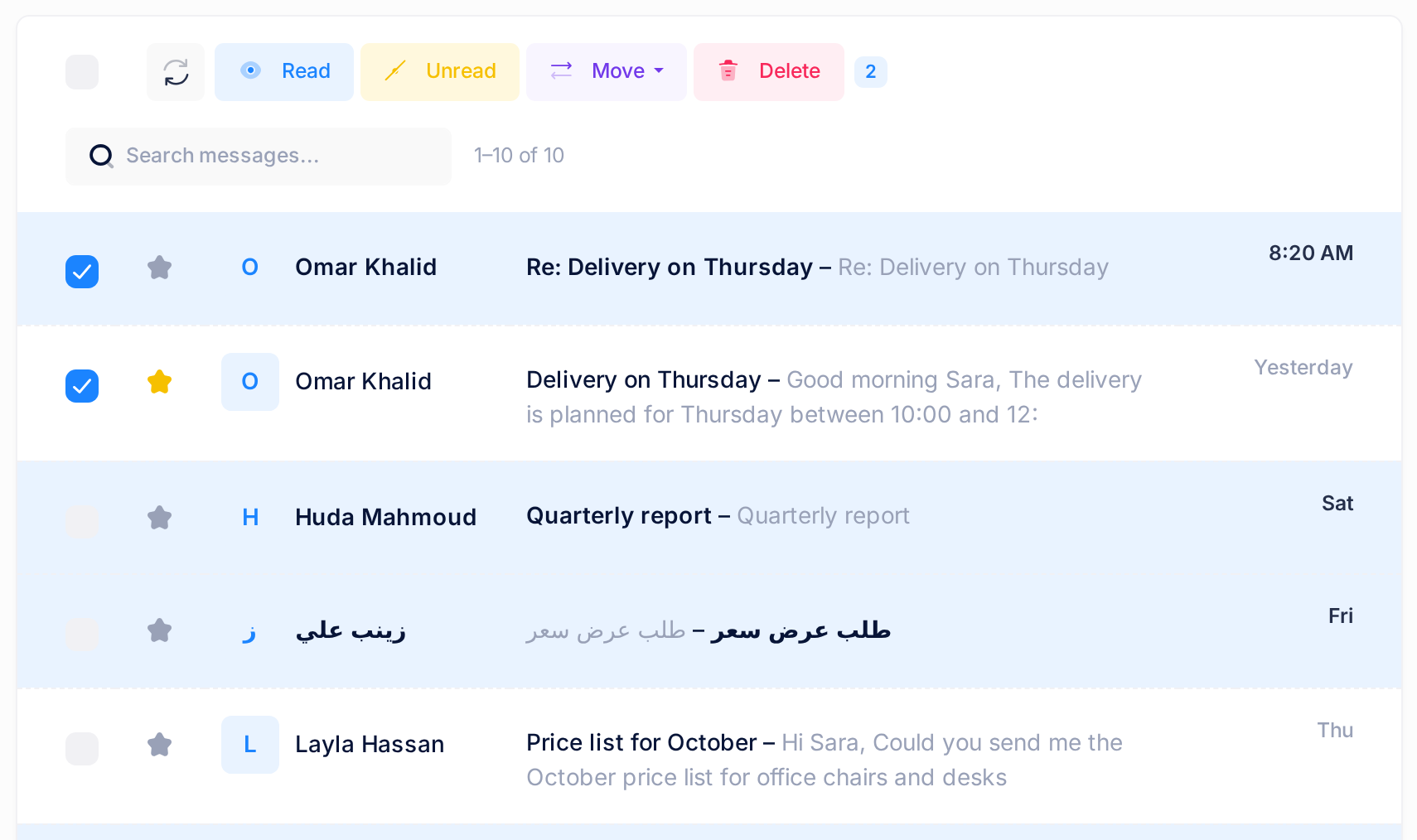
If you click Delete by mistake, a question such as Delete the selected messages (2)? appears: click Cancel and nothing is deleted.
On a message page, the envelope button Mark as Unread marks that message as unread and takes you back to the list, where its line is bold again.
Step 5 — Star what you want to find again
- Click the star at the start of a line, or the star button on a message page. It turns yellow at once.
- Click the star again to take it off.
To see your starred messages again, use the filter of Step 6. To find them in every folder, search for is:starred in the box above the list.
Step 6 — Filter the list
- Click the funnel button above the list.
- In the menu, choose Unread, Starred or Has Attachments. The other lines disappear.
- To bring every line back, click the funnel again and choose All.
A filter only hides lines of the page you are looking at, at most 50 messages of one folder, and is gone when the page loads again. Has Attachments misses messages you have never opened: their paperclip is not there yet.
While a filter is on, the tick box above the list ticks only the lines the filter shows; the number beside the buttons says how many.
To find a message wherever it is, use the box Search messages... above the list: see the guide Search Your Email.
What happens next
Loop syncs by itself every five minutes, but an open page does not change by itself. The round-arrow button above the list, Refresh, loads the page again with what Loop already has; Sync Now fetches from the mailbox.
Marking with the buttons, starring, moving and deleting change Loop's copy only: none of it shows up in Outlook or on your phone, and what you do there to a message Loop has already copied does not show up in Loop. The one exception is opening a message (Step 3): it stays read there, whatever you mark here afterwards. The guide Understand How Mail Syncs explains this.
Messages of one conversation
Mail does not group a conversation: every message is a line of its own and opens alone. In the example, Noor Hassan's message and her Re: to it are two lines. Your own replies are in the folder for sent mail (Sent Items in the example), where each line begins To: and names the person you wrote to.
On a phone
- The card beside the list is not shown. A small button beside the folder's name opens a panel headed Folders, which holds what the card holds: New Message, your folders, Sync Now with the line Last Sync, and Manage Accounts.
- A line takes two rows: the tick box, the star, the square, the sender, the paperclip and the date, then the subject under them; the first words of the text are not shown.
- When lines are ticked, the four buttons show icons without their words, in the same order: read, unread, move and, last, delete (a red bin).
- A message page fits the screen; a back arrow above the message leads to the list.
If something goes wrong
- No new mail arrives. Reload the page more than five minutes later. If a yellow line above the list begins The last sync of this account failed, or the time after Last Sync has not moved, or Sync Now answers with a browser message that begins Sync failed:, follow the guide Fix a Mailbox That Stopped Syncing.
- A message opens with a grey line This message has no content. Loop could not fetch the text from the mailbox, or the message is empty. Open it again later: Loop tries again. If the line stays while Outlook or your phone shows the text, tell us.
- The funnel button is not there. A line is ticked: click the tick box above the list until none is.
- The list shows fewer lines than the count above it says. A filter is on: click the funnel and choose All.
To reach us, click the logo at the top of the page to go back to the home screen, click the Help tile, then Submit a Ticket, and tell us the address of the mailbox and the exact words of any message on the screen. Never send us the mailbox's password.