
How can we help?

A list in Todo, the task app of Loop, is a named group of tasks, for example one for everyday work and one for an office move. You start with a single list and can add lists of your own. This guide shows how to create a list, put tasks in it, change its name, icon or colour, and delete it.
Before you start
- Sign in to Loop and click the Todo tile on the home screen.
- Find the card headed Lists: on a computer it is beside your tasks, on a phone above them. Its first four entries, My Day, Important, Planned and Assigned to Me, are ready-made views: each picks out tasks by a rule, such as the ones you marked for today. Your lists come below them, under MY LISTS.
- Do Steps 3 and 4 on a computer. Changing and deleting a list are in a menu that opens with a right-click, and nothing else on the page reaches them.
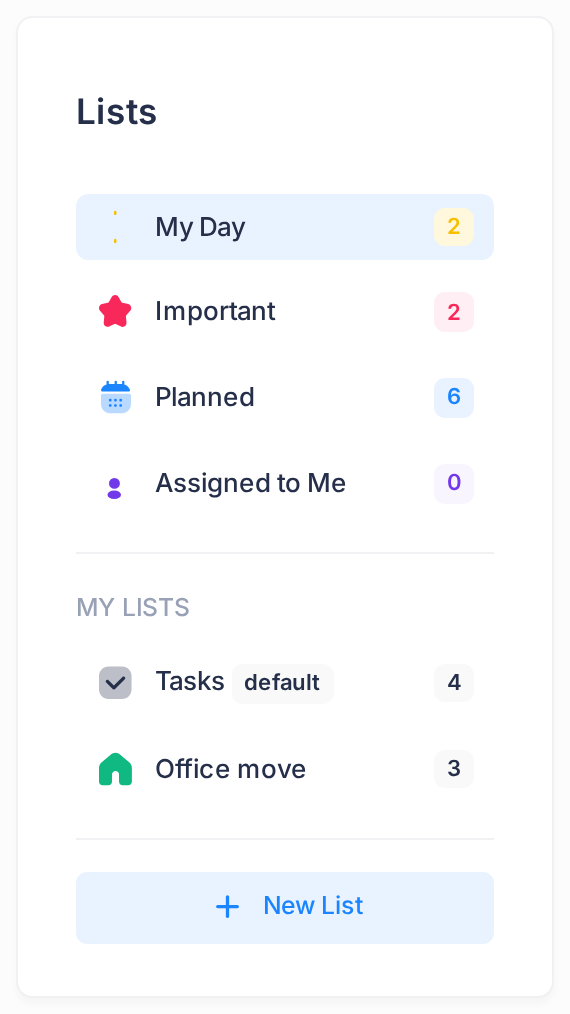
The list Tasks, with the grey tag default, is the one Todo made for you the first time you opened it. You cannot rename it, change its icon or delete it. The lists you create come below it, as Office move does in the picture.
Step 1 — Create a list
- At the foot of the Lists card, click New List. A dialog headed New List opens with three fields.
- In List name, the only field you must fill, type a name of up to 100 characters, for example
Office move. Todo accepts a name you already use, so choose a new one. Do not press Enter yet: Enter in this box creates the list at once, before you have chosen an icon or a colour. - Under Icon, leave None or choose Home, Briefcase, Shopping, Heart, Book, Rocket, People or Code.
- Under Color, leave Default or choose Blue, Teal, Red, Orange, Purple or Green. Both drop-downs show words only: you see the icon and the colour once the list is created.
- Click Create List once. A second click can create a second list of the same name.
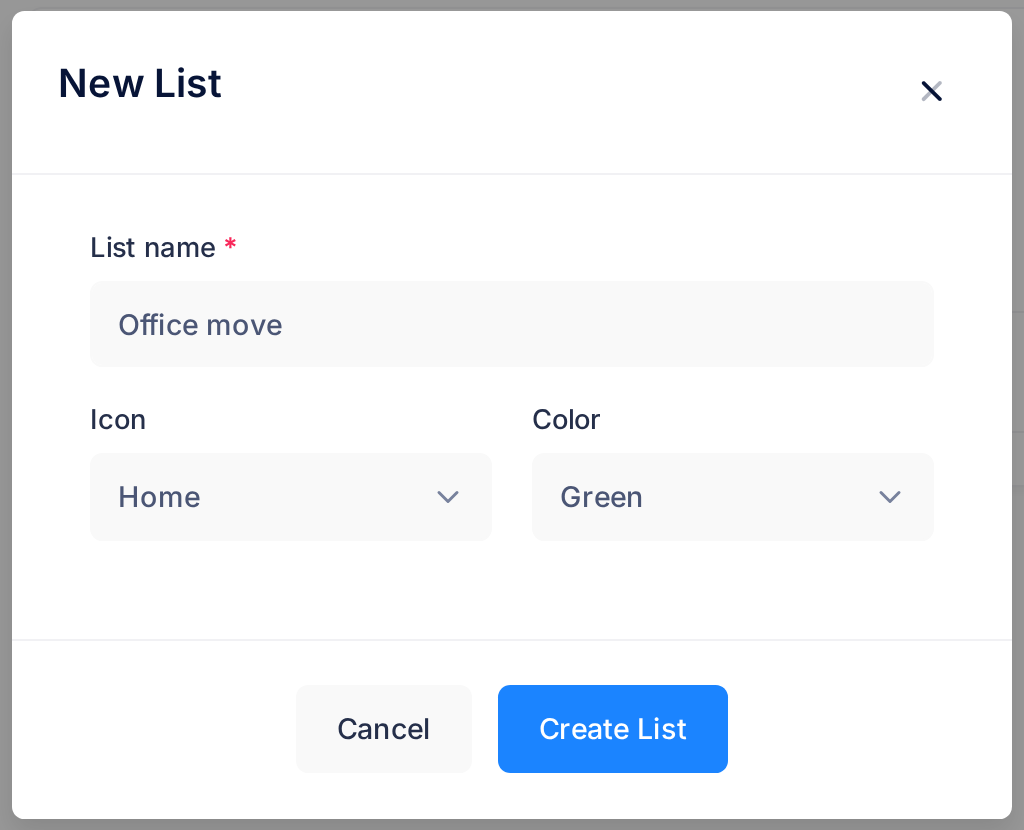
The dialog closes without a message. Look under MY LISTS: the new list is the last entry, with 0 beside it and its icon in the colour you chose. A list without an icon has a small round dot in that colour, grey for Default. If the dialog stays open, the name is empty: type one and click Create List again.
Step 2 — Open the list and add tasks
A task goes into the list that is open when you type it; while one of the four views is open, it goes into Tasks. Creating a list does not open it, so open it first.
- In the Lists card, click the name of your list. The large heading at the top of the page changes to that name, and a list that holds nothing yet reads No tasks yet. Add one above!
- Click in the box Add a task… above the tasks, type the task and press Enter. The box empties and the task is added below the unfinished tasks already there, with the name of your list under its title. The number beside the list in the Lists card goes up by one.
A task cannot be moved to another list afterwards: if one lands in the wrong list, type it again in the right one and delete the first, as the guide Create Your First Tasks shows.
Step 3 — Change a list's name, icon or colour
- In the Lists card, put the pointer on the name of a list you created and click the right mouse button. A small menu opens with three entries: Edit List, Share List and, in red, Delete List. This guide uses the first and the last.
- Click Edit List. A dialog headed Edit List opens with the same three fields as in Step 1, filled with what the list has now.
- Change the name, the icon or the colour.
- Click Save Changes. Pressing Enter does not save in this dialog.
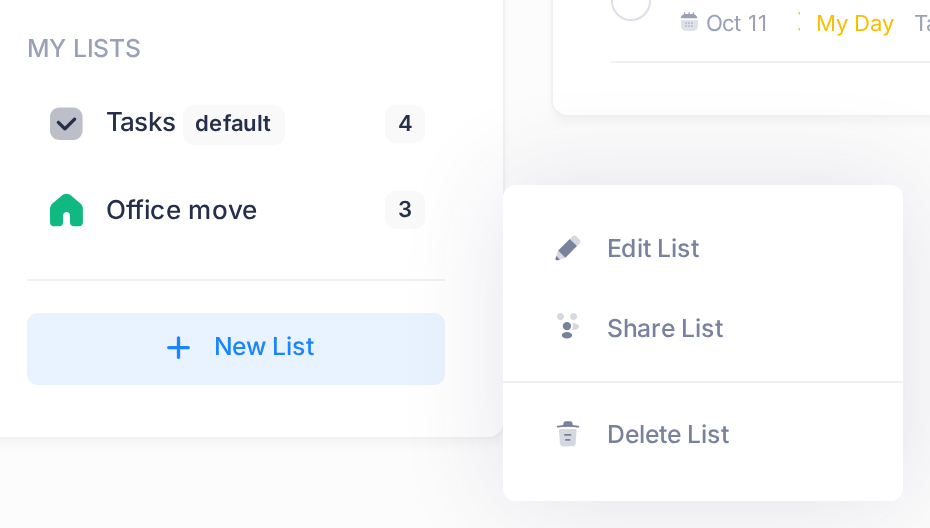
The dialog closes and the Lists card shows the list with its new name, icon and colour. Tasks already on the screen keep the old name under their titles until you next click a list or a view. If the dialog stays open, the name box is empty: a list must have a name.
Step 4 — Delete a list
Read this first. Deleting a list deletes every task in it together with its notes and files: unfinished and completed tasks, also those you marked as important or for My Day. Neither the list nor its tasks can be brought back. Before you go on, type any task you still need again in another list and download the files you want to keep (click the task's title, then the file's name).
- Click the list's name to open it and look at what it holds. If the heading Completed shows under the tasks, click it to unfold the finished ones: they will be deleted too.
- Right-click the list's name in the Lists card and, in the menu of Step 3, click Delete List. A dialog headed Confirm Delete asks: Are you sure you want to delete this list and all its tasks?
- The question does not name the list. If you are not sure you right-clicked the list you mean, click Cancel and start again. Otherwise click Delete.
No message appears. The list is gone from the Lists card and, as it was the open one, the page goes back to My Day.
What happens next
Your lists stay under MY LISTS in the order you created them, with Tasks first.
Each time you open Todo it shows My Day, not the list you used last: open your list again before you add to it.
Good to know
- The number beside a list counts its unfinished tasks: in the first picture, 4 in Tasks and 3 in Office move. Tick a task and the number goes down by one; the task stays in the list, under Completed.
- The name under a task's title is the list the task is in. It shows on every row, so in My Day or Important you can tell which list each task belongs to.
If something goes wrong
- Two lists have the same name. Todo does not stop you from using a name twice. Open each list to see its tasks, then rename one as in Step 3 or delete the one you do not need as in Step 4.
- No menu with Edit List opens. If your browser's own menu opens instead, the click was not on a list you created: Tasks and the four views have no such menu. Right-click the row of a list you created.
- A list you created or a change you saved is not there, or a list you deleted still is. Todo shows no message when something is not saved. Reload the page, sign in again if Loop asks you to, and repeat the step.
If Todo still does not do what this guide describes, tell our support team: click the Loop logo at the top of the page to return to the home screen, click Help, then Submit a Ticket.