
How can we help?

A group in Contacts is a name you give to some of your contacts, for example Suppliers or Customers, so that you can show those contacts alone. A contact can be in several groups or in none, and only you see your groups. This guide shows how to create a group, put contacts in it and take them out, show one group, and rename or delete a group.
Before you start
- Sign in to Loop and click the Contacts tile on the home screen.
- Everything here is done on that one page, in three parts: the Groups card, the list of your contacts, and a panel that shows one contact. On a wide screen they stand side by side; on a phone they come one under the other, in that order.
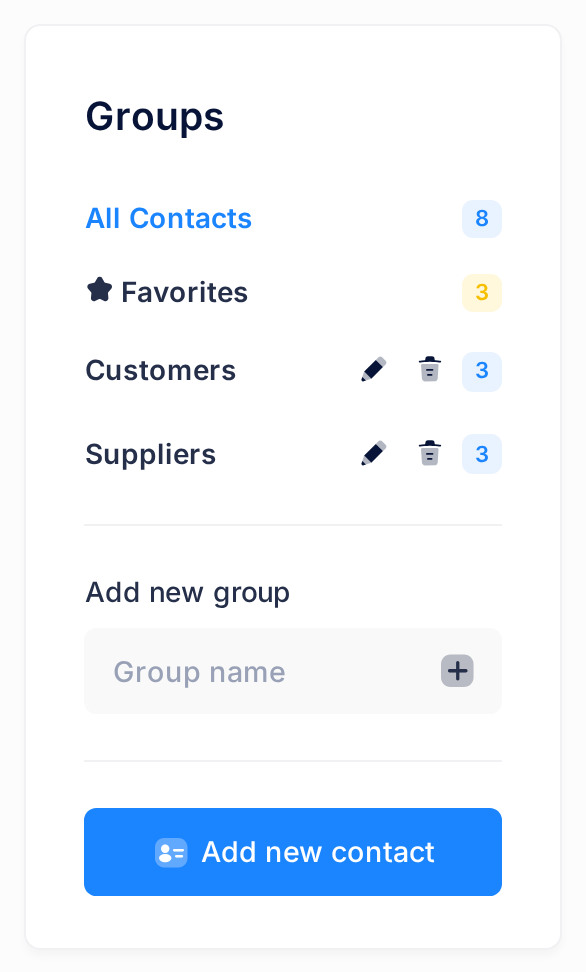
- The Groups card starts with All Contacts and Favorites, which are not groups. Your groups come under them, in alphabetical order.
- Creating, renaming or deleting a group loads the page again. If you are adding or editing a contact, save it first: a form left open is closed without being saved.
Step 1 — Create a group
- In the Groups card, click in the box under Add new group. It shows the hint Group name until you type.
- Type the name, for example
Suppliers. - Click the square button with the plus sign beside the box, or press Enter.
No message confirms it. The page loads again and the new group is in the Groups card with 0 beside it. If the page does not load again, the box was empty (your browser says so in a short note) or held only spaces: type the name and click the button again.
Step 2 — Put a contact in a group, or take it out
First find the contact in the list. On a phone the list is a short box that scrolls on its own. If the contact is not there, click All Contacts: the list may be showing one group only. The guide Find a Contact shows how to search a long list.
- Click the contact's name. Its details open in the panel; on a phone the page scrolls down to them by itself.
- At the top of the details, click the small square button with three dots, then click Edit.
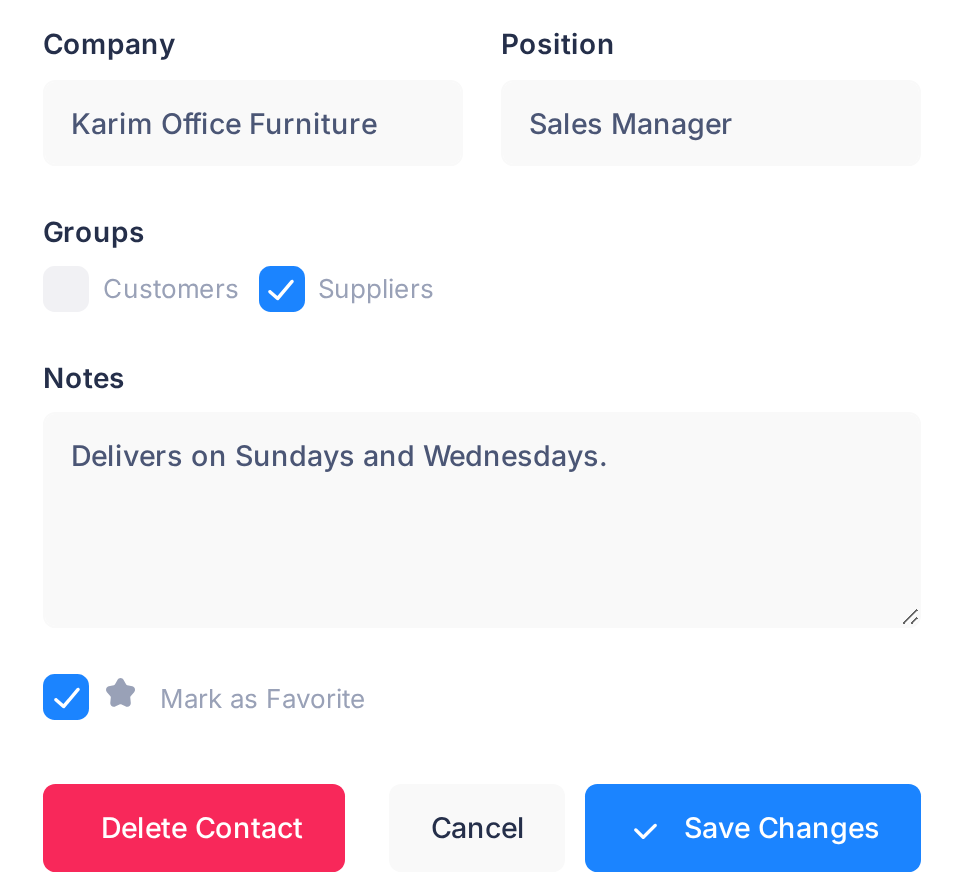
- The form Edit Contact opens in the panel, with your groups as tick boxes under Groups. Tick every group the contact belongs in, and clear the tick of a group it should leave. Leave the red button Delete Contact alone: it is for deleting the contact itself.
- Click Save Changes once. A window says Contact updated successfully; click Ok, got it!
The panel shows the contact's details again, with its groups named under Groups; a contact in no group has no such line. The numbers in the Groups card have already changed: on a phone, scroll up to see them. Cancel in place of Save Changes leaves the contact as it was.
Contacts go into a group one at a time, so repeat these steps for each one. When you add a contact, the same tick boxes are in its form under Add to Groups; the guide Add and Edit Contacts covers the rest of that form.
Step 3 — Show one group's contacts
- In the Groups card, click the group's name. The page loads again and the list holds only that group's contacts.
- To see everybody again, click All Contacts at the top of the card.
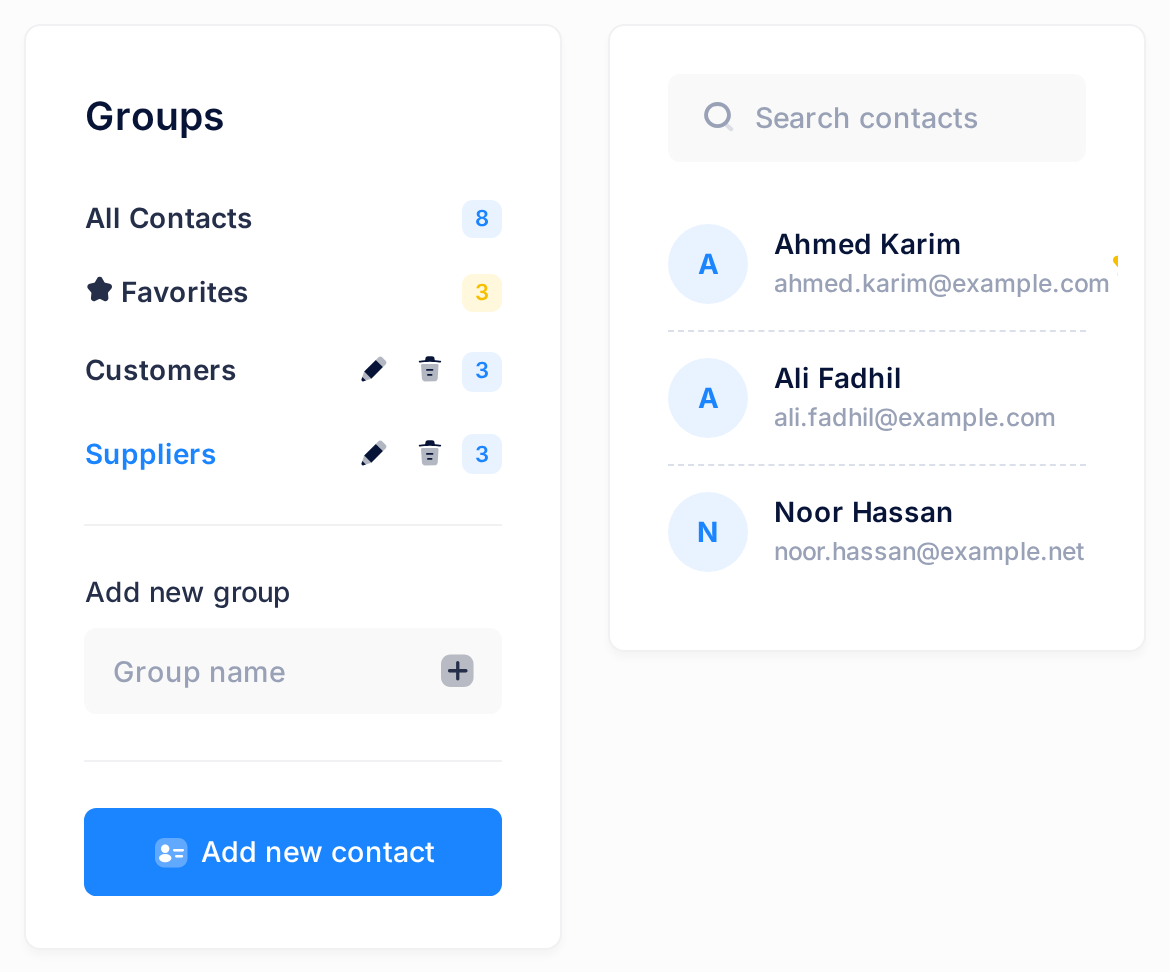
The name of the group being shown is drawn in blue in the card; the others stay dark. The list stays with that group until you click something else in the card: another group, or Favorites, replaces it. A search typed in the box above the list looks only inside that group.
Step 4 — Rename a group
- On the group's line in the Groups card, between the name and the number, are two small buttons: a pencil and a bin. Click the pencil. On a computer, resting the pointer on it shows its name, Rename group.
- A window headed Rename group opens with the present name in a box. Replace it with the new name.
- Click Save.
The page loads again and the group carries its new name, at its place in the alphabetical order, with the same contacts and the same number. If the name has not changed, the box was empty or still held the old name. Cancel changes nothing.
Step 5 — Delete a group
Deleting a group does not delete its contacts: they stay in your list and only lose that group. But nothing on the screen brings a deleted group back: you would create a new one as in Step 1 and tick it for each contact as in Step 2. If you are not sure, click the group's name first and note who is in it.
- On the group's line in the Groups card, click the bin.
- A window asks, with the group's name in it, for example: Delete the group "Customers"? Its contacts will not be deleted. Check that it names the group you mean.
- Click Yes, delete it! To keep the group, click No, return.
The page loads again without the group and with no further message. If you were looking at that group, the list goes back to all your contacts.
What happens next
Your groups stay in the Groups card until you delete them. Each time you open Contacts from the home screen, the list starts with all your contacts.
Nothing is sent to anybody: your contacts are not told which groups they are in.
What the numbers count
- The number beside a group is the number of contacts in it. A contact that is in two groups is counted in both.
- The numbers beside All Contacts and Favorites count all your contacts and all your favourites, whichever group is shown.
If something goes wrong
- A message box says Group with this name already exists. You already have a group with that name, so nothing was created or renamed. Close the message, look for that group in the Groups card, and type a different name if you need another group.
- The contact's form has no tick boxes for groups. They are there only once you have at least one group. Save the contact, create a group as in Step 1, then come back to the contact as in Step 2.
- A window says Update failed - contact was modified by another user. No other person is involved: Save Changes was clicked twice, or the contact was changed elsewhere (another tab or device) after you opened the form. Click Ok, click the contact's name in the list and read its Groups line; if your change is missing, do Step 2 again.
- A group shows No contacts found and the words Welcome to Contacts. Nothing is in that group yet, or your search found nothing inside it. Your contacts are not gone: click All Contacts.
- A message says Failed to create group, Failed to rename group or Failed to delete group. Reload the page and look at the Groups card. If the change is not there, repeat the step.
If Contacts still does not do what this guide describes, tell our support team: click the Loop logo at the top of the page to return to the home screen, click Help, then Submit a Ticket.