
How can we help?

Contacts is the app in Loop where you keep the people your business deals with: suppliers, customers, your accountant. This guide shows you how to add a contact, read its details and change them later.
Before you start
- You are signed in to Loop and on the home screen, the page that shows your apps as tiles. If it is new to you, read Find Your Way Around the Home Screen first.
- This guide says "click"; on a phone, tap.
Step 1 — Open Contacts and the form
- On the home screen, click the tile Contacts. The page has three cards: Groups, the list of your contacts, and a panel for details. While you have no contacts, the list reads No contacts found and the panel reads Welcome to Contacts.
- Click Add new contact, at the foot of the Groups card. The form opens in the panel, under the heading Add new contact. While your list is empty, the panel offers the same button.
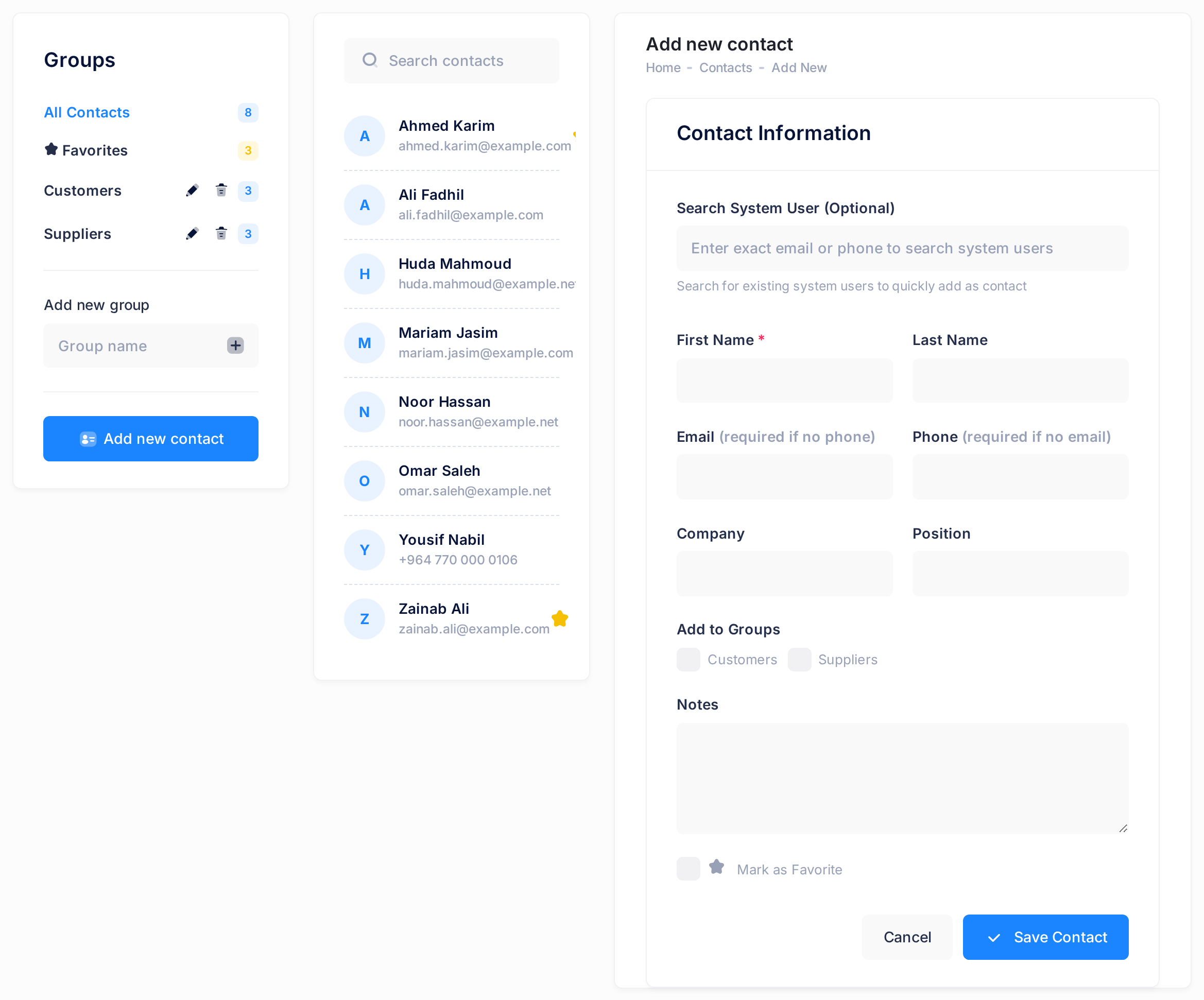
On a wide screen the panel stands beside the list. On a narrower one, and on every phone, it is under the list, which is a short box that scrolls on its own. Each time the panel fills, the page scrolls down to it by itself; scroll up to return to the list.
Step 2 — Fill in the form
The examples are those of one supplier, Ahmed Karim. While the form is open, click nothing in the list or in the Groups card: the form can close without a question, and what you typed is gone.
- Leave the first box, Search System User (Optional), empty. It is for a person who has a Loop account of their own: see Link a Contact to a Loop User.
- Type the First Name, the box marked with a red star:
Ahmed. Last Name is optional:Karim. - Fill in Email, Phone, or both. That is what the grey words beside them, (required if no phone) and (required if no email), ask for. Type the email address in full, like
ahmed.karim@example.com. The phone box takes one number of up to 32 characters, written as you like:+964 770 000 0101. - If you wish, add the Company and the person's Position in it:
Karim Office Furniture,Sales Manager. - Add to Groups lists your groups as tick boxes, once you have made one: see Organise Contacts in Groups.
- In Notes, type anything worth remembering (a second number, for instance) on as many lines as you need:
Delivers on Sundays and Wednesdays. - Tick Mark as Favorite to give the contact a star: see Keep Favourites Close.
Step 3 — Save the contact
- Click Save Contact once. A small window says Contact created successfully. Behind it, the contact is already in the list, and the number beside All Contacts has gone up by one (on a phone, further up the page).
- Click Ok, got it! The window closes and the panel shows the details of the new contact.
To leave the form without saving, click Cancel instead: the page loads again and what you typed is gone.
Step 4 — Open a contact and read its details
- In the list, click the contact's name. The panel fills with its details, under the title Contact Details.
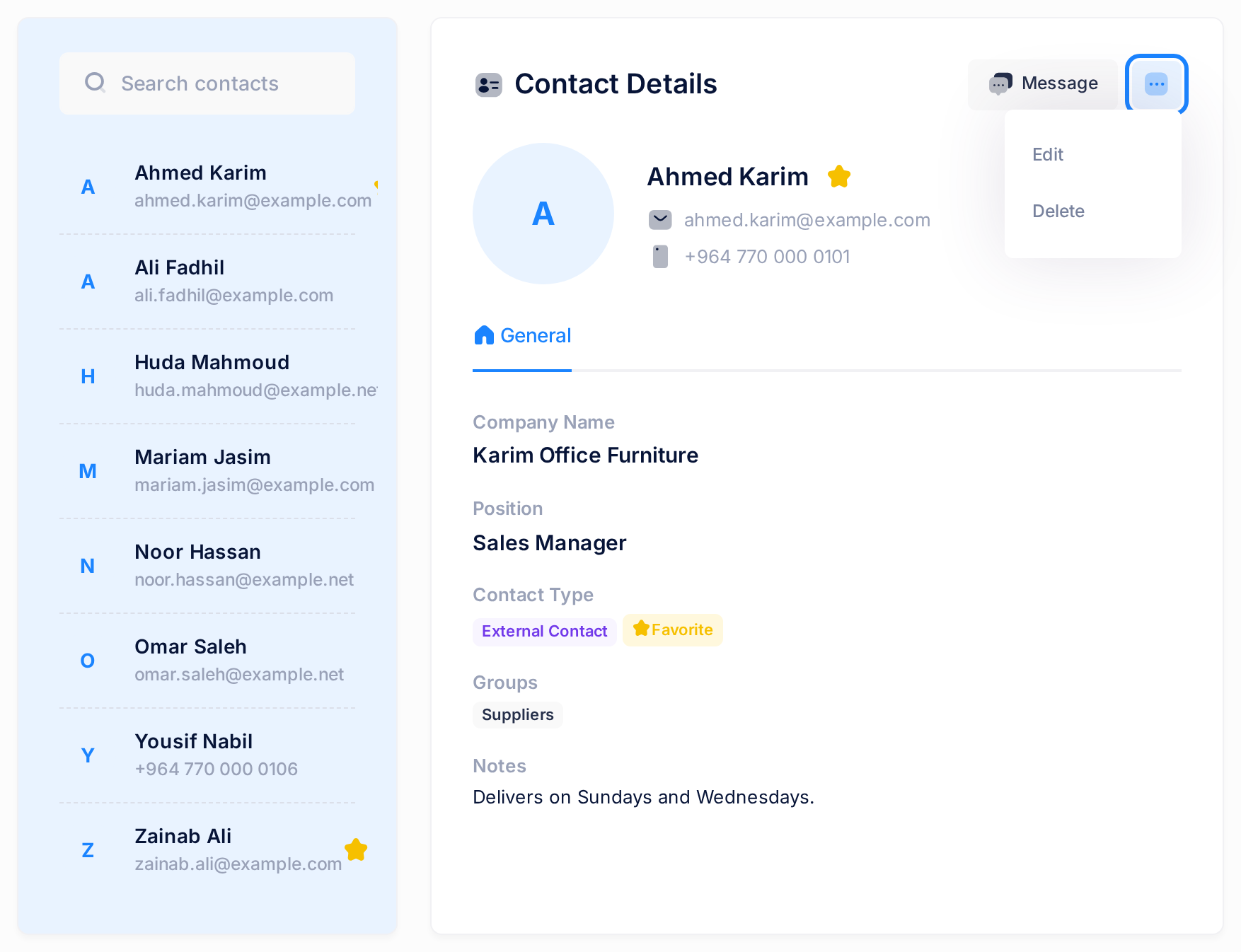
The panel shows:
- A round badge with the first letter of the first name, then the name and, as far as the contact has them, the email address and the phone number. Both are links: one starts an email, the other a call, in the programs of your own device. The button Message starts an email too, with no recipient if the contact has no address.
- A star beside the name. It is a button: one click changes the favourite mark at once, without a question; click again to undo it.
- Under General: Company Name, Position, Contact Type, Groups and Notes. Company, position, groups and notes appear only when filled in. External Contact under Contact Type means that the contact is not linked to a Loop user; a favourite has Favorite beside it.
Step 5 — Change a contact
- Open the contact as in Step 4.
- Click the small square button with three dots, at the top of the panel beside Message. A menu opens with two items, Edit and Delete.
- Click Edit. The form opens in the panel under the heading Edit Contact. It has the boxes of Step 2 without the search box; the part for your groups is headed Groups here.
- Change what you need. The requirements and the warning of Step 2 still hold.
- Click Save Changes once. A window says Contact updated successfully.
- Click Ok, got it! The panel shows the details again; read your change there.
Cancel brings the details back and saves nothing. The red button Delete Contact at the foot of this form removes the contact: see Delete a Contact.
What happens next
The list keeps your contacts in the order of their first names, A to Z. To look one up later, see Find a Contact.
The people you add are not told: Loop sends them nothing. Your contacts belong to your account alone: a colleague with a Loop account of their own does not see them.
Rules that prevent mistakes
- Look in the list before you add someone. Loop compares only email addresses, so a contact with only a phone number can be saved twice.
- Keep to the room each box has. The boxes do not stop you typing, but there is room for 100 characters in each name, 255 in the email address and 200 each in company and position.
If something goes wrong
- You click Save Contact or Save Changes and no window comes. Your browser is holding the form back, with a message of its own: First Name is empty, or Email holds something that is not an address (no @, for instance). Correct it and save again.
- A plain message box from your browser says Please provide either an email or phone number. Both boxes were empty and nothing was saved. Close it, fill in one of the two and save again.
- A window says Contact with this email already exists. One of your contacts already has that address. Click Ok: the form is still as you typed it. Correct the address, or click Cancel and change the existing contact as in Step 5.
- You see Failed to create contact. The contact was not saved. Check that no box holds more than its room, then save again. In the edit form, an overfull box brings a longer, technical message.
- A window says Update failed - contact was modified by another user. The form was out of date, for instance after a second click on Save Changes. Click Ok, then Cancel if the form is still open: the details show what is saved.
- A window says Failed to save contact, or the panel reads Failed to load form or Failed to load contact details. The page got no usable answer, for instance when your connection drops. Try once more; if it fails again, load the page again (what you typed is lost) and repeat the step.
- The window confirmed the new contact, but you do not see it in the list. Scroll inside the list. If the list is showing one group, your favourites or a search, click All Contacts at the top of the Groups card. Beyond 20 contacts, use the arrows under the list.
- You clicked Delete or Delete Contact by mistake. In the window that opens, click No, return: nothing is deleted.
If Contacts still does not do what this guide describes, tell our support team: on the home screen, click Help, then Submit a Ticket. The guide Describe a Problem So We Can Fix It Fast lists what to send.