
How can we help?

When a colleague or a business partner you want in your address book also has a Loop account, Contacts can fill in their name and email address from that account. The contact is then linked to the account and marked System User, the screen's name for a person with a Loop account.
Before you start
- You are on the home screen, the page with your apps as tiles; the Loop logo at the top of any page brings you back to it.
- You know the email address the person uses for Loop. If they have several, ask them which.
- Any Loop account can be found: customers and PearlFibers staff alike.
- If the person is already in your contacts, read "If the person is already one of your contacts" first.
Step 1 — Open the form for a new contact
- On the home screen, click the tile Contacts. The page shows a card headed Groups, the list of your contacts and a panel beside the list (under it on a phone).
- In the Groups card, click Add new contact. The form opens in the panel; on a phone the page scrolls down to it by itself.
Step 2 — Find the person
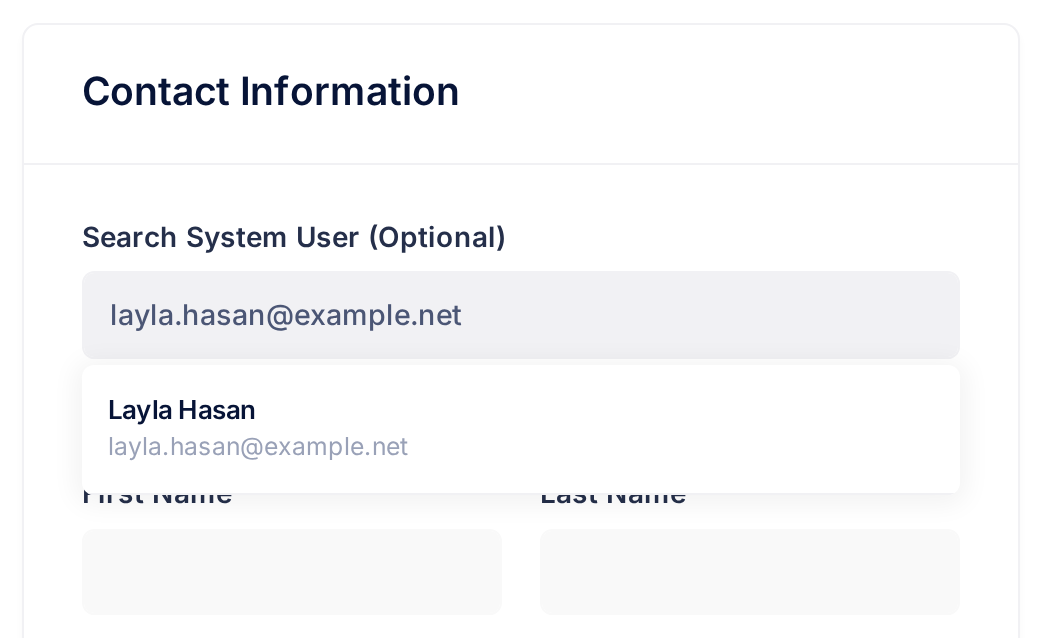
- Click the first box of the form, Search System User (Optional).
- Type the person's whole email address and nothing else: a name or part of an address finds nobody.
- Stop typing and look under the box a moment later. A match is one line: the person's name, with their email address under it. No system users found means that no Loop account has exactly this address; if you only paused, finish typing. Click nothing else yet: any other click closes the line, and only deleting the last letter of the address and typing it again brings it back.
- Click the line with the person's name. Loop fills First Name, Last Name and Email, and Phone when the account has a mobile number; the search box now shows the name, with the address in brackets.
A mobile number finds the person only when typed exactly as their account stores it, which you cannot see.
Step 3 — Check the details and save
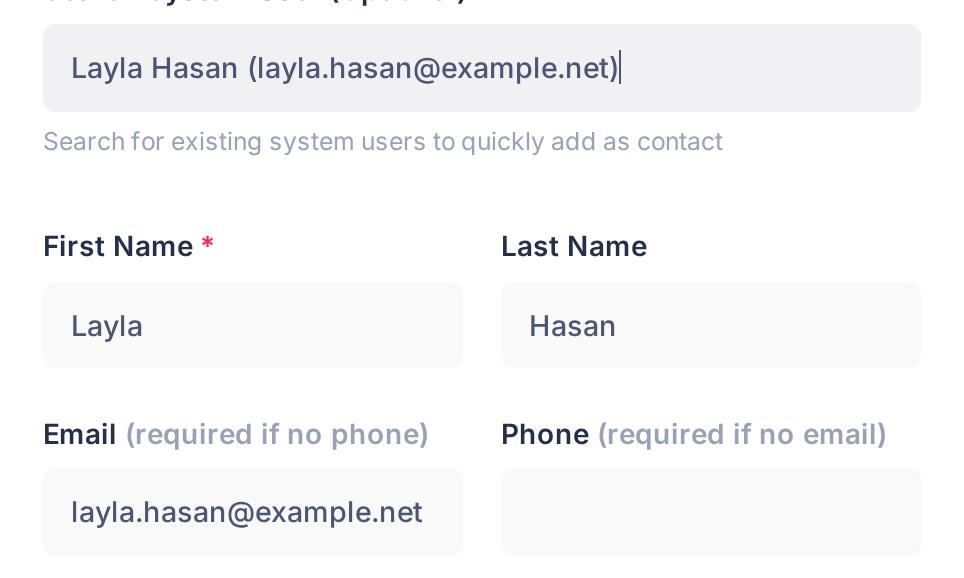
- Check what was filled in. If Phone stayed empty and you want the number in the contact, type it now: once the contact is saved, First Name, Last Name, Email and Phone cannot be changed.
- Fill in Company, Position and Notes, and tick your groups and Mark as Favorite, if you want; the guide Add and Edit Contacts explains them.
- Click Save Contact. A window says Contact created successfully; click Ok, got it! and the panel shows the new contact.
- In the panel, look at Contact Type: System User means the contact is linked; External Contact means it was saved without a link (see "If something goes wrong").
What happens next
The contact is in your list, private to your account. The person is told nothing: no notification, no email, nothing in their own contacts, and no page shows them who saved them.
The name, email address and phone number are a copy made when you saved: if the person later changes them in their own account, your contact keeps the old ones.
To change the rest, click the contact in the list, click the square button with three dots at the top of the panel and choose Edit. The form shows the line This is a system user contact. Some fields are read-only. The four boxes named in Step 3 are locked; everything else can be changed.
Message, as on every contact, hands the email address to the mail program of your device. Chat, a button only a linked contact has, shows the message Chat integration coming soon, and the tab Activity lists nothing.
If the person is already one of your contacts
A contact you already have cannot be linked afterwards. Add the person again with the link, then delete the old contact:
- Click the old contact in the list and write down what you want to keep: company, position, groups, notes.
- Click Add new contact and follow Step 2 and Step 3. Loop saves the linked contact without a word about the old one: the person is now in your list twice. If Step 2 ends with No system users found, click Cancel and keep the old contact.
- Click each of the two in the list and look at Contact Type: the old one reads External Contact.
- With the old one open, click the square button with three dots and choose Delete.
- Click Yes, delete it! in the window that asks, then Ok, got it! in the window that says Contact has been deleted! The list opens again without the old contact. A deleted contact cannot be brought back.
If something goes wrong
- No system users found, although the address is complete. Check it letter by letter. If it is right, the person uses another address for Loop or has no Loop account: ask them. A contact you type in yourself is an ordinary one, not linked.
- You clicked the wrong person. Emptying the search box does not undo the choice. Click Cancel, which saves nothing, and start again with Add new contact.
- Contact already exists. One of your contacts is already linked to this person. Click Ok, then Cancel, and look for them in your list.
- Contact with this email already exists, or the saved contact reads External Contact. The person's line was not clicked, so nothing is linked. If the message is showing, click Ok, then Cancel. The contact you have is now the old one of the section above: go on from its second step.
- A linked contact shows an old name, address or number. Write down what you want to keep, delete it as described above and add the person again; Loop accepts the same person once the old contact is deleted.
Still stuck? Go to the home screen, click the tile Help, then Submit a Ticket. The guide Describe a Problem So We Can Fix It Fast lists what to send us.