
How can we help?

When your list of contacts is long, the search box above it finds a person from a piece of their name, email address, phone number or company. This guide shows how to search, also inside a group or your favourites, and how a long list is split into pages.
Before you start
- You are signed in to Loop, and the person you are looking for is already saved in Contacts.
- The search looks only in the contacts saved in your own account.
Step 1 — Open Contacts
- On the home screen, the page that shows your apps as tiles, click the Contacts tile. The page Contacts opens with three parts: the card Groups, your list of contacts, and a panel that reads Select a Contact. On a wide screen they stand side by side; on a phone, one under the other in that order.
- Click in the box at the top of the list that reads Search contacts. On a phone it is below the card Groups: scroll down to it, now and each time the page loads again.
Do not look for a contact in the box Search everything… in the top bar of a computer screen: it opens the contact on a separate page, where Delete does not delete it.
Step 2 — Type and press Enter
- Type one word, or any piece of one, from the person's first name, last name, email address, phone number or company. Capital and small letters make no difference.
- Press the Enter key; on a phone, the key of the on-screen keyboard that sends your text. The box has no button, and nothing is searched while you type.
- Read the list. The page loads again and the list holds only the contacts that match: on each line the name and, under it, the email address, or the phone number when there is no email. Your text stays in the box.
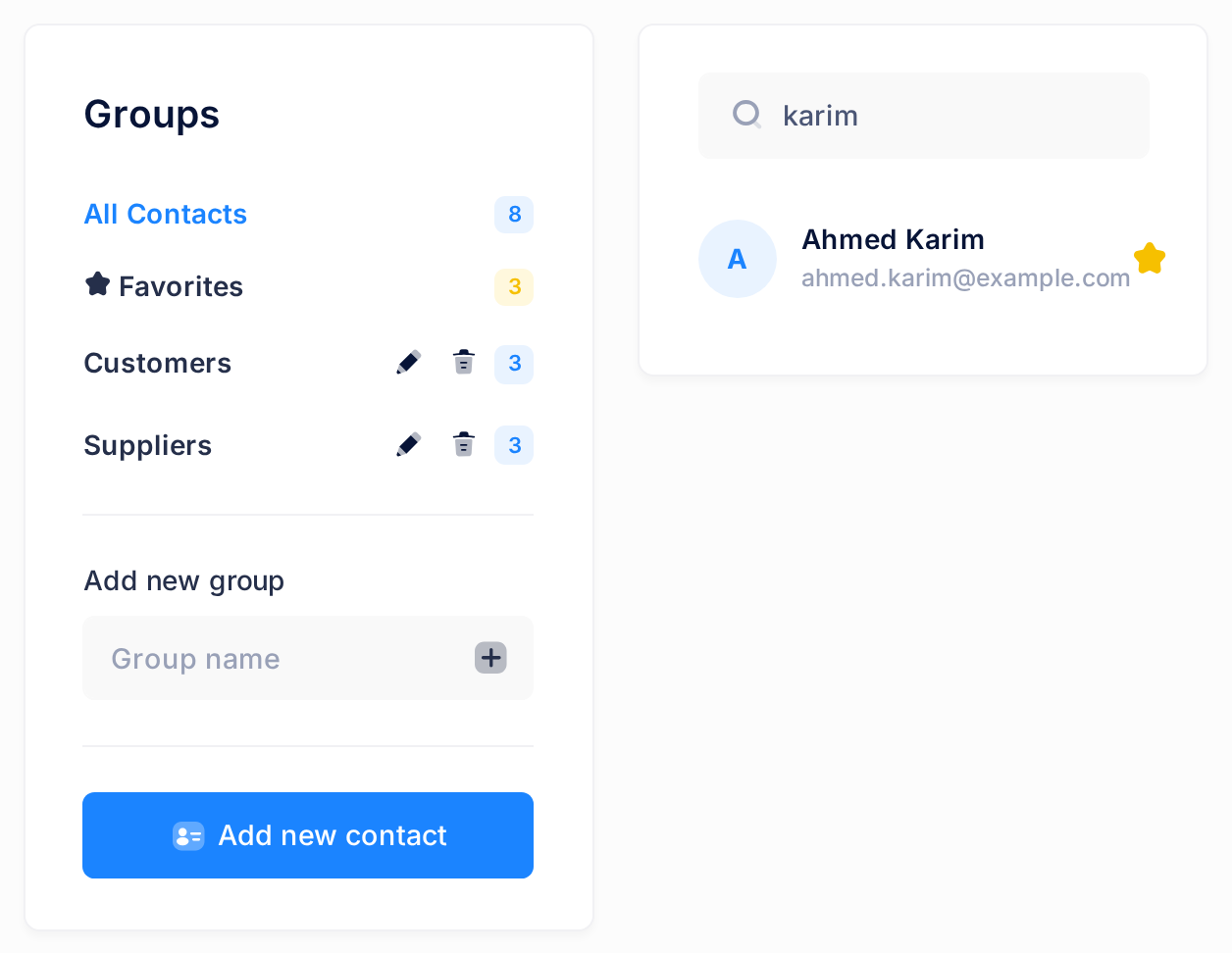
In the picture, karim was typed and one line is left: Ahmed Karim. Three things decide whether a contact is found:
- The first name and the last name are searched separately:
Ahmed Karimtyped in full finds nobody here. Type one of the two. - A phone number is compared as it was saved, with its spaces, dashes or +. If you are not sure how it was written, type a few digits that stand together in it, such as
0106. - The notes and the position of a contact are not searched.
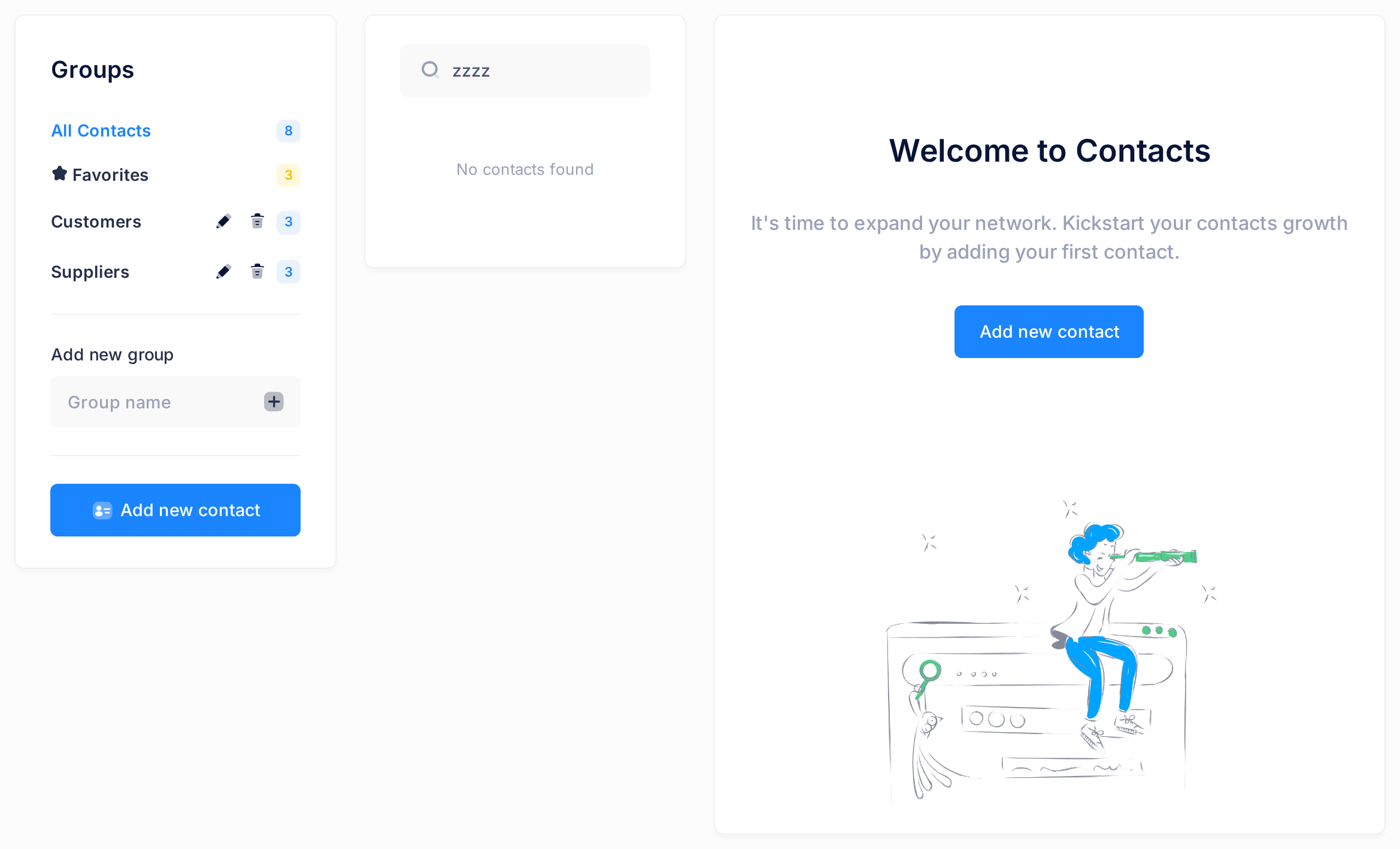
When nothing matches, the list reads No contacts found and the panel shows Welcome to Contacts with a text about adding your first contact. Your contacts are still there: the number beside All Contacts still counts them all.
Step 3 — Search inside a group or your favourites
A group is a named set of your contacts; a favourite is a contact you marked as one.
- In the card Groups, click the name of a group, or click Favorites. The page loads again and the list holds only those contacts; the number beside the name says how many there are. The name you clicked is now drawn in blue in the card.
- Type your text in the search box and press Enter. The search looks only inside what is shown.
Keep to this order: clicking a group or Favorites after a search removes your search text. The two cannot be shown together either: clicking one replaces the other.
Step 4 — Clear the search
- Delete your text from the search box.
- Press Enter. The search is gone; if you chose a group or Favorites before, you stay inside it.
To see all your contacts again, click All Contacts at the top of the card Groups.
What happens next
Click the name of the contact you found. The panel shows it under the title Contact Details: the name with the email address and the phone number, then Company Name, Position, Groups and Notes when they were filled in. On a phone or in a narrow window the page scrolls down to the panel by itself; scroll up to come back to the list.
How the list is ordered and split into pages
- The list is always in order of the first name, A to Z.
- The list shows 20 contacts at a time. When there are more, a line under the list has an arrow at each end and between them a text such as
1 / 3 · 45: page 1 of 3, with 45 contacts in all. Click an arrow for the previous or the next page; the arrow that leads nowhere is paler and does nothing. - Your search, group or favourites are kept while you move between pages, and a search looks through all the pages.
- A long list scrolls inside a box of its own, and the line with the arrows is under that box. On a phone or in a narrow window the box shows only about four contacts at a time.
If something goes wrong
- The person is saved, but the search finds nothing. Check the spelling, type a shorter piece, and delete any space before or after your text: a space counts as part of it and cannot be seen at the end of the box. Then click All Contacts and search again, in case a group or Favorites was still chosen.
- You are not sure the person is saved. Click All Contacts and look through the list, page by page. A person who is not in it is not saved in your account: add the contact as the guide "Add and Edit Contacts" describes.
If a contact is in the list but the search does not find it, or the page shows an error, click the Loop logo at the top of the page to return to the home screen, click the Help tile, then Submit a Ticket.