
How can we help?

A favourite is a contact you have marked with a star. The mark lets you show the few people you call every week on their own, without the rest of your list.
Before you start
- You are signed in to Loop and have at least one contact. If your list is empty, read Add and Edit Contacts first.
- On a wide screen, the contact you open is shown in a panel beside the list. On a phone the panel is under the list and the page scrolls down to it by itself; scroll up to get back to the list. Where a step says click, tap.
Step 1 — Open the contact
- On the home screen, click the Contacts tile. The page shows the card Groups, the list of your contacts and a panel that reads Select a Contact.
- In the list, click the name of the person. On a phone the list is a short box that scrolls on its own: slide inside it to reach more names. The panel now shows Contact Details, with the name and a star beside it.
Step 2 — Click the star
- Look at the star beside the name. Grey means the contact is not a favourite; yellow means it is.
- Click the grey star once. Loop asks no question and shows no message: the mark is saved at once, the star turns yellow, and further down the panel a badge Favorite appears at Contact Type. A second click would take it off again.
- Look at the card Groups: the number beside Favorites has gone up by one. It counts all your favourites, whichever list is on the screen. The person's line in the list now ends with a yellow star; beside a long email address that star can be cut off or hidden, so go by the number.
- To take the mark off, click the yellow star. It turns grey, the badge and the star in the list go, and the number drops by one.
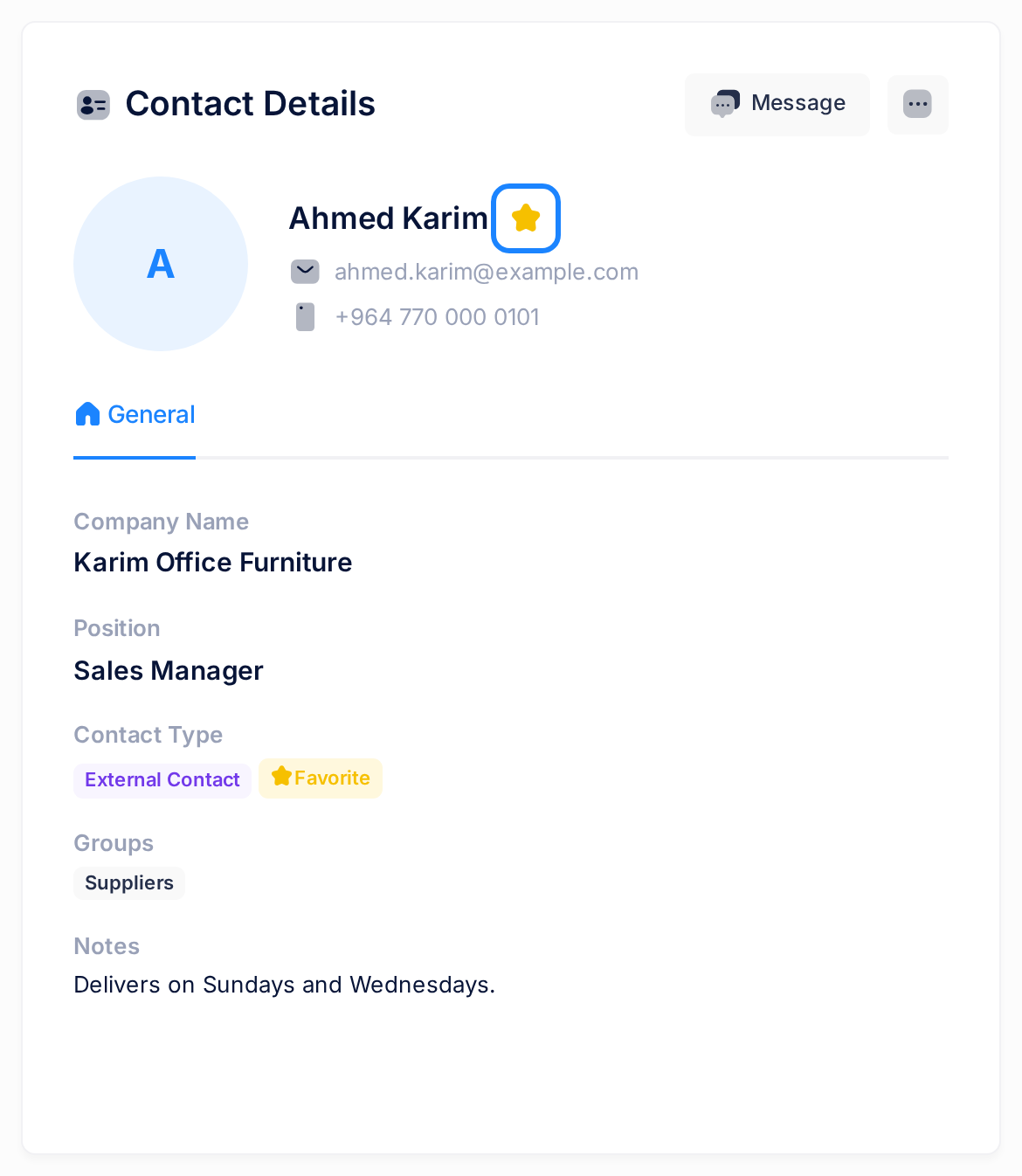
The stars in the list only show the mark: the one to click is the star beside the name.
Step 3 — Show only your favourites
- In the card Groups, click Favorites, the entry with a star under All Contacts. On a phone this card is the first on the page.
- The list now holds only your favourites: in our example Ahmed Karim, Huda Mahmoud and Zainab Ali. The panel reads Select a Contact; click a name to open that person.
- To see everyone again, click All Contacts at the top of the same card: the whole list is back.
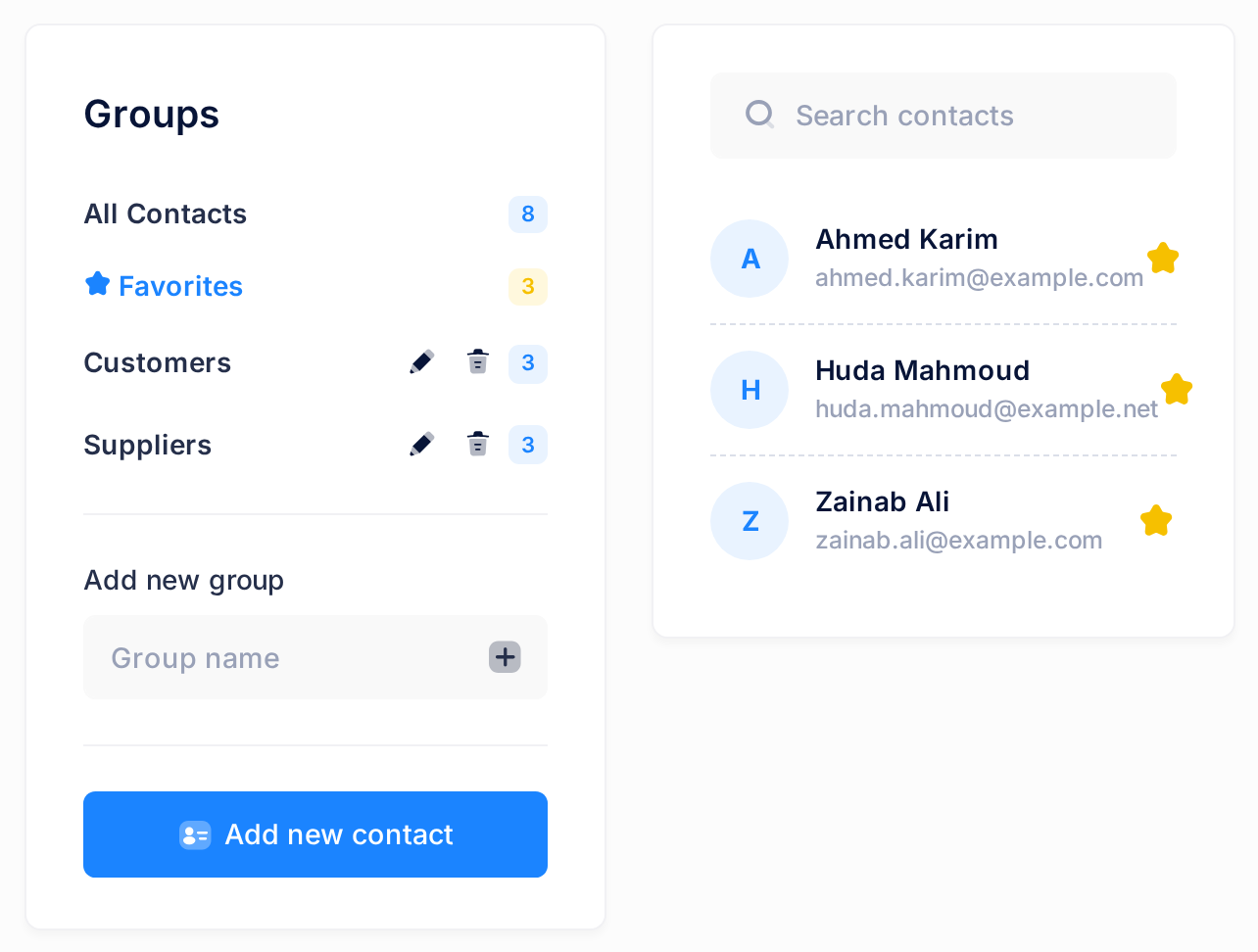
While only favourites are shown, clicking a yellow star takes that contact out of the list at once. Nothing is deleted: the panel keeps showing the contact, one more click on the star puts it back, and it is still under All Contacts.
What happens next
A favourite stays a favourite until you take the mark off. The star does not move anyone up the list, which stays in order of first name, and Contacts opens on the whole list every time: click Favorites to see only your regular people.
The mark is yours alone: the person is not told, and your contacts are shown only in your own account.
The other way: the tick box
The same mark is a tick box in the form for adding or changing a contact, which is explained in Add and Edit Contacts.
- A new contact. Click Add new contact in the card Groups. The last item of the form is the tick box Mark as Favorite: tick it before you press Save Contact. A window says Contact created successfully, and the person is a favourite from the start.
- A contact you are changing. Open the contact, click the small square button with three dots at the top of the panel and choose Edit. Tick or clear Mark as Favorite, then press Save Changes. A window says Contact updated successfully. The tick box changes nothing until you save: Cancel leaves the mark as it was.
Close either window with Ok, got it!
Good to know
- Favourites and a group do not combine. A click on Favorites closes the group you had open, and the other way round.
- Favourites and the search do combine. Click Favorites first, then type in the box Search contacts above the list and press Enter: Loop looks only among your favourites. Keep to that order: a click on Favorites empties the search, which also brings all your favourites back. What the search looks at is in Find a Contact.
If something goes wrong
- The list says No contacts found while Favorites is shown. Look at the number beside Favorites. If it reads 0, no contact has a star yet: click All Contacts, open a contact and click its star. If it reads more, none of your favourites matches the text in the search box: click Favorites again to empty it. Ignore Welcome to Contacts in the panel: your contacts are still under All Contacts.
- The contact you opened has no star beside the name. You reached it through Search everything… at the top of the page, which opens a separate page without the star. Click the Loop logo, then the Contacts tile, then the name in the list.
- A box of your browser says Failed to update favorite. Close the box, load the page again and sign in if Loop asks. Then open the contact: if its star still has the old colour, click it once more.
Still stuck? Click the Loop logo at the top of the page to go to the home screen, click Help, then Submit a Ticket, and tell us which contact it is and what you see.