
How can we help?

Quotations, invoices and photos reach you in Mail as files attached to a message, and designed messages such as newsletters come with pictures. This guide shows how to look at a file, how to save it, which files Loop will not open and why, and what happens when you show a picture that Loop has held back.
Before you start
- Your mailbox is connected in Mail. If it is not, follow “Connect Your PearlFibers Mailbox” first.
Step 1 — Open the message and find its files
Opening a message loads its pictures, and a picture kept on another site lets the sender see that the message was opened. Loop holds such pictures back in one folder only (Step 4). Leave a message unopened if its sender should not learn that you read it.
- On the home screen, click the Mail tile. Your inbox opens.
- Look for a paperclip beside the date of a line: it marks a message that carries a file. A message you have never opened in Loop shows no paperclip even when it carries one, because Loop fetches the files of a message from the mail server — the computer that keeps your mailbox — only when you first open it.
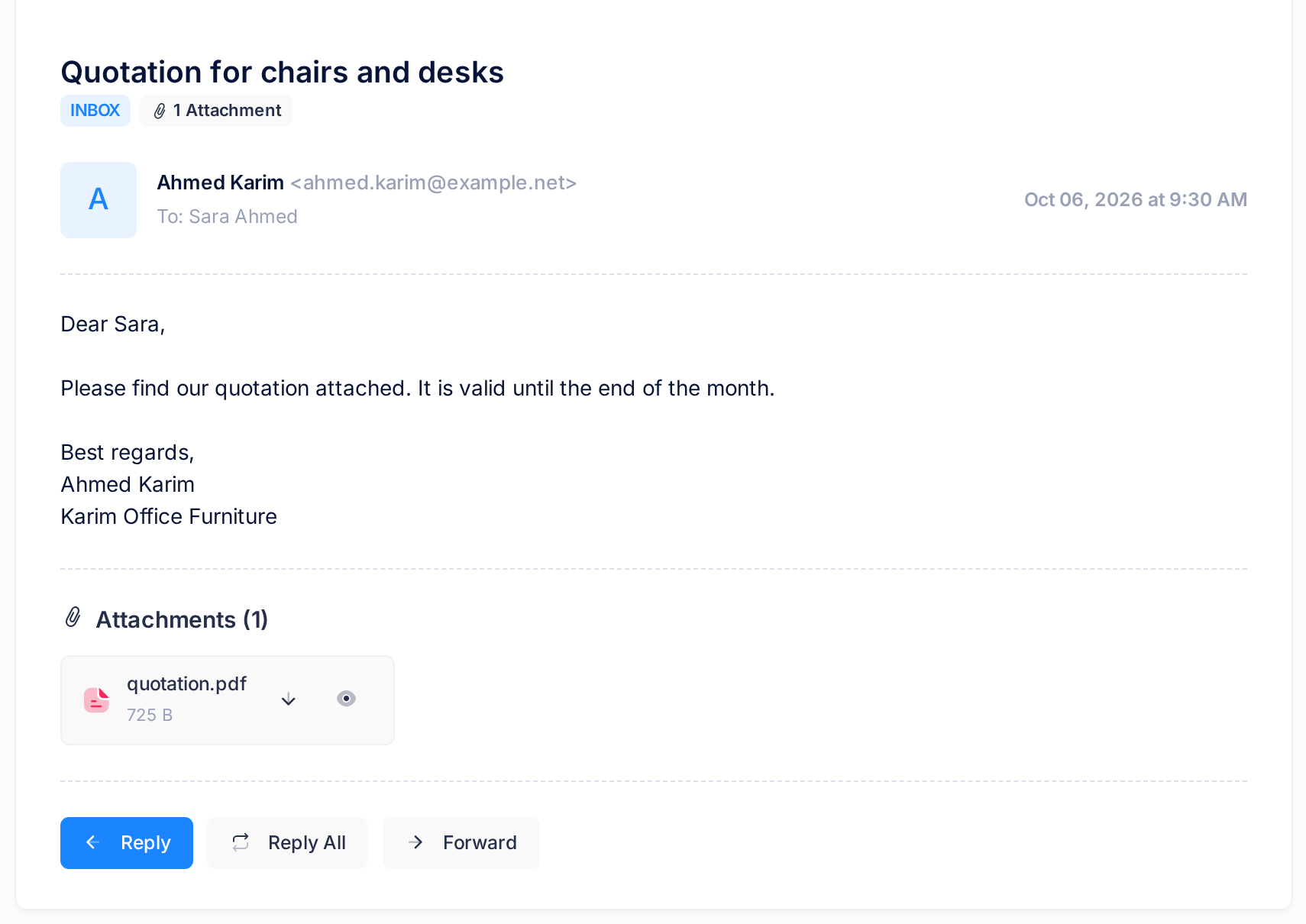
- Click the sender's name or the subject. The message opens on its own page, and a small label under the subject counts its files: 1 Attachment, 2 Attachments.
- Scroll to the end of the text. The block Attachments (1) has one card for each file: an icon, the file's name and its size, for example
quotation.pdf, 725 B. - Look at the end of the card. It has up to two buttons without words, a down arrow and an eye. On a computer, rest the pointer on a button to read its name: Download and Preview.
Step 2 — Look at a file with Preview
- Click the eye on the file's card. The file opens in a new browser tab: a PDF in your browser's own PDF viewer, a picture as a picture, a text file as plain text.
- Close that tab to return to the message.
Loop offers the eye for three kinds only: pictures whose name ends in .jpg, .jpeg, .png, .gif or .webp, PDF files (.pdf) and plain text (.txt). It looks inside the file first — not at what the sender's message claims — and shows the eye only when the file really is what its name says.
So when a file named like one of those pictures or like a PDF has a down arrow and no eye, its content does not match its name. Take that as a warning: do not open the file unless the sender can tell you what it is.
Step 3 — Save a file with Download
- Click the down arrow on the file's card. Nothing changes on the page.
- Look in your browser's list of downloads. Loop hands the file to the browser under its own name; an Arabic name stays Arabic.
Every kind of file has the down arrow, and the download is the file exactly as it was sent. Web pages (.html), SVG drawings, XML files, scripts, archives and Office files have nothing else: Loop never opens them inside its own page, so nothing in them can run in Loop.
That protection ends with the download. If you did not expect a file, or it is of a kind that can run, open it only when you know the sender and why they sent it.
Step 4 — Show pictures that Loop held back
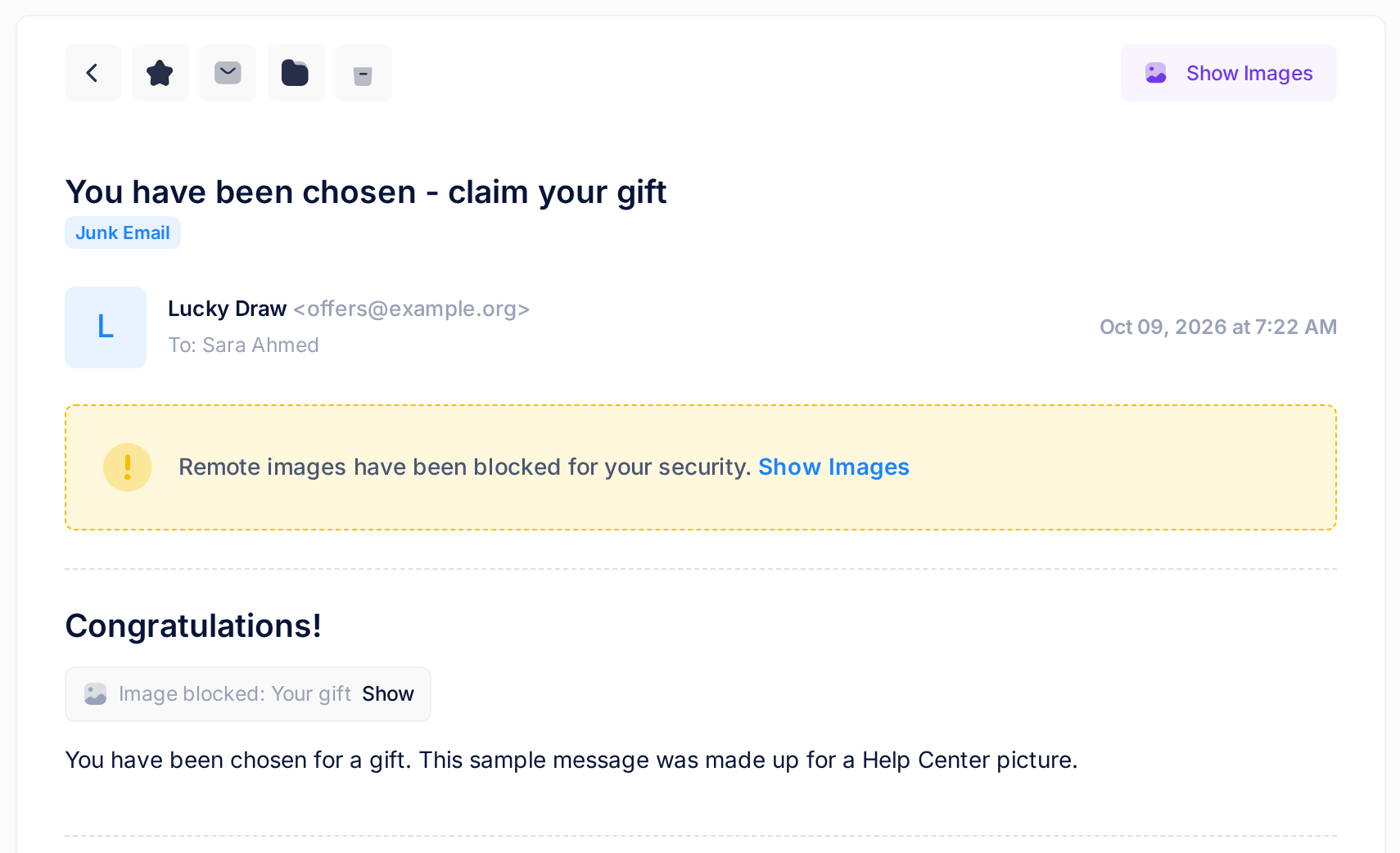
Loop holds back pictures kept on another site in one place: the folder for unwanted mail, which a PearlFibers mailbox calls Junk Email. A mailbox without such a folder holds no pictures back.
- In the card that lists your folders, click Junk Email, then click a message in it.
- Read the page before you click anything. Above the text a yellow notice says Remote images have been blocked for your security. It stands above every message in this folder, with pictures or without. In place of each held-back picture stands a grey box Image blocked, followed by the picture's description when it has one.
- To see one picture, click Show in its box. The box gives way to that picture; the yellow notice stays, even when no box is left.
- To see all of them, click Show Images — the link in the notice or the button above the message. The message loads again with its pictures, and the notice and the button are gone.
Either click loads the picture from the other site, as opening a message does elsewhere (Step 1) — in this folder, a reason to leave the pictures hidden unless you know the sender. Reply, Reply All and Forward load them too, on the page where you write. Your choice lasts for one viewing: the next time you open the message, the pictures are held back again.
What happens next
A file you downloaded is on your device, and Loop keeps its own copy with the message, so the buttons are there whenever you open the message again. From its first opening on, the message's line in the list shows the paperclip, the filter Has Attachments — behind the funnel button above the list — keeps it in view, and a search for has:attachment finds it.
Attaching a file to a message you write is covered in “Write and Send an Email”.
Good to know
- Older mail. A message you first opened in Loop long ago may not have its files in Loop yet. Loop fetches them when you open it again; you press nothing.
- Pictures inside a message. A picture the sender packed into the message itself — a logo in a signature, for instance — is drawn in the text where the sender placed it, in the junk folder too: it comes from Loop's copy, not from another site. It is also listed as a card, so such a message shows the paperclip and can read 2 Attachments although no document came with it.
On a phone
On a narrow screen the cards stand one under the other, each with its buttons. No names appear on the buttons there: the down arrow saves the file and the eye opens it. To reach Junk Email, tap the small button beside the folder's name above the list; it opens the panel Folders.
If something goes wrong
- A card has no buttons and says Could not be fetched from the mail server. Open the message again to retry. Open the message again from the list; Loop tries at every opening. If a yellow line above the list says The last sync of this account failed, follow “Fix a Mailbox That Stopped Syncing”. Otherwise look for the message in another mail program: once it has been deleted or moved there, Loop can no longer get the file.
- A card has no buttons and says Too large to open in Loop (25 MB or more). Open it in another mail program. The message is still in your mailbox: open it in the mail program on your phone or computer and take the file from there.
- You clicked Show or Show Images and no picture came. The picture could not be fetched from its site. After Show your browser can put its small mark for a missing picture where the box was; after Show Images the picture is left out without a trace.
- The text of a message is not what you expected. A message that comes with a web page (.html) attached can show that page's content, with nothing in it able to run, in place of its own text; the sender's own words can be read in another mail program.
Still stuck? On the home screen click Help, then Submit a Ticket, and tell us the subject of the message, the name of the file and the exact words on its card.