
How can we help?

A star marks a task as important: it turns yellow, and the view Important gathers your starred tasks from all your lists in one place. This guide shows where the star is, how to set and clear it, and what changes on your screen.
Before you start
- You are signed in to Loop and have at least one task in Todo. If you have none yet, read Create Your First Tasks first.
- The three steps work on a phone too: where a step says click, tap.
Step 1 — Open the list that holds the task
- On the home screen, click the Todo tile. Todo opens on the view My Day.
- In the card Lists, click the list the task is in, for example Tasks. The heading of the page changes to the name of the list, and its tasks are listed. On a phone the card is above the tasks: scroll down to reach them.
If you see cards under the headings Pending, In Progress and Completed instead of rows, Todo is showing its board. Two small icon buttons at the top of the page, level with the heading, switch between the board and the list: click the one that is not highlighted. On a computer its tooltip reads List View.
Step 2 — Click the star
- Find the task and look at the end of its row. Every row ends with a star: grey when the task is not marked, yellow when it is.
- Click the grey star. Todo shows no message: the star turns yellow, and that is your confirmation. In the card Lists, the number beside Important is updated too: it counts your starred tasks that are not completed.
- To clear the mark, click the yellow star. It turns grey again.
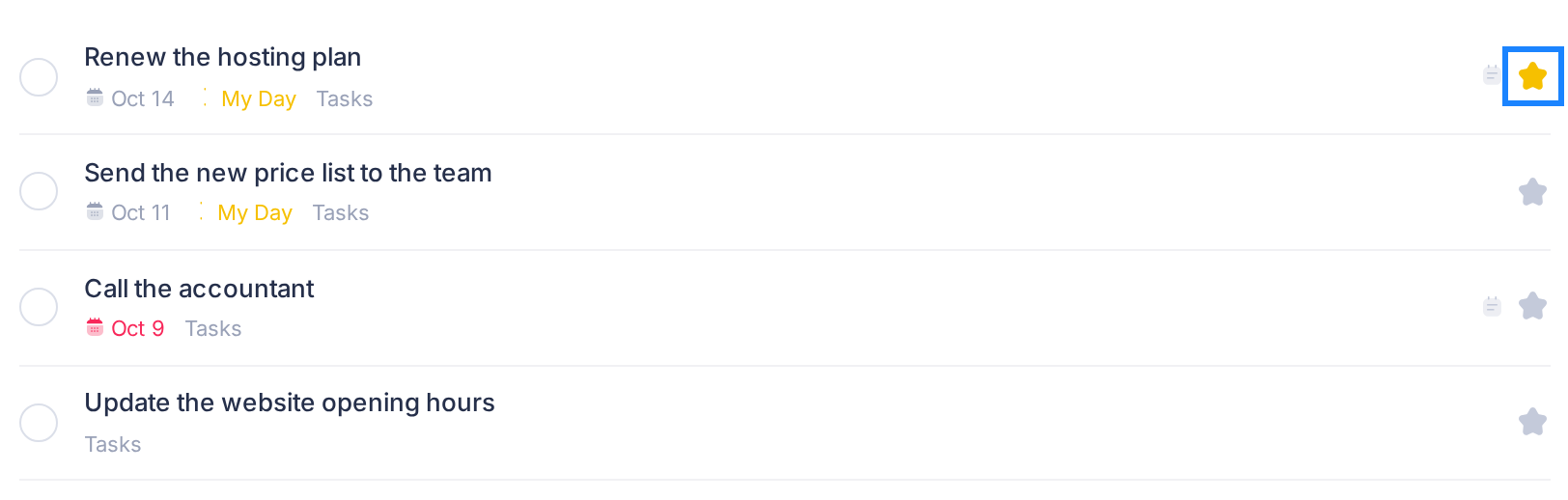
Aim at the star itself: a click on the title opens the panel Task Details, which has no star. Close it with the X in its header. Click once: the star changes colour when Loop has saved the mark, and a second click takes the mark off again.
Step 3 — See your starred tasks together
- In the card Lists, click Important, the entry with a star icon. The heading of the page changes to Important.
- Look at the tasks. They are the ones you starred, from all your lists, each with the name of its list under the title: for example Order the new desks from Office move and Renew the hosting plan from Tasks.
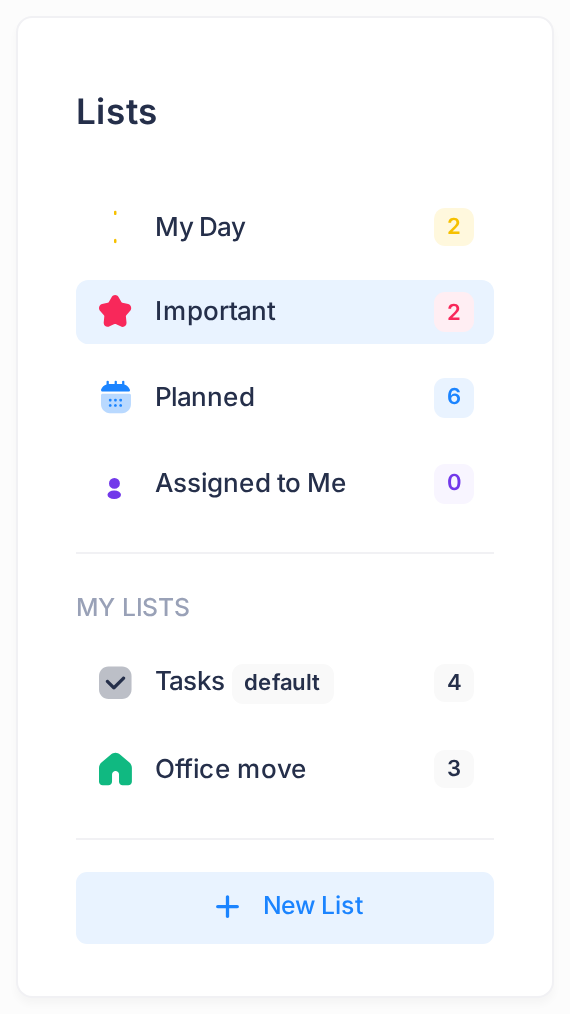
Starred tasks you have completed are here too, under the heading Completed at the bottom; if that part is folded shut, click the heading to open it.
Clear a star in this view and the task leaves it; the task is still in its own list, where you can star it again. A task you type in the box Add a task… while this view is open gets a star from the start and goes into your list Tasks.
What happens next
The star stays until you clear it. It shows on the task in every view that lists it, and on its card on the board. A star is only a mark: nobody is notified, and it sets no reminder.
Good to know
- A star does not move a task. It stays where it was in its list, not at the top.
- On the board the star is only a sign. Only starred cards show one, and a click on a card opens its details. To change the mark there, right-click the card and choose Mark Important; on a starred task the entry reads Remove Importance. Loop has no button for that menu, so on a phone or tablet switch to the list and tap the star.
- Important is not My Day. The two marks are separate, and a task can carry both. To plan one day, read Plan Your Day with My Day.
If something goes wrong
- The star stays grey after your click. Todo never shows an error: a star that does not change is the only sign that the mark was not saved. Reload the page, open the list again and click the star once more. If Loop asks you to sign in first, sign in and start again from Step 1.
- The star will not change on one task. Only the person who created a task can change its star: on a task somebody else assigned to you, your click does nothing.
Still stuck? Click the Loop logo at the top of the page to go to the home screen, click Help, then Submit a Ticket, and tell us which task it is and what you see.