
How can we help?

DNS records tell the internet where your domain's website, email and other services live. This guide shows you how to read your records in Loop and how to add, change and delete them safely.
Before you start
- The domain must be in your Loop account and its status must be Active or Expiring soon.
- Its DNS must be hosted with PearlFibers. Such a domain shows a Hosted badge next to its name, and on the Overview tab the line DNS Hosted reads Yes — Zone file active.
- If the DNS is hosted somewhere else, the DNS Records tab shows DNS Management Unavailable. In that case you change your records in the DNS panel of the company that runs your DNS.
- Changes you make here reach your visitors only if the domain uses the PearlFibers name servers — names ending in
ubarum.comorpearlfibers.net. To check, typenslookup -type=NS example.comon a computer, with your own domain in place of example.com. If the answer names another company's servers, your records are kept at that company and are changed there.
Step 1 — Open your domain
- Sign in to Loop and open My Services.
- Open the Domains tab and click Manage on the domain.
- The domain page has three tabs: Overview, DNS Records and Nameservers. Open DNS Records.
Step 2 — Read your records
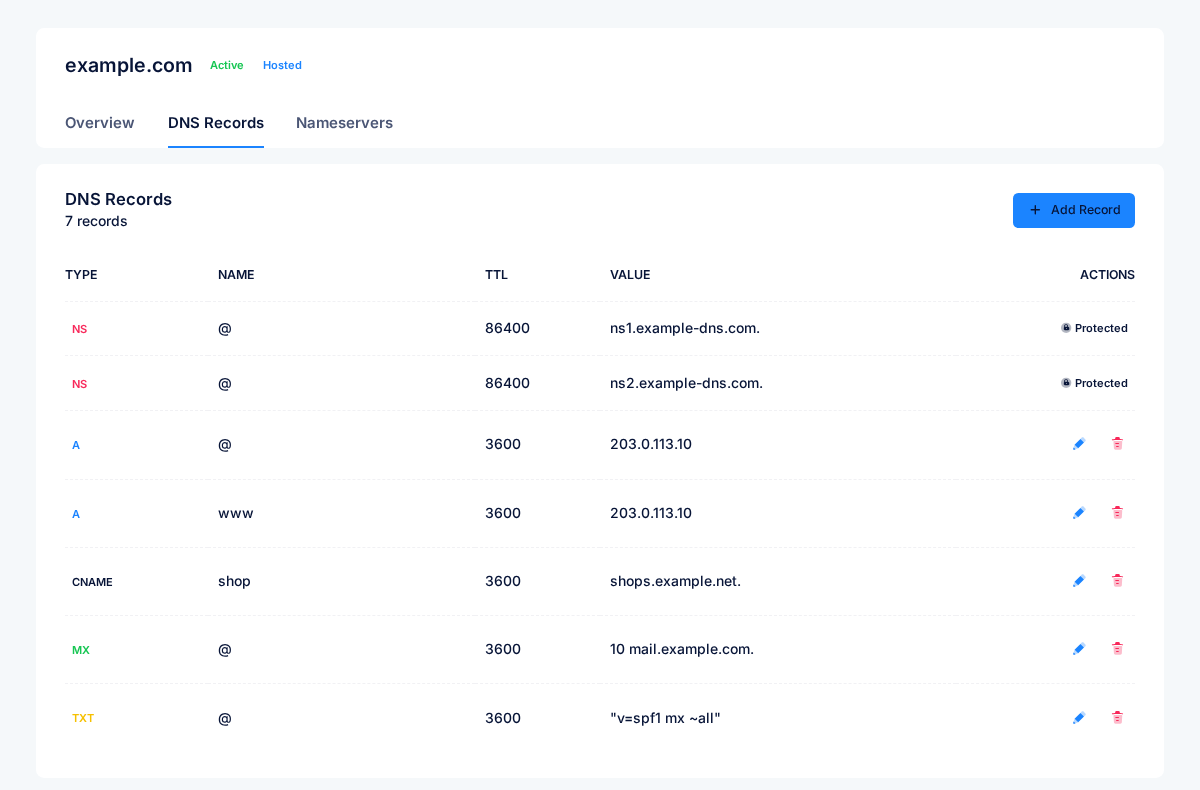
The table lists every record of the domain in four columns:
- Type — what kind of record it is (see the list below).
- Name — which address the record is for.
@means the domain itself (example.com),wwwmeans www.example.com, andshopmeans shop.example.com. - TTL — how many seconds other networks may remember the answer before asking again. An empty TTL means the domain's default, 86400 seconds (one day).
- Value — where the record points.
Records marked Protected (the NS records) keep your domain connected to our name servers. They cannot be changed or deleted.
Record types you can add
| Type | Used for | Example value |
|---|---|---|
| A | Points a name to a server's IPv4 address | 203.0.113.10 |
| AAAA | Points a name to a server's IPv6 address | 2001:db8::1 |
| CNAME | Makes a name an alias of another name | shops.example.net. |
| MX | Says which server receives email for the domain: a priority, then the mail server | 10 mail.example.com. |
| TXT | Text used to protect your email (SPF, DKIM, DMARC) and to prove you own the domain | "v=spf1 mx ~all" |
| SRV | Points a service to a server: priority, weight, port, then the server | 10 5 5060 sip.example.com. |
| CAA | Says which certificate authorities may issue SSL certificates for the domain | 0 issue "letsencrypt.org" |
Step 3 — Add a record
- Click Add Record.
- Choose the Type.
- In Name, type
@for the domain itself, or only the part before your domain —www, not www.example.com. - Leave TTL at 3600 (one hour) unless you have a reason to change it. It can be between 300 and 86400.
- Type the Value. When you choose a type, the box shows an example for it.
- Click Save. A message confirms that the record was added, and it appears in the table.
Step 4 — Change a record
- Click the pencil icon at the end of the record's row.
- Change the name, the TTL or the value in the row. For a TXT record the value box opens empty: type the complete value again, inside double quotes.
- Click the check mark to save, or the cross to cancel. Edit and save one row at a time.
The type of a record cannot be changed. To replace an A record with a CNAME, for example, delete the old record and add a new one.
Step 5 — Delete a record
Click the trash icon at the end of the row and confirm with Yes, delete it. Deleting cannot be undone, so write down the record's name and value first.
Three rules that prevent most mistakes
- End server names with a dot. In CNAME, MX and SRV values, write
mail.example.com.with the final dot. Without it, your own domain is added to the end and the record points to the wrong place. - Put TXT values inside double quotes, exactly as in the example:
"v=spf1 mx ~all"Use straight quotes; the curly quotes (“ ”) that some phone keyboards type do not work. - Do not use CNAME on
@. The domain itself needs an A record. A name that has a CNAME should have no other records.
Common tasks
Point your domain to a website
Add two A records with the IP address your hosting gave you: one with the name @ and one with the name www. If records with these names already exist, edit them instead of adding new ones.
Add a subdomain
Add an A record (to an IP address) or a CNAME record (to another name) and type the subdomain in Name — for example shop for shop.example.com. Use only English letters, digits and hyphens in the name, and do not begin or end it with a hyphen. Do not use an underscore (_) in the name of an A record: the record is saved, but it does not work, and later changes to the domain stop working until you delete it.
Set up email
Add the MX records your email provider gives you, with the name @ — for example 10 mail.example.com. — a lower number means that server is tried first. Then add the TXT records the provider asks for (SPF, DKIM, DMARC) so your messages are not treated as spam.
Prove that you own the domain
Services such as Google or Microsoft give you a code to add. Create a TXT record with the name they tell you (often @) and paste the code inside double quotes.
How long do changes take?
A saved change is active on our name servers straight away. Other networks may keep the old answer until its TTL runs out — up to an hour for a TTL of 3600, up to a day for a record whose TTL was empty. A new name can also take up to a day to be seen by a network that looked for it before it existed. If you plan to move a website or your email, lower the record's TTL to 300 a day before, make the change, then raise it again.
Nameservers
The Nameservers tab is for reading only. For a domain registered through PearlFibers it lists the name servers the registrar has on record; for other domains it shows a notice instead. To change your name servers, contact our support team.
If something goes wrong
- The page says Failed to add DNS record. The name server did not accept the record. The usual cause is a CNAME for a name that already has another record, for example
www. The refused record is saved all the same, but you do not see it until you reload the page — so do not click Save again. Reload the page, open DNS Records and delete the refused record, the last row of the table, with the trash icon. Until it is deleted, other changes fail with the same message. Then do it in the right order: delete the old record for that name first, and add the CNAME after. - The record is refused. The message says what to fix, for example A record must be a valid IPv4 address or TTL must be between 300 and 86400 seconds. Correct the value and save again.
- Your website or email stopped after a change. Put the old value back, or contact support with the domain name and what you changed.
- The change is not visible yet. Wait for the TTL to pass, then check again.
Need a hand? Open the Help Center and start a live chat, or send us a ticket — we can make the change with you.