
How can we help?

Mail shows Loop's own copy of your mailbox, and every five minutes a sync adds the new mail to it. When syncing stops for an account (a mailbox connected in Mail), Loop sends you no notification and no email. The signs are in Mail itself: a yellow line above the message list, no new mail, and a Last Sync time that stands still.
Before you start
- Your mail is safe. Only Loop's copy stands still: mail keeps arriving in the mailbox.
- A difference is not a stopped sync. Even when syncing works, Loop's copy differs from the mailbox: a message deleted in Outlook can stay in Loop, and mail sent from Loop is not in Outlook's sent folder. A stopped sync is new mail that does not arrive.
Step 1 — Check that syncing has really stopped
- On the Loop home screen, click the Mail tile. If the inbox was already open, reload the page: it does not update by itself. If the page Mail Setup opens instead of your inbox, no account of yours is turned on: go to Step 2.
- With several accounts, first choose the stopped one with the button at the top of the page that shows an address.
- Look above the message list: a yellow line that begins The last sync of this account failed or This account is disabled means that this account is not syncing.
- Find the button Sync Now under the list of folders. On a phone, first tap the small button beside the folder's name: the list opens in a panel named Folders. Read the line below the button, for example Last Sync: Oct 12, 02:30. It is the last sync that worked, by Loop's clock, which can be hours from yours. No line there means that no sync has ever worked.
- Click Sync Now. The button reads Syncing... while Loop works.
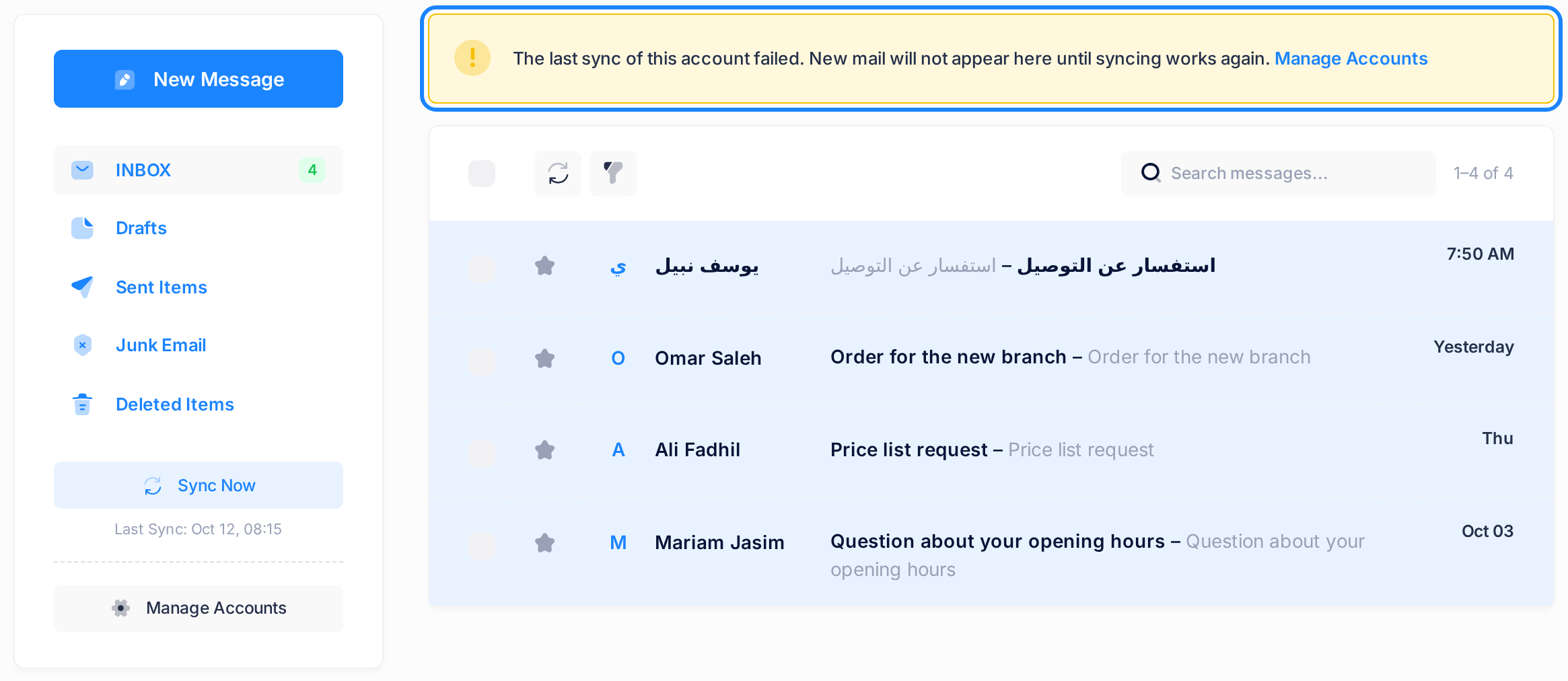
One of two things follows:
- The page reloads and the line shows a new time. Syncing works. A mailbox connected lately may still be filling: see Understand How Mail Syncs.
- A browser message opens that begins Sync failed: The words after the colon are the reason. Go on to Step 2.
Step 2 — Read the account's state
- Click Manage Accounts, the button under that line. The page Mail Setup has no such button: there, on a computer, rest the pointer on the dark bar at the side and click Accounts; on a phone, tap the grid icon, the first button of the top bar, then Accounts in the menu that slides in.
- The page Mail Accounts has one row for each account. Find yours by its address. On a phone, drag the table sideways to see the whole row.
- Read three columns of the row.
| Column | What it tells you |
|---|---|
| STATUS | Enabled, or Disabled: the account is turned off and every sync skips it. |
| SYNC | Idle: the last sync worked. Syncing...: one is running. Error: the last sync failed. |
| LAST SYNC | The time of the last sync that worked, or Never. |
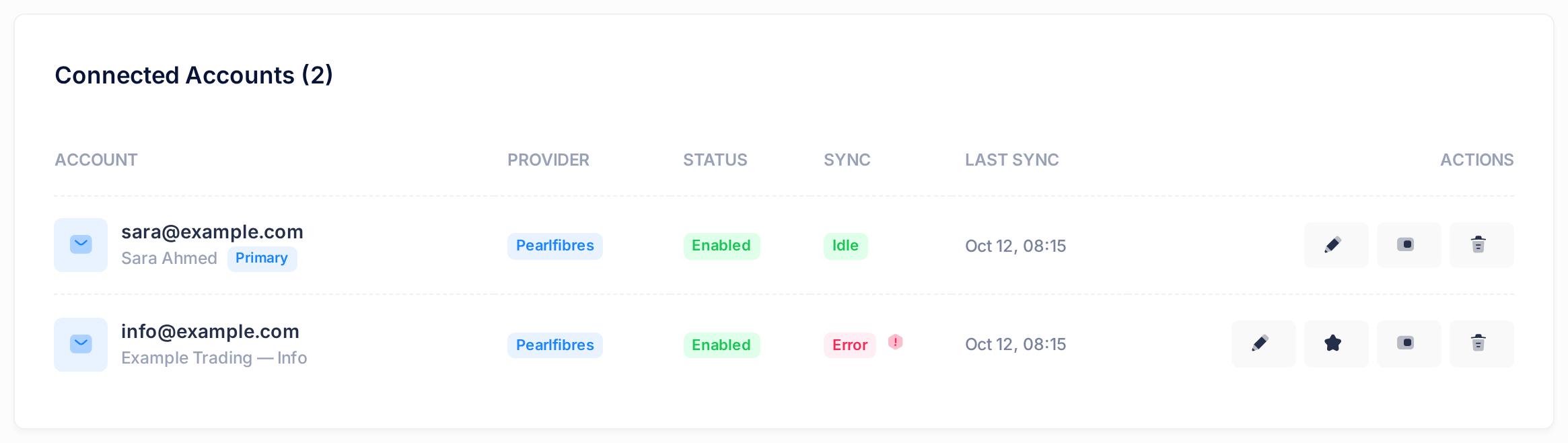
Beside Error stands a small round red sign. On a computer, rest the pointer on it: the reason appears, a technical sentence in English. It is the reason the browser message gave in Step 1; on a phone, that message is the only place to read it.
Step 3 — Repair the state you found
Follow the part that matches your row, STATUS first.
STATUS reads Disabled
- Under ACTIONS, click the switch, the button before the bin. It acts at once.
- Read the green box that appears: Account enabled. STATUS now reads Enabled.
SYNC reads Error and the reason says "authentication failed"
The whole reason reads IMAP authentication failed: NO [AUTHENTICATIONFAILED] Authentication failed. The mail server refuses the password Loop holds: the mailbox's password was changed after the account was connected. Mail has no box for a new password: remove the account and connect it again.
Removing only takes the account out of Mail: the mailbox, its mail and its password stay as they were, and Outlook and your phone are not affected.
Have the mailbox's new password ready: the one Outlook or the phone uses now, not your Loop password. If nobody knows it, see Reset a Mailbox Password. Read the grey name under the address, if there is one: you will type it again.
- In the account's row, click the bin, the last button under ACTIONS.
- A window Remove Account names the address and says This disconnects the account from Loop. Loop's copy of the mail comes back when you connect the account again. Click Remove. A green box reads Account removed and the row is gone.
- Click Add Account at the top of the page. The page Mail Setup opens.
- Type the same address in Email Address, the new password in Password, and the name you read in Display Name (optional).
- Click Sign In. Mail opens with a green box Account connected successfully.
- Open the Accounts page again. The row is back and SYNC reads Idle at once; the proof is a new time under LAST SYNC after the next sync.
SYNC reads Error and the reason is about the connection
A reason that begins IMAP connection failed means that Loop could not reach the mail server. This can pass by itself: Loop tries again at every sync.
- Change nothing on the account.
- Reload the Accounts page after the next sync or two. If Error is still there after a few more, follow the next part.
Any other reason, or an error that stays
You cannot repair this from Loop.
- Note the mailbox's address, the time under LAST SYNC and the reason, word for word.
- Click the Loop logo at the top of the page. The home screen opens.
- Click Help, then Submit a Ticket, and write the three things in the ticket. Never write a password in it.
LAST SYNC reads Never
- If SYNC in the same row reads Error, no sync has ever worked: read the reason and follow its part above.
- If SYNC reads Idle, the account was connected a few minutes ago: reload the page after the next sync, and a time has replaced Never.
What happens next
After a repair, the next sync comes at most five minutes later: SYNC reads Idle and the time under LAST SYNC moves again. Mail that arrived meanwhile comes in at most 50 messages per folder at each sync, the oldest first: after a long stop the newest mail appears last.
After any later change of the mailbox's password, repeat the "authentication failed" repair.
What does not help
- The round-arrow button above the message list. It only reloads the page.
- Connecting the address again without removing the account first. A red box reads This email account is already connected.
If something goes wrong
After Sign In a red box begins Authentication failed: Connection failed: IMAP authentication failed: The mail server refused the address or the password you typed, and nothing was saved. Check the address, type the mailbox's password again and click Sign In. If the red box returns, that is not the mailbox's current password: see Reset a Mailbox Password.
Still stuck? On the Loop home screen click Help, then Submit a Ticket.