
How can we help?

Deleting a mailbox removes an address from your email plan, for example the address of someone who has left. You cannot undo it. From that moment nobody can sign in to the mailbox to read its mail, and our mail server no longer accepts mail for the address. Where this guide says "send us a ticket": on the home screen, click Help, then Submit a Ticket.
Before you start
- If the address should go on receiving mail, do not delete it. Give the mailbox a new password instead: the address and its mail stay, and the old password no longer signs in. See the guide Reset a Mailbox Password.
- Save the mail that must be kept. The plan's page cannot open or download a mailbox's mail. To reach it, sign in to the mailbox with a mail program on a computer: the guide Set Up Your Email in Outlook shows how, and if nobody knows the mailbox's password, set a new one first. In that program, copy the messages you need to a place outside this mailbox, such as a folder on the computer or another mailbox, and check that they open from there. How to copy depends on the program. Do not count on what the program still shows later: once the mailbox is deleted, the program can no longer sign in to it.
- The plan's status must be Active; you will see it on the plan's card in Step 1.
Step 1 — Open the plan and check its aliases
- On the home screen, click the Portal tile.
- Click View All Services, in the blue box My Services.
- Click the Email Plans tab.
- Click Manage on the card that shows the mailbox's domain. The plan's page opens on the Mailboxes tab, with one row for each mailbox.
- Click the Aliases tab. If it reads No aliases configured, go on to Step 2.
An alias is an extra address whose mail is delivered to another address. Each row shows the alias under SOURCE and the address that receives its mail under DESTINATION. If the mailbox you are about to delete is a destination, send us a ticket first and say which address should receive that mail instead. Deleting the mailbox does not remove or change the alias, so mail sent to the alias would have no mailbox to arrive in, and you cannot add or change an alias yourself.
Step 2 — Delete the mailbox
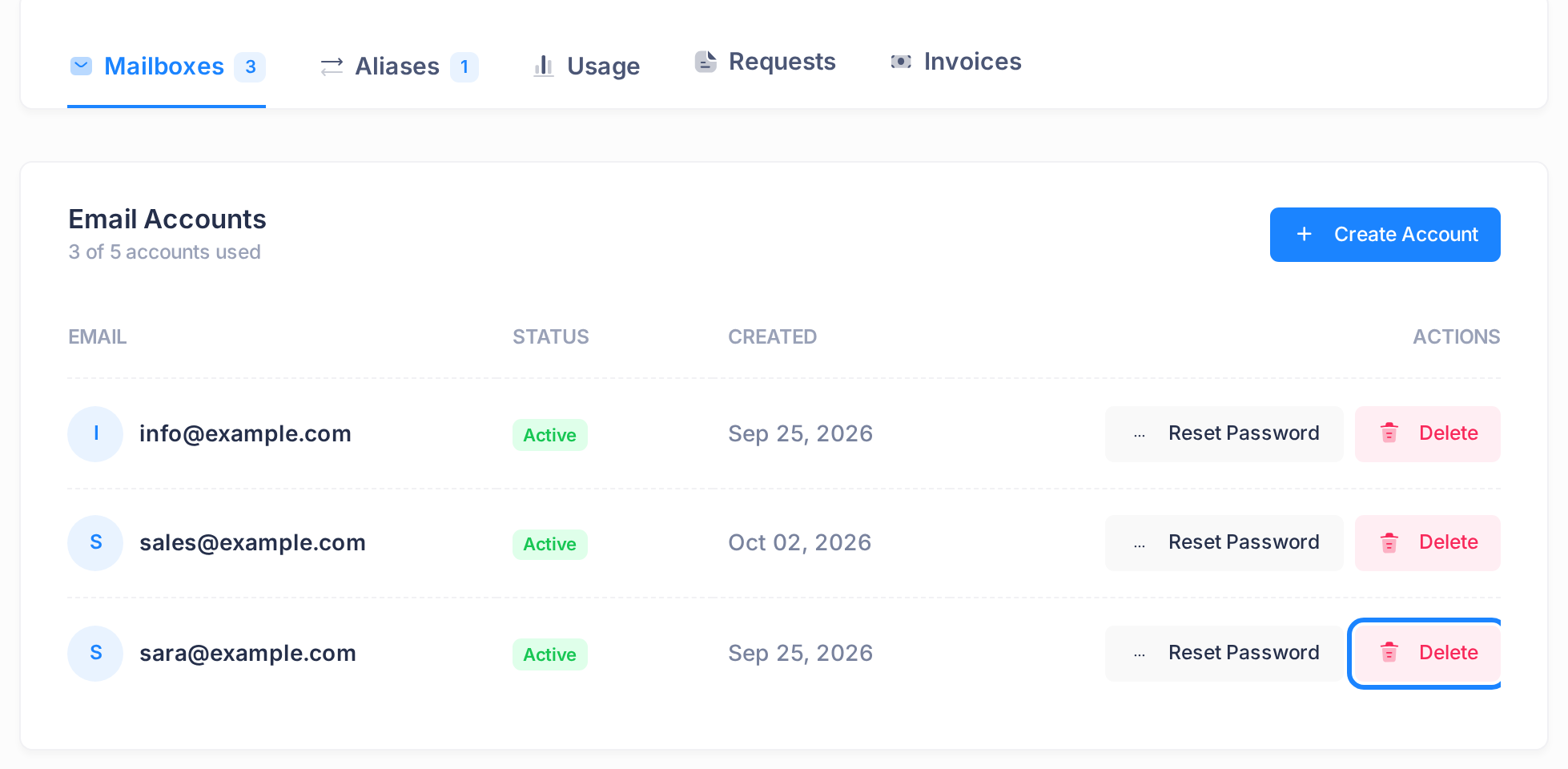
- Click the Mailboxes tab and find the row of the mailbox, for example
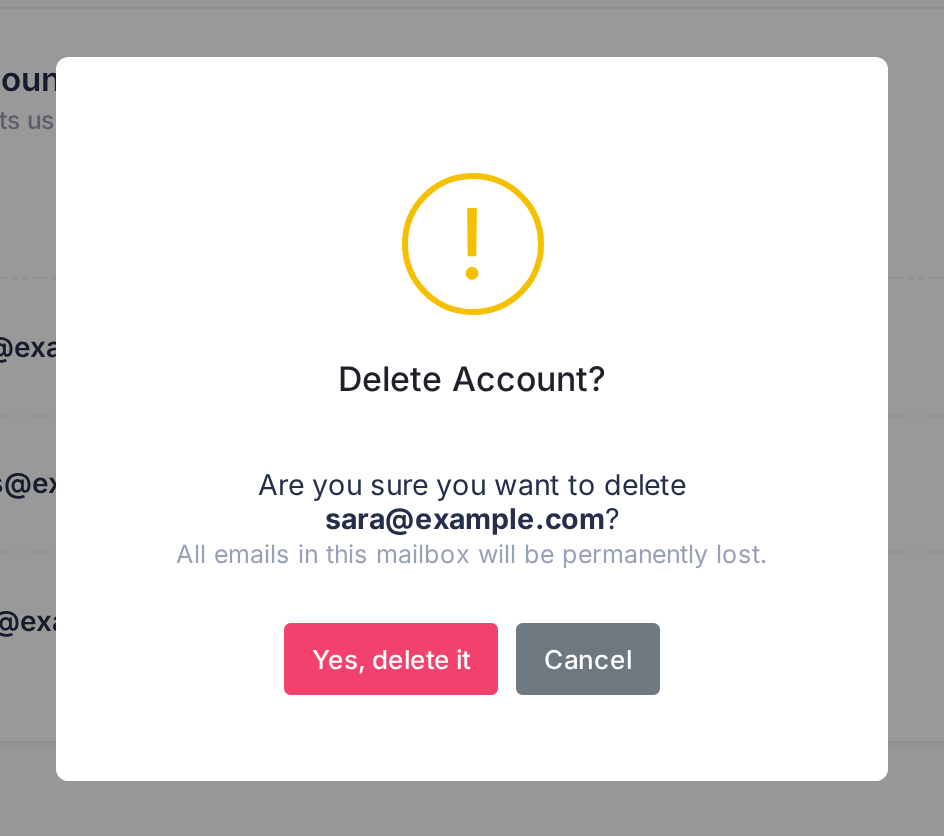
sara@example.com. Under ACTIONS it has two buttons: Reset Password and Delete. On a phone the list is wider than the screen: slide it sideways to reach them. - Click Delete. A box opens with the title Delete Account? On these pages "account" means a mailbox, not your Loop account. The box asks Are you sure you want to delete followed by the mailbox's address, and adds All emails in this mailbox will be permanently lost.
- Read the address in the question. This box is the last point at which you can stop: if it is not the mailbox you mean, or its mail is not saved yet, click Cancel and nothing is deleted.
- Click the red button Yes, delete it.
What happens next
A small notice at the corner of the page reads Account deleted, the row disappears, and after about a second the page reloads by itself. You know it worked when the mailbox is no longer in the list and the line above the list counts one mailbox fewer: 3 of 5 accounts used becomes 2 of 5.
The place is free at once, and the plan's mailbox limit and its price stay as they were. If the plan was full, Create Account is back above the list, in place of the red badge Account limit reached. Loop tells nobody about the deletion: not the person who used the mailbox, and not our team.
What becomes of the mail and the address
- The stored mail. Nobody can sign in to a deleted mailbox, so treat its mail as lost. But deleting does not erase the stored messages from our mail server, so do not use it as a way to destroy mail.
- The same address again. You can create it again later as a new mailbox with a new password: see the guide Create a Mailbox. The mail server keeps a mailbox's mail in a folder named after its address, so the new mailbox uses the folder of the old one and the old messages can show up in it. We cannot promise that it starts empty, nor that it brings the old mail back. Before you give such an address to another person, sign in to it with a mail program and look at what is in it.
If something goes wrong
- The rows have no Delete button, and a yellow notice begins This plan is. The plan is not active and its page is for reading only. Send us a ticket.
- A notice with a red cross appears in place of Account deleted, and the page does not reload. Reload the page yourself and look at the list. If the mailbox is no longer there, it is deleted. If it is still there, do Step 2 again; if the red notice comes back, send us a ticket and copy its words.
- You deleted a mailbox by mistake. Send us a ticket at once, with the address and the time you deleted it. We cannot promise that its mail can be brought back. Mail sent to the address is not accepted until the address exists again; you can create it again yourself.
To send a ticket from the plan's page, click Dashboard at the top of the page; on a phone, tap the menu button at the top, then My Portal. The Portal opens, and the Loop logo at its top leads to the home screen. The Help menu and the Help Center button on the plan's own page open a different page, which has no tickets. The guide Describe a Problem So We Can Fix It Fast lists what to put in a ticket.