
How can we help?

When you no longer need a contact, you can delete it from Contacts in Loop. Deleting is final: there is no trash and no undo, and no screen brings a deleted contact back. This guide shows the two ways to delete a contact and what you see afterwards.
Before you start
- Copy what you may still need from the contact, such as a phone number, an email address or a note, before you delete it.
- If you only want the contact out of a group, or out of your favourites, do not delete it. See the guides Organise Contacts in Groups and Keep Favourites Close.
Step 1 — Open the contact
- On the home screen, click the tile Contacts. The page shows the card Groups, the list of your contacts, and a panel that reads Select a Contact.
- In the list, click the name of the contact, for example Ahmed Karim. The panel now shows the contact under the title Contact Details. On a wide screen the panel is beside the list; on a narrower one, such as a phone's, it is under the list, and the page scrolls down to it by itself.
- Read the name in the panel and make sure it is the contact you mean. The question you are asked in Step 3 does not name the contact.
If you cannot see the contact: on a narrower screen the list is a short box, so scroll inside it to reach the names further down. The guide Find a Contact shows how to search the list. Open the contact from this list: the search box at the top of the page, Search everything…, shows a contact on a page of its own, and Delete on that page deletes nothing.
Step 2 — Choose Delete
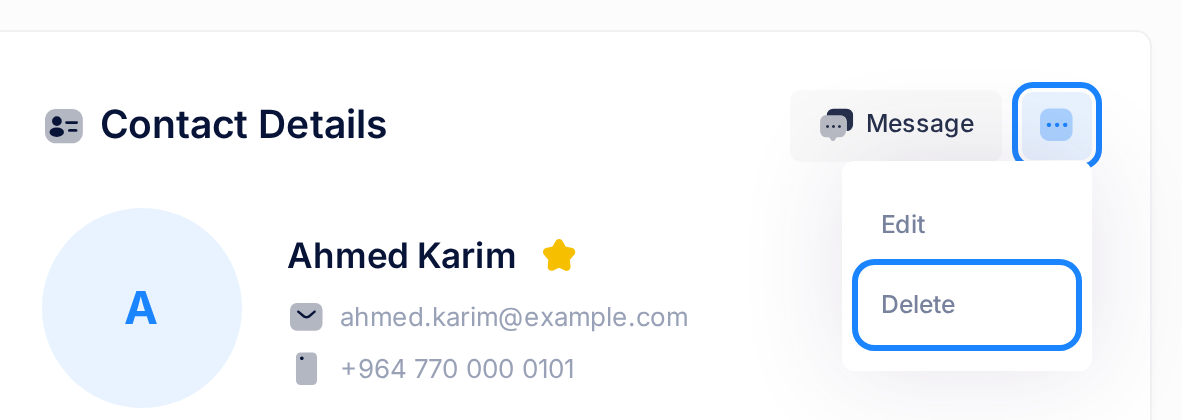
- At the top of the panel, next to Message, click the small square button with three dots. A menu opens with two items: Edit and Delete.
- Click Delete. A window opens over the page.
Step 3 — Answer the question
The window asks Are you sure you want to delete this contact? and has two buttons: Yes, delete it! and No, return.
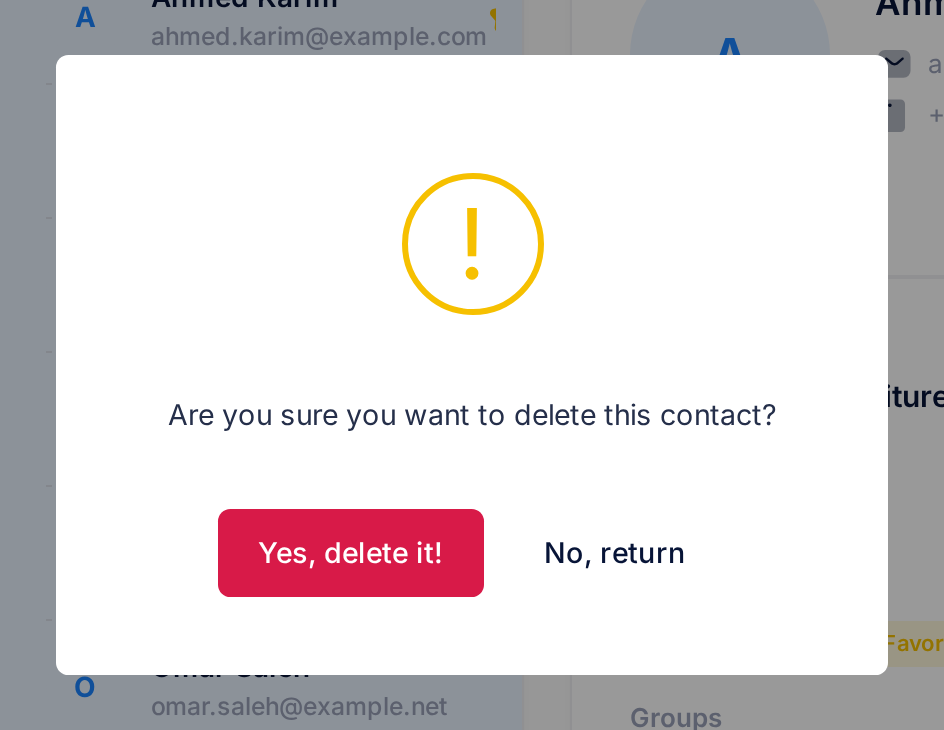
- Click Yes, delete it! to delete the contact. If you have changed your mind, click No, return instead: the window closes and nothing is deleted.
- A second window reads Contact has been deleted! Click its button, Ok, got it!
What happens next
The Contacts page loads again. This is how you know the delete worked:
- The contact is no longer in the list, and a search no longer finds it.
- The number beside All Contacts is one lower than before.
- The contact is also gone from every group it was in, and from Favorites if it was a favourite. The number beside each of them is one lower too.
The other way: from the edit form
If you have the contact open for editing, you can delete it from there.
- Open the contact as in Step 1, click the button with three dots and choose Edit. The panel shows the form Edit Contact.
- Go to the foot of the form and click the red button Delete Contact.
- The same question appears. Answer it as in Step 3.
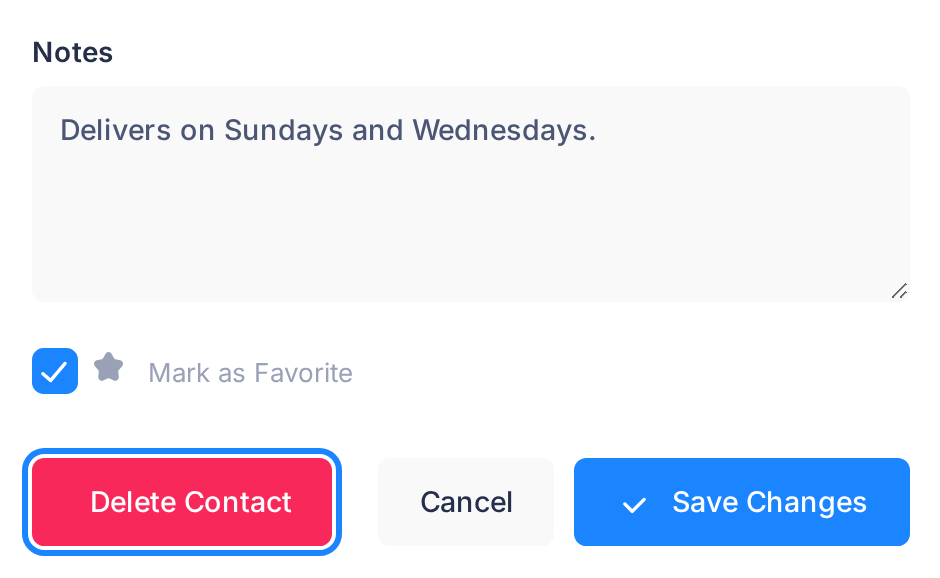
The form ends with three buttons: Delete Contact, Cancel and Save Changes. If you meant to save your changes and the question appears, click No, return, then Save Changes.
Good to know
- Several contacts. Contacts are deleted one at a time: repeat the steps for each one.
- A contact linked to a Loop user. Such a contact shows the badge System User under Contact Type. Deleting it removes it from your Contacts only. The other person's Loop account is not changed, and they are not told.
If something goes wrong
- You deleted the wrong contact. Add it again: click Add new contact in the Groups card and fill in the form. The email address of a deleted contact is accepted again. It is a new contact: type its details again, and tick its groups and Mark as Favorite again. The guide Add and Edit Contacts explains the form.
- After Yes, delete it! the second window reads something else, for example Failed to delete contact. Click Ok, got it! and reload the page. If the contact is still in the list, repeat the steps.
- You saw Contact has been deleted! and the contact is still in the list. You have it twice: Contacts accepts two contacts with the same name or the same phone number, and a delete removes only the one that was open. To remove the other one too, open it and delete it in the same way.
If the page does not do what this guide describes, tell our support team: click the Loop logo at the top of the page to go to the home screen, then click Help, then Submit a Ticket. The guide Describe a Problem So We Can Fix It Fast lists what to send.