
How can we help?

Mail is the app in Loop for reading and writing email in your browser. Before it can show anything, you connect your mailbox once, with its address and password, and Loop then copies the mail in. This guide is for a PearlFibers mailbox: a mailbox of your company's email plan, with an address at your own domain.
Before you start
- The full address of the mailbox, for example sara@example.com.
- The mailbox's own password, which is not the password of your Loop account. It is the one set when the mailbox was created or last reset on your email plan, the same one that Outlook or a phone's mail app uses. Loop cannot show it. If nobody knows it, follow Reset a Mailbox Password first; a reset shuts out every phone and mail program that still uses the old password until the new one is typed into it.
Step 1 — Open the connect form
- Sign in to Loop. The home screen opens.
- Click the Mail tile. While no mailbox is connected, Mail opens the page Mail Setup by itself, with one card, PearlFibers Professional Mail: the connect form.
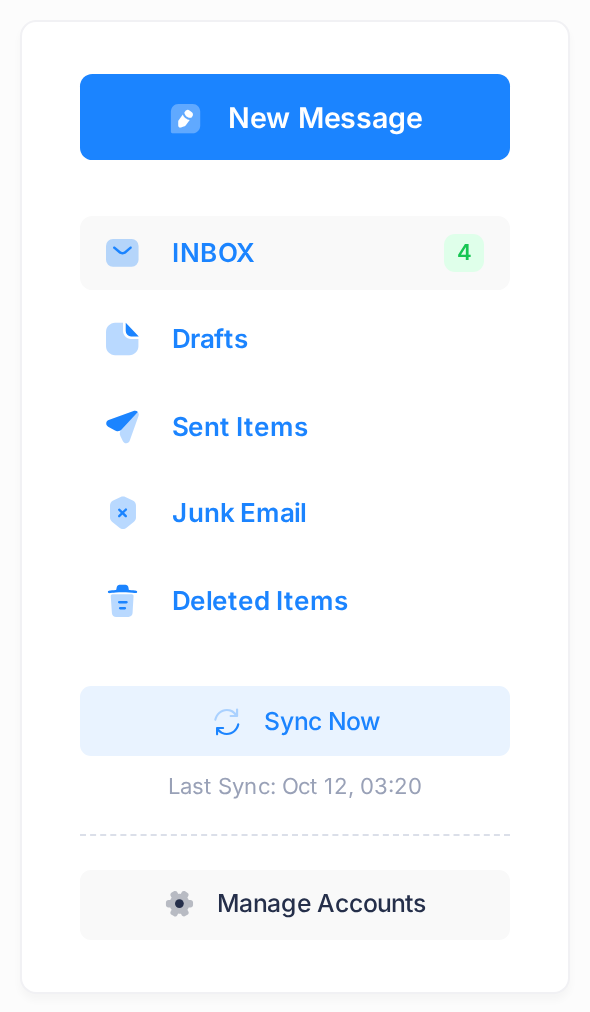
If an inbox opens instead, a mailbox is already connected. To connect another, open the page Mail Accounts (on a computer, click Manage Accounts in the card at the side of the inbox; on a phone, tap the first button of the top bar, then Accounts) and click Add Account: the same form opens.
Step 2 — Fill in the form
- In Email Address, type the mailbox's full address, for example
sara@example.com. The greyyou@pearlfibres.comin the empty box is only an example. - In Password, type the mailbox's password.
- In Display Name (optional), type the name to show as the sender of mail you write in Loop, for example
Sara Ahmed. Left empty, that mail goes out under the bare address.
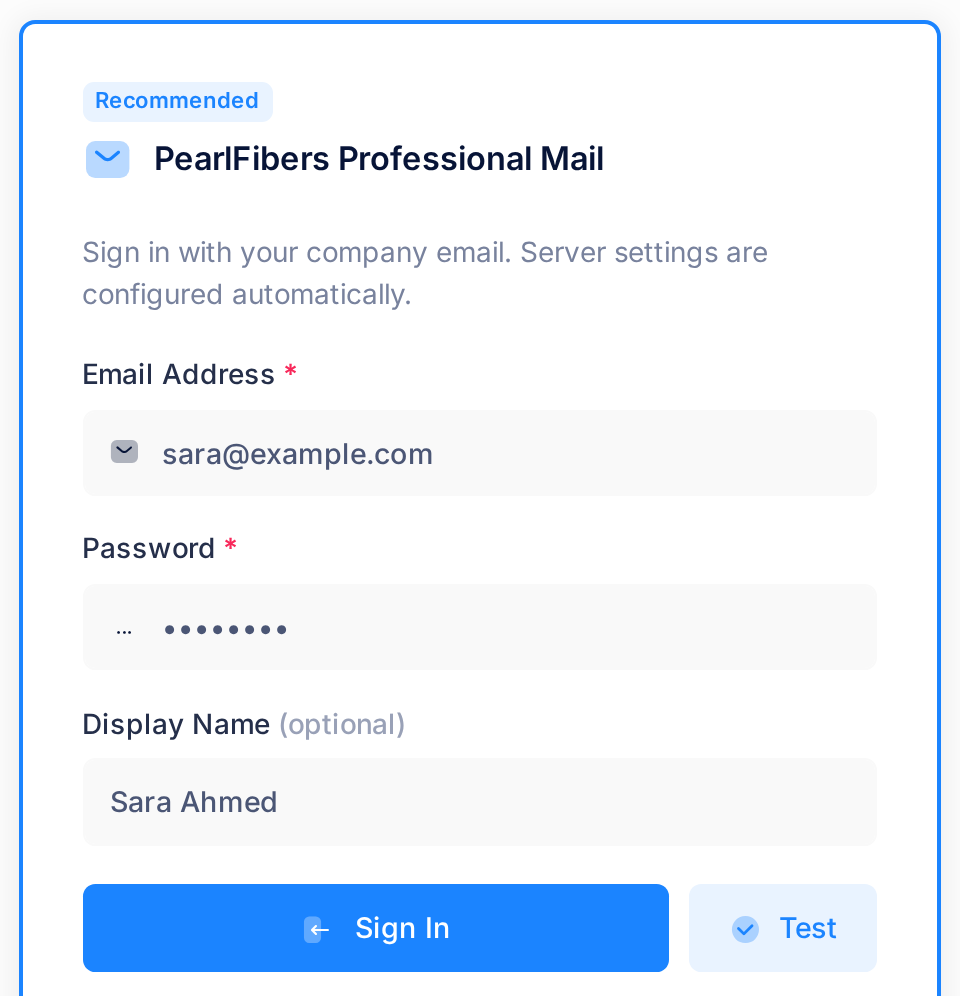
Check the display name before you go on: nothing in this form can be edited afterwards.
Step 3 — Test and sign in
- Optional: click Test to check what you typed; it saves nothing. A box appears under the buttons: green, beginning Connected successfully, when the address and password are right, red when something is wrong.
- Click the wide blue Sign In button. Mail opens with a green box, Account connected successfully, and you are looking at the inbox of your new account, the word Mail uses for a connected mailbox.
A red box, under the buttons after Test or at the top of the page after Sign In, means nothing was saved. If it names a box, for example Password is required, fill in or correct that box; for its other messages see "If something goes wrong". A second account does not open by itself: the button with an address at the top of the inbox lists your accounts.
What happens next
The inbox is empty at first: the page reads No Messages and Folder is Empty and says nothing about mail being on its way. That is normal: connecting fetches no mail. Mail comes in with a sync, in which Loop signs in to the mailbox and copies in what is new. A sync runs by itself every five minutes, whether Loop is open or not.
- The first mail arrives with the next sync, at most five minutes after you connected. The page does not refresh by itself: wait, then reload it in your browser. Or do not wait: click Sync Now, on a computer in the card at the side of the inbox, on a phone in the panel Folders (see "On a phone"). The button reads Syncing..., and the page reloads by itself when the sync is done. A message beginning Sync failed: instead means it did not: see "If something goes wrong".
- How you know it worked. A line Last Sync: with a date and time now stands under Sync Now. Only a sync that finished writes it; the folders listed above it, for example INBOX, can show even after one that failed. The time in that line is the clock of Loop's server, not yours.
- A full mailbox fills up in portions. Each sync brings at most 50 messages per folder, the oldest first, so today's mail comes last. A folder with 1,000 messages needs 20 syncs, about 100 minutes. You need do nothing meanwhile; each click on Sync Now brings the next 50.
On a phone
The form fits the screen and the steps are the same. Afterwards, Sync Now and the Last Sync line are in the panel Folders: to open it, tap the small button beside the folder's name, above the message list. The table of the Mail Accounts page is wider than the screen: drag the table sideways to reach the column LAST SYNC, where Never means no sync has worked yet and a date and time is the last one that did.
What Loop keeps
Loop stores the mailbox's password, encrypted, because it signs in to the mailbox again at every sync. If the mailbox's password is changed later, Loop still holds the old one and gets no new mail: follow Fix a Mailbox That Stopped Syncing. To give Loop a new password or display name, remove the account and connect it again: on the Mail Accounts page, click the bin button at the end of its row, then Remove, then Add Account. This changes nothing in the mailbox itself, and Loop's copy of its mail comes back with the account.
Mail shows Loop's copy
Mail shows Loop's own copy of your mailbox, not the mailbox itself. What you do to a message in Loop (marking it as read or unread with the buttons, starring, moving, deleting) changes that copy only, and the copy of a message you send from Loop, like a draft written there, is not put into the mailbox. Outlook or a phone's mail app shows none of this, and what you do there to a message Loop has already copied does not show up in Loop. The one exception: opening a message in Loop marks it as read in the mailbox itself. Nothing you do in Mail deletes anything from the mailbox. Understand How Mail Syncs explains this in full.
If something goes wrong
- The red box reads Authentication failed: Connection failed: IMAP authentication failed: NO [AUTHENTICATIONFAILED] Authentication failed. (after Test, the same without its first two words). In plain words, the mail server refused the address and password: you typed your Loop password instead of the mailbox's own, or the address has a typing slip, or it is not a PearlFibers mailbox (this form connects no other kind, so an address at Gmail gets this same message). After Sign In the Password box is empty again: check the address, type the mailbox's password and try again. A refused try locks nothing.
- The red box reads This email account is already connected. It is already in the list on the Mail Accounts page, and nothing was changed. For another password or display name, see "What Loop keeps".
- Mail stays empty, or stops filling before your newest mail is there. Look above the message list. A yellow line there beginning The last sync of this account failed, like a message beginning Sync failed:, means the last sync failed: follow Fix a Mailbox That Stopped Syncing. With no yellow line, the last sync worked: what is still missing comes with the next syncs.
Still stuck? Click the Loop logo at the top of the page to return to the home screen, click Help, then Submit a Ticket, and send us the mailbox's address and the exact words on the screen. Never put a password in a ticket.